# Directory Opus Vista Icons v2.0
**URL:** https://resource.dopus.com/t/directory-opus-vista-icons-v2-0/3986
**Category:** Icons
**Created:** [June 6, 2007, 5:41pm UTC](https://resource.dopus.com/t/directory-opus-vista-icons-v2-0/3986 "2007-06-06T17:41:34Z")
**Posts on this page:** 1
**Showing post:** 1
### Author:  [@Cris](https://resource.dopus.com/u/Cris)
#### Post date: [June 6, 2007, 5:41pm UTC](https://resource.dopus.com/t/directory-opus-vista-icons-v2-0/3986/1 "2007-06-06T17:41:34Z")
NOTE: When using Directory Opus 10 or above, there is no need to install this icon-set. A completely redesigned version of this icon-set is built-in to the program.
* * *
DIRECTORY OPUS 9 Vista Icons by Cris van Minnen
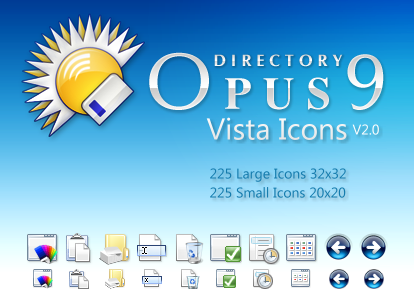
Preview:
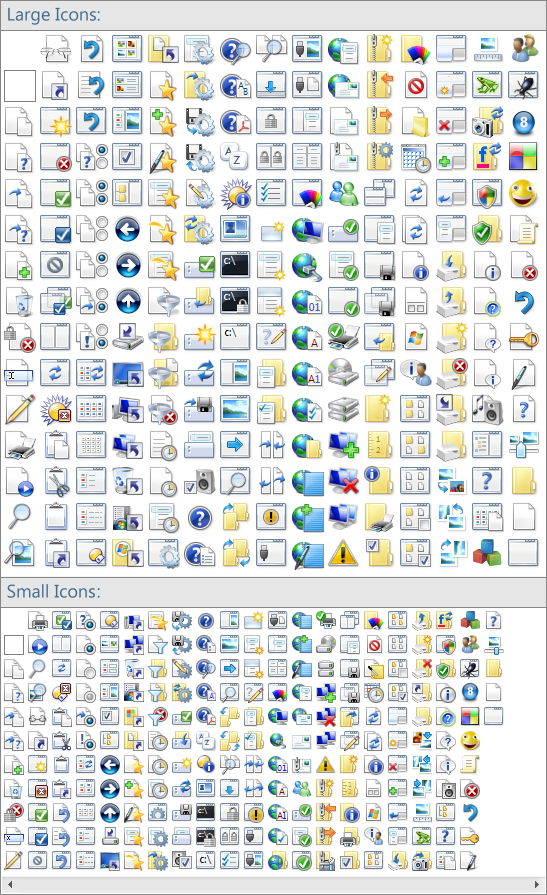
The Icons look much better if you disable the highlighting effect:
- Go to Settings -\> Preferences -\> Display -\> Toolbars
- Set Image highlighting effect to None
Installing:
[DOpusVista.zip](https://resource.dopus.com/uploads/default/original/3X/e/2/e2c35d5be513e4d8197f2e6472d7e32c3086da01.zip) (981 KB)
- Opus 10 and above:
- See note at the top. The icons are already built-in.
- Opus 9:
1. Download the attached .zip file
2. Extract DOpusVista.dis
3. In Directory Opus, open Settings Menu - Preferences
4. In Preferences, go to Display - Toolbar Icons
5. Click on the Import button (disk with up arrow), or press `+`
6. Browse to and select the DOpusVista.dis file, and click Open
- Opus 8:
- Extract DOpusVista.dis from the zip
- Change the extension from .dis to .zip
- Extract the contents to /dopusdata/Images
---
_[View the full topic](https://resource.dopus.com/t/directory-opus-vista-icons-v2-0/3986)._