Graphs:
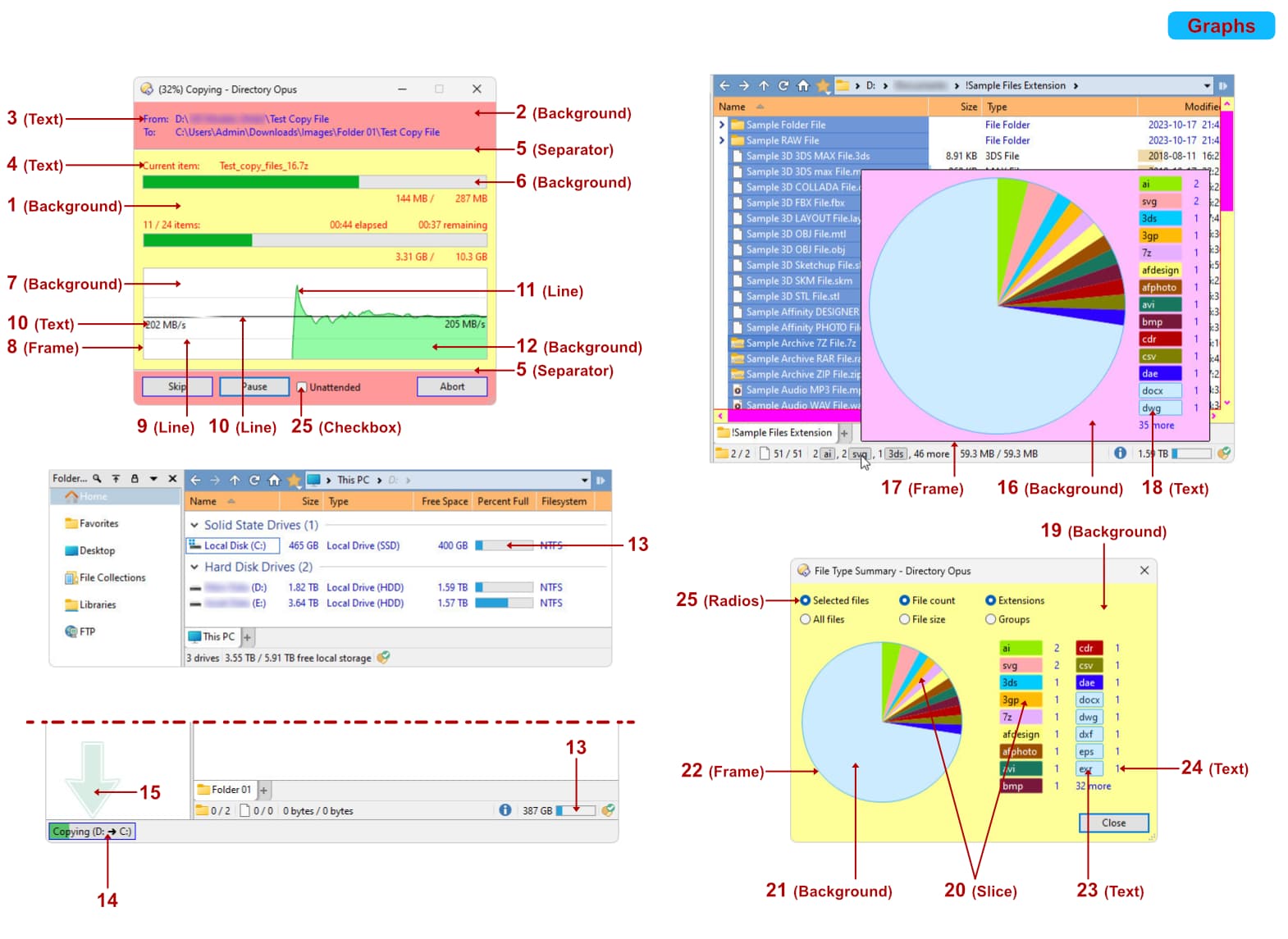
Graphs:
1-Preferences > Colors and Fonts > Windows Colors > Controls > > Controls > Background
(Note: Changing this setting will affect many other areas !!!)
2-Preferences > Colors and Fonts > Windows Colors > Tabs > Background-Selected
3-Preferences > Colors and Fonts > Windows Colors > Window Contents > Text
(Note: Changing this setting will affect many other areas !!!)
4-Preferences > Colors and Fonts > Windows Colors > Controls > Controls > Text
(Note: Changing this setting will affect many other areas !!!)
5-Preferences > Colors and Fonts > Windows Colors > Controls > Frames > Highlight
Preferences > Colors and Fonts > Windows Colors > Controls > Frames > Shadow
6-For the background:
Preferences > Colors and Fonts > Windows Colors > Progress bars > Background
For the frame:
Preferences > Colors and Fonts > Windows Colors > Progress bars > Frame
For the bar:
Preferences > Colors and Fonts > Windows Colors > Progress bars > Bar-Normal
Preferences > Colors and Fonts > Windows Colors > Progress bars > Bar-Error
Preferences > Colors and Fonts > Windows Colors > Progress bars > Bar-Paused
Preferences > Colors and Fonts > Windows Colors > Progress bars > Bar-Partial
Preferences > Colors and Fonts > Windows Colors > Progress bars > Pulse
Preferences > Colors and Fonts > Windows Colors > Progress bars > Glow
7-Preferences > Colors and Fonts > Directory Opus Colors > Graphs > Copy speed > Copy speed graphs > Background
8-Preferences > Colors and Fonts > Directory Opus Colors > Graphs > Copy speed > Copy speed graphs > Frame
9-Preferences > Colors and Fonts > Directory Opus Colors > Graphs > Copy speed > Copy speed graphs > Scale lines
10-Preferences > Colors and Fonts > Directory Opus Colors > Graphs > Copy speed > Copy speed graphs > Scale labels
Preferences > Colors and Fonts > Directory Opus Colors > Graphs > Copy speed > Copy speed graphs > Speed lines
11-Preferences > Colors and Fonts > Directory Opus Colors > Graphs > Copy speed > Graph lines > Normal
Preferences > Colors and Fonts > Directory Opus Colors > Graphs > Copy speed > Graph lines > Error
Preferences > Colors and Fonts > Directory Opus Colors > Graphs > Copy speed > Graph lines > Paused
12-Preferences > Colors and Fonts > Directory Opus Colors > Graphs > Copy speed > Graph fills > Normal
Preferences > Colors and Fonts > Directory Opus Colors > Graphs > Copy speed > Graph fills > Error
Preferences > Colors and Fonts > Directory Opus Colors > Graphs > Copy speed > Graph fills > Paused
13-Preferences > Colors and Fonts > Directory Opus Colors > Graphs > Free space > Normal bar
Preferences > Colors and Fonts > Directory Opus Colors > Graphs > Free space > Warning bar
Preferences > Colors and Fonts > Directory Opus Colors > Graphs > Free space > Frame
Preferences > Colors and Fonts > Directory Opus Colors > Graphs > Free space > Background
14-For the text:
Preferences > Colors and Fonts > Directory Opus Colors > Job bar > Text
For the background:
Preferences > Colors and Fonts > Directory Opus Colors > Job bar > Background
For the bar:
Preferences > Colors and Fonts > Directory Opus Colors > Job bar > Normal
Preferences > Colors and Fonts > Directory Opus Colors > Job bar > Error
Preferences > Colors and Fonts > Directory Opus Colors > Job bar > Paused
Preferences > Colors and Fonts > Directory Opus Colors > Job bar > Partial
Preferences > Colors and Fonts > Directory Opus Colors > Job bar > Pulse
15-Preferences > Colors and Fonts > Directory Opus Colors > Job bar > New job arrow > Background
Preferences > Colors and Fonts > Directory Opus Colors > Job bar > New job arrow > Border-Outer
Preferences > Colors and Fonts > Directory Opus Colors > Job bar > New job arrow > Border-Inner
16-Preferences > Colors and Fonts > Windows Colors > Tooltips > Custom tooltips > Background
17-Preferences > Colors and Fonts > Windows Colors > Tooltips > Custom tooltips > Border
18-???
19-Preferences > Colors and Fonts > Windows Colors > Controls > > Controls > Background
(Note: Changing this setting will affect many other areas !!!)
20-Preferences > Colors and Fonts > Directory Opus Colors > Graphs > Pie charts > Slice 1 to 12
21-Preferences > Colors and Fonts > Directory Opus Colors > Graphs > Pie charts > Aggregation
22-Preferences > Colors and Fonts > Directory Opus Colors > Graphs > Pie charts > Border
23-???
24-Preferences > Colors and Fonts > Windows Colors > Window Contents > Text
(Note: Changing this setting will affect many other areas !!!)
25-For the text:
Preferences > Colors and Fonts > Windows Colors > Checkboxes and radios > Text
Preferences > Colors and Fonts > Windows Colors > Checkboxes and radios > Text-Disabled
For the background:
Preferences > Colors and Fonts > Windows Colors > Checkboxes and radios > Background
Preferences > Colors and Fonts > Windows Colors > Checkboxes and radios > Background-Hot
etc.
For the border:
Preferences > Colors and Fonts > Windows Colors > Checkboxes and radios > Border
Preferences > Colors and Fonts > Windows Colors > Checkboxes and radios > Border-Hot
etc.
For the glyph:
Preferences > Colors and Fonts > Windows Colors > Checkboxes and radios > Glyph
Preferences > Colors and Fonts > Windows Colors > Checkboxes and radios > Glyph-Hot