Toolbars-Menus 01:
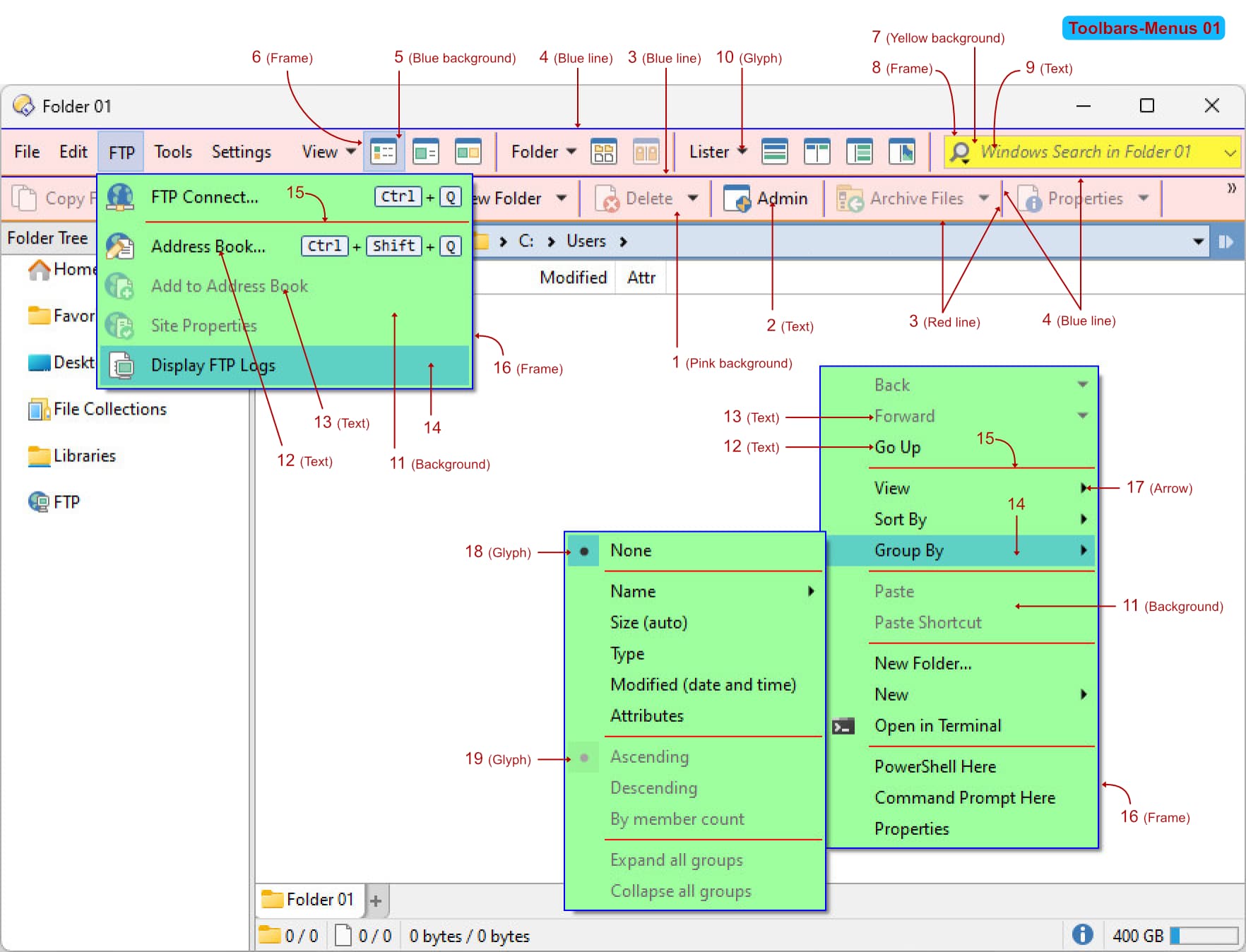
Toolbars-Menus 01:
1-Preferences > Colors and Fonts > Directory Opus Colors > Toolbars > Background
2-Preferences > Colors and Fonts > Directory Opus Colors > Toolbars > Text
3-Preferences > Colors and Fonts > Directory Opus Colors > Toolbars > Shadow
4-Preferences > Colors and Fonts > Directory Opus Colors > Toolbars > Highlight
5-Preferences > Colors and Fonts > Windows Colors > Toolbars > Background-Hot
Preferences > Colors and Fonts > Windows Colors > Toolbars > Background-Pressed
Preferences > Colors and Fonts > Windows Colors > Toolbars > Background-Checked
Preferences > Colors and Fonts > Windows Colors > Toolbars > Background-Checked+Hot
6-Preferences > Colors and Fonts > Windows Colors > Toolbars > Border-Hot
Preferences > Colors and Fonts > Windows Colors > Toolbars > Border-Pressed
Preferences > Colors and Fonts > Windows Colors > Toolbars > Border-Checked
Preferences > Colors and Fonts > Windows Colors > Toolbars > Border-Checked+Hot
7-Preferences > Colors and Fonts > Directory Opus Colors > Toolbars > Fields > Background
Preferences > Colors and Fonts > Directory Opus Colors > Toolbars > Fields > Background-Hot
Preferences > Colors and Fonts > Directory Opus Colors > Toolbars > Fields > Background-Focused
Preferences > Colors and Fonts > Directory Opus Colors > Toolbars > Fields > Background-Disabled
8-Preferences > Colors and Fonts > Directory Opus Colors > Toolbars > Fields > Border
Preferences > Colors and Fonts > Directory Opus Colors > Toolbars > Fields > Border-Hot
Preferences > Colors and Fonts > Directory Opus Colors > Toolbars > Fields > Border-Focused
Preferences > Colors and Fonts > Directory Opus Colors > Toolbars > Fields > Border-Disabled
9-Preferences > Colors and Fonts > Windows Colors > Controls > Controls > Text-Disabled
(Note: Changing this setting will affect many other areas !!!)
10-Preferences > Colors and Fonts > Windows Colors > Toolbars > Text and glyphs > Glyph
Preferences > Colors and Fonts > Windows Colors > Toolbars > Text and glyphs > Glyph-Hot
etc.
11-Preferences > Colors and Fonts > Windows Colors > Menus > Background
12-Preferences > Colors and Fonts > Windows Colors > Menus > Enabled items > Text
13-Preferences > Colors and Fonts > Windows Colors > Menus > Disabled items > Text
14-For the background:
Preferences > Colors and Fonts > Windows Colors > Menus > Enabled items > Background-Hot
Preferences > Colors and Fonts > Windows Colors > Menus > Disabled items > Background-Hot
For the text:
Preferences > Colors and Fonts > Windows Colors > Menus > Enabled items > Text-Hot
15-Preferences > Colors and Fonts > Windows Colors > Menus > Separators
16-Preferences > Colors and Fonts > Windows Colors > Menus > Frame
17-The arrow color is the same as text color (Enabled items and Disabled items).
Preferences > Colors and Fonts > Windows Colors > Menus > Enabled items > Text
Preferences > Colors and Fonts > Windows Colors > Menus > Disabled items > Text
18-Preferences > Colors and Fonts > Windows Colors > Menus > Enabled items > Glyph
Preferences > Colors and Fonts > Windows Colors > Menus > Enabled items > Glyph-Background
19-Preferences > Colors and Fonts > Windows Colors > Menus > Disabled items > Glyph
Preferences > Colors and Fonts > Windows Colors > Menus > Disabled items > Glyph-Background