Last updated 12 Feb 2026.
Recent history:
1.6: file select now works from any location (treeview sees what is selected in 'current' open tab).
1.7: added auto-expansion of dialog height (max. screen bottom) for long tree views.
1.8: added more protection against moving files by accident (bright warning on top of treeview).
1.9: added search button + text field for filtering a (long) tree instantly on the wanted folder(s).
1.10: When no path given, a selected folder becomes tree root (otherwise: current folder).
1.11: Tab message & windows msg used in combination on file move.
1.12: Show tree from parent folder if current dir has no subfolders.
1.13: New button (plus NOUPDOWN switch) to move up & down to chosen path; list of NO-GO folders too, for this case.
1.14: Solved bug with detection if a folder has subfolders.
Description
This tool may be useful for those who, like me, have particular sections on their drive(s) where they regularly need to be, anywhere in any of the folders underneath. And where it is also desirable to be able to somewhat fine-tune the presentation of the folders in that particular location.
A few examples may perhaps best explain the idea. In the following button commands (which can be used once the script is installed), the name “AltTreeSelect” is the name of the script, and the parameters after it will affect the presentation.
AltTreeSelect STARTFOL="C:\me\latestdownloads" MAXLEV=9 QUIT
This would indicate to show the entire tree from this particular location (9 levels deep means pretty much “show everything” (you could of course set it even higher). You will use this when you know you are not in danger there of a heavy-duty task (hundreds of folders) - and this is important, because the tree view has no folder expansion capacities, it will simply unfold the entire tree under this folder. This is by design: the purpose is not “folder browsing” but rather getting a view on a certain part of your folders, and then one click to get to this folder.
the QUIT instruction will indeed close the window when a foldername was clicked - and you will the folder open in the lister where you clicked the button to start up the dialog. You can also, at all times, click a “pin” button in the dialog if want to do multiple clickes (e.g. in search for the right folder in case of doubt).
Another example:
AltTreeSelect STARTFOL="C:\me\Podcasts" MAXLEV=2 MAXSIB="10,5" QUIT
This would be a typical case of an extensive folder structure, where you limit the number of levels to exactly 2 (beneath the chosen folder), and at the same time you limit the number of sibling folders underneath the start-level: at the first lower level, only 10 folders will be shown (there will be an indication showing how many folders are not shown), and at the second level you limit it even to 5. You do not need to indicate numbers for every folder: the last one will be repeated, so:
AltTreeSelect STARTFOL="C:\me\Podcasts" MAXLEV=4 MAXSIB="10,5"
will show 4 levels deep, and the limit of 5 siblings will be repeated for levels 3 and 4.
And of course, you can eliminate STARTFOL:
AltTreeSelect MAXLEV=2
in which case the button command will be applied to the current folder.
You can also use the dialog to move files to a destination instead. Example:
AltTreeSelect MAXLEV=2 MOVETO
In this case, I did not even specify a STARTFOL, which means: the dialog shows the current folder. Even that is useful, as you may often wish to move files to subfolders of your current directory. To move files to other locations, you need to use a button with a STARTFOL argument - and the dialog will still pick up file(s) you selected in an entirely different location - which makes the tool versatile.
Other potential useful argument exist. Here is a complete overview of button arguments you can use:
| argument | explanation |
|---|---|
| STARTFOL | Folder where to start (if not defined, current folder is used) |
| NEWTAB | Switch on opening selected folder in a new tab |
| SHOWHID | Switch on showing hidden folders |
| SHOWSYS | Switch on showing system folders |
| MAXLEV=3 | Maximum depth of folder structure to show, e.g. 3 sublevels |
| MAXSIB=10 | Max. sibling folders to show per level (only beneath top-level), e.g. 10 siblings |
| MOVETO | Switch on by default the button to move files to selected folder (can still be disabled and enabled in the dialog) |
| QUIT | Switch on quitting the dialog after selecting a foldername |
| NOUPDOWN | Switch off button to move up and down selected current path |
There are a number of default parameters in the script which you can tune as well. When they are the same function as the button arguments (a.k.a. command line arguments), the latter will override the defaults. Some values that can be changed with buttons in the dialog, will be kept in memory (so they are remembered when you close the dialog) - those too will be overridden by any button arguments. There is one exception: when you “pin” the dialog with the pin button, it will not be overridden by the QUIT command argument. When you pin your dialog, it’s arguably for a reason which shouldn’t be ignored.
Furthermore, the dialog uses two display modes for the (partial) folder tree:
- markup text, showing “hyperlinks” to click on: this was the original implementation. It is dense and presents well, but slows down quickly when there’s lots of folders.
- listview control: always fast, but less dense (which is why I used a slightly smaller lettertype for that one - but you can adapt this). This is the current standard setting in the script. (it’s one of the things you can toggle with a dialog button - because its fun to do).
Markup control vs. Listview:
OR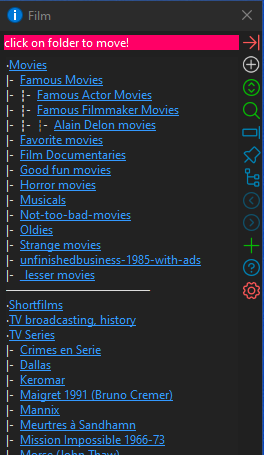
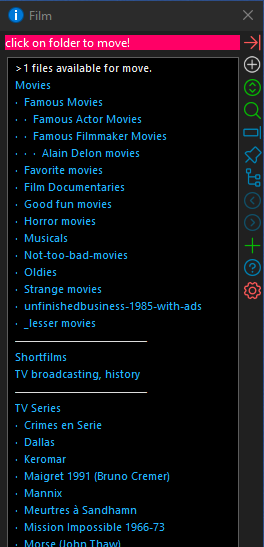
PS. I do wish I could set the background color of the entire listview (on the right) to the same color of the dialog, or to transparent.
Finally, there’s three possible positions for the dialog (this can also be toggled with a dialog button),
- Appearance at the center.
- Appearance at the cursor location, where you click on your configured Opus button.
- Appearance to the left of your Opus lister, stretched vertically (you can fine-tune that one in the script parameters).
The parameters are sufficiently documented in the script:
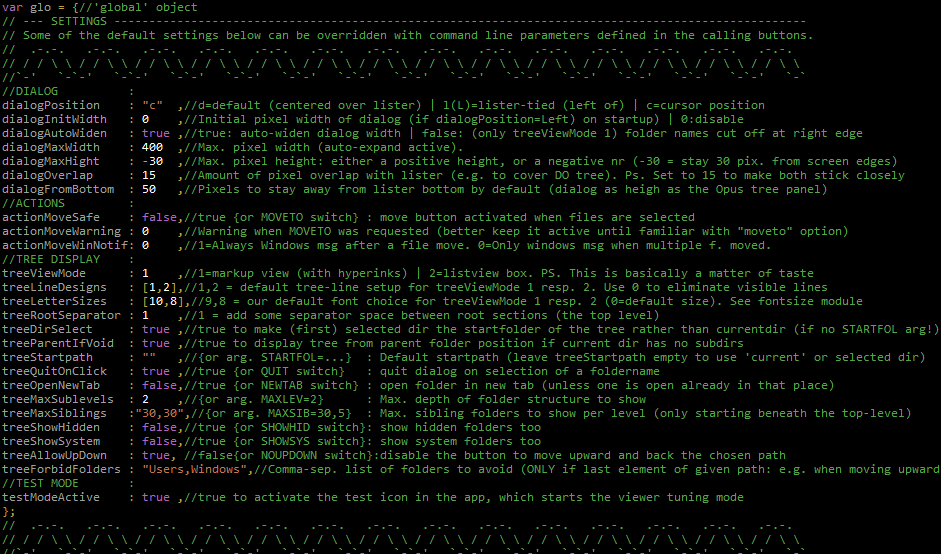
Import the script via Settings > Install Script:
AltTreeSelect.opusscriptinstall (39.7 KB)
Drag the example button to your toolbar while in customize mode:
Alternative Treeview selection.dcf (737 Bytes).