Editing Folder Formats via Preferences won't change what you see in any existing windows. It just changes the formats which will be applied the next time you change to a matching folder.
Existing windows keep their current formats, at least until they change folders; even then they can keep their current format (see the Changes to the Default Formats section of the Folder Formats FAQ). So, if in doubt, if you make a Folder Formats change and it doesn't seem to have done anything, close & re-open the window.
Even when the Content Type is "none," you can still pick up columns from other formats if the main format is set to do so. (See the Column Inheritance section of the Folder Formats FAQ.)
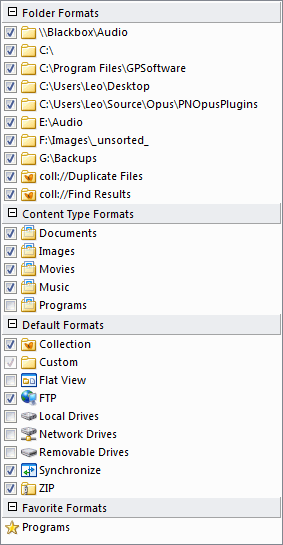
Also, check that there isn't a format set for the specific collection you are looking at. In Preferences - Folders - Folder Formats, expand the top section of the list and see if there are any formats starting with coll://, like the ones for Find Result and Duplicate Files in this example:
If a style does not have Flat View checked then activating that style will not change your current Flat View mode. If Flat View was off then it will stay off and if Flat View was on then it will stay on.
If a style has Flat View checked and set to "Off" then activating that style will turn Flat View off.