CommonLogger : A logger for Opus (js) scripting

A Logger for JS scripting

Latest release

V0.9.2:
CommonLogger.opusscriptinstall (27.8 KB)
UIiconset_SAL (32px & 22px).dis (35.0 KB)

Why ?

Starting to have multiple scripts in DOpus to do various things, I felt missing a proper logger function to avoid some issues and shortcomings of DOpus.Output (no file logging, interlacing logs when multiple instances of the same script run in parallel, ...).
So, this is my attempt to a more advanced logger.

Main concept

I wanted it customizable but quick to set up in a script.
So, I made something that revolves around the concept of targets (something I already saw in other languages logging framework) :

  • One logger can handle multiples targets with the same log action (mostly, you will have a Console target and/or a File target).
  • To some extent, behavior may be customized from one target to another (formatting, level filtering, ...).
  • Targets configuration can be held (Opus global var) in templates that you can instantiate quickly.
  • All the logger objects (targets, configurations, etc ...) are stored in an include file in a specific namespace (LoggerNS).

Here's a preview at what Console logging can look like :
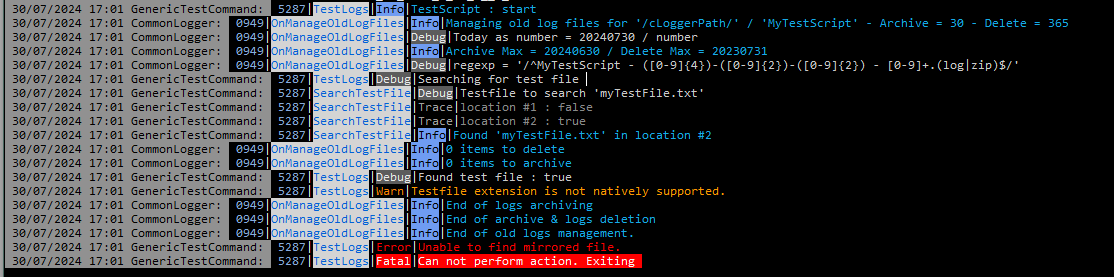
And instantiation of a logger (with multiple targets) can be as simple as :

logger = LoggerNS.BuildDefaultLogger("MyScriptName");

or a little more complicated like :

var consoleLog = new LoggerNS.LoggerTarget("ConfigLogger console", LoggerNS.LogLevel.Trace, LoggerNS.LogLevel.Fatal, LoggerNS.TargetType.Console);
consoleLog.layout.IncludeDateTime = false;
var fileLog = new LoggerNS.LoggerTarget("ConfigLogger file", LoggerNS.LogLevel.Trace, LoggerNS.LogLevel.Fatal, LoggerNS.TargetType.File, "/cLoggerPath", "MyScriptName");
logger = new LoggerNS.Logger(consoleLog, fileLog);

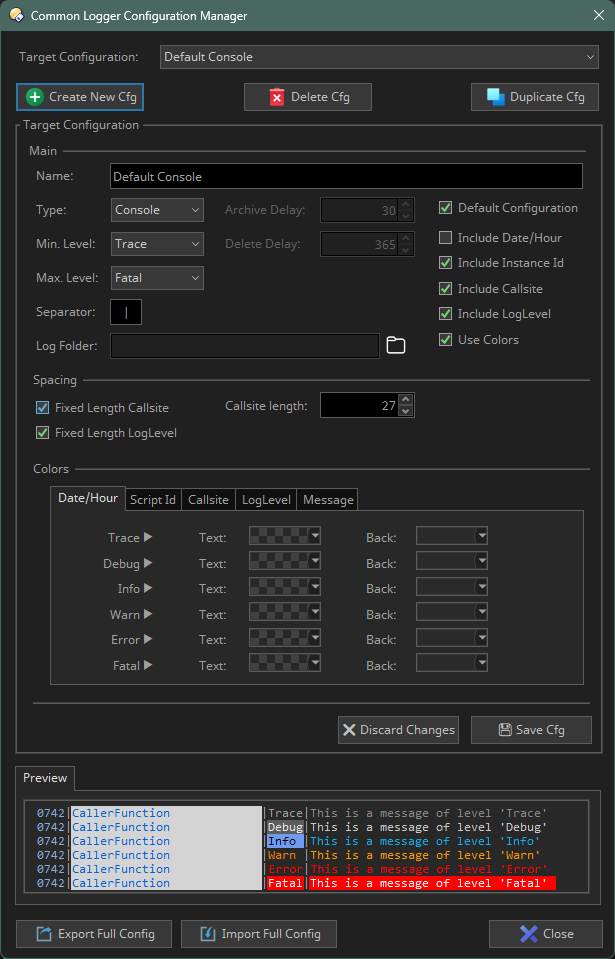
Here is also a screenshot of the template configuration manager :
Main Features

Below a non exhaustive list of the main features

Log levels and per target log filtering

Logger offers traditional levels of logging : trace / debug / info / warn / error / fail.
Each target attached to one logger can have a min and a max log level which act as filters (e.g. if console target has min log level to info, it will not display logs on trace and debug level).
Some specific things can also be done with minimum log levels by defining local or global log levels. See description of V0.9.1 below for more details.

Customizable output fields choice

Each log will be displayed on a line that can integrate (user definable per target) :

  • Date/Hour of the log
  • An ID (randomly chosen at logger construct time) to identify logs from multiple instances of a script running/logging at the same time
  • The function from which the request for logging was made
  • The log level
Output Coloring (console target only)

Each token/field described before plus the log message itself can have their coloring (front & background) customized.
The coloring can differ depending on the log level.

Output spacing/alignment

LogLevel and Caller function fileds can be set to fixed length for better alignment.
It is possible to increase/decrease indentation of log messages.
See V0.9.1 description below for more precise information about this.

Customizable archiving & deletion delays (file targets only)

To help manage automatically log files that may end up piling up in the logging folder(s), file target logging will perform on each logger instantiation a "cleanup" task (launched asynchronously) :

  • All log files for this script older than the archiving delay will be zipped
  • All log and/or archive files for this script older than the deleting delay will be ... deleted :slight_smile:
    This can serve a use case where you keep online logs for say one month, then they get zipped (to save space), and after a year, you consider you will not need them anymore and they get deleted (save space, remove "garbage" and limit the number of files in script log folder(s)).
A GUI to configure the targets templates easily

This editor will allow, most probably once and for all, configuration of the templates you will then be able to use everytime.
Each target can be made "Default Configuration" which is then used in the first construct described above (logger = LoggerNS.BuildDefaultLogger("MyScriptName");) : it will create a logger with every "Default Configuration" targets inside, only customizing the script name which is used in the log filename definition.
This editor also offers the ability to export and import full configurations (JSON) containing all target templates.
This can be usefull for backup purposes or more likely to share a configuration between multiple instances of Opus on multiple computers.

How to set-up

:warning: Minimum Opus version : 13.19

  • Icons for the editor (to install : drag & drop in Preferences / Toolbars / Icons). Icon names are all prefixed by "cLogger_", no risk of clashing with other iconsets (and can be placed at any rank of the iconsets list).
    :play_button:See link to .dis file at the top of this post.
  • Script installer:
    :play_button:See link to .opusscriptinstall file at the top of this post.
    The script installer will install :
    • inc_Logger.js : the include script with the logger logic. To include in any script file you intend to use the logger.
    • inc_commonSAL.js : another include file with helper functions, extensions to some objects prototypes (to provide methods that are only available in more advanced versions of javascript).
      :pray: Thanks to many users of this forum from which I borrowed ideas or direct code so useful that it ended up in this file. If anyone wants credit listed for their contribution, just let me know.
    • inc_MsgLoopHandler.js : an include file provided by @Felix.Froemel (thanks) that helped cleanup the code for the template editor.
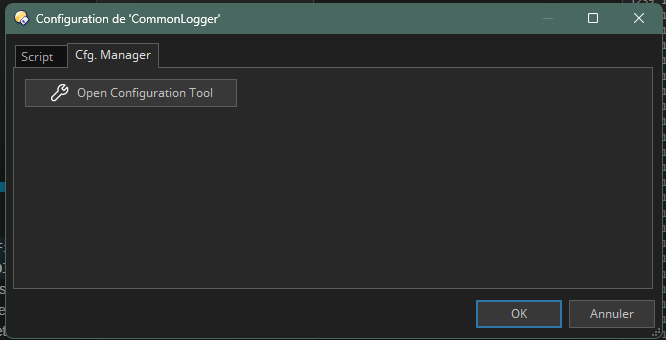
    • CommonLogger.js : the script file which contains the command to open the GUI Template Editor (ConfigLogger) and also the command used to do cleanup (archive/delete) in old log files (called asynchronously from the logger). GUI Template Editor can also be invoked through script settings in a dedicated tab/button:
How to use

Targets configurations
That is optionnal, since if no configuration is found, a default one is created, containing 2 targets : "Default Console" and "Default File".
:warning: The "Default File" target template is configured to log to /cLoggerPath/. You can either change that (in the editor), or create that alias, referencing whatever folder you wish to use for your log files.

Use in script
You need to include the "inc_Logger.js"
Then, in the "entry point" of your script (usualy "OnXXXX" corresponding to your command), you need to create an instance of LoggerNS.logger that needs to be a global variable so it can be used anywhere from there in your script. To achieve that, just declare it without prepending the var keyword.

A few examples :

Building a logger based on all "Default Configuration" targets for MyScriptName
logger = LoggerNS.BuildDefaultLogger("MyScriptName");
Building a logger based on two targets built from their constructors and modified accessing their properties if needed
var consoleLog = new LoggerNS.LoggerTarget("ConfigLogger console", LoggerNS.LogLevel.Info, LoggerNS.LogLevel.Fatal, LoggerNS.TargetType.Console);
consoleLog.layout.IncludeDateTime = false;
var fileLog = new LoggerNS.LoggerTarget("ConfigLogger file", LoggerNS.LogLevel.Trace, LoggerNS.LogLevel.Fatal, LoggerNS.TargetType.File, "/cLoggerPath", "MyScriptName");
logger = new LoggerNS.Logger(consoleLog, fileLog);
Building a logger based targets built from their templates names (here "Console 1" and "File details")
var consoleLog = LoggerNS.BuildTargetFromTemplate("Console 1");
var fileLog = LoggerNS.BuildTargetFromTemplate("File details", "MyScriptName");
logger = new LoggerNS.Logger(consoleLog, fileLog);

Note : LoggerNS.logger can accept multiple types of arguments :

  • One LoggerNS.LoggerTarget, or 2, or 3, ...
  • An array containing any number of LoggerNS.LoggerTarget
  • One LoggerNS.LoggerConfiguration (which is an object which primary goal is to hold multiple targets, that can also load the saved configuration and save itself to disk (as an Opus global var), and can export/import itself to text/json).

Once this is done, you can use the method to generate the logs :

	logger = LoggerNS.BuildDefaultLogger("MyTestScript");
	
	logger.info("TestScript : start");
	logger.debug("Searching for test file");
	logger.trace("Something to log on trace level ...");
	var t = SearchTestFile("myTestFile.txt");
	logger.debug("Found test file : true");
	logger.warn("Testfile extension is not natively supported.")
	logger.error("Unable to find mirrored file.");
	logger.fatal("Can not perform action. Exiting");

Release history

V0.9.2

Added:
:one: New optional (last) parameter added to the following functions of Logger: log, trace, debug, info, warn, error, fatal. This signed integer parameter triggers indentation (as in Logger.AdjustIndentation).

:two: New aliases for the following Logger functions:

New Function is an alias of
inc() AdjustIndentation(+1)
dec() AdjustIndentation(-1)
trc(msg, indent) trace(msg, indent)
dbg(msg, indent) debug(msg, indent)
inf(msg, indent) info(msg, indent)
wrn(msg, indent) warn(msg, indent)
err(msg, indent) error(msg, indent)
fat(msg, indent) fatal(msg, indent)
V0.9.1

Changelog :

3 new features (more detail below):

  • the logger now has methods to handle indentation
  • spacing/alignement: the loglevel and the caller function fields can now be fixed length so that logs align in a nicer way
  • Global (via UI or code) and local (code only) min log levels introduced to suit specific needs.
    :warning: This settings only apply to Console type targets. The File type targets remain unaffected by these settings. :warning:

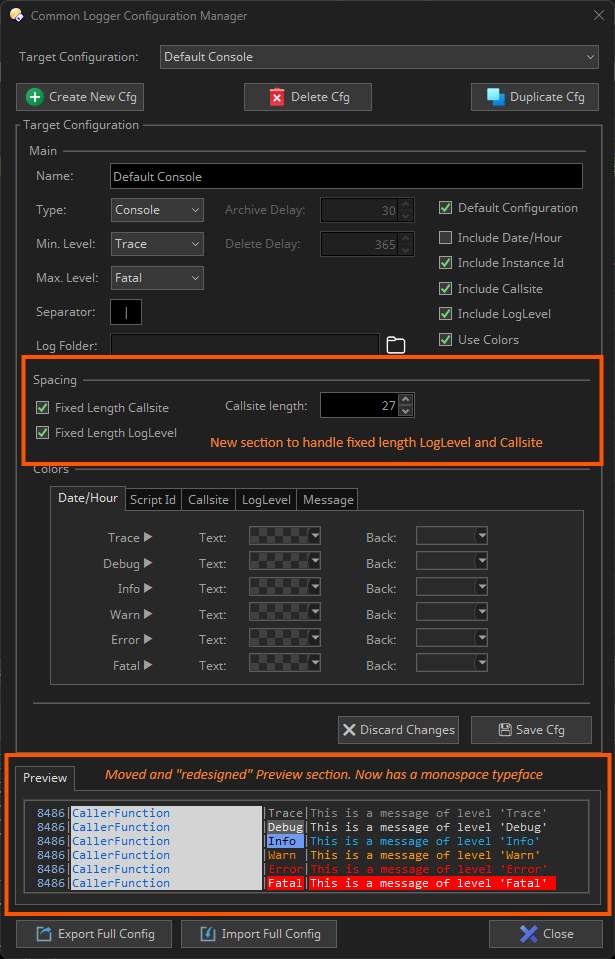
In order to use/set these features, besides code additions, the Configuration Manager has evolved:
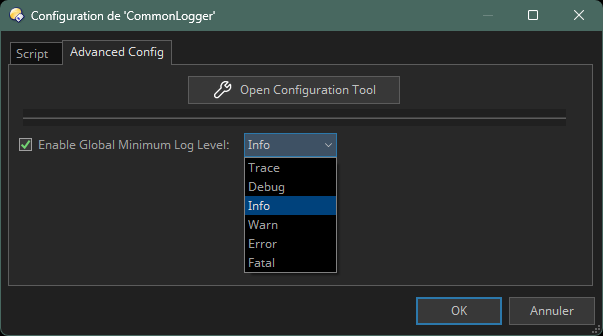
And the specific tab that can be accessed from Settings/Script/Cog Wheel has changed its name (to "Advanced Config") and provides a way to set the Global Minimum LogLevel:

In more details:

Indentation

Indentation can be accessed through the logger object, with a new method AdjustIndentation which takes one (signed) argument to increase or decrease (when parameter is lower than zero) indentation.
This is a "fluent" method, which means it returns the logger itself: this allows one liners like this:

logger.AdjustIndentation(1).debug("Some message");
// (...) some other actions and logs
logger.AdjustIndentation(-1);

Spacing/Alignment

This is a per target setting, so it is configured in the Configuration Manager (see screenshot above).
Fixed Length LogLevel: when activated, every LogLevel field is taking as much space as any other (e.g. as the longest loglevel).
In order to manage alignment, you can also define a fixed length for the Callsite (or caller function) field. Every shorter callsite will be right padded with spaces, every longer callsite will be truncated.
The result can be seen in the Configuration Manager screenshot.

Global and Local min log levels

:warning: This settings only apply to Console type targets. The File type targets remain unaffected by these settings. :warning:

Global MinLevel
The global min loglevel can either be set from the script config Advanced Config tab and lets you define a new min loglevel that applies to all loggers whatever the script.
It can also be set from the code:

LoggerNS.ForceGlobalConsoleMinLogLevel(LoggerNS.LogLevel.Info);
// (...) some other actions and logs
LoggerNS.DisableForcedGlobalConsoleMinLogLevel();

Local MinLevel
The local min loglevel can only be accessed from the code and acts directly on the logger object:

logger.EnableForcedLocalConsoleMinLevel(LoggerNS.LogLevel.Trace);
// (...) some other actions and logs
logger.DisableForcedLocalConsoleMinLevel();    // Not mandatory. Since it is tied to logger object, this is reset at every script launch.

What level prevails over the others?

  • When Local LogLevel is set: a console log occurs only when its level is above the Local LogLevel
  • Without Local LogLevel, but with a Global LogLevel: a console log occurs when level is both above the global log level and the target log level
  • Without Global nor Local log levels activated: this is the standard way, the log occurs when level is above the target min log level

What use cases these levels are for?

  • The global level can be used to raise (temporarily) the log level of all script. This can be useful when you find too many (low level) logs are populating the console. This can especially the case when you're working on one script, and others are populating the console.
  • In that case, you'll raise the global level, but you need to keep low level logs for the "work in progress" script. That's where the local level comes into play: you specifically for that very script set up the local level lower so you can get all the logs for this script.
V0.9

Changelog :

CommonLogger

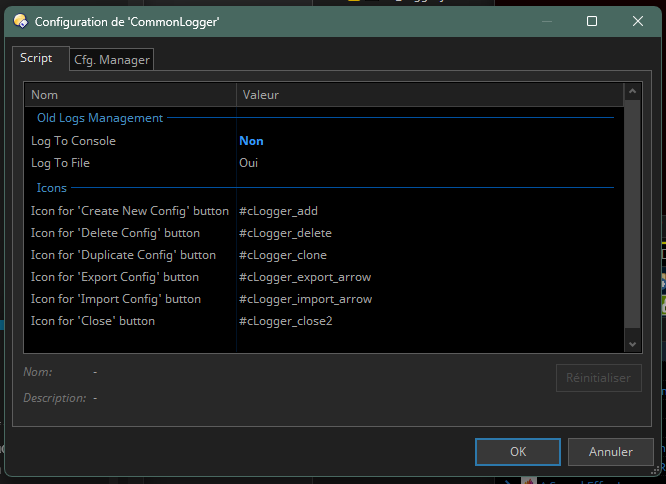
  • Settings are split in two groups: Icons which holds the previous parameters, and Old Logs Management which holds two new parameters:

  • Introduces 2 new parameters: Log To Console & Log To File: Let you decide how/if you want the common logger command ManageOldLogFiles to log its actions. This command is called whenever a script logs its first entry within a script execution and manages previously created log files to check whether their execution date was prior to archiving delay or deleting delay.

  • Since ManageOldLogFiles can now log to file, this command is now protected against some kind of recursivity (one script logs, which triggers this command for this script, which logs, which triggers this command for OldLogsManager, which logs, which triggers this command for OldLogsManager, ...).

    • Note: This is achieved by using a Map Script Variable which stores the calling script when triggered and removes it just before exiting. If any other call occurs while it is being processing the old archives, it will not be processed.
  • The CommonLogger UI (used to create the target types, their color scheme, ...) can now be called from the standard Script configuration window in a new tab (in addition to the previous way, through ConfigLogger command):

  • Opus min version raised to 13.19 in order to support usage of these two Opus features (Settings Groups & custom tabs in script configs settings).
inc_logger:

  • Logger has a new propery (disabled) which lets you fully disabling logging and bypass former behaviour: if a logger is asked to log but has no valid target, a fallback console logger is created to ensure at least one console log.
V0.8.2

Changelog :

CommonLogger

  • Fix issue where CommonLogger UI would try and create a folder nammed cLoggerPath if the alias /cLoggerPath does not exists

inc_Logger.js

  • Added test that ManageOldLogFiles command is installed before calling it (use case of a shared script using inc_Logger but without CommonLogger "installed").
V0.8.1

Initial release

Final warning : this is still beta. Do not hesitate to report if you encounter problems, including this description (which does not cover the whole thing in all the details).


7 Likes

New release : V0.8.2
CommonLogger

  • Fix issue where CommonLogger UI would try and create a folder nammed cLoggerPath if the alias /cLoggerPath does not exists

inc_Logger.js

  • Added test that ManageOldLogFiles command is installed before calling it (use case of a shared script using inc_Logger installed by a user but without CommonLogger "installed").
1 Like

This is incredible. I just did the include and the default declaration. In my own methods (log, loginfo, logerror, logwarning) I’ve put some of your instructions (logger.info, logger.error, logger.warn) and everything just becomes way better thanks to more compact lettertypes, a well-thought color scheme and a more column-like approach.

I’m just going to look where exactly it writes the logs and if I need to adapt that. But I’m sold.

Of course, in case of sharing a script, I guess if you share one, you first disable the include? I’m not really an “include guy” (I use modules a lot), because I don’t know yet what happens, for instance, if you export (“share”) a script: do includes (and includes of includes) come with it? I’m not yet familiar with the advantages & disadvantages of includes. But this one, at least lifts Opus logging to a whole different level.

To be honest: your own screenshot above didn’t convince me. But when I saw this appear in my logging window, I was like “wow!” :

2 Likes

Yes, they're included in the *.opusscriptinstall package Opus makes when you share a script that includes other scripts.

When installing the package, it asks which parts you want to install (e.g. in case you already have a newer/alternative version of something and want to keep it).

1 Like

You need to configure that alias (or change that path to your own in the ConfigLogger UI, which you can call with the command ConfigLogger) otherwise, logging to file will be disabled.
That's what happens for you:
image

No, includes are shared in the opusscriptinstall. If it were not shared, script would fail because the logger object would not be recognized.
I remember having put some failsafe parts in the core logger part in case things are not well defined to revert to some default behaviour though.

EDIT: One last thought about this:

Not necessarily very explicit in the (already very long) initial post, but you can manage file target so they get ziped after some configurable delay (you need to execute the same script after the delay for it to happen), and can be deleted after another delay (same constraint), so you do not clutter your logs folder with too old log files.

1 Like

Great.

Two remarks.

First of all, to define

logger = LoggerNS.BuildDefaultLogger("MyScriptName");

under the maiin OnXXXXXXX function as you recommended only works if you only have one such context. As I used in in a script with multiple OnXXXXX definitions, the variable turns out not really being “global” - and this is conform jscript’s normal behavior (not to mention the hateful “var” issues many devs have with jscript). The solution is to declare the var outside all functions, like on top of the script or so - where it is truly “global” to the entire script.

Second: one small issue I have is that at startup of the dialog I always get some “OnManageOldLogFiles” lines of Info in the logging panel. This is a bit of a distraction. Maybe it is because I’m still using the default settings, as I did not (yet) configure anything beyond setting up the /cLoggerPath alias and using the different logging styles available, such as logger.info(). For the moment I do not intend to explore all possibilities, I just use it as a wonderful beautification tool for the loggings, while I am working on my scripts. I will no doubt find where to disable that if I give it some time. I’m just mentioning it because it is some kind of issue, as most people want logging to be limited to the essence, and probably don’t want the logs to be “clogged” wiith too much info (unless - LOL - “/cLogger” was meant to do exactly that… pardon the pun).

That is correct.

This log comes from the logic behind handling older log files (archiving them, deleting them). This is achieved by launching (asynchronously) this specific command whenever you try and log for the first time after creating the logger object.
I guess I could probably add an option to make it silent in the CommonLogger script so it does not distract. This would also be of interest for you because of the following use case:

  • You set up a script and have MANY log files created
  • Once it's set up, you'll only use it occasionnaly, but as well launching it several times, maybe with different context
  • When you'll do that, chances are you are past the delays and you'll have quite a large amount of files to archive or delete, and the little ManageOldLogFiles command will report everything it does (every archive and every delete :slight_smile:)
    I'll have a look at that when I get some time (give me a few days for that), since it would be best to offer ability to choose between console logging or file logging or both.

Anyway, many thanks for reporting all this, as it helps better understanding what expectations other people can have (beyond the ones I had to begin with!).

1 Like

New release : V0.9
CommonLogger.opusscriptinstall (26.0 KB)

CommonLogger:

  • Settings are split in two groups: Icons which holds the previous parameters, and Old Logs Management which holds two new parameters:

  • Introduces 2 new parameters: Log To Console & Log To File: Let you decide how/if you want the common logger command ManageOldLogFiles to log its actions. This command is called whenever a script logs its first entry within a script execution and manages previously created log files to check whether their execution date was prior to archiving delay or deleting delay.

  • Since ManageOldLogFiles can now log to file, this command is now protected against some kind of recursivity (one script logs, which triggers this command for this script, which logs, which triggers this command for OldLogsManager, which logs, which triggers this command for OldLogsManager, ...).

    • Note: This is achieved by using a Map Script Variable which stores the calling script when triggered and removes it just before exiting. If any other call occurs while it is being processing the old archives, it will not be processed.
  • The CommonLogger UI (used to create the target types, their color scheme, ...) can now be called from the standard Script configuration window in a new tab (in addition to the previous way, through ConfigLogger command):

  • Opus min version raised to 13.19 in order to support usage of these two Opus features (Settings Groups & custom tabs in script configs settings).

inc_logger:

  • Logger has a new propery (disabled) which lets you fully disabling logging and bypass former behaviour: if a logger is asked to log but has no valid target, a fallback console logger is created to ensure at least one console log.
2 Likes

Definitely an improvement. To be honest: for the moment I couldn’t care less about “old logs” (but that’s just because I have too little patience with things I don’t understand or need) - so I now disabled both those logs and I’m perfectly happy with such a tool that adds so much to Opus by just adding an include and a few changes.

This is maybe the first script that feels (for me at least) entirely like its part and parcel of Directory Opus - especially with the Config Manager dialog. Well, that’s not entirely true, some scripts by @errante have that feel too, I must admit (his MediaInfo++ for instance). And I got such a feeling also when I messed around with @tbone ‘s ScriptWizzard - even if it was old and obsolete.

There should perhaps be a page that lists all scripts that are truly enriching Opus as “setup tools” (maybe with a dedicated badge of honour as well). Any hints, anyone, for more scripts in that sort of category?

1 Like

What, obsolete? o) I still use it to upload and keep track of changes in scripts (ScriptWizard adds a MD5 checksum to every script you upload, so you know what scripts or changes were not released yet). It also offers some script columns to show script information directly in the folder, which makes handling / copying scripts more easy at times, because the preferences page for the script does not have all these information and you also can't move / copy from there. So, it still has plenty of usefulness I think! o)

It would not hurt to maintain it again though, I agree on that part. The auto / update mechanism for scripts failed at some point, never got around to fix it. Then this forum changed the listing / categorization of scripts and the german forum went down completely, taking all the script uploads and reference-urls with it. The general appreciation was also rather low and so you end up with what seems like abandon-ware. o)

1 Like

I would consider to use this at some point. I am fine with xLog (my invention) for now, but I also have the need to handle external files here and there. Maybe we should join forces to get a single logger, which ticks all the boxes? o)

My xLog does not log to files and probably some other things, but yours doesn't do this:

  • indentation
  • keep actual text at a specific column in the log output (easier for the eyes)
  • control / change log level via command line of scripts
  • control global log level for all scripts at once
  • ?..

I am not 100% sure on these though, but the configuration dialog you have there, very nice! o) I am not sure how often people developed a logger, it seems to be a repeating exercise! o)

At one point I wrote a hierarchical logger for PHP, that's something I would like to have here in DO as well sometimes. That hierarchical logger allowed to log into separate files for separate modules and still have a "parent" log, which combined all outputs of the submodules in chronological order. That parent log file was the child of another parent (the main application) and so on. It was quite nice to browse log files this way, because you did not require special tooling to filter the log output down to specific problems in specific modules.

Maybe you find the time over the upcoming winter season to integrate the missing bits and pieces I see? Just kidding.. o) It's still an unfortunate situation if you have multiple tools for the same job and each has pros and cons. Like in the Linux world, there are so many variants of the same invention, but none of them "does it all". Thanks! o)

2 Likes

Thanks for the feedback @tbone !

Here are some first thoughts about your suggestions:

  • indentation
    • Main reason I'd usually use indentation before creating this logger would be in some function called from some point in the code, in order to be sure I see clearly in the logs I was in that function. Since (after quite some trial and error) succeeded in having the caller function logged, I did not even thought about having this.
    • Yet, this seems an interesting addition, and probably not that big a deal to implement in the current overall architecture here. Only thing to think about is if this is a "logger" function or if it is something one could decide on a per target basis. The simpler is a probably the better here: logger feature, acting on all targets at the same time.
  • keep actual text at a specific column in the log output (easier for the eyes)
    • This one would be a bit tricky to implement since each line logs the caller function (which, for my taste, is really helping when something unexpected happens, or when debugging: no more time spent searching where that logs comes from ... not to mention similar logs in different functions in the code). Caller function can (and will) have different name lengths, so it means misalignment will happen for one script execution, even if everything will be aligned within one function.
    • The only workaround I see for this would be to define the length of the header part of the log (date, script name, id, caller, log level) and either fill with spaces to reach that length or shrink the caller name to fit the predefined length. It would be a "use at your own risks" option, because it could lead to a critical loss of information in some cases.
    • If you seen any other option to get around that, I'd be happy to ear them :slight_smile:
  • control / change log level via command line of scripts
    • If I understand it correctly, I think this one is currently achievable. If by that you mean being able to control what log levels are actually being logged, you have the ability, from the logger object, to access all the associated targets, and on each target you can override the previously configured min and max level. This could be something like: for (var i = 0; i < logger.targets.length; i++) { logger.targets[i].minLevel = LoggerNS.LogLevel.Info}
    • Another option, which would allow for a temporary adjustment of min level, would be to introduce a min level at the logger level which would supersede the target setting. Now, decision NOT to log for one target is based on the following (level is the requested log level of one log): if (loggerTarget.minLevel > level || loggerTarget.maxLevel < level), and this could become: if (loggerTarget.minLevel > level || loggerTarget.maxLevel < level || this.LoggerMinLevel > level) where this is the logger and LoggerMinLevel would be a newly introduced property for this purpose.
  • control global log level for all scripts at once
    • Not sure how often this would be necessary and how you'd like to trigger this. Currently, this is doable through the targets configurations. Even if at first I thought I could use different configurations for different scripts, in the end, I only use the 2 defaults targets: some "standard" console and some "standard" file. Since those configurations are the ones used by all scripts, changing the min level is achievable through that configuration dialog.
    • If you want to be able to do this from a script, this is another story, even if acting on configuration can definitely be done with scripting: what's done in the UI ... is actually done with some commands behind. But if you need to do this frequently, it's probably best to have different configurations each with several targets with their own log levels, and use the ability to export/import configurations (json based) in order to switch from one to another.

Do not hesitate to share your thoughts on this and correct me if I did not understand correctly what you meant for these suggestions !
Thanks again.

Maybe I show what I mean with indentation. The output is similar to how nested the functions are you are calling. This requires a logger-function call at the beginning and end of any function (and any "return" in between). Lowering the log level will then drop some of the output, but will not necessarily screw with the indentation, you will just have less indentation with a lower log level / less output.

Regarding the global override, I find this handy when tinkering with a specific script / command. It allows to disable all the log output for all scripts at once, but if you run a specific command / script by command line e.g. and specify the log level in there, it will override the global setting. This way, you only get the specific script to output in the console pane and not everything else which logs to the console. Over the time, quite some things tend to create console output, which can be irritating at times.

Did I understand correctly, your logging target defines what log level is currently printed to the console? If two scripts use the same target (Console e.g.), they have to use the same log level, more or less? In xLog you specifiy the log level for each script separately, but not sure I got your description correctly.

Thanks. o)

Humble apologies to @tbone for having prematurely assumed obsolete status of his script (I think I concluded that after a post from @Leo somewhere who said something along those lines). Indeed the overview is very useful, but the update system is limited simply because too few people are using it I guess.

By the way, imagine that the Opus guys would simply agree to add an MD5 checksum to every uploaded script - would this immediately make your script’s update management work? Just curious.

About logging: indenting would not really interest me, but what I hate is the word wrapping. Does anyone know if it is possible to prevent word wrapping in the logger? Or, alternatively, I know I can open the log window in floating modus but does there exist a way to also give it a specific, larger width and set its position (e.g. at the top of bottom of the screen) ? This would be another way of avoiding wrapping (especially in logs formatted the way @PassThePeas does).

Ah, no worries! o)

Mhh, probably not. We'd have to agree on some syntax here and there and.. yeah, I'm also not so convinced anymore, that the forum is the best place to upload the scripts. I would rather use "git" and a separate repository to handle the upload and versioning, but using a git repo for a single script is not possible yet (DO wants all the scripts in that single directory, does not allow for sub-folders right now).

Yes please, I was about to open new threads and suggest these o):

  • Allow to enable / disable word wrapping in the console
  • Add context menu to the console (I always press right mouse button and wait, until I remember, I have to CTRL-C, because there is no menu).
  • Prevent the console from scrolling to the bottom for new lines if the scrollbar is not already at the bottom. Currently it's not possible to scroll up and look at / copy a specific line, while any script is still running and printing.
2 Likes

By default, that is correct: a target defines what gets printed (if it's a console target it defines what gets in the console, if it's a file target, it defines what gets in the file log).
To get around that, you have two ways:

  1. You can define as many targets as you want and use the one you prefer for every script. This means you could have a debug console target that logs everything from Trace level, that you'll use while setting up the script, and then use the "production" target that might only log from debug or even info level. Changing the target can be done at the initialization of the logger (technically it can be done at any time, but I'm not sure it makes much sense). You could also build one target for each script with specific colors, ...
    One example below, considering the two console targets are named "Debug Console" and "Production Console" and you have a file target named "Default File":
var config = new LoggerNS.LoggerConfiguration();

var fileTarget = LoggerNS.BuildTargetFromTemplate("Default File", "My Script Log Filename");
config.AddTarget(fileTarget);

var consoleTarget = LoggerNS.BuildTargetFromTemplate("Debug Console");
// Use below when switching to Production mode
// var consoleTarget = LoggerNS.BuildTargetFromTemplate("Production Console");
config.AddTarget(consoleTarget);

logger = new LoggerNS.Logger(config);
  1. You can just rely on building your default configuration (which will be filled with every target you enabled the "Default Configuration" check box in the UI), and then, from here, change the min log level like so:
logger = LoggerNS.BuildDefaultLogger("My Script Log Filename");
for (var i = 0; i < logger.targets.length; i++) { logger.targets[i].minLevel = LoggerNS.LogLevel.Info}

So, transposed in the way it works here, we would have:

  • The target MinLevel, which has the lowest priority to define wether a log gets printed
  • The global MinLevel which overrides the target MinLevel, so you can "shut up" every script under some log level, whateverr is their default/configured behaviour
  • A Forced MinLevel (which would be set on the very instance of the target in one script) which in turns overrides the global MinLevel. You'd have to put this specifically when setting up one script.

Is my understanding correct?

Mhh, I guess I think I assume yes.. o)

I would need to try for myself to be sure, but it looks you have something similar there. The part where you can override the log level from the command line, that part is not possible yet it seems, not something which could not be added I guess.

Ok, thank you for clarifying and explaining. Btw, your method names are all upper case.. why is that? What language did you code in before? hehe.. o)

I'm working on it :slight_smile:

Yes it is already possible now (from the script code, not from outside).
The global "architecture" is the following:

  • Targets (which can be console or file) can be grouped into Configurations. The targets are currently the only objects that hold the minimum (and maximum) log level.
  • The script offers the ability to create a "default" configuration easily which will contain all targets from the global configuration that have been marked as "Default Target":
var cfg = LoggerNS.BuildDefaultConfigurations("My Script Name");
  • You can then initialize the logger itself with either 1 target, an array of targets or a Configuration. Here again, you can build a "default" logger with one line, meaning it will get the default Configuration (hence all default targets):
logger = LoggerNS.BuildDefaultLogger("My Script Name");
  • Upon initialization, all targets end up in the logger.targets (an DOpus.Vector).
    You can access this at all time, and have the ability to modify all (or only console) targets min log level.

For a consoles only min level change, this should look like this:

for (var i = 0; i < logger.targets.length; i++) {
  var target = logger.targets[i];
  if (target.type == LoggerNS.TargetType.Console) {
    target.minLevel = LoggerNS.LogLevel.Info;
  }
}

To be precise, they're not all upper case, only the first letter of each word is upper case (it's generally refered as PascalCase). As for my prior languages: I started with C/C++ (+bash, perl) at school and then work. After early years as a developper, I switched to project management (which gave me the wonderfull opportunity to discover VB !!!), then years later I learned some Python to participate in an open source project, then C#/.NET (+ some PowerShell basics) to develop some home applications with windows GUI. And Opus led me to JScript.
That habit of having class methods and functions name PascalCased comes from rules that were enforced on my first projects: PascalCase for methods/functions, camelCase for attributes/properties. I kept the habit ... generally (when extending javascript objects, I try and respect javascript ways) :slight_smile:

1 Like

New release: V0.9.1
CommonLogger.opusscriptinstall (27.7 KB)

3 new features (more detail below):

  • the logger now has methods to handle indentation
  • spacing/alignement: the loglevel and the caller function fields can now be fixed length so that logs align in a nicer way
  • Global (via UI or code) and local (code only) min log levels introduced to suit specific needs.
    :warning: This settings only apply to Console type targets. The File type targets remain unaffected by these settings. :warning:

In order to use/set these features, besides code additions, the Configuration Manager has evolved:

And the specific tab that can be accessed from Settings/Script/Cog Wheel has changed its name (to "Advanced Config") and provides a way to set the Global Minimum LogLevel:

In more details:

Indentation

Indentation can be accessed through the logger object, with a new method AdjustIndentation which takes one (signed) argument to increase or decrease (when parameter is lower than zero) indentation.
This is a "fluent" method, which means it returns the logger itself: this allows one liners like this:

logger.AdjustIndentation(1).debug("Some message");
// (...) some other actions and logs
logger.AdjustIndentation(-1);
Spacing/Alignment

This is a per target setting, so it is configured in the Configuration Manager (see screenshot above).
Fixed Length LogLevel: when activated, every LogLevel field is taking as much space as any other (e.g. as the longest loglevel).
In order to manage alignment, you can also define a fixed length for the Callsite (or caller function) field. Every shorter callsite will be right padded with spaces, every longer callsite will be truncated.
The result can be seen in the Configuration Manager screenshot.

Global and Local min log levels

:warning: This settings only apply to Console type targets. The File type targets remain unaffected by these settings. :warning:

Global MinLevel
The global min loglevel can either be set from the script config Advanced Config tab and lets you define a new min loglevel that applies to all loggers whatever the script.
It can also be set from the code:

LoggerNS.ForceGlobalConsoleMinLogLevel(LoggerNS.LogLevel.Info);
// (...) some other actions and logs
LoggerNS.DisableForcedGlobalConsoleMinLogLevel();

Local MinLevel
The local min loglevel can only be accessed from the code and acts directly on the logger object:

logger.EnableForcedLocalConsoleMinLevel(LoggerNS.LogLevel.Trace);
// (...) some other actions and logs
logger.DisableForcedLocalConsoleMinLevel();    // Not mandatory. Since it is tied to logger object, this is reset at every script launch.

What level prevails over the others?

  • When Local LogLevel is set: a console log occurs only when its level is above the Local LogLevel
  • Without Local LogLevel, but with a Global LogLevel: a console log occurs when level is both above the global log level and the target log level
  • Without Global nor Local log levels activated: this is the standard way, the log occurs when level is above the target min log level

What use cases these levels are for?

  • The global level can be used to raise (temporarily) the log level of all script. This can be useful when you find too many (low level) logs are populating the console. This can especially the case when you're working on one script, and others are populating the console.
  • In that case, you'll raise the global level, but you need to keep low level logs for the "work in progress" script. That's where the local level comes into play: you specifically for that very script set up the local level lower so you can get all the logs for this script.
3 Likes

Uha, new features! o)

I have another one for you: "Non verbose syntax".. o)
In xLog I can print a trace-level statement and indent at the same time, like so:

Log("Process foo starting..", "t", 1); // start trace section and in-crease indentation
//..
Log("", "t", -1);                      // end   trace section and de-crease indentation

A bit easier on the eyes and just a suggestion. It would also make sense to keep log level statements eye-friendly, by offering "same width method names". Like..

out.inf("Info message..");
out.wrn("Warning message..");
out.trc("Tracing now..");
out.inc(); // increase indent
out.dec(); // decrease indent

I found this yesterday in another logger of mine I did for DO at some point. It handles file output as well, I am losing overview obviously, but the one I found used that short-method naming scheme and I liked it. o) It also buffered all output, until the log file name was set, then it flushes the buffer to the file, so you can start logging very very early, without losing the "first dozen" of lines in the file.

May I ask, how do you determine the caller function?

Is that done automatically? I could not find a hint on this here in the "Usage" section. Is it reliable? From experience, I remember anything related to "caller" not being easy or actually useable / reliable (in JScript at least). Iirc I think I settled with "manually" printing a method name once and relying on indentation because of the issues I had. Not repeatedly printing the method name also saves some space in the output, but has disadvantages as well of course, not gonna deny! o).

1 Like