I've got some new questions, but I'll save them until this old, more important question is answered, else we won't get anywhere:

The answer is very simple: it's the standard drives toolbar. Nothing was modified at all.
Does the newly created Container show up in the folder tree then?
Does the newly created Container show up in the folder tree then?[/quote]
No it doesn't. See above snapshot. The Drive volume "O" appears on the rightmost tab and on the standard drive toolbar above but not the folder tree on the far left. I tried the F5 refresh option and this still didn't update the folder tree.
So my question is this...why is my folder tree not updating the inclusion of the Truecrypt volume created in "O" partition but the standard drive toolbar does? There's the mystery.
As it is...as of right now...
-
Standard drive toolbar does not update Truecrypt volume mounted when I use Dual Pane view...but does when I use Explorer view.
-
Explorer view appears to be unaffected by this curious issue of Truecrypt volume mounting. But since I don't like using Explorer...I decided to create a new lister Style...which combined the best of two...a Folder Tree view with a dual pane combo. In this new style...a curious problem has arisen which highlights the problem I'm having...
-
My new Style let's me see in the Standard drive toolbar the updated volume partitions...but apparently doesn't update the Folder tree view.
So it does appear there is a problem with DOpus not seeing Truecrypt volumes in the standard drives toolbar while in Dual Pane view but not in Explorer view. However, when I try to combine the best of both views in one new Lister style....the Truecrypt volumes are seen in the standard drives toolbar but not the folder tree - even after hitting the F5 refresh.
My conclusion...Houston, we have a problem.
Correction: after hitting the refresh button in my new Style...the lister does update the inclusion of the new drive partition. However, this doesn't solve why Dual pane mode doesn't let me see the drive volume in the standard drive toolbar.
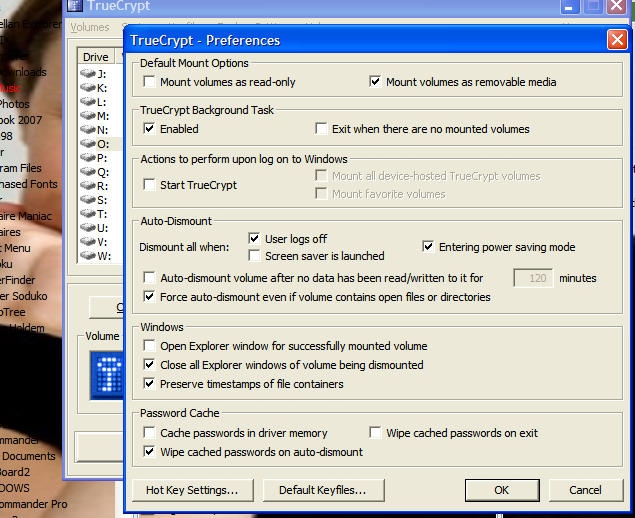
Could you post a screenshot of your TrueCrypt preferences?
Also, what is going on with the Location bar at the bottom of your two screenshots? It looks like there is a Location field and over the top of that there are lots of icons in the same place.
The reason why the Location bar is on the bottom is because I needed room on the top to put my shortcuts plus I wanted more room for the search bar. As for my Truecrypt preferences...see below:
But why, or rather how, does the location bar have icons over the top of the Location and Content Type fields?
It looks like there are two things in one place. Like there's a bug or something very weird is going on.
Not at all...those are shortcut icons to a toolbar I put on the bottom. When I'm not using DOpus...I use the shortcuts on the bottom toolbar to quickly launch what I need at the moment. It's a lot quicker because I don't have to drag the mouse cursor all the way to the top of the screen to get at what I want.
How do you tell all those Icons apart? They look all the same.

Well, the thing is...Directory Opus' default icon set is pretty good...but I've yet to hear whether or not I can import the icon sets from Stardock Windowblinds or Objectdock...which they offer and I have a license to. If Directory Opus can import those icons...then you'd see some really outrageously creative icon sets. But I suspect I can't do this in DOpus...so I have to use the internal set - which I think supplies my needs for now.
As for knowing which icon is for what...that's easy...I have a wallpaper in the background and I use the image from the background to be the marker for the icons I get to quickly. For example, the image I'm using is actress Rachel McAdams, right? So I know from experience which icons I want to use because I placed them in the order I want and their placement via Rachel McAdams tells me what they are. Besides hovering the mouse cursor does the trick too because I have tooltips turned on. 
So the icons are on a floating, transparent toolbar? That makes sense. I thought they were part of the lister in the screenshot.
As for the Stardock icons, if they are icons then you can load them into Opus. (Whether Stardock licence you to do so I don't know, but there's probably no technical reason that you can't use them, unless they're in proprietary image format which Opus doesn't understand.)
I can't import the Stardock Objectdock icon sets into DOpus because they're pngs and I don't know how to get DOpus to size them correctly since they're big icons. If I could do that...then yes...I'd import them into DOpus and use them.
Select your pngs in Opus & use your "convert graphics" command. For that you have to know the target size, of course. You can then use the "custom size" function for resizing to that value.
Well, don't leave me hanging! I got to the convert image part when I right click the icon I want but don't know the convert image dimensions to resize them for use. Can you give me a hint please? The image in question is 256x256 by 32. How do I shrink this to 20?
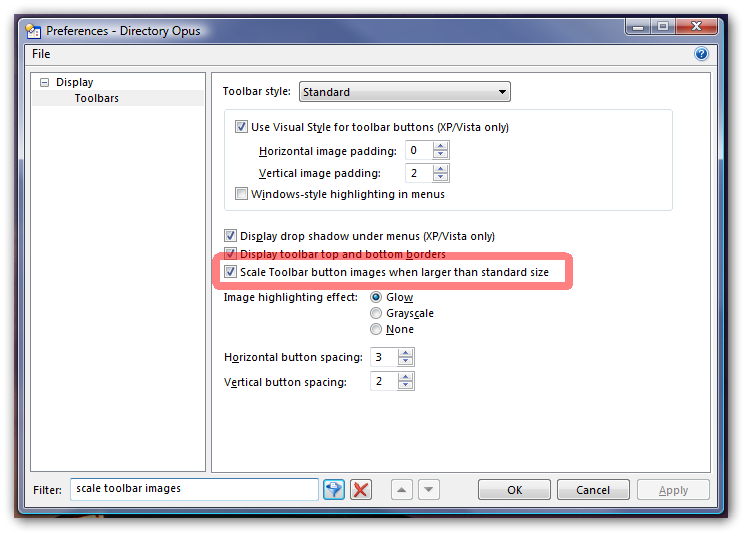
You pretty much answered your own question there:
If you want the images to be 20x20 instead of 256x256 then the dimensions are 20x20.
I got it...it's 20 x 20 pixels. That's the size that fits the icons I'm currently using in the custom toolbar.
OMG! That preference did the trick. Oh my! Wait til you guys see what the snapshot of my DOpus will look like when I redo the icons! Wooo! However I got to be careful because I have them on a removable drive (they're pretty big) so I might have to carefully drag and drop them into my primary drive before using them.
While the scaling option works, if you have a lot of large images you are using as icons it would probably be better if you manually resized them. Otherwise Opus is doing a lot of work (and using a lot more memory) every time is loads the toolbars.