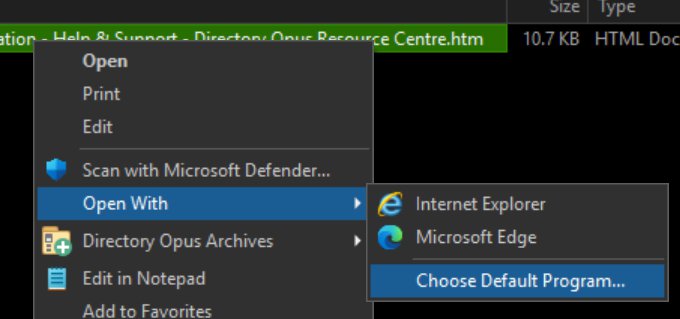
I’m experiencing an issue with Directory Opus 13 related to HTML file icons.
No matter what I’ve tried, Opus 13 refuses to display the correct icon for web browser files (such as .html and .mht) when copying, moving, or performing similar file operations. Instead, it always shows a plain white icon immediately after the operation. If I manually refresh the folder (e.g., by pressing F5), the correct icon appears. This problem only affects web-related files; icons for all other file types update automatically without any issue.
I have attempted multiple troubleshooting steps:
Uninstalled and reinstalled all my web browsers.
Uninstalled and reinstalled Directory Opus, even resetting to default settings.
Edited relevant registry keys like HKEY_CLASSES_ROOT\htmlfile\DefaultIcon.
Created custom Opus scripts intended to force automatic refresh after file operations, though they didn’t resolve the problem (likely due to scripting errors).
Used third-party tools like WinAero and PowerToys to clear the icon cache.
Despite all this, the issue persists exclusively with Directory Opus 13. Directory Opus 12 and other file managers—including Windows Explorer, Total Commander, FreeCommander XE, and SpeedCommander—do not exhibit this problem.
I also thoroughly explored all possible related settings in Directory Opus, such as show_icon_overlays, use_system_icons, disable_folder_thumbnails, show_folder_thumbnails, generic_icons_local/generic_icons_network, and File Type settings. I even reconfigured the .html file icon alias within Opus and deleted the entire configuration folders at %APPDATA%\GPSoftware\Directory Opus and %ProgramData%\GPSoftware\Directory Opus to ensure a clean slate.
Still, only HTML-related files show a white icon immediately after file operations in Directory Opus 13, and only until I manually refresh the view the appropriate icon shows up.
Does anyone have ideas why this issue occurs exclusively with web-related files in Directory Opus 13 after copying, moving, or deleting?
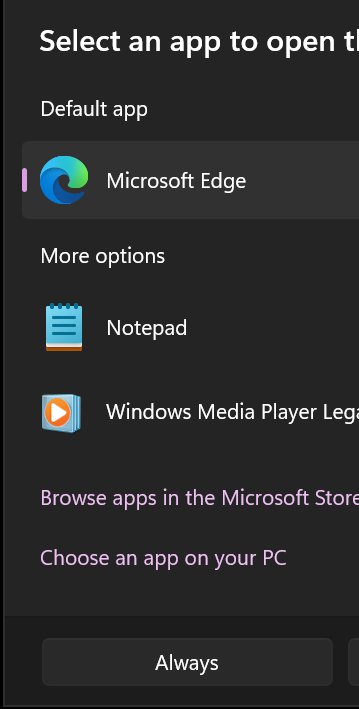
Ah, also, this is while using Windows 11 x64 Pro. Yes, I also did the "Defualt Apps" in Windows by extension and by applications, etc.