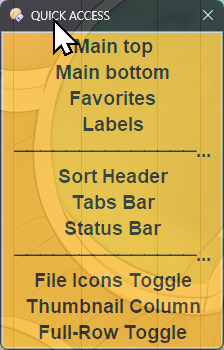
Background info:
When trying to de-clutter the listers as much as possible, it really helped to move the menu toolbar into the window title area. To conserve even more vertical lister space, and also reduce visual “clutter”, IMO, it would help if a lister’s Sort Header (in PowerMode) would auto-hide (scroll up) by default, so only show when the mouse pointer is in the header area.
For Thumbnails mode:
*Preferences > File Displays > Options > Show sort header in icon modes *
to some degree already exists, i.e. you can turn off the sort header. But this at times is inconvenient when you quickly want to sort by a certain “column”.
[Only now noted that the context menu lets you “Sort by”… so could work that way.]
In Power mode you would not really want to remove the Sort Header since you would want to continue show defined columns and their spacing.
Request: Please add an option like Set SHOWPOWERMODESORTHEADER=auto/toggle/off/on
and/or an option under Prefs that automatically hides the Sort Header in Power mode listers when the mouse pointer is not near that header area. This could also be helpful for Details mode Set SHOWDETAILSMODESORTHEADER=auto
(though I never use the latter).
Might be a nice QOL feature, IMO. I’d certainly immediately use it.
I’ve been reading up on Quick Access, and found a menu under the Folder Tree, but I could not find an option to turn off the Sort Header for Power Mode in the context menus.
Your “(script)” comment thus suggests you have installed a custom script that does the job?
Any more explicit details on the matter would be appreciated, thanks.
yes - custom script, work in progress, has some config options (some of the fonts might not work if not installed), use at own risk. (the toolbar names might need to be changed in the script, etc.)
Thanks, very educational, never seen an example of a Script Command. The code contains a huge amount of overhead though, dizzying. I found the central code inspiring, and added a few of those internal commands to my menus: