This rename script groups burst shot photos into sequences based on their capture times. If there's a gap of more than one minute between shots, it starts a new group. Each group/folder is named after the first image's timestamp, making organizing and identifying related bursts easy. I found it beneficial for quickly sorting and managing the often large number of rapid-fire photos from events, sports, or wildlife photography.
The script works regardless of the original file order and skips files without valid timestamps. The time gap and the format of the created folders can be modified in the script's custom settings. The format follows Opus Codes for date and time.
By default, the script groups images by item.metadata.image.datetaken. This can easily be modified in the script by editing the function GetDateFromItem() (see example in the script), allowing you to group any file type you want.
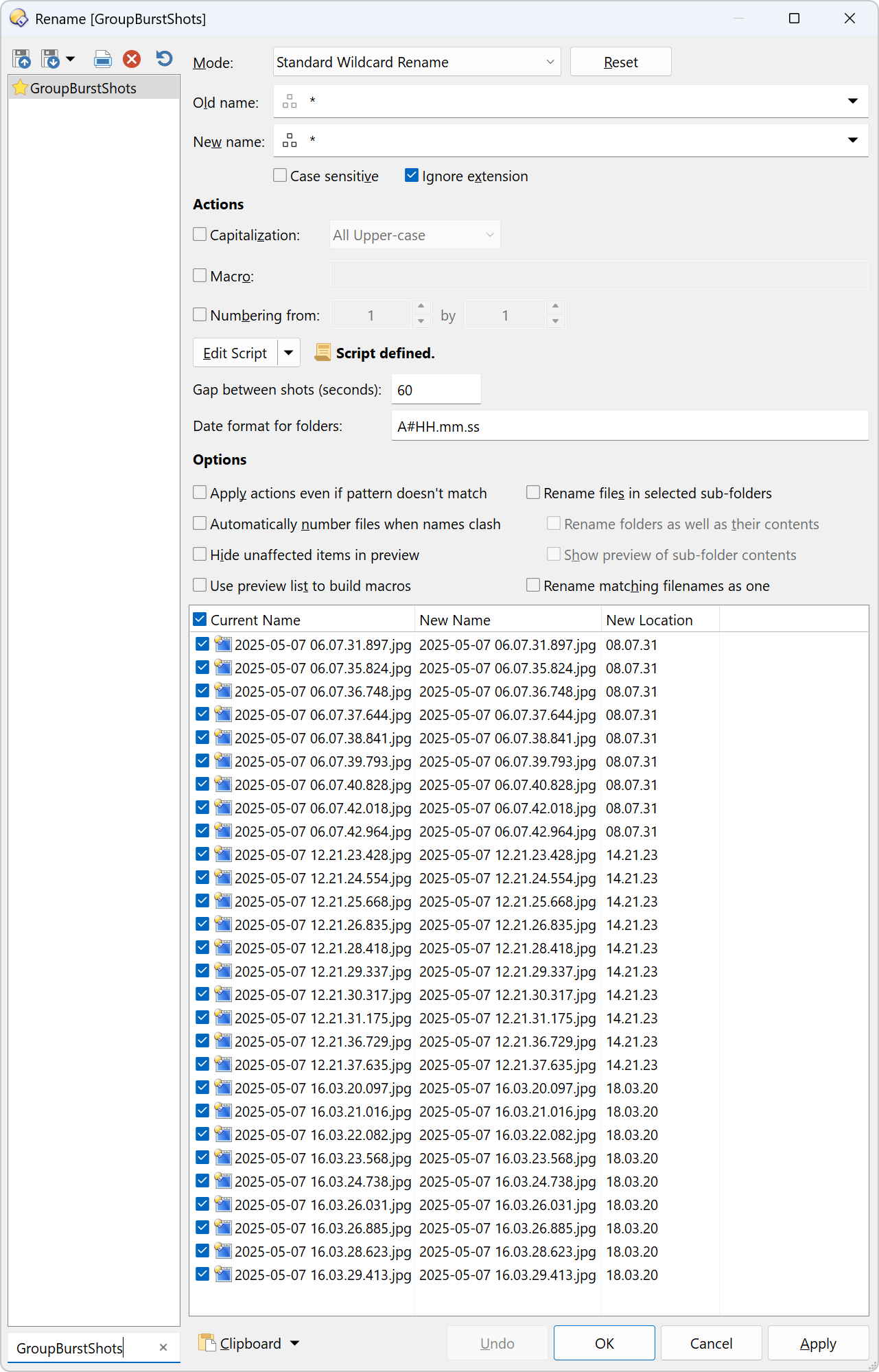
How to set up and use
Save GroupBurstShots.orp to ↓
%appdata%\GPSoftware\Directory Opus\Rename Presets
Things you might enjoy reading
How to use buttons and scripts from this forum
The script's inner workings
JScript
// https://resource.dopus.com/t/group-burst-shot-images/55668
// 2025-05-09

var subFolders = null;

function OnGetCustomFields(getFieldData) {
    getFieldData.fields.gap = 60;
    getFieldData.fields.gap.label = 'Gap between shots (seconds)';

    getFieldData.fields.format = 'A#HH.mm.ss';
    getFieldData.fields.format.label = 'Date format for folders';
}

function OnGetNewName(getNewNameData) {
    if (!subFolders) {
        var gap = getNewNameData.custom.gap * 1000; // in milliseconds
        var format = getNewNameData.custom.format || 'A#HH.mm.ss';
        CreateSubFoldersMap(gap, format);
    }

    return subFolders.exists(getNewNameData.item) ? subFolders.get(getNewNameData.item) + '\\' + getNewNameData.newname : true;
}

function CreateSubFoldersMap(gap, format) {
    var fsu = DOpus.FSUtil();
    var tab = DOpus.listers.lastactive.activetab;
    var arr = [];

    subFolders = DOpus.Create().Map();

    for (var e = new Enumerator(tab.selected); !e.atEnd(); e.moveNext()) {
        var item = e.item();
        var itemDate = GetDateFromItem(item);
        if (!itemDate) continue;

        arr.push([String(item.realpath), itemDate + itemDate.ms]);
    }

    arr.sort(function (a, b) {
        return a[1] - b[1];
    });

    var lastDate = 0;

    for (var i = 0; i < arr.length; i++) {
        var item = fsu.GetItem(arr[i][0]);
        var itemDate = GetDateFromItem(item);

        if (itemDate - lastDate > gap || i == 0) {
            var subFolderName = itemDate.Format(format);
            lastDate = itemDate;
        }

        subFolders.set(item, subFolderName);
    }
}

function GetDateFromItem(item) {
    return item.metadata == 'image' ? item.metadata.image.datetaken : null;
    // return item.modify;
}