This is probably an easy thing to do, but for the life of me, I cannot find it in the manual or just exploring the options. I want to remove Type from the default lister display, and stop it always sorting on Type. Can someone help this old man (and user of DO since the Amiga days) config DO to do this? I would greatly appreciate it. Thanx
Remove the column, then use Settings > Set Lister Defaults to save what you have as the new defaults.
I have just done exactly that, and it did not work. (I believe I have tried that in the past as well). Is there something I should delete so that that it "takes", as just removing the Type column, selecting "stop grouping", then selecting Settings > Set Lister Defaults SAYS it has saved it, but when I relaunch, its back to the standard layout, with Type shown, and sorted by Type.
You also need to choose "Save the default folder format" within the Set Lister Defaults dialog:
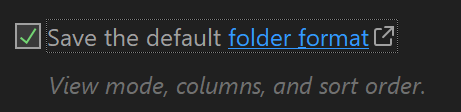
If it still doesn't work, how are you opening the window which has the wrong columns?
That kinda worked even less. When the "The Lister Defaults have been updated" window pops up, the lister immediately changes BACK to the old standard default. Previously, I was closing out DO and then relaunching from the desktop icon.
Must be something unusual in how you have Opus configured, I think.
Please link your account for more detailed help.
Some screenshots of what you're doing and what the before and after results are would also be good.
Linked now.
This PC is a special folder and its format can't be the default for all folders.
When you choose 'Save the default folder format' all customised formats are removed, which resets special folders like This PC to their defaults.
To change This PC permanently you need to save its format explicitly from the Folder Format dialog after you've set the default for normal folders.
I agree this is somewhat confusing!
1 Like
Man, no wonder I was never able to figure it out. But I have followed your instructions, and it worked! Thanx a ton, I REALLY appreciate it.
1 Like