I have a dual lister setup and would like the left hand lister, on starting Opus, to be set as the source rather than the destination lister. How do I acheive this. Everything I've tried so far doesn't work.
Click on it to make it the source and then save that state as the default lister using Settings -> Set as Default Lister.
If you don't want it to change then you will probably want to turn off Settings -> Preferences / Listers / Options: Update Default Lister automatically when closing a Lister.
For some reason that doesn't work for me. After I have followed your instructions (which was, incidentally, what I had tried before posting to the forum the first time) The right hand lister is still set to source.
Correct me if i'm wrong, but if i select a folder (say windows\system32) for a lister, save this as the default lister; Settings --->Set as default lister, and then close Opus and reopen, the lister which was set to display windows\system32 should be displaying it again. If this is so, this doesn't happen in my case.
I'm assuming the listers are not being saved because of the two settings i've made in the screenshots........... It is.
If I edit the layout I created, resave it under its own name all is well with the world again. I suppose I should have realised! Doh. 
Maybe the wording of Settings--->Save as default lister ought to be changed IF the user sets up his own layout and uses that instead because clearly it is ambiguous in this situation.
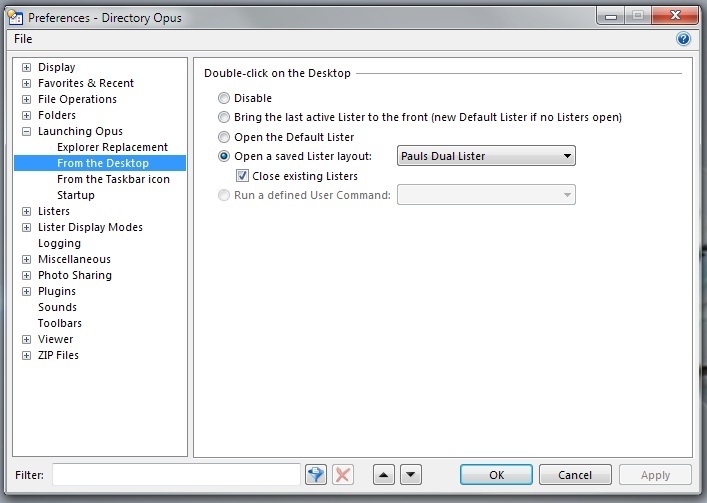
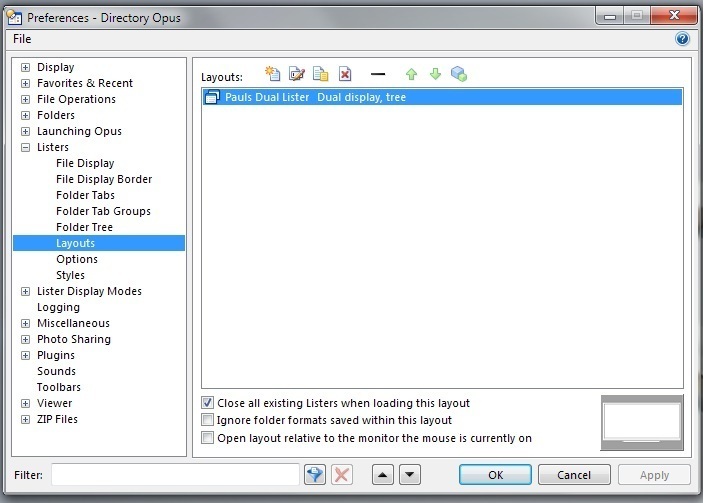
"Set as Default Lister" only affects the default lister.
If you've changed preferences (or edited buttons/hotkeys/etc.) and told Opus to open something other than the default lister in some places then you need to update that other thing (or things), not the default lister, to change what those edited actions will do.
i.e. The item isn't called "Set as Desktop Double-Click Lister" or "Set as Tray Icon Double-Click Lister." It just updates the default lister. If the desktop double-click or tray icon double-click (or hotkey or...) actions have been changed to not use the default lister then updating the default lister won't affect what they do.
It's possible to leave some things using the default lister while changing others to open custom saved layouts (or whatever). So Opus can't know that the user is updating the wrong thing, in general.
I suppose Opus could show a warning if you update the default lister and the default lister isn't assigned to all of the actions it's normally assigned to. Seems a bit nanny-ish to me but I guess if it had a "don't show this again" checkbox then it wouldn't be too annoying and might help. Then again, nobody seems to read those messages in our experience! 
This is were I think the wording is ambiguous. Because I have my own specific layout set to be MY default, I assumed that Settings ----->Save as default lister would make the changes to what I had set to be MY default.
Perhaps a dialog box could be opened instead asking if the changes that have been made are to be applied to any user-defined layouts; a similar idea to when saving changes made to folders. See screenshot.
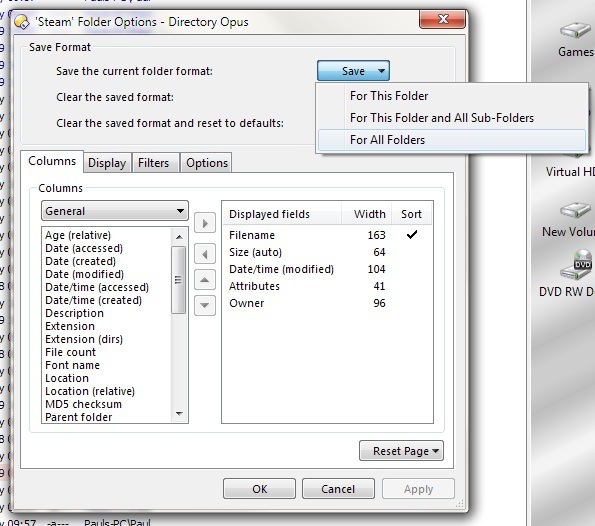
Yes, I agree it can be a bit confusing at first. Even if you save your current layout as DEFAULT (i mean: a new lister-layout with the name DEFAULT)
using Settings -> Lister Layouts -> Save this lister ... the Internal DEFAULT lister doesn't change!
See also this post (other subject): [What Lister Is Launched from the Desktop (and "Go NEW")?)
I think the real issue is people using a layout when they should be using the default lister, and not realising the difference or purpose of the default lister.
Any suggestions on how Opus could clarify those things? Seems better to treat the cause of the confusion and not the symptoms of it.
It isn't really your default, though. It's just a layout assigned to one particular action. For example, if you run "Go NEW" or double-click a folder outside of Opus then it'll still open the default lister, not the layout you've assigned to the desktop-empty-space double-click event.
By default the event does open the default lister, but if you change it to open something else then that's what it'll open, and that's what has to be changed if you want to modify what the event does.
I think all of that is fine and the problem is whatever caused you to switch from using the default lister to a custom layout for the event.
E.g. Maybe it's not clear that you can change the default lister and it seemed the only way to change what happened was to create a layout and use that instead? (i.e. Did it seem like it was a hardcoded factory-default?)
Would it make sense to put a note next to the "Open the Default Lister" option which say "Use Settings -> Set as Default Lister to update the default lister" or something along those lines?

That's a bit like saving a layout called Monday, or Tray Icon and wondering why Opus doesn't automatically open it on Mondays or when the tray icon is double-clicked. The names you give your layout are just names.
Maybe it'd be less confusing if the Default Lister was shown in the list of layouts so you know it's there and don't create another layout for the same purpose? If that was done it'd need some other changes to prevent people from being able to rename or delete it, prevent people from creating their own layouts with the same name (and deal with importing preferences which already have a clashing layout name), and also to allow people to hide it from layout lists in menus etc. where they may only want to see their custom layouts.
I think Opus 8 showed some of the internal layouts in the list and allowed them to be edited. I remember being frustrated by that as these internal things I didn't even use were cluttering up the list and making it more difficult for me to manage my personal layouts. (Opus 8 had a preferences page to define the default lister so there was no layout for the default lister then, not even a hidden/internal one, but there were layouts for some other things, e.g. the synchronize layout. Those appeared in the list in Preferences and, IMO, generally got in the way.)
(Edit: Added last paragraph.)
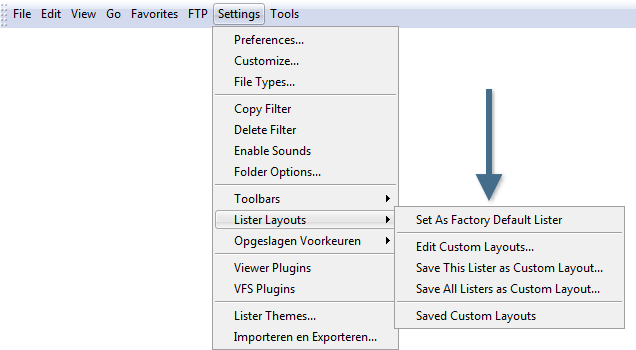
Just rearranging the standard menu items a bit could make it less confusing for new users
(I moved the 'set as default lister' to Lister Layouts and added 'Factory' and 'Custom' to the menu items):
Hmmm. Maybe I've misunderstood the purpose of the default lister layout from the outset. I have now saved my layout as the default, and changed the opus startup preferences to open the default layout rather than my own custom layout; which achieves the same result.
I know this might sound like a completely dumb question and I've missed the point somewhere, but if the default layout can be customised to anything the user wishes, under what scenario was it envisaged that users' would/could need a number of different layouts depending on how Opus was started? I.e a different layout can be selected depending on whether Opus is launched from a desktop double-click, the system tray or an icon.
Layouts let you open more than one window if you want to. (The default lister is always just one window but a layout could store 50 windows if you wanted it to.)
Layouts also give you the option of having several stored setups and being able to open the one you want when you want it. (There's only ever one default lister but you can create as many different layouts as you wish.)
For example, I've got an Albums layout which opens my music folder in thumbnails mode in a large size suitable for browsing CD covers.
I've got another layout which opens a dual-display window with two versions of my website (what's online currently in the left and an in-progress, updated version on the right). Makes it easy to compare the two versions or copy things between them without having to navigate to those two folders by hand.
(You can also create buttons/hotkeys with commands in them that manually create the same sort of thing, but it's a lot easier to set things up normally and then just save that as a layout which you can recall just as easily.)