This is driving me crazy. I have the exact same problem as the original poster: I want all pictures to open in the internal viewer on a double-click, except PSD files which should open in Photoshop.
I tried his solution in the second post, but that failed completely: no images open in the internal viewer, and PSDs still don't open in Photoshop (nothing happens).
PSDs are registered to open in Photoshop, but they don't. I also tried removing PSDs from the "Images" group, but that didn't change anything.
I've been using Directory Opus since January, and I am still repeatedly frustrated whenever I want to do something outside my daily routine. I accept a steep learning curve as a tradeoff for power (like Photoshop, or programming in C++), but with Directory Opus things don't get significantly easier with experience. The major problem is that preferences for the same task appear in several different places, with no apparent clue as to which setting overrides which. Preferences & settings need a major makeover!
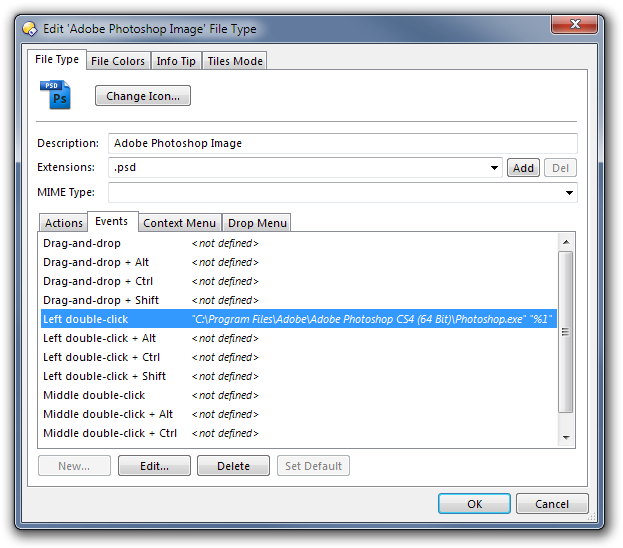
All you have to do is change the Left Double-Click event on the PSD file type, as shown below.
Make sure the path to Photoshop is correct for your computer. If you are using the 32-bit version of Photoshop then the path shown in my screenshot will be wrong for you. When editing the event, use the Browse button to find Photoshop.exe, then add the "%1" part after it.
Thanks, but this still doesn't work. It still opens in the internal viewer. My path to Photoshop is correct, because I have the same string under "open" in the "Actions" tab (and Photoshop opens the file when I right-click and select open).
Anything else I need to do to make this work?
Incidentally, since PSDs are already correctly bound to Photoshop system-wide (and Dopus knows this because it shows "opens with Photoshop" under "Details for PSD extension" in File-types), why can't I simply make Dopus send an open event when I double-click? I'd really like to understand this.
If that still isn't working, right-click a .PSD file and use the Open With menu to set Photoshop.exe as the program to be used in all cases.
The combination of Left Double-Click event and Open With menu should make the change be seen both in and out of Opus (as well as in special folders such as Desktop).
As I wrote in the post just above, Photoshop is already the default program for PSDs. But a double-click still opens the internal viewer. The only way to have a double-click correctly open Photoshop is if I disable "Preferences/File Operations/Double click on files/Use internal picture viewer for". But then no image files at all open in the internal viewer.
I can only conclude that Directory Opus can't do this. The prettier interface isn't worth the headache, so I think I'll head back to xplorer2.
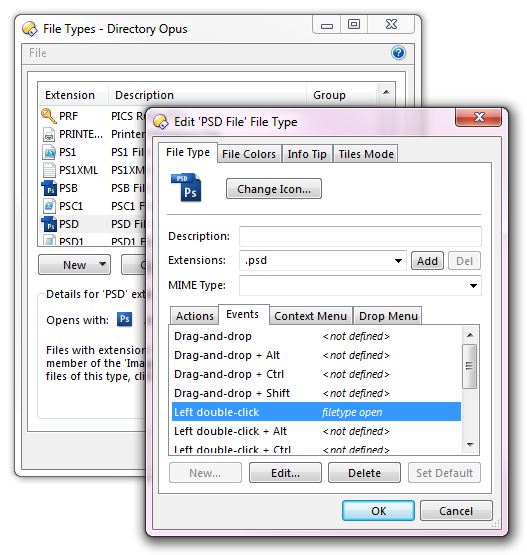
Feel free to go back to xplorer2 if you like, but Opus definitely can do this, and quite easily as well. All you have to do is edit the filetype for PSD files, and set the left double-click event (Events tab / Left double-click) as shown in the screenshot. Leave all other settings the same.
This will override the Use internal picture viewer option only for PSD files, leaving all other image filetypes unaffected. The filetype open command on the left double-click event simply tells Opus to run the normal open action for this filetype, which on a normal system with Photoshop installed would be to open it in Photoshop.
Thank you jon, but this still only works when I disable Use internal picture viewer. I think this is more elegant than having to specify the Photoshop path explicity, but I'm still in the exact same situation as in my previous post. If this works for you then something is set different on my system.
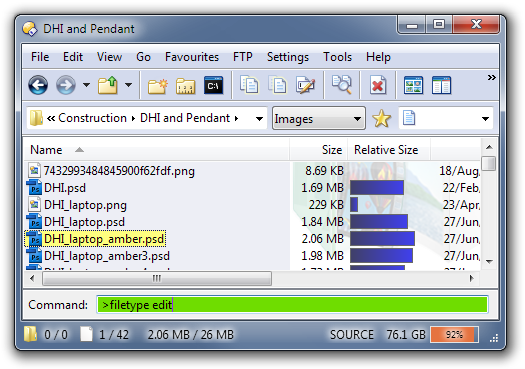
If you select a .PSD file and then run the "filetype edit" command it should open the correct type.
You can run the command by typing ">" and then the command into the file display, as shown below. (The text field will pop-up when you start typing and will change to "Command" after the ">" is typed.)
[quote="leo"]Are you sure you're editing the right file type?
If you select a .PSD file and then run the "filetype edit" command it should open the correct type.
You can run the command by typing ">" and then the command into the file display, as shown below. (The text field will pop-up when you start typing and will change to "Command" after the ">" is typed.)[/quote]
Yes, I'm sure. Typing ">filetype edit" opened the file type preferences for PSDs as you described, and typing ">filetype open" correctly opened the file in Photoshop. The problem is that Directory Opus refuses to do this on a double-click.
There must be a detail we've overlooking. Could you post screenshots of these three things:
[ul][li]Where you're double-clicking the file. (i.e. The lister showing the folder that has the file in it.)
[/li]
[li]The PSD filetype Actions tab.
[/li]
[li]The PSD filetype Events tab.[/li][/ul]
Could you also check what happens if you copy a PSD file to your desktop and then double-click it there? (i.e. Double-click it on the desktop itself, outside of Opus.)
[quote="tomos"]I like being able to use viewer easily AND to be able open files in photoshop easily.
So i left viewer activated and made shortcut key to open files in pshop:
Customise > Keys > New; under FUNCTION paste directions to your own pshop prog as follows:
C:\Programme\Adobe\Photoshop\Photoshp.exe "%1"
"systemwide hotkey" is activated by default, best to deselect it.
Now when I press my "hotkey" O selected files are opened in pshop.[/quote]
Thanks works a treat for both CS3 & CS4 [ shortcut 3 and shortcut 4]