With the new ability for adding keywords to icon packs to make icons more searchable, I made a tool to pretty easily generate keywords (using your AI of choice) for any icon packs you already have in your /dopusdata/Icons folder.
- The tool is just an HTML file you can save then run right in your browser: GitHub link to the tool
Why is it useful?
Example "Before" Scenarios:
- Maybe an icon is called "terminal" but you searched "console", so it didn't show up.
- An icon is called "copy" but you searched "clipboard", so it didn't show up.
Now, you can add more keywords so they show up with more words you're likely to search.
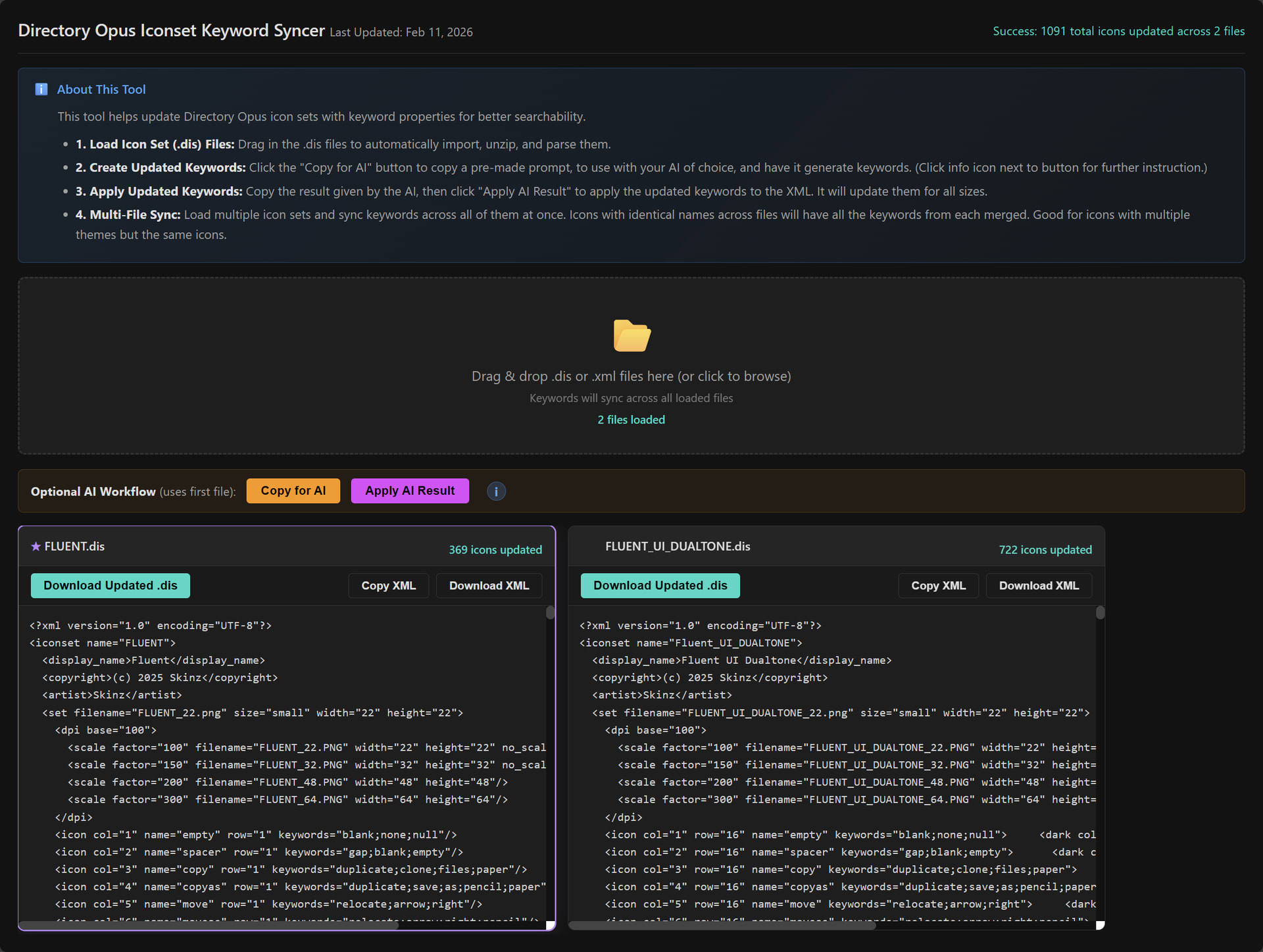
Tool Screenshot:
How to Use:
There's instructions in the tool itself, but these are the basics. There's two ways to use it, either separately or in combination: For generating new keywords, and/or syncing keywords to other .dis files containing icons of the same name.
Generating Brand New Keywords:
- Drag the icon pack file (
.dis) directly into the tool. It will automatically parse it. - The "Copy For AI" button adds a ready-to-paste AI prompt to the clipboard. It copies the XML, the largest image from the
.dis(so the AI can see the icons), and a prompt with instructions.- You can edit the prompt in the html itself, it's the
AI_PROMPT_TEXTconst. - See the (i) info icon in the tool for specific instructions per AI.
- You can edit the prompt in the html itself, it's the
- The AI will generate some updated XML, which you can apply with the "Apply AI Result", then download the updated
.disfile.
Syncing Keywords to Other Icon Sets:
In some cases, people make multiple versions of the same icon set, where the names are all the same but just look different, so the keywords can just be re-used.
For this, you can drag in as many .dis files into the tool and it will automatically merge all keywords across all the files where there's an icon with the same "name" attribute. (It merges in all 'directions', and deduplicate them).
Using the updated packs
In preferences go to to the "Toolbars" section > Icons, and drag in the updated .dis file, and confirm you want to replace it.
It might be worth it to first make a backup copy of your icon packs. I just went into dopusdata/Icons where they are, and made a new sub-folder called "backup" and made copies of them all into that.