As dialog-menus open standard at the cursor location, they can be used as submenu for any button in Opus (although they need a separate script, via import scripts - I don’t know of any way to code it directly in the button). Once you get it to work, it functions as a "lite" version of the standard "menubutton" concept.

Standard menubuttons are of course far more powerful, but each command you want to add to it requires the creation of one more sub-button. That’s fine, but I found the menu as a more "lite" version attractive: it’s just 1 button and 1 script, and I can add to this single button as many items as I want.
The limits are obvious: no standard button commands, with their arguments and modifiers; no icons before each menu item, no spacers (but a menu can have a sections separator: just include a dash as a menu element where you need one: "-"). And no adding controls such as a search control either. But there is the full use of javascript programming, which includes Opus RunCommand instructions and so on. It’s a different way of configuring your Directory Opus environment, using a simplified method. I have some 25 simple commands under a few of these, and that's much more light-weight than using menu buttons for simple tasks.
There's no need for opening a full-fledged "detached dialog" with a loop to catch events either - there’s just the single event of clicking one item in the menu. I like it that Opus provides this option of simplicity, when you don't need the full pack of its raw power.
When used with its original "three button" type button (which I include hereafter), the configuration can simply be opened with a right-click on the button. Once the script opes, you are immediately in the right place to add items:
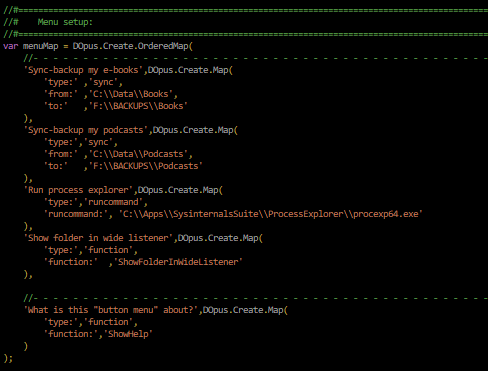
Of course, you should be careful not to corrupt the syntax of the OrderedMap which I used for the configuration. The way I implemented it should more or less explain itself to any “IT lite” person. New items must always get a unique name (for display in the menu) plus certain commands and parameters, depending on the kind of command you need. Three methods are included: function, sync, runcommand.
The script [last updated Sept 7th, '25] (Install via Settings > Install scripts)
MenuButtonLite.opusscriptinstall (3.9 KB)
The “three button” to add to your Opus taskbar:
Menu Button Lite.dcf (779 Bytes)
- - - - - - - - - - - -
In addition, a question. Sometimes the menu seems frozen when I click on the button. I need to click a few times before it works again. Maybe it is because a former menu is invisibly still ‘hanging’ there, or maybe it’s some other bug in my code, I couldn’t figure out yet. Or maybe the menu was designed to be used from a “parent” dialog panel (it is certainly described in the Dialog docu as if it a control that belongs to a dialog) - but I found a request, a while ago, to port the menu also to the dialog - so it seems to me that it was introduced separately. Anyway, if anyone finds out why the erratic behavior sometimes occurs, I would like to know.