Need help making a script / macro for selecting for image to video

Hi team,

Just wonder how I put this into effect I have added a screen shot hopefully this helps.

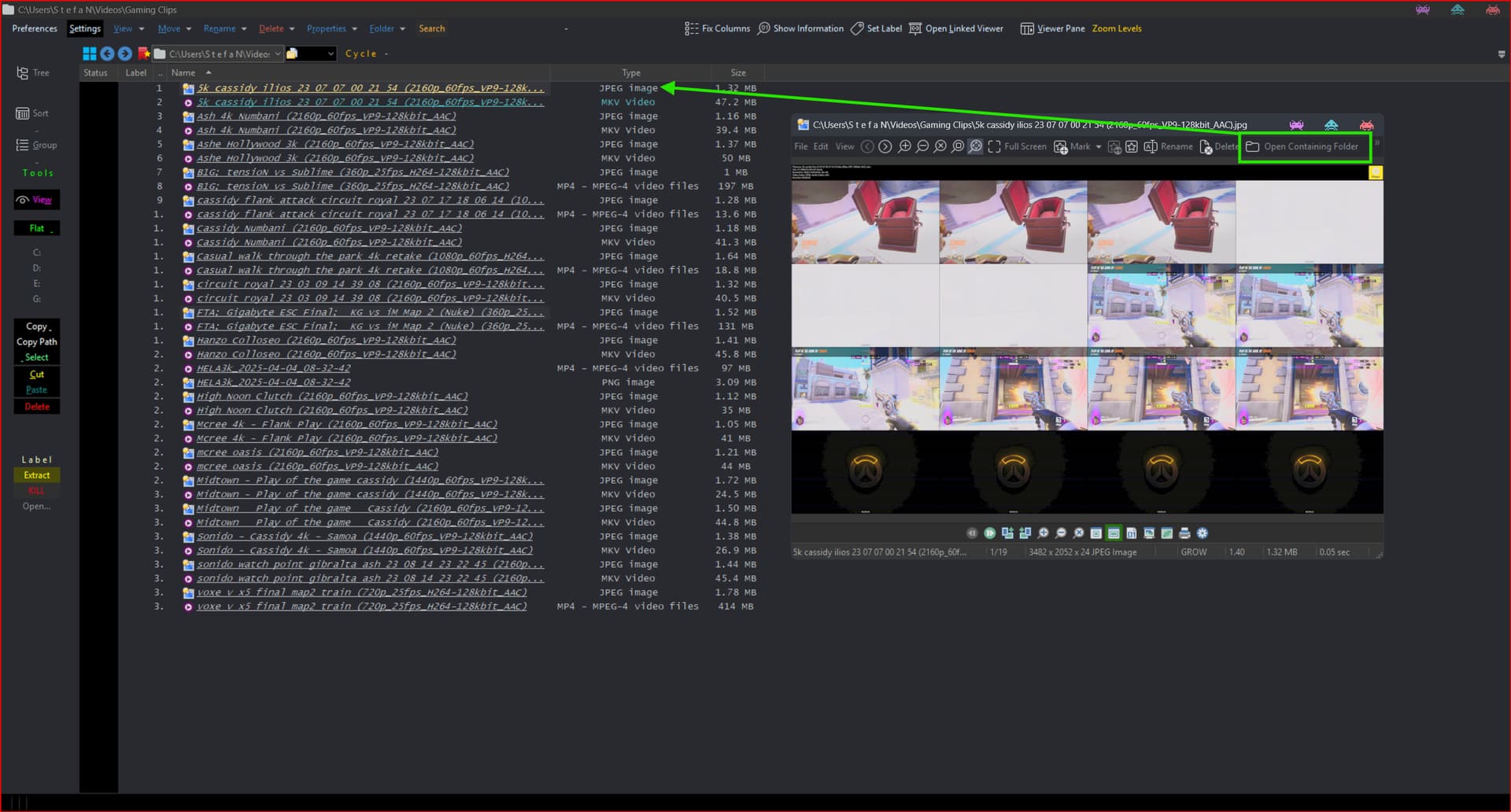
When I'm viewing images inside of Opus's popout viewer there's an a button called open files containing folder and when I press that it takes me to the folder as per intended.

However, what I want to happen instead is for the image file to be ignored and that instead it selects the next file after which if i've sorted the view for alphabetical it should select the video file as per my example pasted below.

Videos\Gaming Clips\5k cassidy ilios 23 07 07 00 21 54 (2160p_60fps_VP9-128kbit_AAC).jpg
Videos\Gaming Clips\5k cassidy ilios 23 07 07 00 21 54 (2160p_60fps_VP9-128kbit_AAC).mkv

I then want directory opus to select the file video file automatically and open it with my systems default media player, in this case its MPV....

I just want less clicks and basically the image im viewing when clicking open file location it instead opens my player with the video file that is next in the file display.

Call your media player with {filepath|ext=mkv}.

If you have video files with extensions other than .mkv, you’ll need either additional buttons or more extended logic.

Thank you for the heads up and the button!

I think I forgot to include in my draft post that i plan to convert all files to jpeg and mp4

You could check which video files exist and open whatever is available.

I have a button used for this as well but my filenames are named slightly different and I'd recommend doing the same to help avoid conflicts. Example:

video.jpg
video.mp4
video.mkv

2 videos named the same with different extensions but only 1 index, which video does the index associate with? Instead, I use:

video.mp4
video.mp4.jpg
video.mkv
video.mkv.jpg

That way each video, no matter the extension, has it's own index.


I'm guessing these buttons will only work if you change your naming convention.

I use a Button labeled Play on the Standalone Viewer which runs:

@hideif:=!Exists(RegEx(selpath, "(.*)\..*?", "\1"))
"C:\Program Files\DAUM\PotPlayer\PotPlayerMini64.exe" {filepath$|noext}

Change the path to the player of your choice.

The @hideif hides this Play button when an image you are viewing does not have an assoicated video file (Thanks lxp for that).

I also having a button called Play (close), which closes the currently opened image (Standalone Viewer) and plays the video:

@hideif:=!Exists(RegEx(selpath, "(.*)\..*?", "\1"))
Select DESELECTNOMATCH SETFOCUS EXACT PATTERN="{allfile|noext}"
Show VIEWERCMD=close
@nodeselect 
"C:\Program Files\DAUM\PotPlayer\PotPlayerMini64.exe" {filepath$|noext} 

I also have 2 Delete buttons. The first Delete button acts like a normal delete and deletes whatever is being viewed. The second Delete (w/ Vid) deletes the image and it's associated video. Only 1 Delete button shows up at a time depending on whats being viewed.

Delete:

@hideif:=Exists(RegEx(selpath, "(.*)\..*?", "\1"))
Show VIEWERCMD=delete

Delete (w/ Vid):

@hideif:=!Exists(RegEx(selpath, "(.*)\..*?", "\1"))
Delete {file$|noext}
Show VIEWERCMD=delete

I'm pretty sure you need DOpus 13.12 or higher to use these buttons that auto hide. Or it's something higher than 13.7 because they stopped working when I went back to 13.7 for testing something else. Don't remember.

lxp also changed the hide code slightly for DOpus 13.12.1 and higher:

2 Likes

Thanks guys!!!

@Crash
@lxp

This was actually so amazing, and I understood your instructions and implemented the script/button its working as intended, and you've saved me so much time at work!

The most convenient way to create the thumbnails in the format you recommended.

Leaving these instructions in case someone wants to find a quick way to create thumbs in high quality (i.e set the dimensions) or adjust the amount of preview frames within the image.

Install Potplayer
Download PotPlayer - Free multimedia player

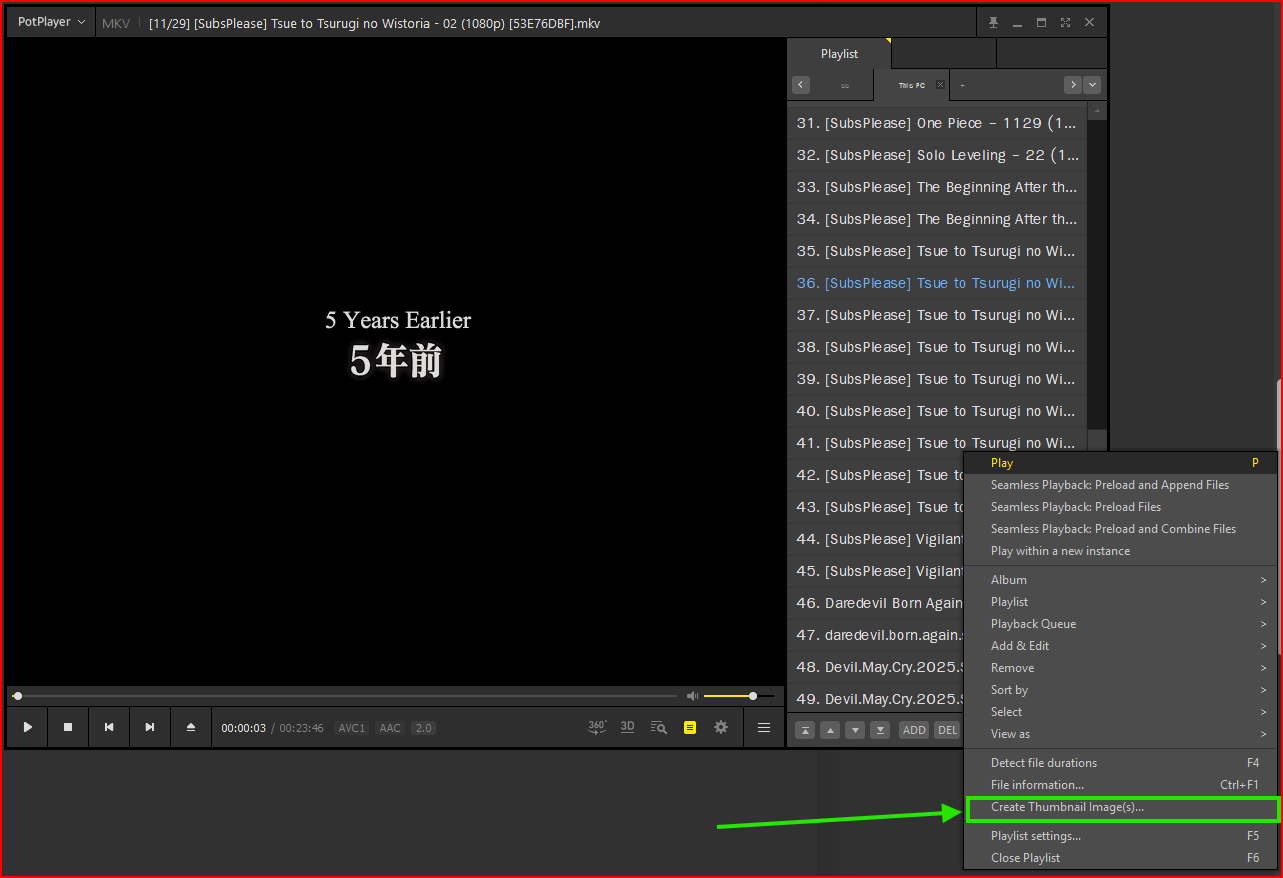
  • Add all files to playlist...
  • Right Click "Select All" files
  • Right Click again and "Create Thumbnail Images"

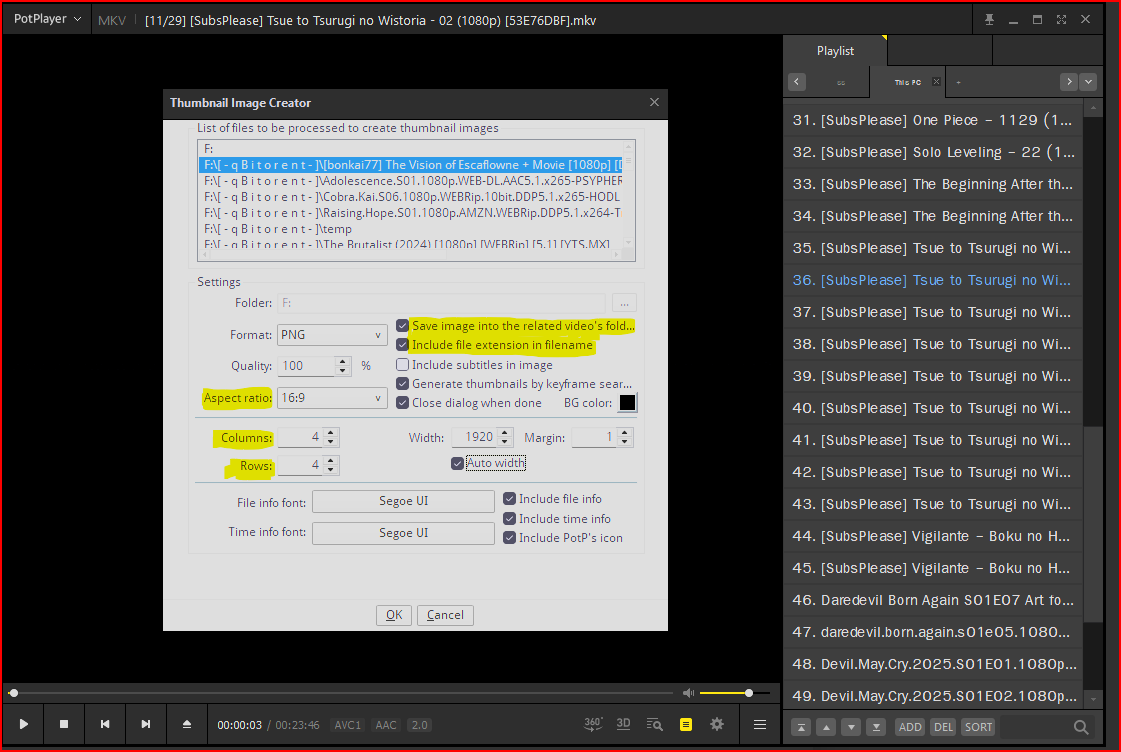
Make sure the two highlighted lines are ticked

  • (Save image into the related videos folder path)
  • (Include File Exenstion in Filename)

Personally, I use 1920 for the width and 16:9 for aspect ratio... with auto width ticked since most of my content is in that resolution and if it's set to auto otherwise, I find the panels inside of the 4x4 thumb can stretch or look weird if its 4:3 or 21:9 etc...
1 Like