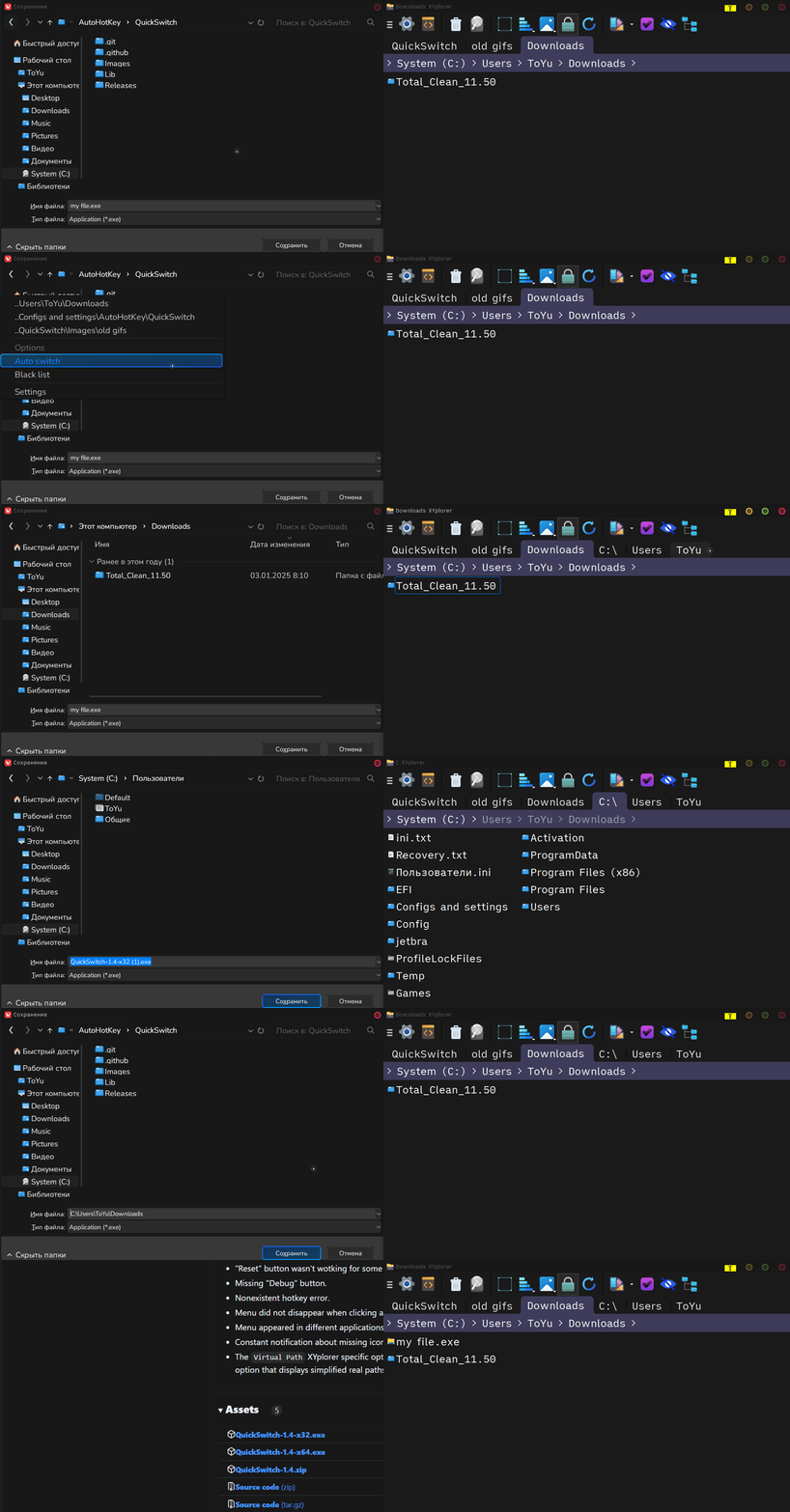
What does QuickSwitch do? - the short version
When in a file dialog, like Save As .. or Open ... , it can switch that dialog to any folder that is opened in a file manager.
Currently supported file managers: File Explorer, Directory Opus, Total Commander and XYPlorer.
QuickSwitch can do that in a couple of different ways:
QuickSwitch Menu mode.
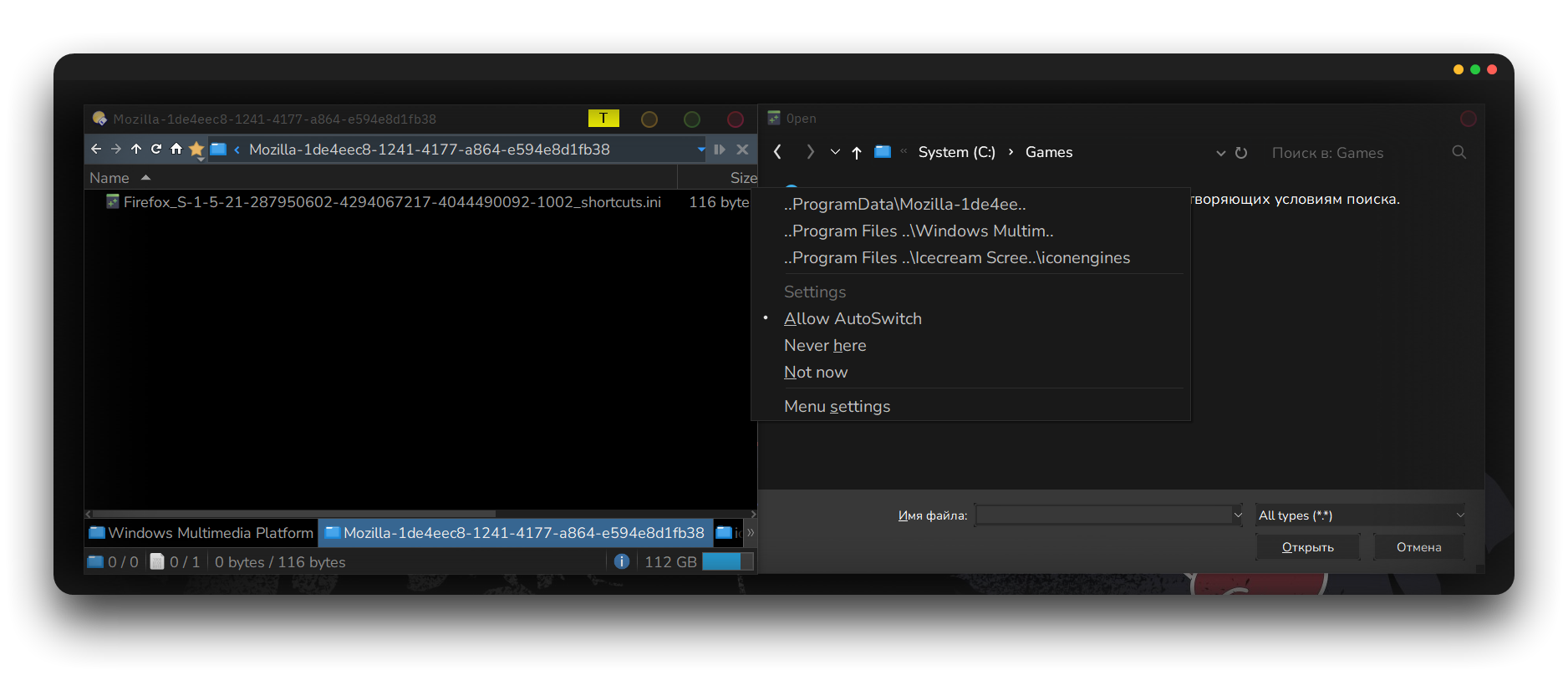
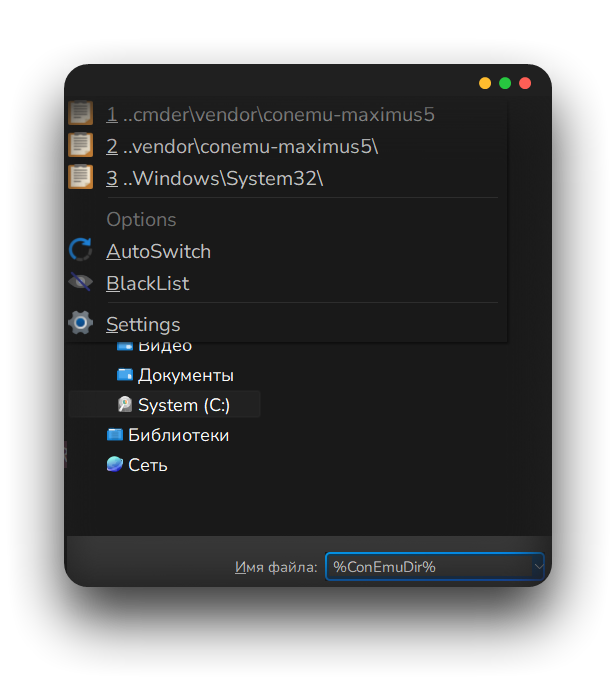
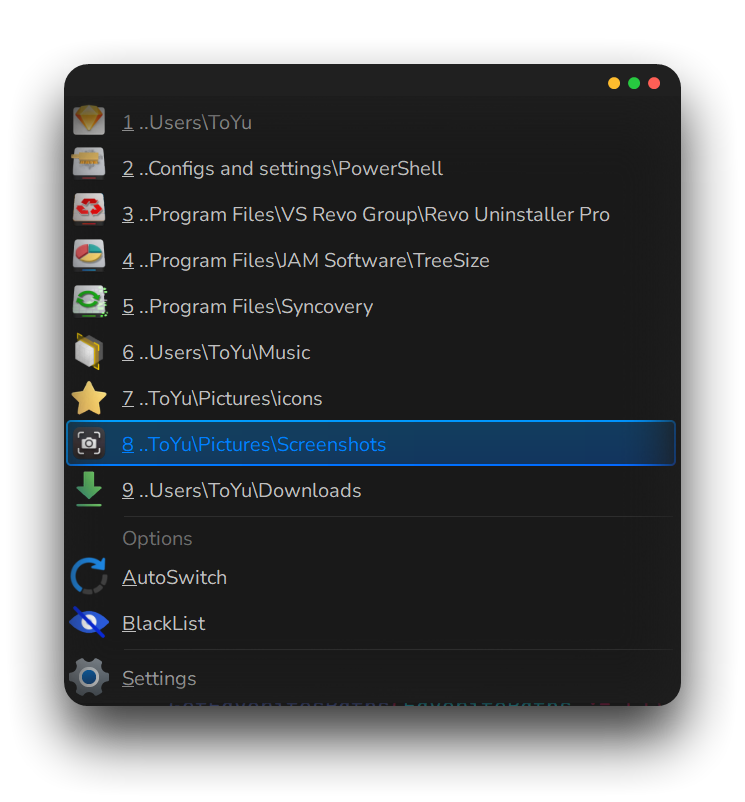
Out of the box, it will show you a list of opened folders to choose from.
When you select one of those, the file dialog will switch to the selected folder.
The menu will not be shown if there are no file manager folders to select from.
AutoSwitch mode.
After selecting AutoSwitch from the menu, the menu will no longer be shown for that specific dialog, for example Notepad's Save As dialog.
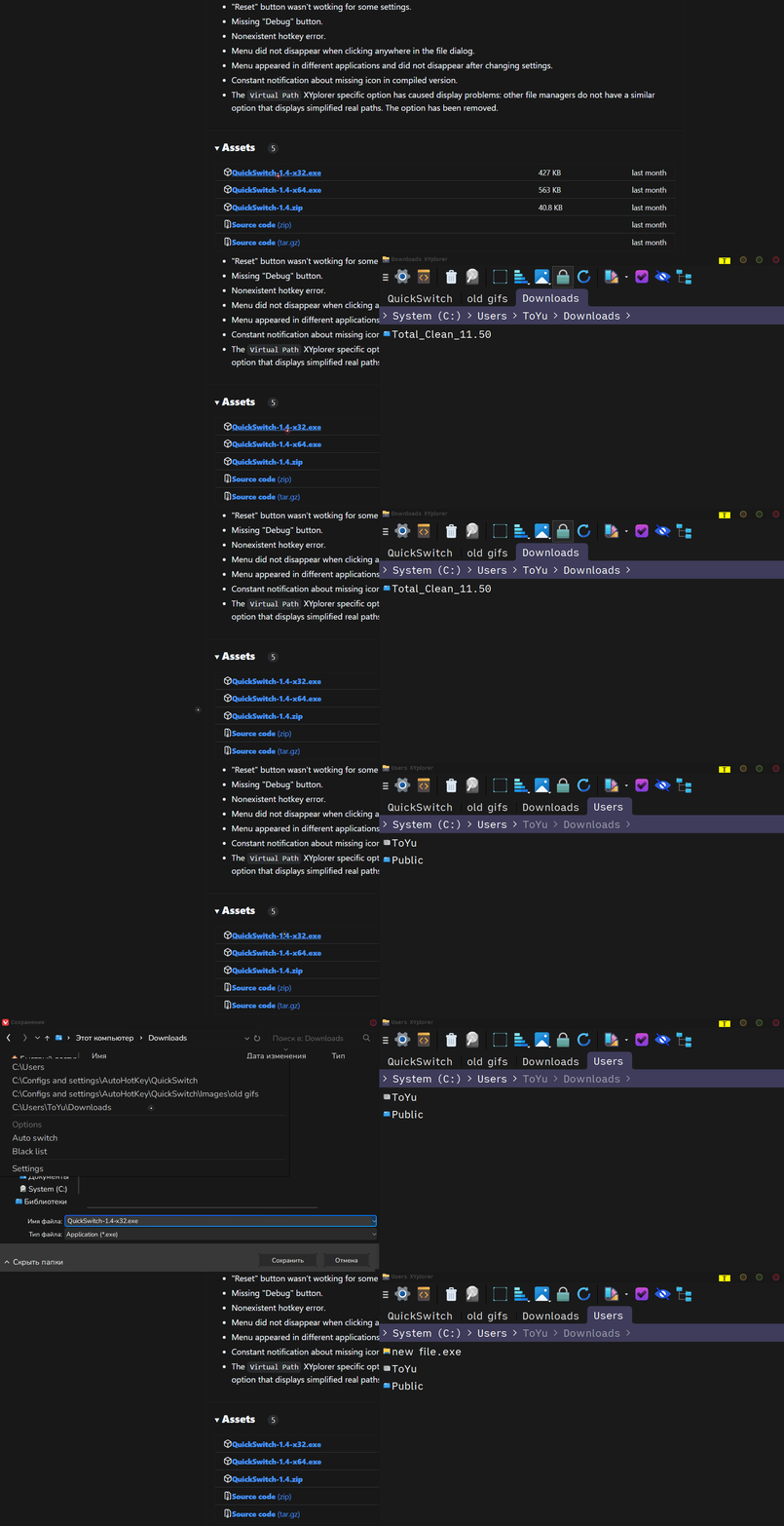
From there on, when you Alt-Tab to the file manager and Alt-Tab back to the file dialog, The file dialog will automatically open the folder that was active in that file manager.
When the file manager was active before you open the file dialog, it will even open that folder straight away, without further needed action.
The keyboard shortcut Control-Q will still open the menu if you need it, for example to reconfigure what to do in this dialog.
There is also an option Never here.
Select that setting to 'mute' QuickSwitch in that specific dialog.
Useful for example for webbrowser dialogs, as they already keep track of website/downloadfolder combinations.
AutoSwitch Exception
AutoSwitch "calculates" the number of (hidden/normal) windows between the most recent used file manager and the file dialog. In 95% of the cases, this is 2 windows, like for example (1) Notepad's Open dialog, (2) Notepad itself and (3) File Explorer.
For the remaining 5%, you can follow these steps when AutoSwitch is unable "to do it's thing":
Open the unwilling file dialog.
(Nothing will happen as AutoSwitch doesn't understand/ miscalculates)
]Press 'CTRL + Q'
Select AutoSwitch exception from the QuickSwitch menu
Follow the on-screen steps.
In short, this lets QuickSwitch figure out and learn what the correct "window-distance" is for this specific application/dialog combination.
The next time, that will be used. and AutoSwitch should work again.
What does QuickSwitch do? -more details
to do ...
QuickSwitch is not finished yet.
... but it should be fully functional in it's current form.
On the To-Do list for the near future are:
Support for long paths ( longer than 259 characters)
A better user interface. There will be a simplified menu with less 'technical' entries.
Suggestions are welcome.
A different way to 'talk with' Total Commander an XYplorer
A notification area (/system tray) menu, including icon
Option to load at startup
Limitations
Windows 7 and up are supported. QuickSwitch will not run on lower versions.
Can not get information from file managers that run elevated (as administrator)
Installation
Download the 64-bit or 32-bit version of the QuickSwitch zip-file, depending on your operating system.
Download link is at the top of this page.
Extract the zip-file containing QuickSwitch.exe to a folder
Note: QuickSwitch will write it's ini-file to that same folder, so you need write access there.
That's all
Running QuickSwitch
To start, run QuickSwitch.exe. It will stay quietly in the background, until you open a File Dialog.
To stop using QuickSwitch, right-click it's system tray icon - a white on green "H" - and choose Exit
Hello. I really want to use QuickSwitch, but it appears only 2-3 times from 100 in dialog boxes. what can i do? (it works only if i start excel\word etc. from Opus )
Most likely cause: you are running some of these programs elevated (as Administrator).
There are ways to fix/workaround this, although it is still not recommended to run most apps elevated.
I will send you a PM to discuss this (tomorrow) as I don't think it is appreciated when discussed on the forum (based on previous experience)
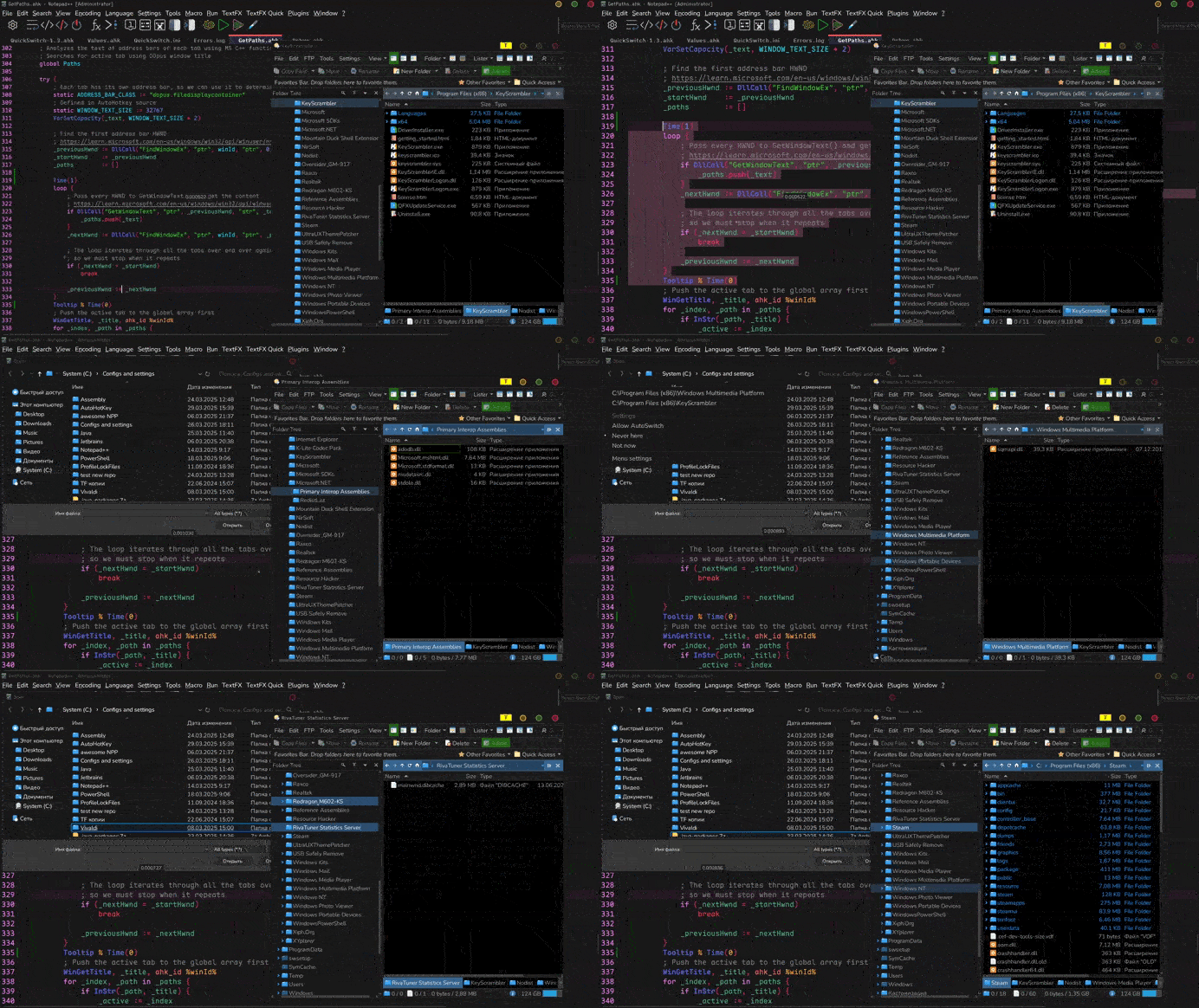
QuickSwitch has gotten a massive upgrade so there is no need to ask DOpusRT for a XML and parse it! Also added multi-tabs and dual-panes support: display all tabs from all DOpus panes. Download: https://github.com/JoyHak/QuickSwitch/releases
Tabs for menu settings, app and shortcut display options.
Vertical alignment: ou can set large or monospaced font and UI will adjust to your preference.
Better performance:
The speed at which menu with paths from file managers appear has been increased.
AutoSwitch has been modified to no longer iterate over all paths. It activates the first path in the stack of available paths.
Log with errors(including custom ones when entering wrong values in settings): you can read .log if something doesn't work. It is located next to the script.
The old Autohotkey v1 syntax was improved and became similar to the v2 syntax for further porting.
Don't know why Listary's 'Quick Switch' is said to be deprecated. It's still on the dialog boxes. The 'currently open folder' just never works properly with Dopus. But the history menu has it in there. Dopus open tabs and folder history is basically the same thing.
In which file dialogs that you use the menu does not appear? What kind of applications are these? I want to add new dialogs!
I added some checks so that the menu does not appear in various erroneous applications, but it seems that the "Blacklist" option is still needed. What should this option be in your opinion?
This amazing update is aimed at improving performance and it was prepared thanks to the incredibly valuable testing by Arsiendle and CennoxX! Some settings have been changed, please set them again in "Menu settings".
I really need your feedback! If something is not working for you, please let me know. If you think that app can be improved, write to me.
Changelog
Menu options
Black list option: if a menu appears where you don't want it to, you can add that window to the black list. The Menu can still be opened with the main key which can be changed in "Menu settings" > "App".
Only Auto Switch: removed "not now", "never here" options. Now there is a single "auto switch" option.
Keyboard support: now you need fewer keys to interact with the Menu:
Path: 0-9.
Auto switch: A
Black list: B
Settings: S
Hide menu: Esc / click anywhere
Each option and button in the settings has a corresponding key. Press the u̲n̲d̲e̲r̲l̲i̲n̲e̲d̲ l̲e̲t̲t̲e̲r̲ on the keyboard for quick focus: C̲ancel – C; Path s̲eparator – S.
Menu settings
Always Auto Switch: always changes the path. But you can disable this mode for specific windows using "auto switch" Menu option #64.
Close old-style file dialog: enable this option if you want to close old-style file dialogs immediately after selecting a path a don't want to wait #78.
Nuke button: sets the default settings and puts the current configuration in the Recycle Bin. Use this option to remove all window settings and force "always Auto Switch" mode. The button is hidden for safety reasons. It can be found after clicking "Reset" or "Debug" buttons.
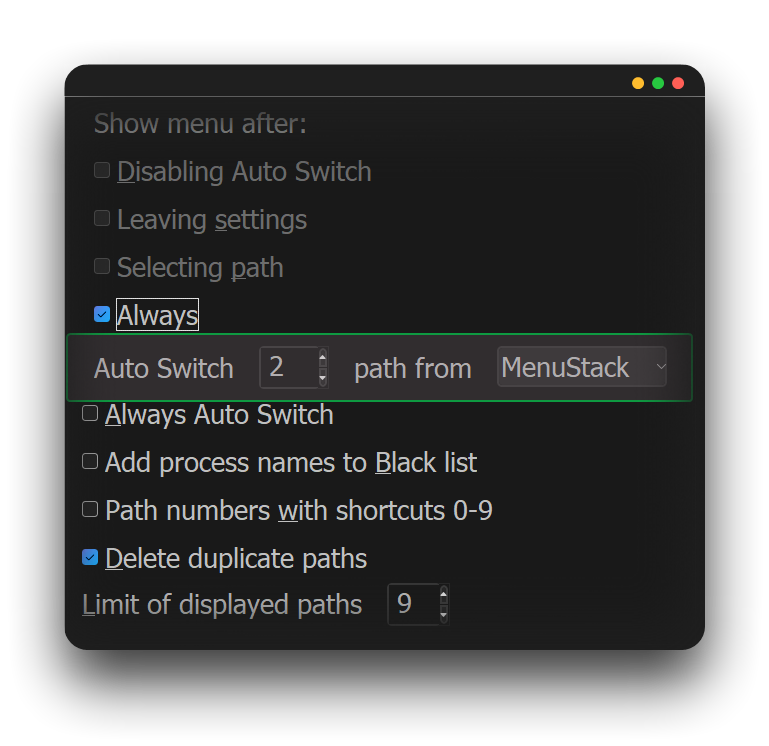
Show menu:
If all Menu options disabled (e.g. disable "Auto Switch" to show, enable to hide).
After selecting path.
Always (hide only after losing focus).
Features
Empty menu: if no paths could be found or supported file managers are closed, the menu will display "no available paths".
More file dialogs: added support for old-style TreeView dialog with Edit field and simple tree (XY forum); added support for some archivers dialogs (including BandiZip, PeaZip, 7-zip and WinRar)#43.
Performance: the speed of the following actions has been improved:
Auto switch.
Navigating the selected path.
Determining the type of dialog.
Getting paths from file managers.
Getting the Directory Opus active tab.
Saving and reading the configuration.
Refactored
All dialogs now uses same fast function which uses the Edit field instead of the address bar (XY forum).
Reduced disk usage (reduced amount of I/O operations).
Improved Menu settings and ini options readability #84.
Sorry for the delay, for some reason I didn't get the memo that you responded to me.
The thing I'm talking about is when Listary piggy backs on child dialogue boxes.
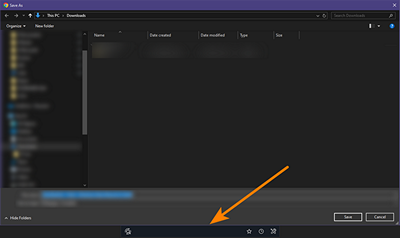
Here's a 'Save As' dialogue with Listary's helper on the bottom.
Enforce Menu: now you can enforce the Menu in any application using the keyboard shortcut: Ctrl+Shift+Alt+0.
You can use this feature to test whether QuickSwitch is working correctly in the (target) app in which Menu appears. If it really works, click "Settings > Debug > Export" to export the app info file. Open a suggestion to add this app to QuickSwitch, attach exported file.
You can use this feature to try changing the path in any app, but it probably won't work if there are no visible input field (e.g. Filename, Edit) or the target application is running as an administrator. If it works, see the Note above.
Better error display: QuickSwitch now shows significantly fewer notifications if it's not launched as administrator and can't get paths from Dopus or can't change file dialog path. The "permission error" appears once and will not spam you with notifications.
In this case, it is better to restart QuickSwitch as admin or restart other applications with reduced permissions. You can see their names in the notification or find all their names in Errors.log. The error will tell you when this is really necessary. Otherwise, you don't have to worry about it.
Refactored
Reduced code size.
Improved comments.
Improved errors logging.
Improved file dialog type detection. Errors now interrupt app execution.
Removed redundant ByRefs.
Fixed
Various syntax errors pop-ups.
Opening multiple Explorer windows caused a system error.
The tray icon did not reset after pressing "Reset".
Entered empty string values in the settings were not saved.
Menu residue display and Menu re-linking to non-file-dialog (#88, #94).
The menu only displayed one path if "Auto Switch" was enabled.
Selecting paths no longer shows an error if the file dialog owner application has an "elevated" status.
I was going to say, "this is what I use Listary for", but an *every open tab list, instead of only the tab currently focused, and legacy child dialogue box support? Wow! Good job Joe!
QuickSwitch no longer triggers antiviruses! Now you can be sure that the application is safe because its threat points have been significantly reduced! However, you can always compile the application yourself, as this process is automated.
Enforce Menu: you can enforce the Menu in any application using the updated keyboard shortcut: Ctrl+Shift+Win+0. The menu will display the paths obtained after the last opening of the file dialog and will not change them until the next opening. Details about this feature are described here.
Limit the displayed paths: in "Menu settings" in the "Menu" tab you can set the maximum number of paths to be shown in the Menu. In this case the menu will show the N most recently opened paths in the file managers.
Path numbers with shortcuts: this option allows you to select a path using the keyboard and now it works with Numpad keys and additional mouse buttons (some mice have 1-4 numpad). Numbers 10, 11, ... are no longer displayed in the menu as they cannot be physically pressed on the keyboard.
Fixed
If "Auto switch" was enabled, the file dialog closed immediately (#77).
Broken option "Show menu after leaving settings" (#101).
This big update is aimed at changing the appearance of the Menu and it was prepared thanks to the @noticz and @eddablin! There are new Menu path sections, new customization options, and new settings tabs. The changelog only briefly describes the main changes. If you want to know the details of each change, open the drop-down list with details or click on the words highlighted in blue (hyperlinks).
I really need your feedback! If something is not working for you, please let me know. If you think that some features can be improved, write to me.
New appearance options
Settings > Menu tab
Blacklist by processes: you can add windows to the blacklist by their process names. This option is useful for turning off child windows or for windows with a changing title.
Delete duplicate paths: if some paths are repeated, this option will leave only one of each path. Deletion goes from top to bottom: the first duplicate path will remain, the rest starting from this position in the menu will be removed. This is useful if you do not want the pinned paths to overlap with the paths from the file managers (see below)
Settings > Theme tab
Apply dark theme: enables dark mode in Settings and Menu. If dark colors are enabled in the system or a dark system theme is selected, option will be enabled automatically. I don't recommend using Windows default dark theme. Use the BigSur or CakeOS themes from Niivu.
Show icons: shows icons from specified local directory. Size and directory can be changed in the input fields next to the option (the variables will be expanded). You can replace any icon in the selected directory, the main thing to remember is that the icon name must remain the same. Only ICO files are supported, you can convert any image to ICO here or here. If you want to use other extensions, see below. You can open a request to add alternative ICO files to the releases.
Active tab only: will only show the active tab in the active pane.
Locked tabs: will show all tabs, including blocked ones. If this option is turned off and the option above is turned on and the current tab is locked, nothing will show up in the Menu. Currently, this option is only supported for Total Commander and Xyplorer.
Enforce menu: press Ctrl+Shift+Win+0 and select the path to change the current path in the active file manager. This is useful if you want to duplicate paths between different file managers or their windows. If a non-file manager is open, the active window process will be started with the selected path as an argument. Let's reverse QuickSwitch!
WARNING
The Menu sends a request to open a directory in the target application which can open all the files in the directory without warning!
In addition to the paths from the file managers, you can add additional paths to the Menu on Settings > Theme tab. The details of each section are described here. If you want to improve the logic of the sections or add a new one, please let me know.
Pinned paths: select the key / mouse button in Settings > App > Pin path... and left click on any path. Now it is pinned and it will be stored in the configuration. You will see this path on every restart.
If you turn this option off, the paths will no longer be displayed. If you turn it on, all pinned paths will be displayed again. If you want to delete all pinned paths, check Settings > Reset > Delete pinned paths and press Enter.
Clipboard paths: copy one or more paths and they will appear in the Menu. They will disappear only when you open the file dialog from another application.
This option works in the background and analyzes the clipboard for the presence of a path when changing it. If several paths separated by line breaks (multi-line text) have been copied, they will be added to the Menu individually. Background analysis is temporarily disabled when requesting paths from other file managers.
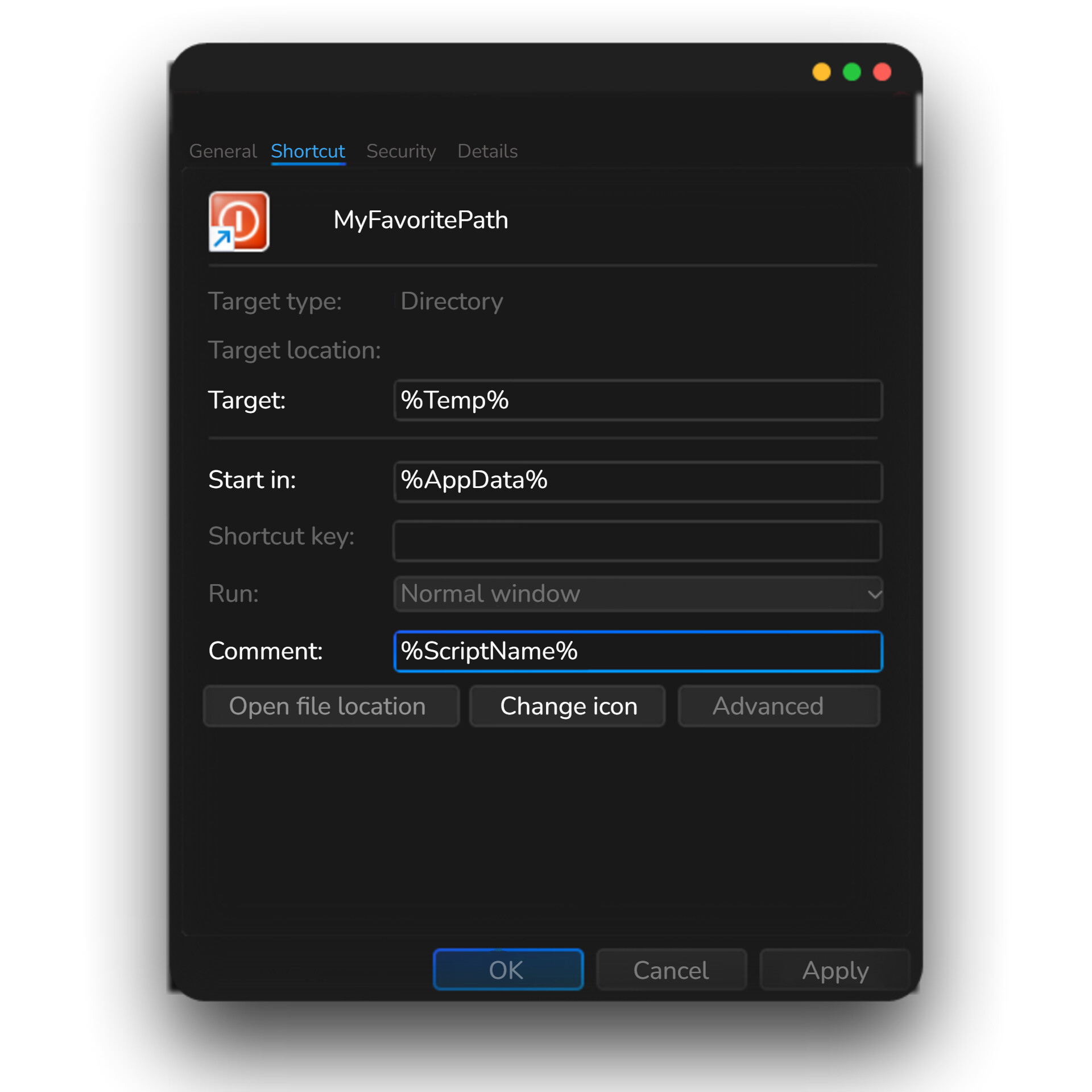
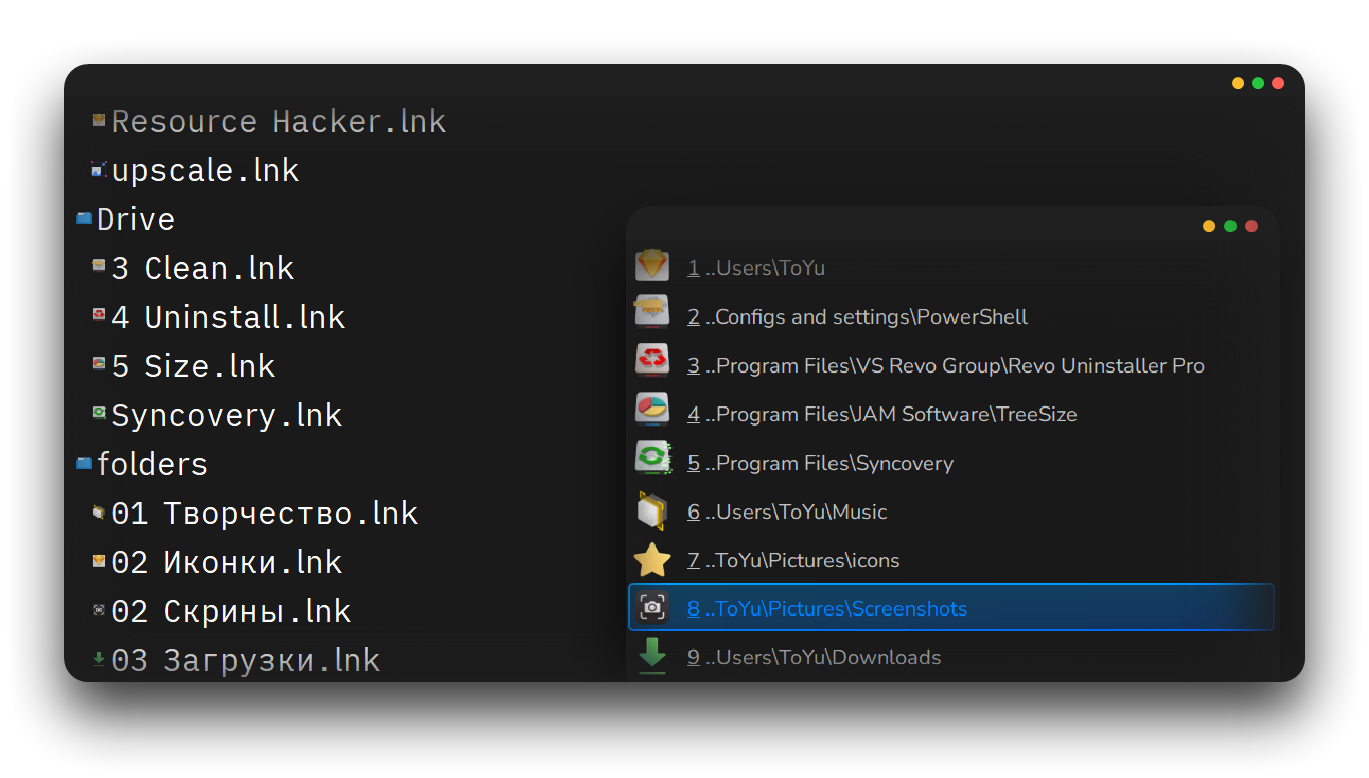
Favorite paths: select a directory (the variables will be expanded) with shortcuts (links) to the directories and they will appear in the Menu. You can customize how they are displayed in the Menu.
Create a shortcut to any directory or file in it (in this case the directory it is in will be used). Open the shortcut's "properties" and click on the "shortcut" tab.
The "target" field is the main path you will see. You can change the displayed path and give it any name you want in the "comment" field. This field takes precedence over displaying the full or short path (Settings > Short path). All fields support environment variables.
You can click on "change icon" button and put the path to any resource that contains icons (ICO, DLL and so on). The selected icon will be shown in the menu. The default icons (just after shortcut creation) are not shown after the shortcut is created and will be replaced with the "Favorite.ico" icon from the "Icons" folder.
These options work well with Flow Launcher: it allows you to search for files using Everything, copy their paths and drag them to other windows.
Better hotkeys: Settings > App
Mouse buttons support: now you can choose mouse buttons and their keyboard modifiers.
All hotkeys and mouse buttons can be completely disabled. Press Space to clear input field or select the appropriate option on the Reset tab.
You can even select special keys, like CapsLock, Space, Win and so on in drop-down list after pressing mouse button. There are few keys, so there is no separate list for them.
The standard special keys functionality will be disabled while the file dialog is in focus. Changing the focus (opening settings or any other window) enables normal key operation.
For example, you will not be able to open the Start menu if you have selected the Win key in the settings. It will open the QuickSwitch menu.
Improved Menu settings and debug UI
Improved button alignment.
Now all UIs closes after pressing the Esc button.
The dark theme applies to all elements.
Added the Reset tab to partially delete config sections, reset internal variables and completely delete the config.
Refactored building system
The version number has been removed from the name of the release .exe and .ahk. After extracting new update, old files will be replaced with new ones. Configuration (settings) will never be replaced or deleted.
The application building system has been changed to a more versatile. It automatically selects the Autohotkey interpreter and Ahk2Exe from your system. The building script is independent of changes in the source code, so you can configure it once and run it after each update.
The script can be configured to build / archive any file, including your own scripts and projects.
Fixed
Empty paths from Total Commander.
Repeated attempts to create user command for Total Commander in usercmd.ini. Now, if the user command already exists and QuickSwitch fails to retrieve the list of tabs, an error is displayed.
Repeated warnings about file overwriting after enabling (Always) Auto Switch.
Impossibility to change the path in the file dialog after the warning about file overwriting.
Rare freeze of Ctrl or Alt keys after the Menu display.
Saved options were reset after incorrect input. Some options were mistakenly overwritten after exiting the settings.
Logging has been reduced (antivirus issue #108).
Waiting time for rendering the file dialog has been increased (immediate close #77).
This update is aimed at improving performance and quality of life. Various annoyances and critical bugs have been fixed.
I really need your feedback! If something is not working for you, please let me know. If you think that some features can be improved, write to me.
Increased the speed of:
determining the type of file dialog;
switching the selected path in the Menu and the speed of AutoSwitch;
menu display.
New AutoSwitch features
You can choose which path "AutoSwitch" option should open: pinned, favorite, ... (see details about the special paths here). Open Settings > Menu tab and select the target in the drop-down list.
You can select the index of the path that will be opened. Index starts with 1 relative to current menu section (pinned, favorites, ...).
Select "MenuStack" target, then index will be relative to all visible paths in the Menu.
Tip
You can enable Always AutoSwitch option and select "PinnedPaths" or "MenuStack" as the target. Then AutoSwitch will always activate the pinned path according to the selected index (1st, 2nd, ...).
Warning!
You need to enable specific target: Settings > Theme > Show sections .... For example, if you have selected the "PinnedPaths" target, select the Pinned Paths check box.
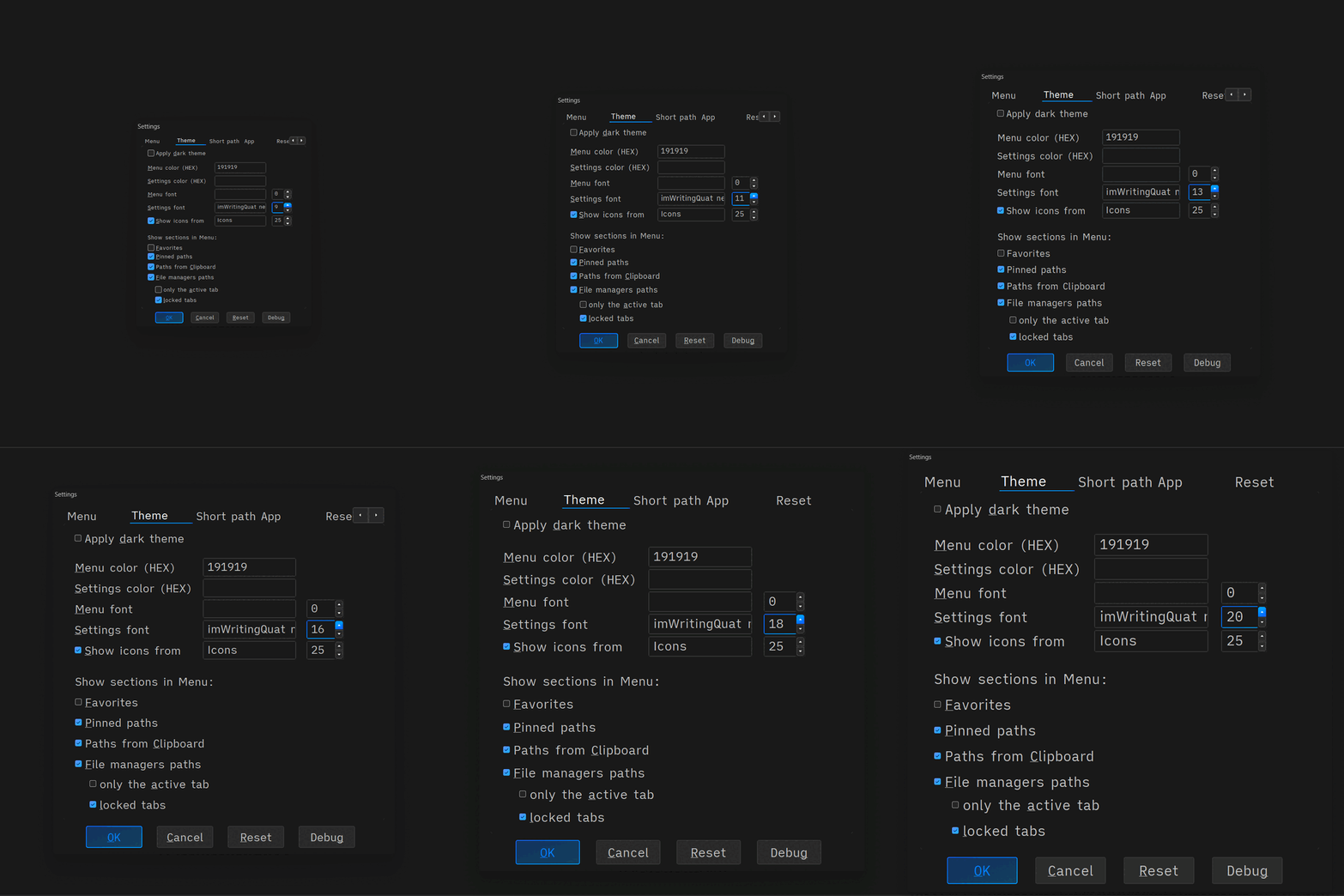
Added the option to change the settings UI font and its size. The option also changes the size of all settings items. Now the UI adapt to the selected font and screen DPI: the larger the font (e.g. monospaced) or its size, the larger the UI elements will look.
Tip
Increase the DPI and font size to singificantly increase the size of the UI elements.
Added the option to change Menu font and its size. I prefer Nunito for menus and ImWritingQuat for settings and file managers UI.
Caution!
This option changes the font and its size for all menus in the system including:
context menu
status-bar menu at the top
tray menu
some tooltips
some message boxes and popups
To roll back changes, open the settings, set the Menu font field empty and set the size to 0.
Other features
After enabling ShortPath > Show short path... option, 1st letter in the will be underlined. Press this letter on your keyboard to activate this path in the menu (see more about keys here). For example: S̲ystem32\Resources – press S to activate this path.
Tip
The path shortening settings on the ShortPath tab allows you to completely change a path structure. It also allows you to change which key will activate the path.
When you turn on ShortPath > Show short path... the path is shortened to a specified number of directories. For example, enter number 2 in the Number of dirs field on the ShortPath tab. If any path in the Menu will contain more than 2 directories (C:\Windows\System32\Resources), it will be shortened to 2 directories: System32\Resources
The first letter of the path will be underscored in the menu if Menu > Paths numbers with shortcuts option is turned off or the number of paths in the Menu is greater than 9. Press the underscored letter on your keyboard to activate this path in the menu and change file dialog path.
Open "Menu settings" and press Debug button to see all controls of the active window. Press Export to save this data to the readable file.
Fixed annoyances
These issues have been coming and going since v1.5. With each update, I slowly fixed them. Now they are fully eliminated.
After enabling "AutoSwitch" option, the file dialog may have closed (#77), the "Save As" dialog button did not work properly and focus was lost from the file name input field.
The Menu might not close and stay above all windows after pressing Esc or clicking anywhere (#88, #94).
The menu didn't disappear after immediately pressing Alt/Esc when opening a file dialog; Copilot web page could open.
The Menu sometimes didn't appear when the file dialog was opened.
Fixed issues with paths
Some paths from Total Commander containing Cyrillic and other characters did not work (#138).
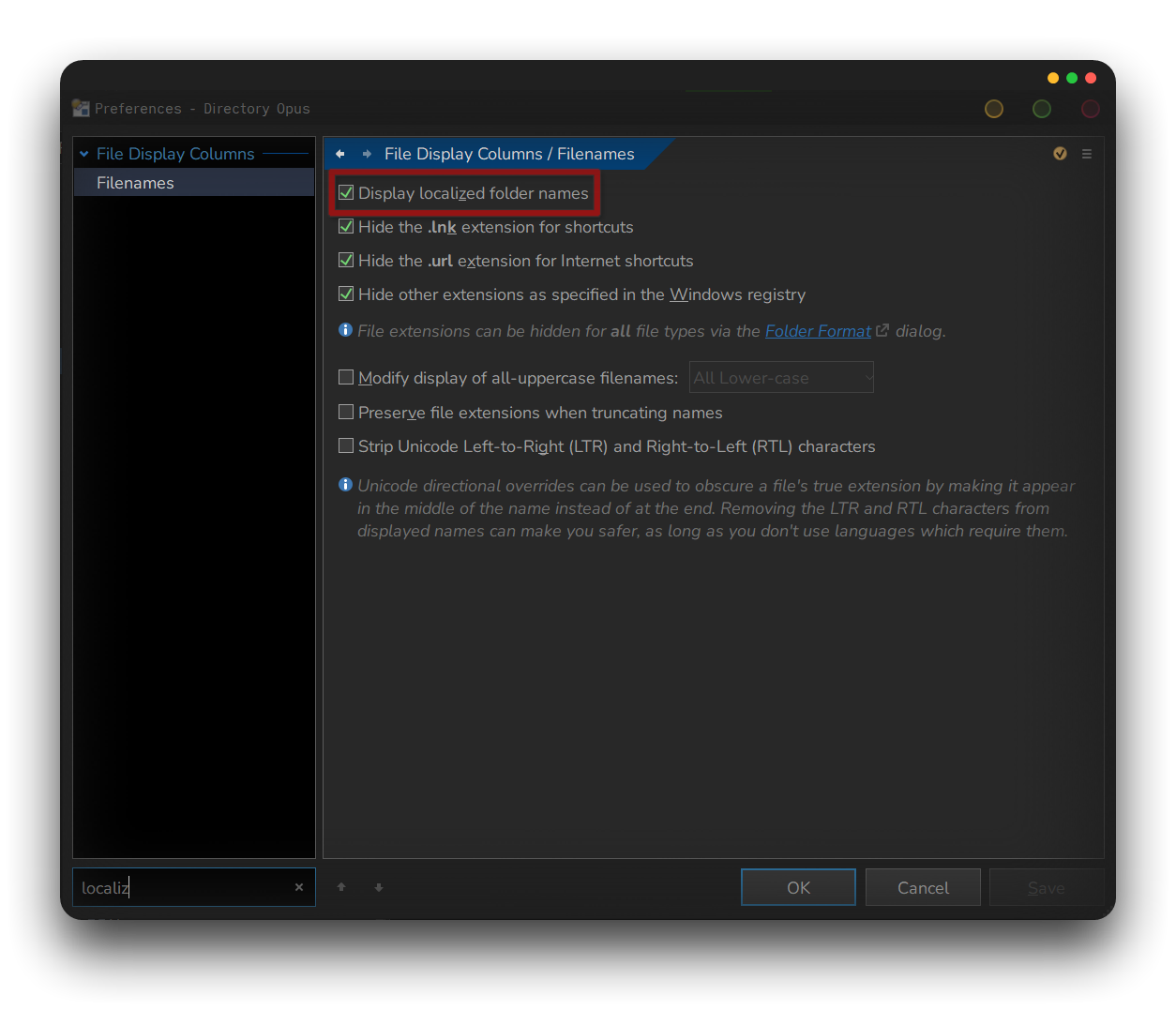
Some localized paths (depending on the system language) from Explorer did not work (e.g. C:\Benutzer, C:\Användare, ...) (#98).
The Menu displayed system and special directories (e.g. Recycle Bin) that did not work.
The active Explorer tab was not the first in the Menu on Windows 11.
The Menu displayed incorrect paths from Xyplorer after disabling the (show) locked tabs option on Settings > Theme tab.
The active Total Commander tab was displayed incorrectly after disabling the option Theme > File manager paths > (Show) locked tabs.
If the currently active tab is locked and this option is disabled, the next unlocked tab starting from the active pane (from left to right) will be shown first in the menu.
If all tabs are locked, nothing will appear in the Menu.
Fixed issues with menu
The menu appeared twice. After turning on AutoSwitch/always AutoSwitch.
The Menu no longer appears in non-file dialogs. (false-positives).