Something happened that caused my Window's Profile to be set to hidden system. But I didn't know that was what had happened till several days later. I'm not sure that should have resulted in a failure to logon but I was only getting a partial desktop with no way to run anything or access a cmd box, I couldn't click on anything. I ultimately gave up and started to rebuild my laptop a practice I don't think I've done much since they made Window's somewhat repairable but even those tools weren't enough.
I've gotten the core of my system back to functional but I'm having really strange problems with permissions where I set them to be the same throughout my profile but for some reason Window's won't even reset them if I try to change them. The issues came to light when a note taking program I use for keeping track of just about everything just wouldn't load my data saying it didn't have access. That's when I found out that the permissions on the data directory (one lower than the executible directory) were different. I'm still trying to fix them with little success and usually making access to other profile directories inaccessible. I still don't know why these permissions aren't proper but I'm telling you all this because some of the problems I'm going to ask about in DO might be related but we're talking a much bigger structure than my little note taking app and I'm not always sure in DO what directory my problem might be.
I've been trying to go back and forth between my desktop DO and my laptop DO tyring to figure out what might be wrong or if it was always that way. Security seems to go wrong somewhere in %APPDATA% or maybe multiple places.
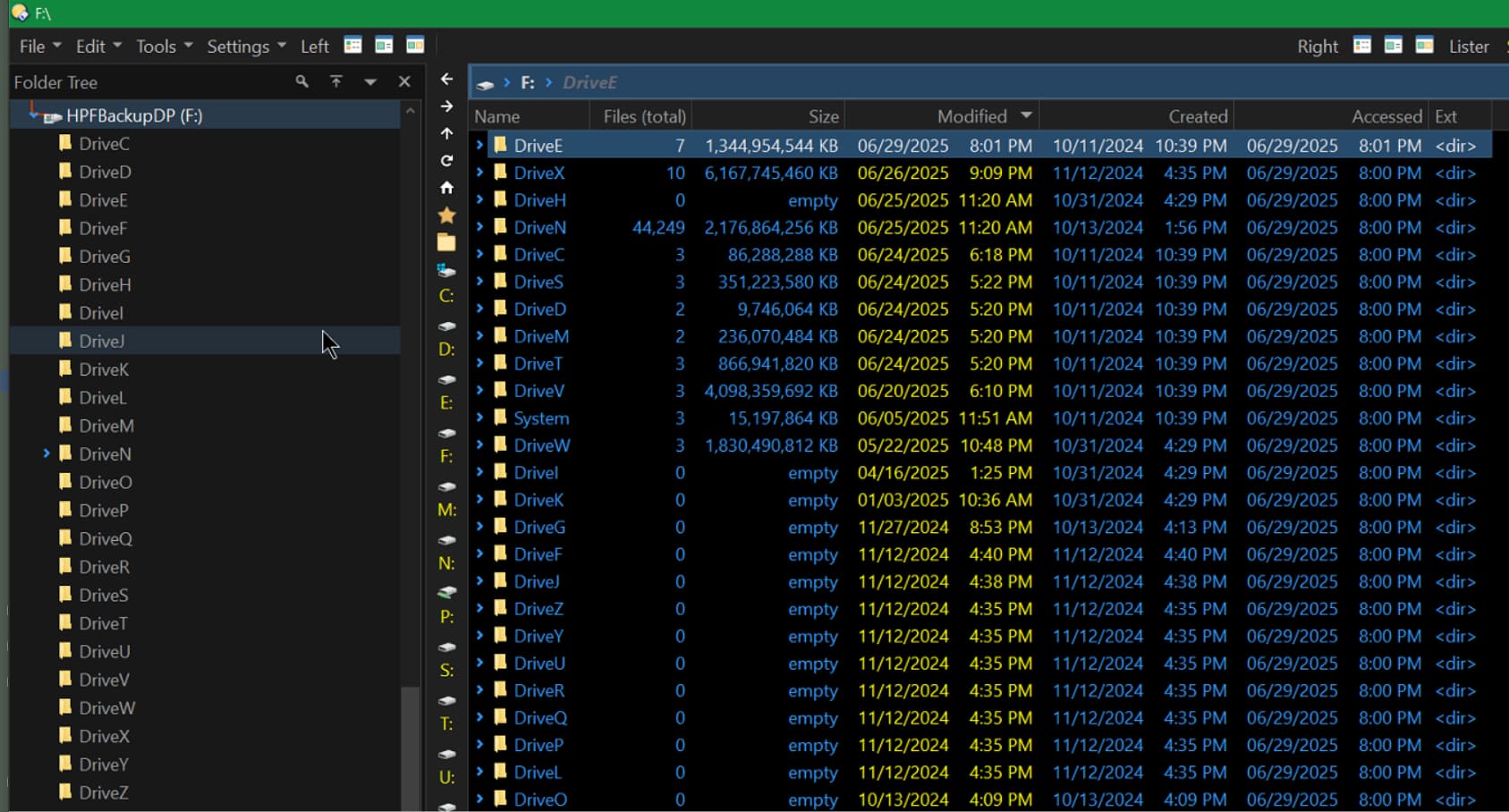
For example, a single lister with a tree and a file lister. If I select a file on the lister side should the tree side highlight the matching folder? I would expect yes but not only does it not work on my laptop it doesn't work on my desktop. Then I realized I think this is something related to the change of showing both the folder container and the file on the lister side. In this example I selected a folder on the lister side but nothing changed on the tree side. Ignore the highlighted DriveJ on the tree side that's just my cursor location it's a hover thing. Should the drive toolbar show highlighting or a depressed button? It shows nothing on either device. It would be a nice thing to have when the left side of the location bar disappears due to length.
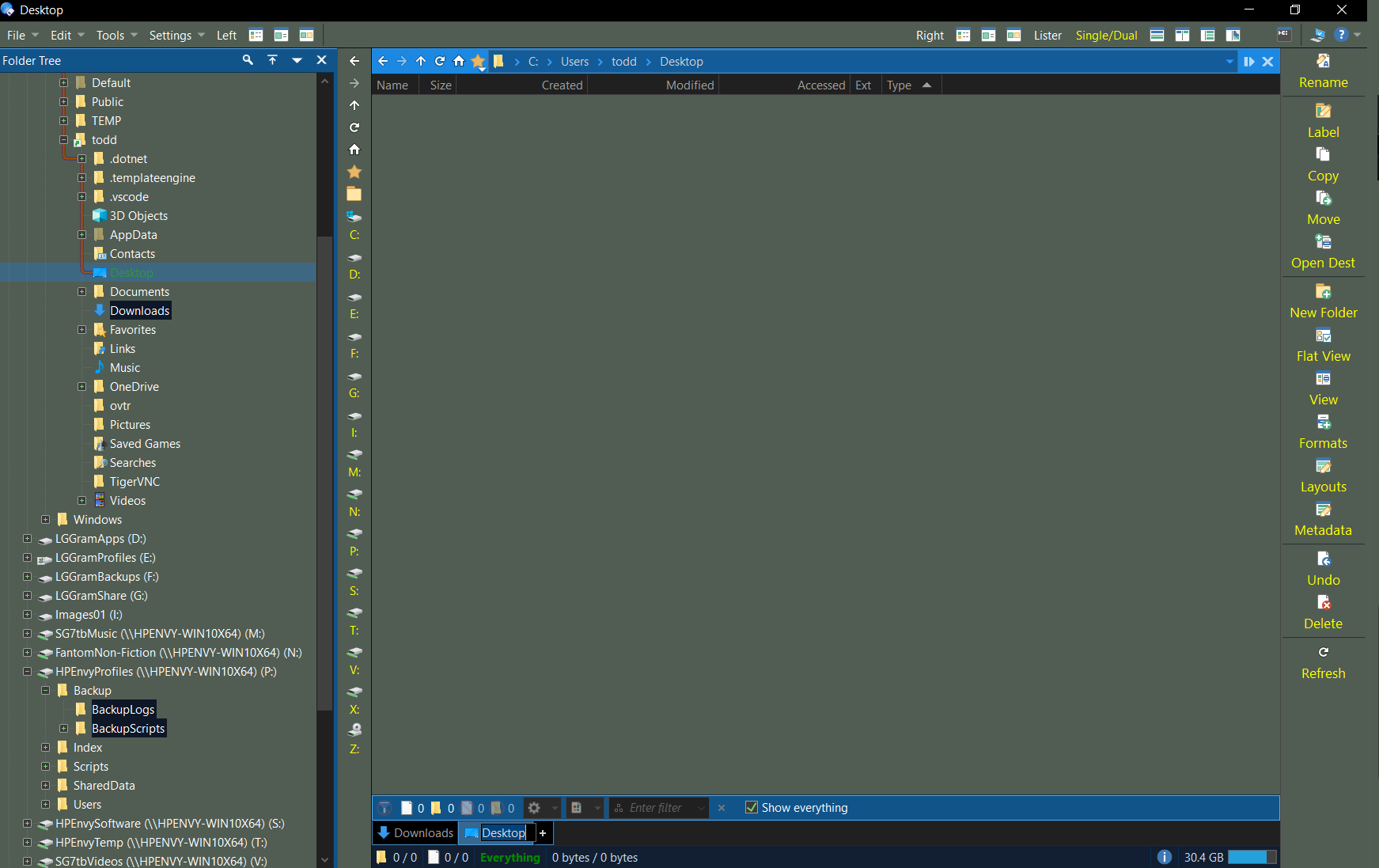
I have no idea why DO is blank. The security looks fine.
Also, note that on the Tree side on my laptop there are directories highlighted (I'm assuming they're highlighted) in inverse black. But I'm not sure why that's happening or why those folders?
If you have a single-display lister, the tree would normally already have the current folder selected before you even select anything below it. That seems to be the case in your screenshot. Not sure what you're expecting but it looks correct to me.
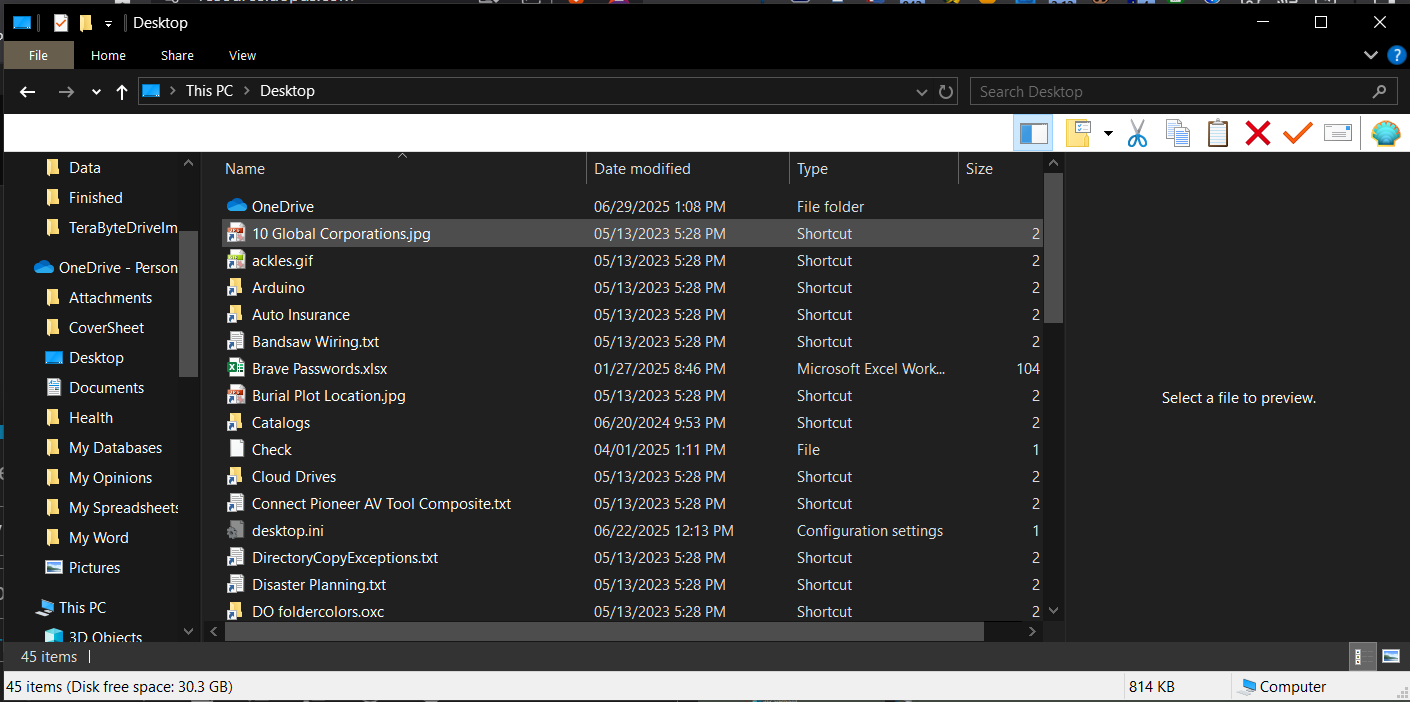
The two programs aren't showing the same folder. One is showing Desktop and the other showing C:\Users\todd\Desktop.
The files in the latter are included in the former, but the former may also have files coming from other locations (e.g. C:\Users\Public\Desktop).
Not sure I understand correctly this long post.
Two things you might want to look at:
Folder tree following open folders is set if the Preferences: Folder Tree - Expand/Collapse (should be the second option)
Desktop folder empty: Might be related to OneDrive which has its own "Desktop" Folder.
Note: I do not have a Desktop Folder under "This PC" (neither in Opus nor in File Explorer). You can try to access, from File Explorer, the same path as in Opus (/Desktop) and check that you're really looking at the same folder in both file managers.
I can remember I had once an issue with not finding the proper content of "Desktop" folder just to realize there are multiple instances of that folder with different things, but I can't find that anymore.
Note there is also a "Public desktop" (you can access it with default alias /commondesktopdir). Might be worth having a look there since I think Windows merges this the user desktop to get the actual content of the desktop.
EDIT: Leo got there faster and replied while I was writing, and didn't see his posts. Some redundancy then ...
I was expecting that the directory on the lister side be selected on the tree side.
Just so you know what you're looking at it's a Drive Pool on Drive F: that holds all my backups by Drive Letter. Didn't want you to think they were actual drives.
What I found was if I double-click on DriveE on the tree side it highlights DriveE and shows the path line ending on DriveE on the tree side. On the lister side it displays the files within the directory.
If I double click DriveE on the lister side I get the same result.
However, if I am on HPFBackupDP (F:) and I click on the > sign beside DriveE on the lister side then the tree doesn't follow. Which makes sense. You haven't really changed location on the lister side.
Thanks for pointing out that they were different folders although they were it was because I knew no one used that "All User" Desktop but the way I got at them on the different file managers I could see why you said what you did and that's what got me thinking along with @PassThePeas comment about OneDrive.
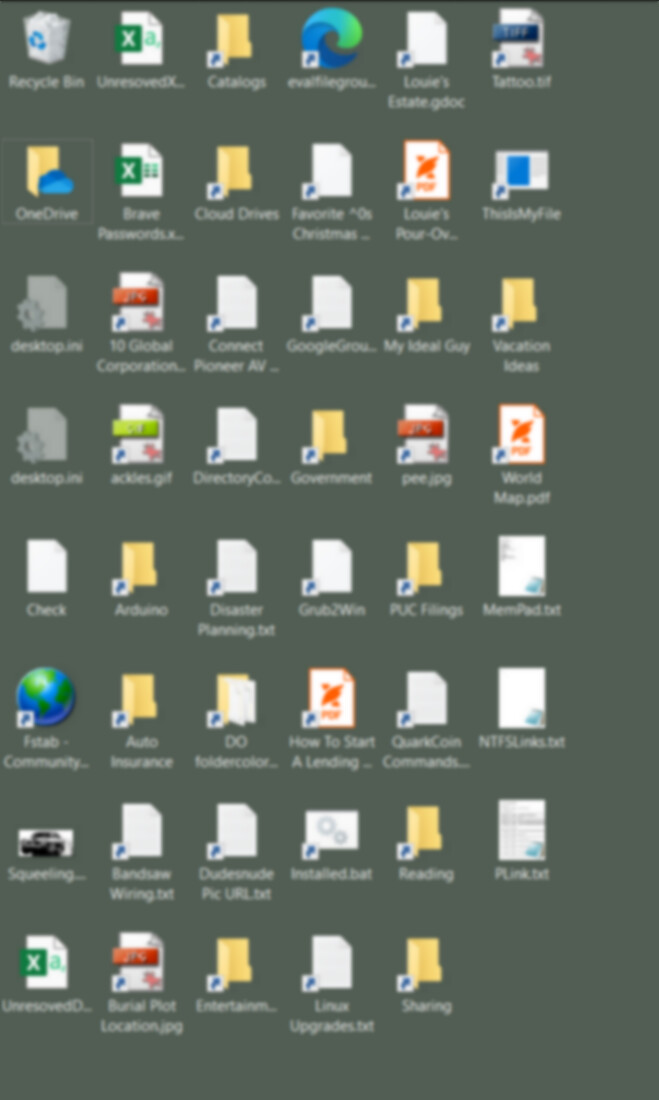
I'm not sure how or why this happened but here's the reason why. My Desktop on my Desktop has 57 files. My Desktop on my laptop has 47. They've always been equal. The whole point was to have the same fileor the same desktop regardless of where I was. On my laptop I noticed that many of the icons were shortcuts to GoogleDesktop although I'm not sure how that happened because I didn't install Google Cloud on my laptop and there was no folder for the Desktop shortcuts to point at. It didn't exist. When I tried to resave one of the shortcuts just by going to properties and clicking on OK it wouldn't save telling me it was not valid.
But there are also files coming from OneDrive which has been changed recently by MS. I guess from sharing files to more of a backup of data. They couldn't harvest enough personal info? I tried to go back to the way I had it setup before were it was only getting My Office documents but seems like that's not possible as they force certain folders to be on the backup chain.
I'm guessing it's downloading anything from Desktop that it may have backed up at some point adding those files to the Google Shortcuts. It used to be that Google Drive could be setup like a drive on your system although virtual. I got annoyed with it last year and removed it from both my laptop and my desktop and yet it still invades. I'm going to have to sort it out and figure out how I want to handle my desktop.
So not what I was expecting.
Anyway neither of you commented on why some of the directories were be "inversed" on the tree? Why those specific ones? I have one drive that I open where it preselects a folder. Not something I've ever setup. I only know that it's doing it because it's not the first folder in the list.
You've probably assigned labels to them, possibly without meaning to (like you had assigned the "pin to top" label to some folders the other day without meaning to).
This very looks like a label is set on those folders.
You can check in the labels definitions in Preference/Settings to see which one it is.
Then, it might have been applied directly to the folders or this might be some kind of filter (look into Label Assignments and In Specific Folders).
Be careful with In Specific Folders, as this contains top folders into which labels are applied,.
I think what's happening is that Favorites are getting re-colored for some reason?
I did check for labels but no such luck but it does bring up a question about labels. In Preferences there are essentially 2 places that keep track of labels. One for files and one for folders/wildcards. There are hundreds of labels which are listed BUT most are listed but not checked. What does the checkmark do? In the list it makes the entry follow the color of the label but why would there be hundreds of un-checked files?
I then looked through preferences for something regarding favorites being marked differently than all the other non-favorite directories but didn't really come-up with any answer.
One to define labels names and representation: fg & bg colors, text style, etc ... This is Labels/Label Definitions
One to assign those labels system-wide, per file, per folder, using masks or filters. This is Labels/Label Assignments
Note that you can decide to create a label assignment then want to disable it temporarily. That's what the checkboxes are for: disable the label assignment without deleting it.
Those assignment do not come on their own: you have to create them. If you have hundreds of assignment, you must have done something for this to happen. Clean Opus install does not come with labels as far as I can remember, and certainly not hundreds of them.
Finally, there's a last place to assign labels: Labels/In Specific Folders
This is where you'll decide to have specific folders (and maybe their children folders) assign their labels with dedicated rules
There, you first add the folder in which specific rules and assignment will apply (it can be defined with masks or regexp) and you can decide wether rules apply to this folder or its entire sub-hierarchy
Then, you can now assign (by mask or filter) which files/folders are going to be assigned a label
Same as previous location: you can decide to disable temporarily a label assignment by unchecking its checkbox
For the last two places, the labels you can assign are the ones defined in the first location.
This is the solution but that is not something I would have set. I'd have to actually go into it and select it. This isn't any fat finger incident. Even those folders that got assigned to a label in one of my older tickets that I had said maybe I fat fingered I didn't really believe I did but I had no other explanation for it.
I'm just glad it's solved. Like I said at the beginning of this topic strange things are happening which is not something that typically happens when you wipe out your entire system and reload it. Part of the reason I had opted for reload was to clean-up some of the oddities that came over time but weren't enough to want to rebuild a system.
My understanding of labels is they are stored as part of the OS's file system.
Most of the files I labeled would be on my Desktop not my laptop (which is what got the clean install) however they are mapped network drives so I may have labeled them from my laptop through the mapped drive but the labels would be been saved on my Desktop.
I label 3 things. Backup files to seperate the main backup from the diffs and even overflow files. I mark install files as I install them so I know what I installed and what needs to be done and finally various video clips that I've watched just to mark them as seen.
What I don't do is temporarily remove labels. At least not in any direct capacity where unmarking them temporarily was my goal. Now maybe I may have removed labels en masse when I got a data structure in place where I could move the desirable clips to that would no longer require that I mark them since I can just move them.
Looking through them what I notice are that the device they were initially saved to no longer exists and the files obviously don't exists either. So maybe they're somehow getting stranded or not cleaned up in other words.
The only place I assign labels using a patterns are the backups.
I don't know what happened, or what was done as part of rebuilding the laptop or Opus configuration on it, but colors don't turn themselves on and we have no other similar reports.
I thought I had this OneDrive stuff sorted but apparently not.
I synch my laptop Desktop folder with my Desktop Desktop folder last night. Nothing showed up on my laptop Desktop. Hmmm
What I found was that OneDrive, because it's forcing you to backup certain folders onto it's servers, has changed the registry to insert itself in between what we've come to expect our Desktop's data to be to a OneDrive subfolder. The data is being saved to %APPDATA%\OneDrive\Desktop as are the other folders. They could have accomplished this with junctions leaving our expected folders in place but they want to steal this stuff and not make it easy for you to disconnect it I changed the registry values back to their norm for these Profile Folders removing the \OneDrive thinking it would return the data to my normal Desktop and other folders. No such luck. Now I"m going to have to remove OneDrive after I get my data off it.
OneDrive is forced on you during install now so you can't really opt out from what I remember. You'll also find out that it's adding advertising notifications and randomly chosen apps from MS Store with no way to stop it at least not without researching how to block it. This is what I was expecting Win11 to bring with it - direct to user Adverstising on the Desktop which was why I was planning on statying on Win10, I'm suspecting this is a preview of things to come because why should you, the person that paid for your device, be able to control it? It's their OS and I'm sure in their pages of privacy notifications and the other documents you'll find out they like other corporations have redefined what it means to own something. There is no owning something even if you paid for it anymore.
For those of you that are interested in Ownership Rights Louis Rossman has been starting a campaign trying to relegislate Right to Ownership and Right to Repair. He needs all the help he can get mostly in writing Wiki entries about how the coprorations are redefinig your right to ownership. Or cases of you paid for a service in full and now they're changing it to a subscription model. This is happening all over the place. He's been all over the country at state houses trying to hold onto Right to Repair but he has realised the way they right legislation makes it toothless in favor of corporations although he's had some successes.
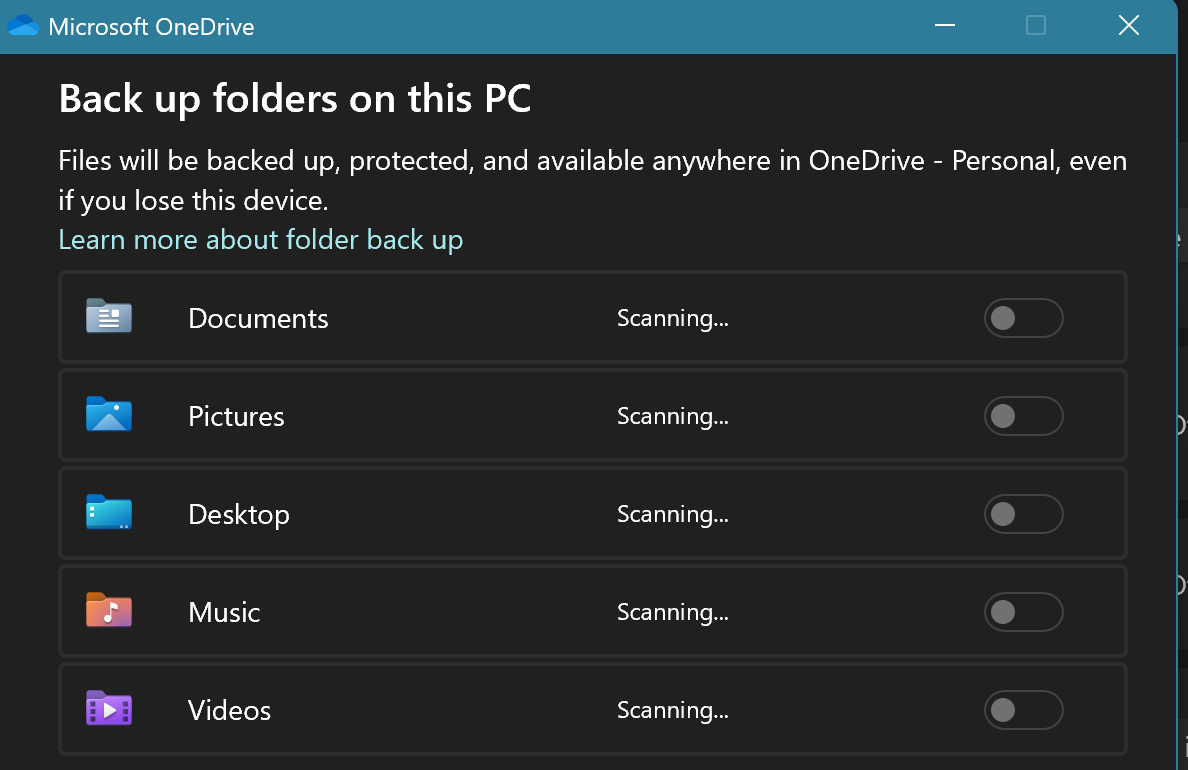
If you tell it not to back up those folders it'll put them back where they're supposed to be. Editing the locations in the registry may not stop it trying to back them up and may cause other problems.
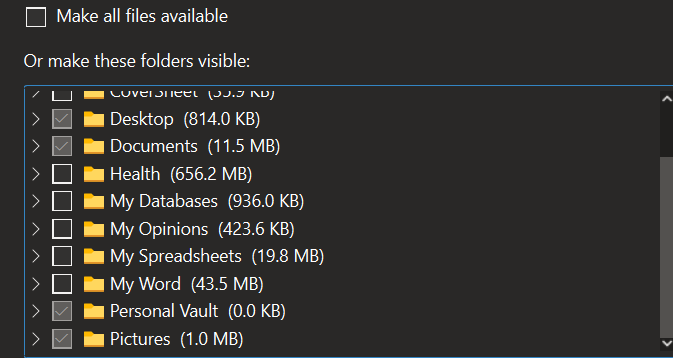
That's why I posted this image to show that I couldn't "uncheck" certain items. I had the same problem with the sliders. It wouldn't let me unslide them. Not sure how that link will post. I thought I'd get a quote option.
BTW laptop died again after an "upgrade" to the display driver and of course the restore point wouldn't work.