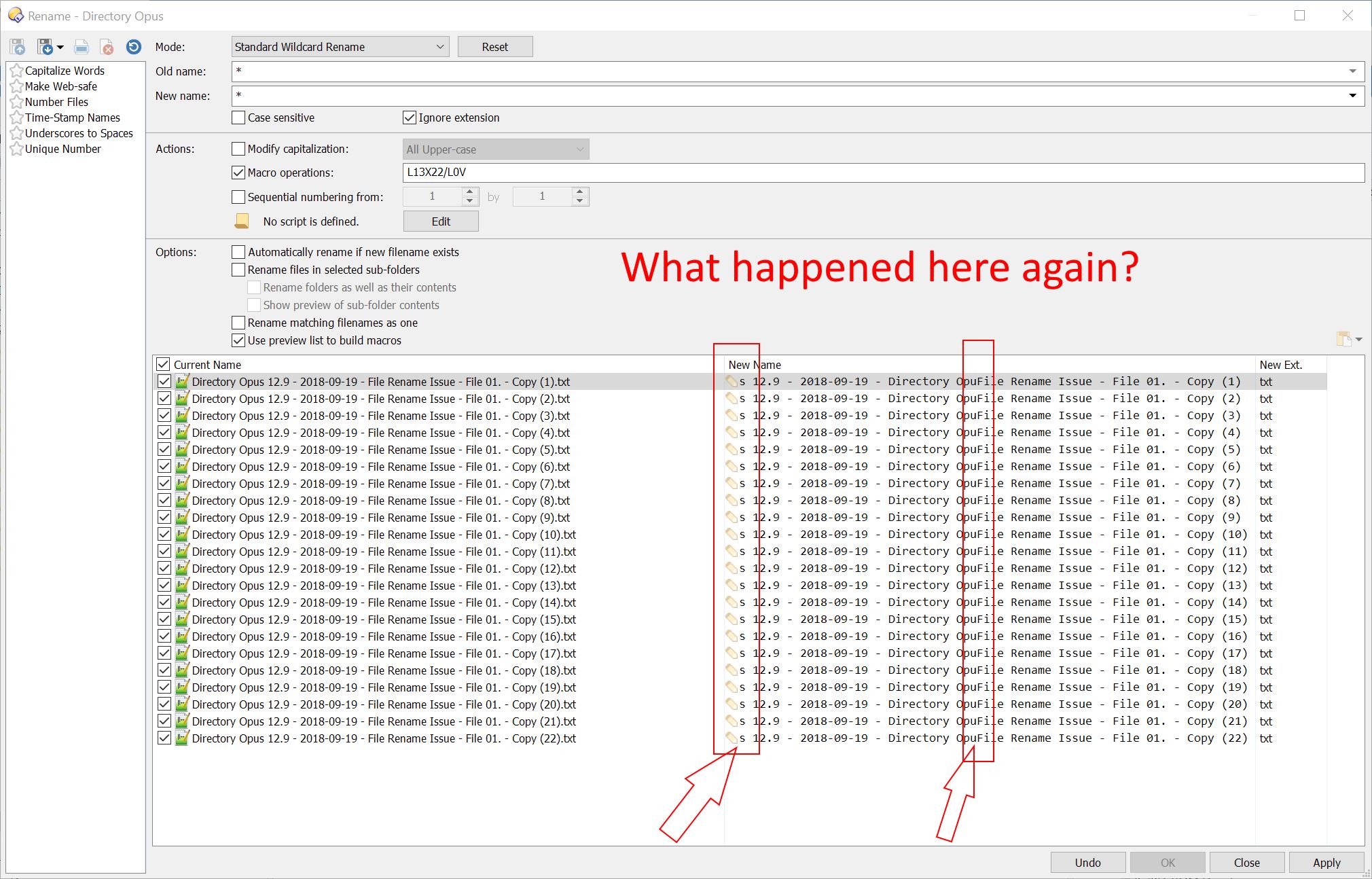
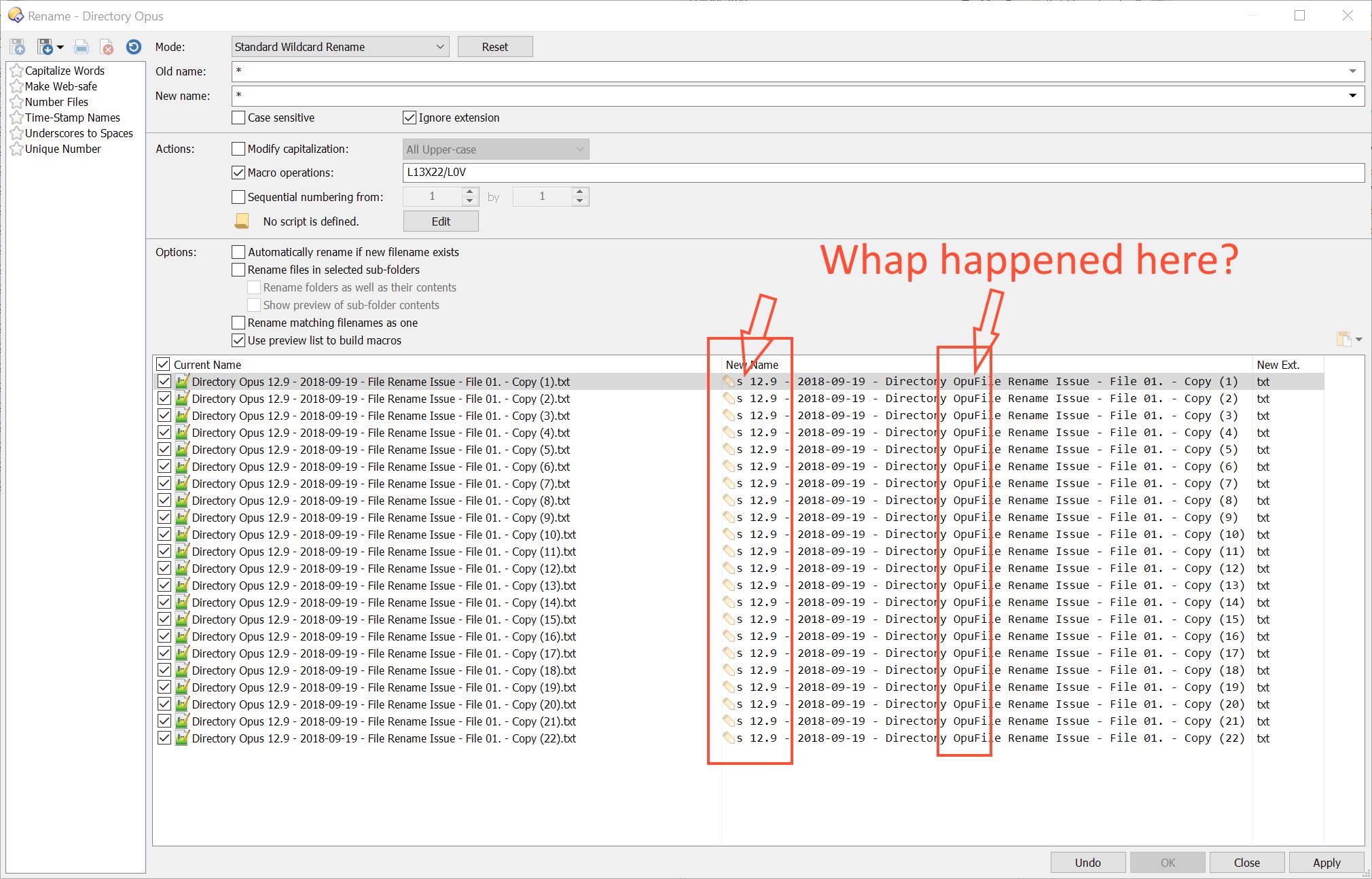
I'm trying to rename a group of files with the "Rename" feature in Dopus 12.9 (just updated today), however, the files are in a network folder. The problem is that Dopus mutilates the files or cuts off the names or inserts some text representing a serial of letters (which I did not insert) in ALL the files (remember, I selected a group of files).
NOTE: If i copy all those files to the local hard drive (Drive C), then everything works perfectly.
At first I thought it was because of the name length... but they are at most 50 characters long, plus another 20 for the file path location (folder and sub-folders).
So I duplicated on drive "C" the path length (including file name and path) of the files on the network, and I even added more length... and still everything work as it is supposed to.
No matter what I've tried, when renaming a group of files in a network folder (using a NAS, or a shared folder from a Server on the network) simultaneously with the "Rename" option (the "Rename" button on Dopus toolbar) it will always cut-off the name, mutilate the new name, or insert a sequence of letters that I didn't type.
Is this a bug or what setting do I have to check to make this work right?
Please help. I cannot keep copying those files to the local hard drive all the time because they are 1GB+ in size and hundreds of them and I do these network renaming on a daily basis.
I am using Windows 10 Pro x64 fully updated as of today, 2018-09-19, as so is Dopus.
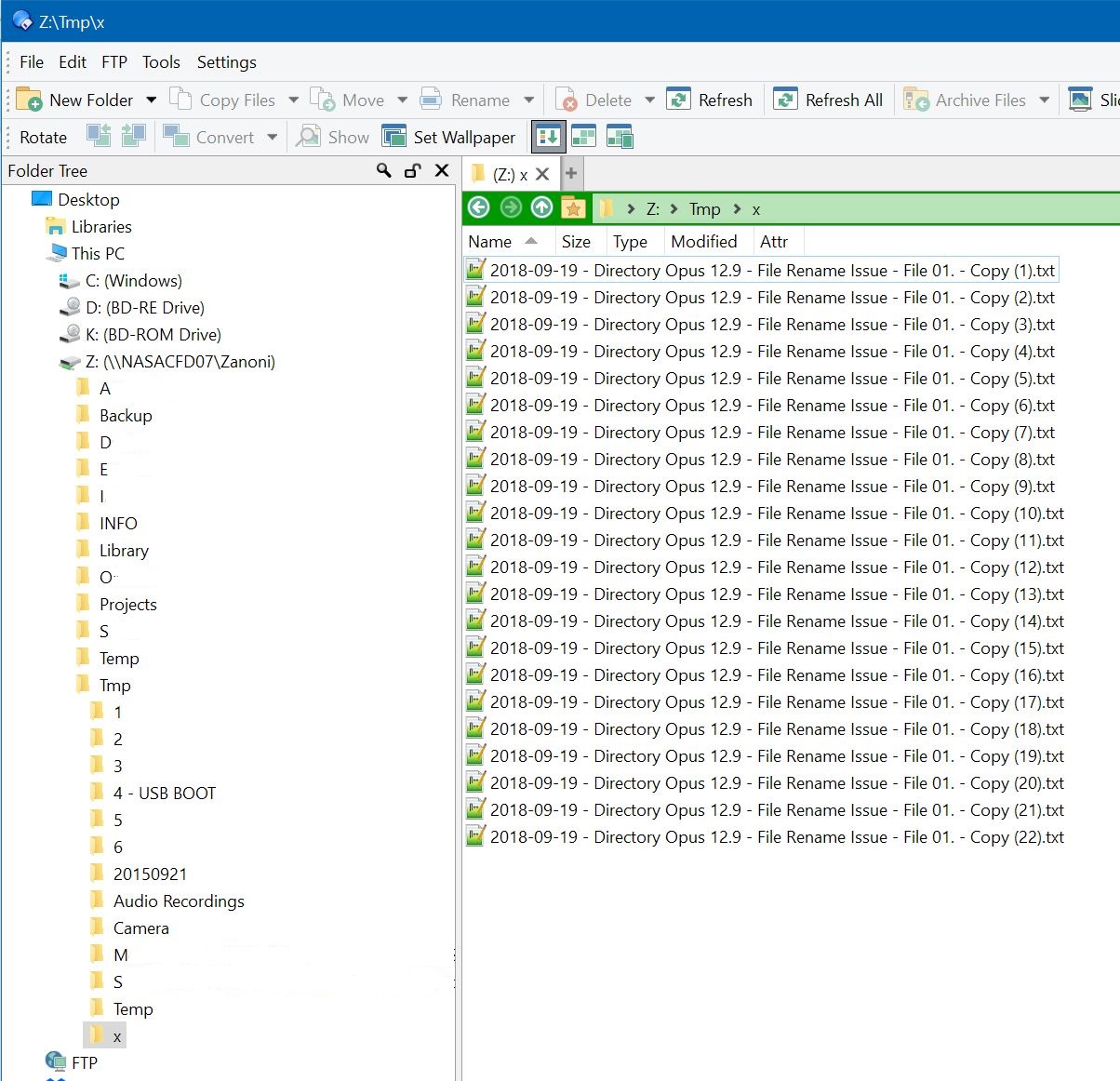
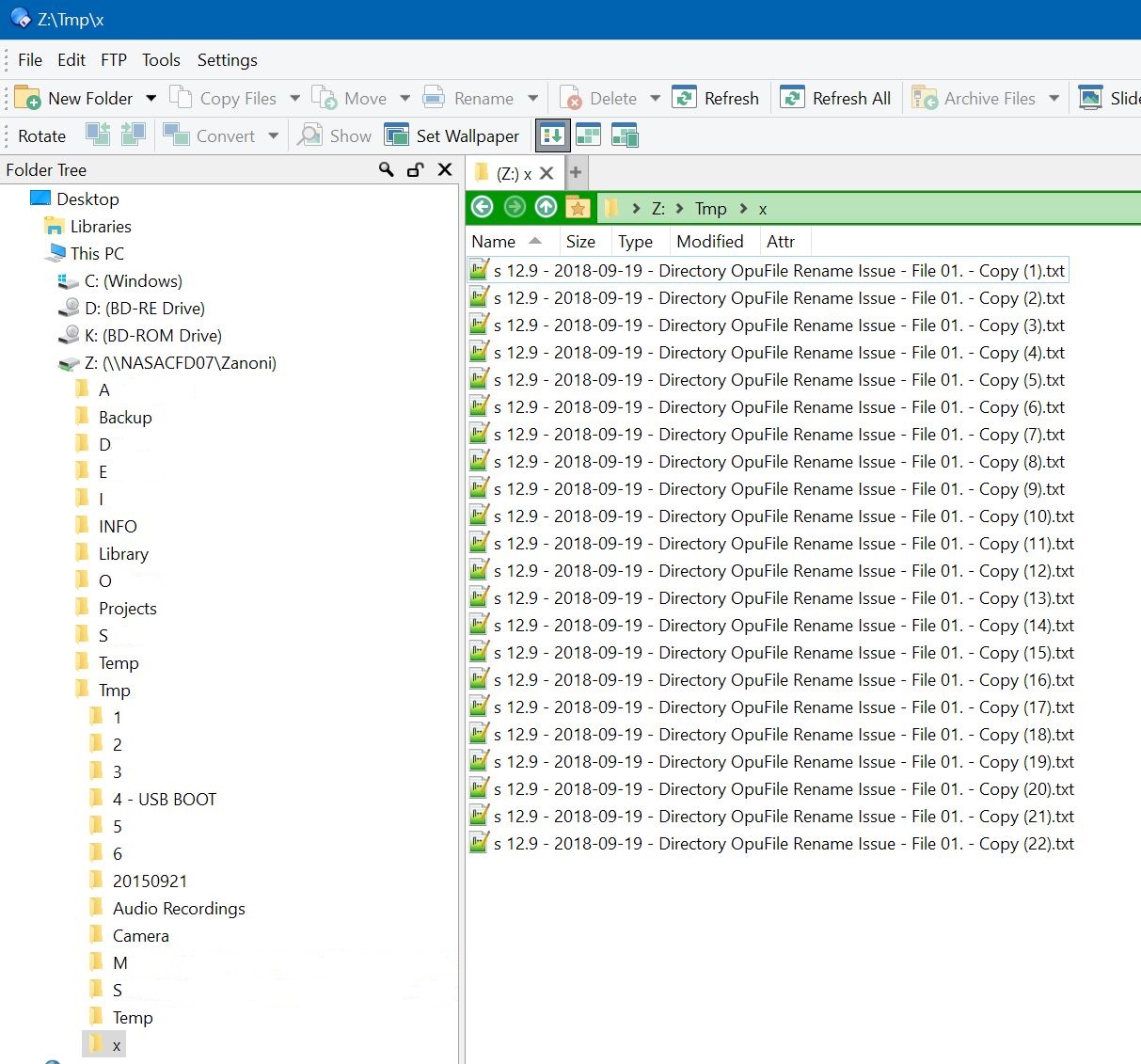
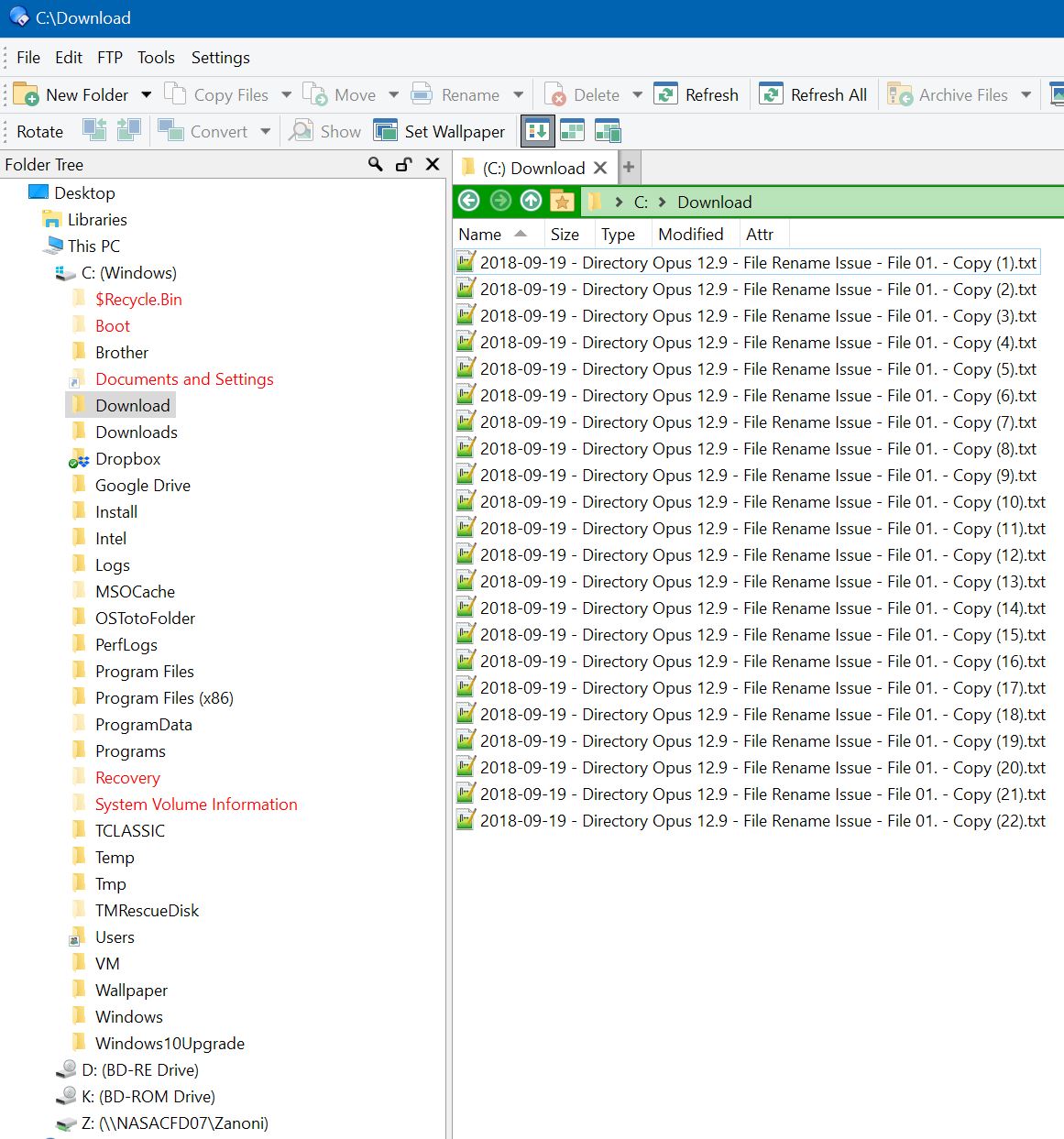
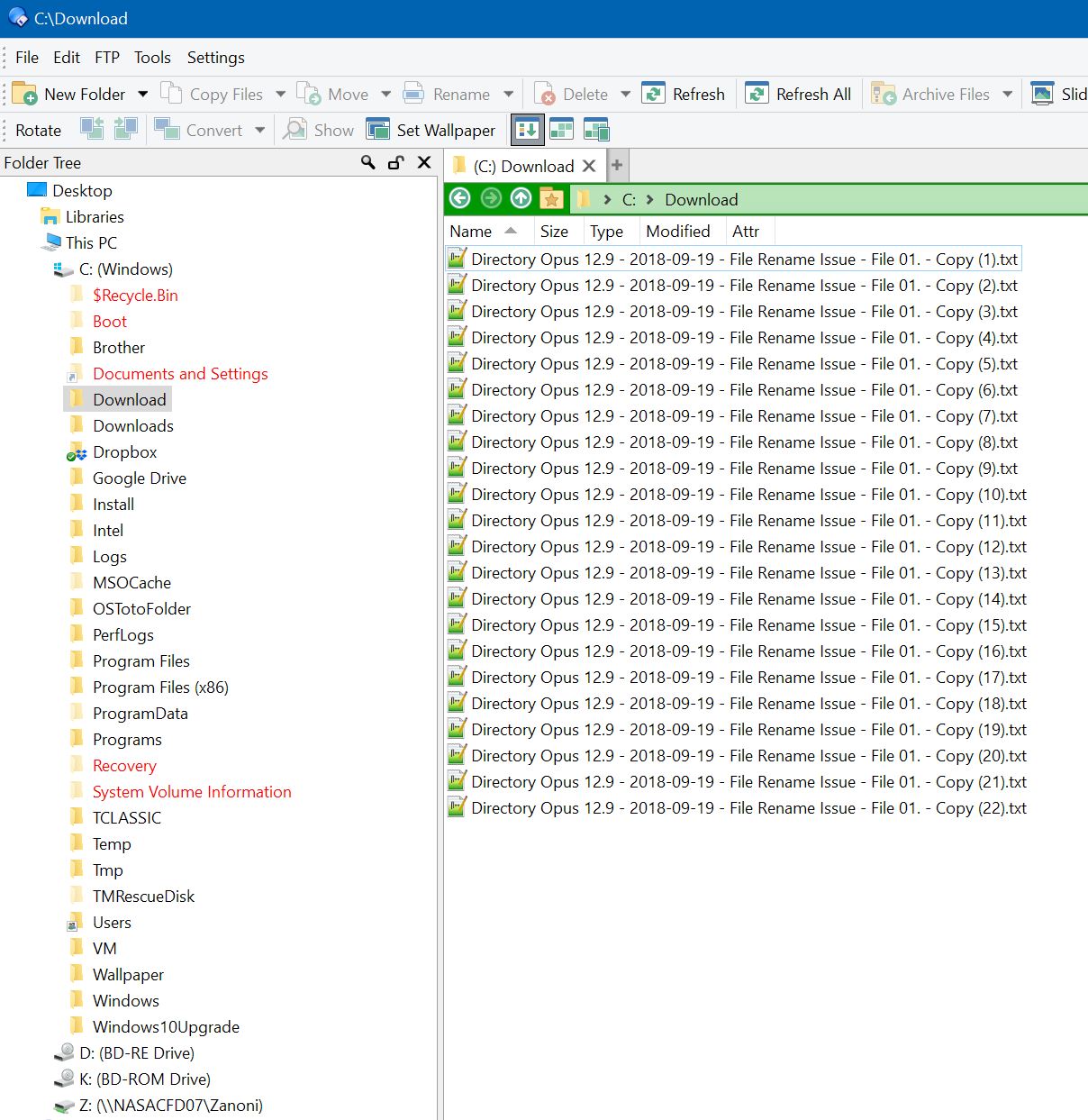
Ok... here are the pictures. There are two sets. One where I renamed a group of files inside a NAS, and one inside the main hard drive C.
Note that in either occasion, Directory Opus does something weird to the file names after applying the new name, HOWEVER, the files in the local drive C are renamed correctly regardless of the glitch.
SET ONE - INSIDE THE NAS
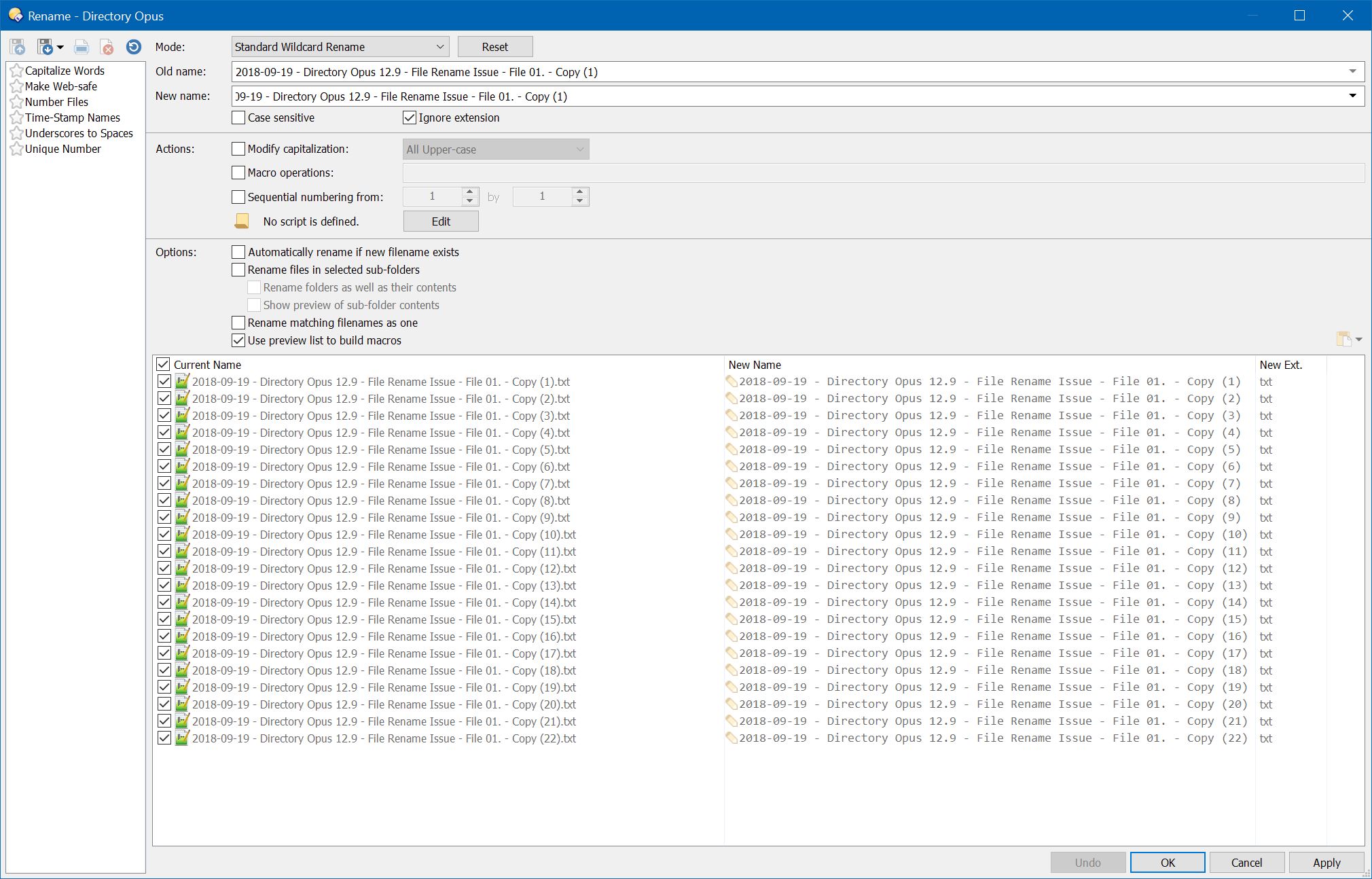
Directory Opus 12.9 - Files on NAS - 01 - before rename
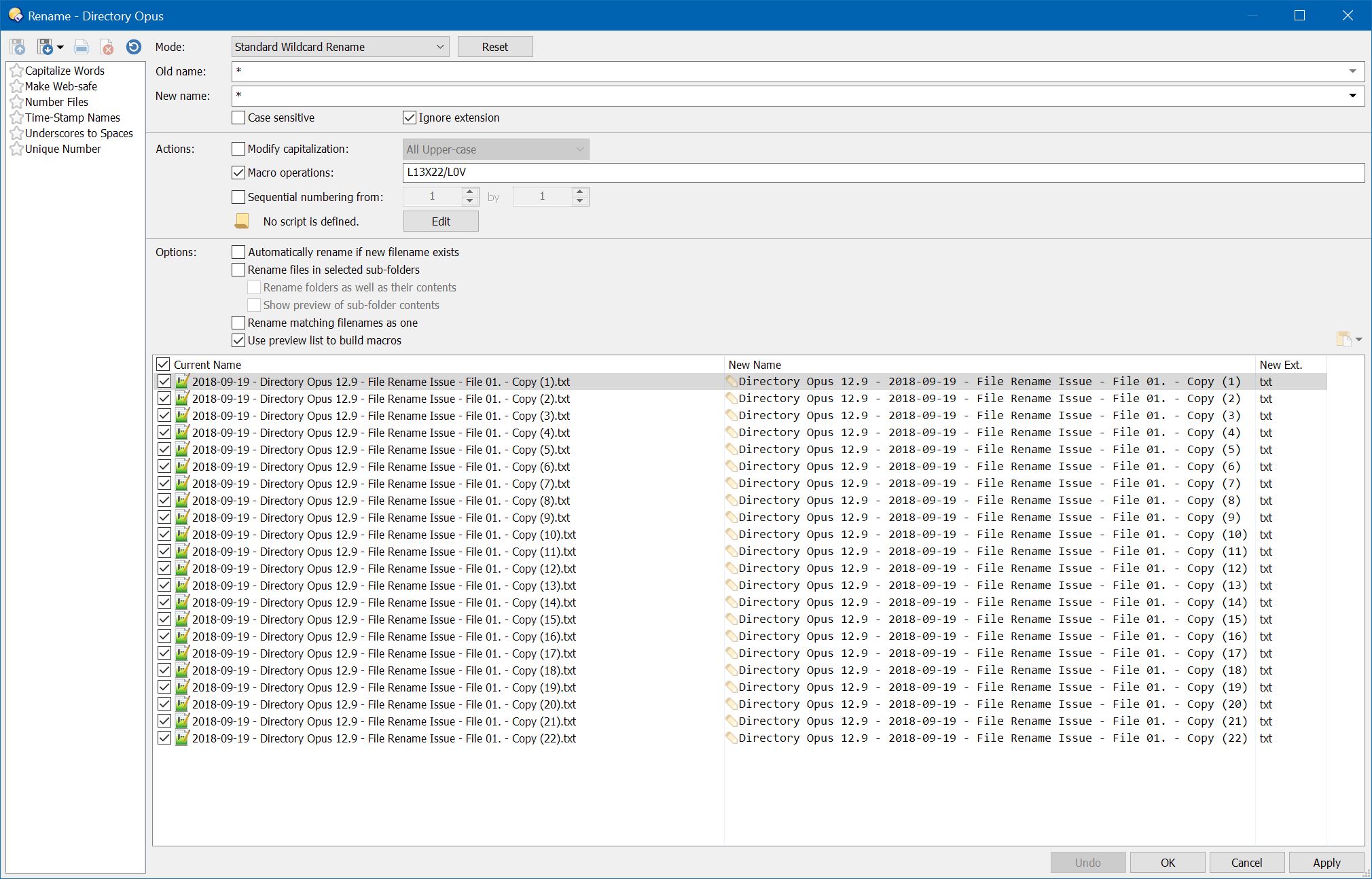
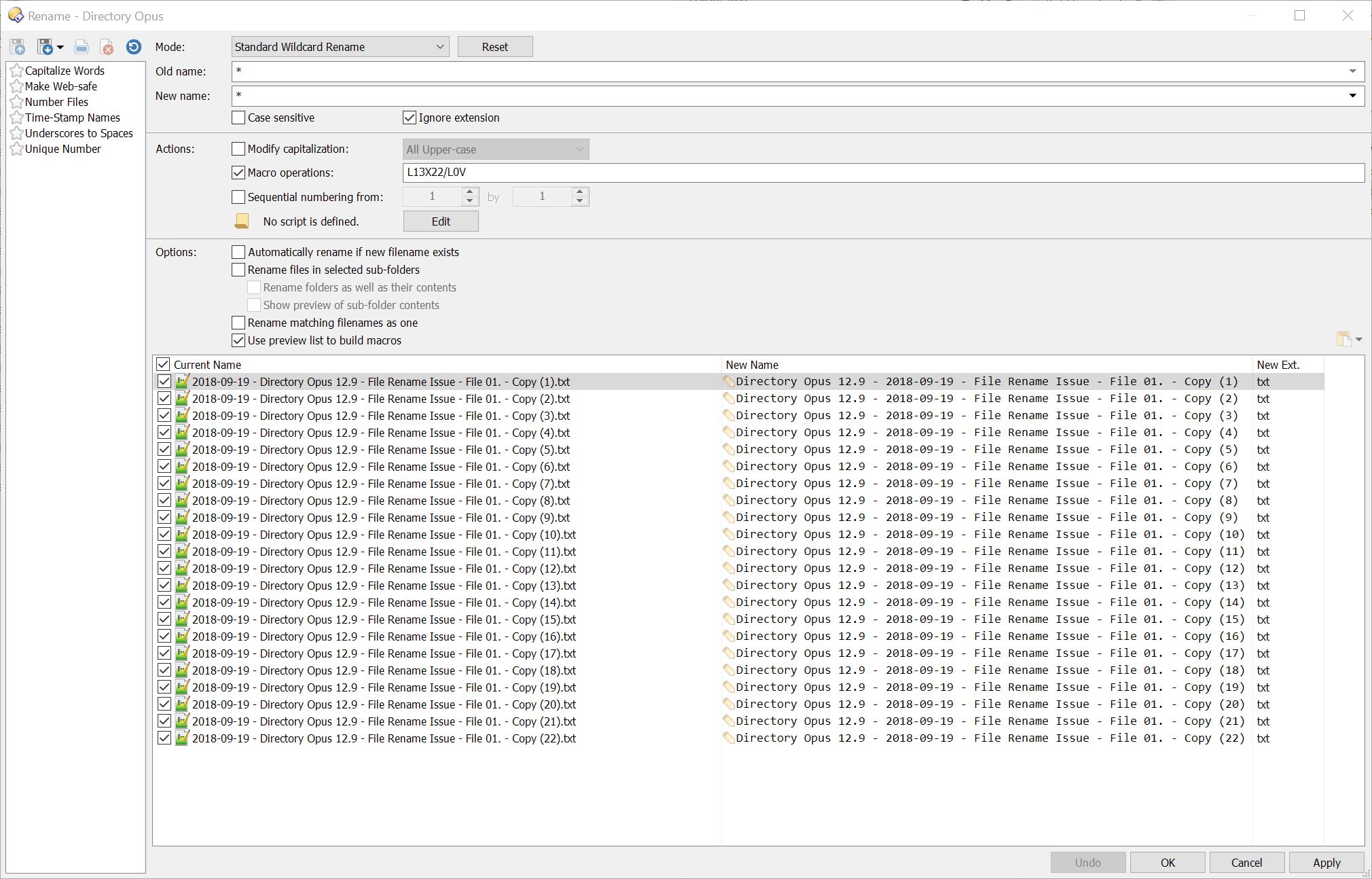
It looks like you are using the macro mode, and clicking Apply not OK.
When you do that, the macro is applied to the current files (the files get renamed, the same as if you pushed OK), but then the Rename dialog stays open, with the current settings, and shows a preview of what will happen if you apply the same settings again.
In other words, the preview is showing what would happen if you applied the macro twice.
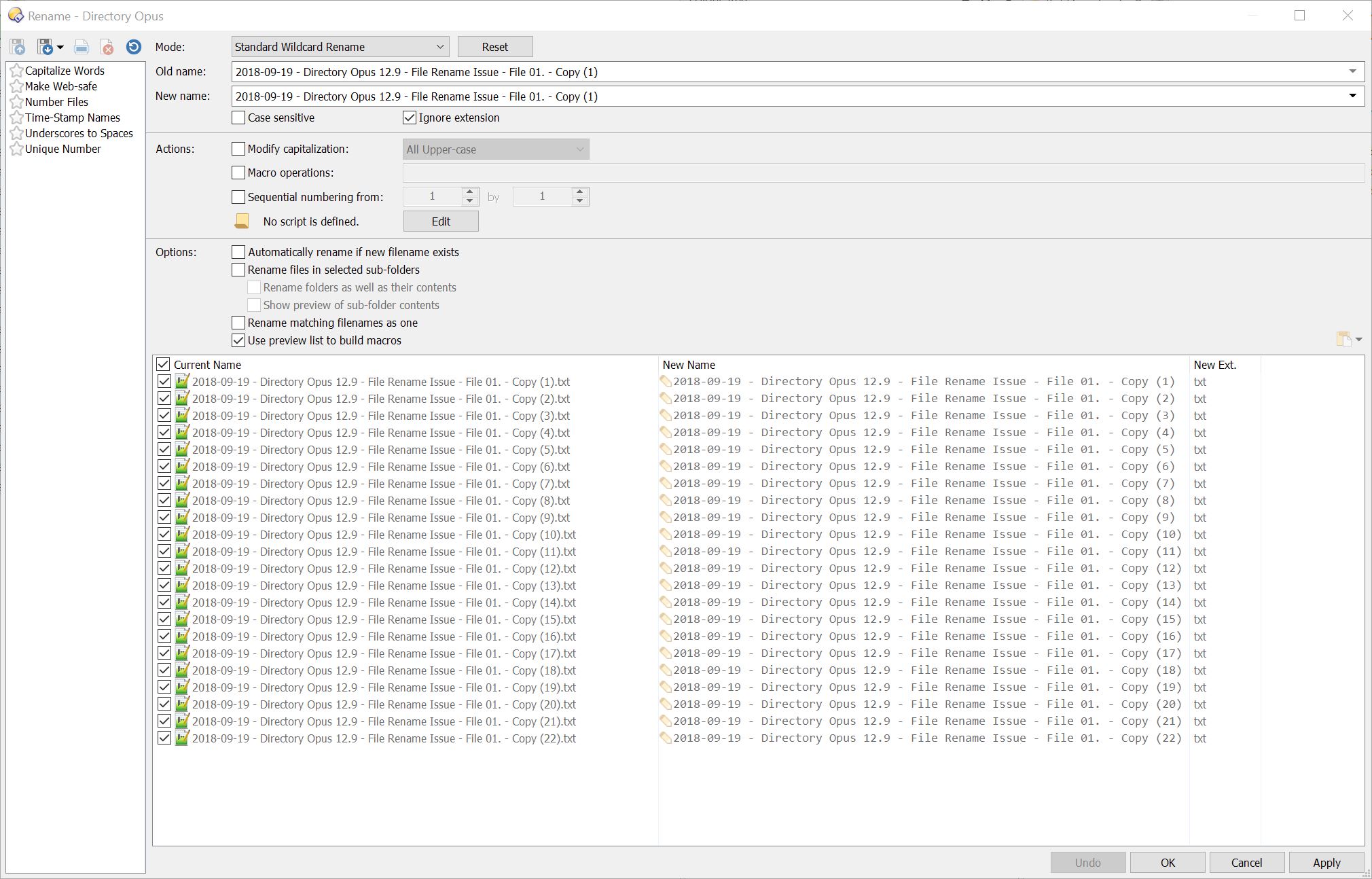
The Current Name column in the preview list is the files' current names on disk. The New Name column is not the files' names on disk; it is the names the files will be renamed to if you click OK or Apply to make it so.
If you have only clicked Apply once, the macro has only been applied once, and the preview will be showing what will happen if it is applied again. The macro will not be applied twice unless you click Apply or OK from that point.
If you only want to do a single rename step (e.g. apply a macro once):
You should click OK instead of Apply.
Or, if you have already clicked Apply, you should then click the Close button to close the rename dialog without applying any additional changes to the files, instead of clicking the OK button which would rename the files again.
Or, after clicking Apply, click the Reset button at the top to clear the macro you had entered (and any other details) if you wish to make further changes which don't involve re-applying the changes you just made.
None if this is different on network or local drives. I think you must have been doing different things in the rename dialog to see a difference there.