Hi everyone,
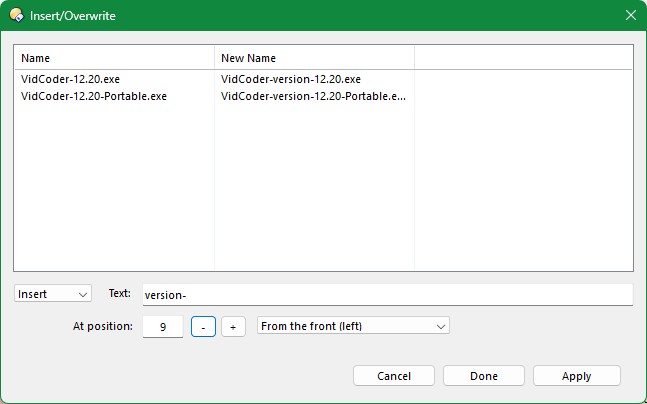
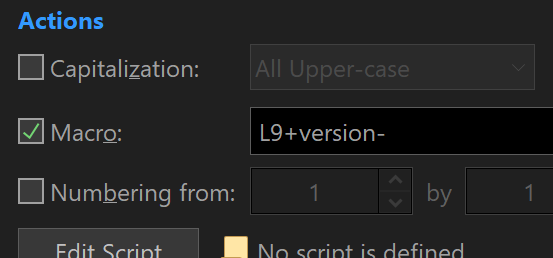
I recently spent some time using Linux Mint, and one of the features I really loved in its default file manager (Thunar) was its visual rename tool. Specifically, I missed the ability to easily insert or overwrite text at specific positions in a filename while seeing a live, real-time preview of the changes before applying them.
Since I couldn't find an exact equivalent built into Directory Opus that offered this specific popup workflow, I wrote a Script Add-in to recreate it.
Features
Live Preview: A dual-column list view shows the original name and the new name updating in real-time as you type.
Insert or Overwrite: Choose whether to push existing characters aside or replace them.
Position Control: Set exactly where the text should be added (using an index number).
Directional Logic: Choose to count the position from the front (left) or the back (right) of the filename.
How to Install and Use
Because this is a Script Add-in (it includes a custom dialog UI), you need to save the script first, and then create a button to trigger it.
Step 1: Install the Script
Open Directory Opus and type /scripts into the location bar (path field) and press Enter. This opens your Script Add-ins folder.
Extract the .js file from the attached RAR archive below, and copy it into the Script Add-ins folder you opened in Step 1.
AdvancedRename.rar (3.2 KB)
Step 2: Create the Toolbar Button
Go to Settings > Customize Toolbars... (This puts DOpus into customize mode).
Right-click anywhere on your toolbar and select New > New Button.
Right-click the newly created button and select Edit.
In the Command Editor window:
Label: Advanced Rename
Icon: (Pick any icon you like, e.g., the default rename icon)
Function: AdvancedRenameButton (This is the custom command the script registered)
Click OK, then click OK again in the Customize window to save your changes.
Now, just select a few files, click your new button, and the dialog will pop up!