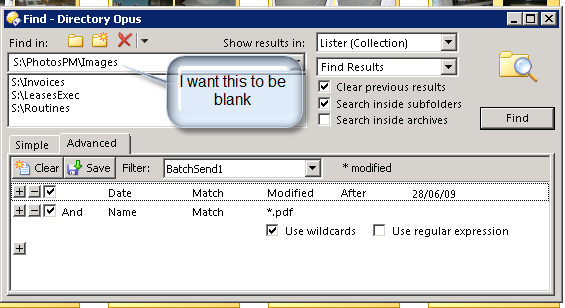
You're using the NAME and FILTER arguments incorrectly which is causing the parts of the command to be ignored/misunderstood.
(If you're seeing the specified paths when the Find dialog opens, it's just because it's remembering the previous paths, not because the command put them there.)
From the docs:
In other words, you can specify a name or a filter, but not both. (This makes sense since a name pattern only works in the Simple mode while a filter only works in the Advanced mode. The two are mutually exclusive.)
To specify a simple name search you'd use something like this:
NAME="*"
To specify a filter called BatchSend1 you'd use something like this:
NAME="BatchSend1" FILTER
This would do exactly the same thing:
FILTER NAME="BatchSend1"
(BTW, the equals sign and quotes are optional in these particular examples. I've left them in as I think they make things clearer. They're also required when the name of something contains a space or clashes with an argument name, but that isn't true with any of the examples here.)
So, try this:
Find IN "S:\Routines" "S:\LeasesExec" "S:\Invoices" NAME="BatchSend1" FILTER CLEAR=yes SHOWRESULTS=tab COLLNAME="SendThese"