How to show hidden folders using DOpus 13, such as /appdata/ (in Windows)? Previous help topics on this did not align with what I'm seeing in 13. Could not find the answer in the DOpus manual either.
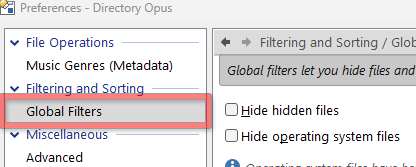
Preferences / Filtering and Sorting / Global Filters / Hide hidden files
Thanks for the reply. But my question was to hidden system folders, not hidden files. I use File Explorer when I need to check into /AppData/ because I cannot find that option in DOpus.
Do you mean the folder aliases /appdata and /localappdata are not working ?
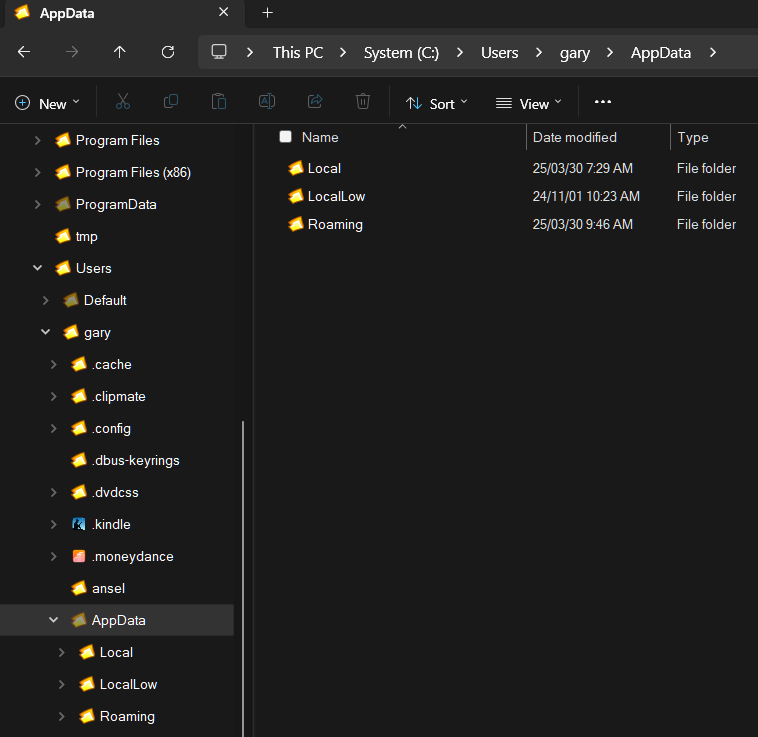
I am referring to not being able to view the hidden system folders as shown. (I don't know what you mean by "folder aliases," nor do I know what you mean by "not working.") But thank you for the reply!
Have you tried it? I can see AppData folder when it is switched off.
Hide hidden files: This option causes Opus to hide files and folders that have H attribute set and do not have the S attribute set. You can toggle this option quickly via the Show Hidden Files item in the Folder Options menu on the Menu toolbar.
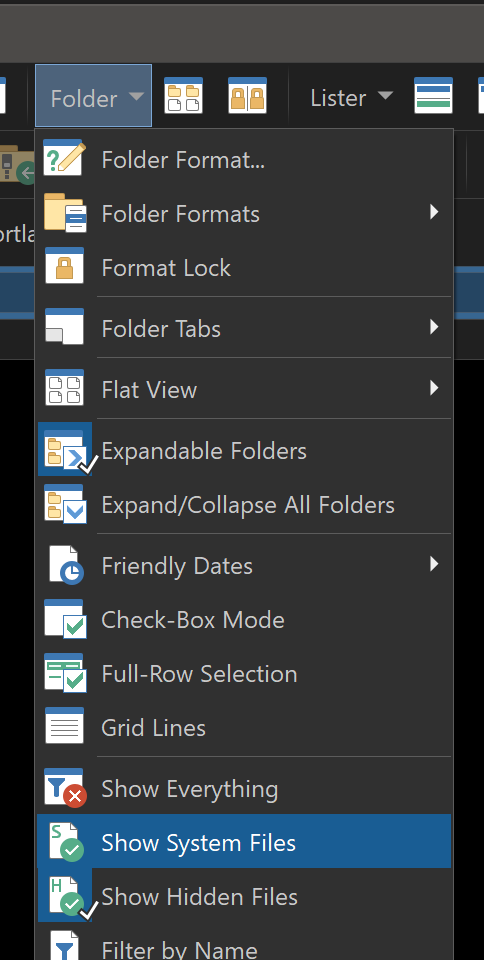
There is no such menu that you showed in my DOpus.
Try tis button:
Show-Hide Items with the H But Not S Attribute Set Toggle.dcf (888 Bytes)
It's part of the default toolbars. If yours are different, open the Customize window and go to the Default Toolbars tab; you can drag any missing commands or menus you want from there.
(Resetting the toolbar(s) to factory defaults is another option, but only if you don't have changes you want to keep.)
See here : Folder Aliases [Directory Opus Manual]
Basically, Opus comes with a bunch of predefined aliases, and you can create your own too.
An alias is just a name Opus/you defined to point to a specific folder.
To access a folder by its alias, just start by typing / followed by the alias name (Opus will perform autocompletion and propose aliases that match what you started typing).
Just hit Enter to validate and the path of the active tab will change to the directory the alias points to.
And to go back to my suggestion: /appdata points to C:\Users\<your username>\AppData\Roaming (if your profile is on drive C:) and /localappdata points to C:\Users\<your username>\AppData\Local.
You can see the existing (predefined & custom defined) aliases in Settings/Preferences/Frequently used Paths/Folder aliases (you can toggle predefined aliases display with the combo box below the list).
Thank you for your replies. Alas, none of them address the problem stated: how to have DOpus show hidden system folders. For example, setting an folder alias is useless if DOpus won't show it. And, the problem is not hidden files.
Leo pointed you you on how to show system files not hidden files.
And the alias will get you to the directory, hidden or not.
Have you tried ??
EDIT:
Both Show System & Show hidden disabled:
Nothing shows up.
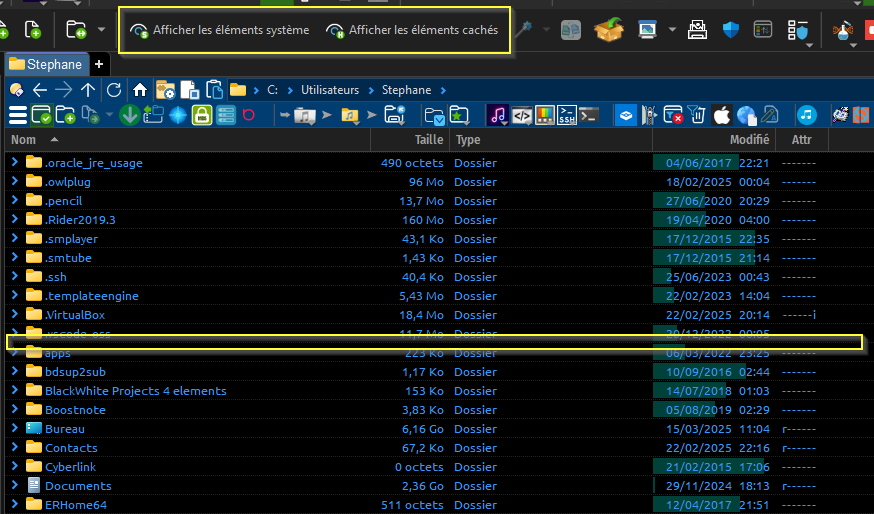
Only Show hidden enabled:
AppData folder appears, as it is configured to be hidden, but not system
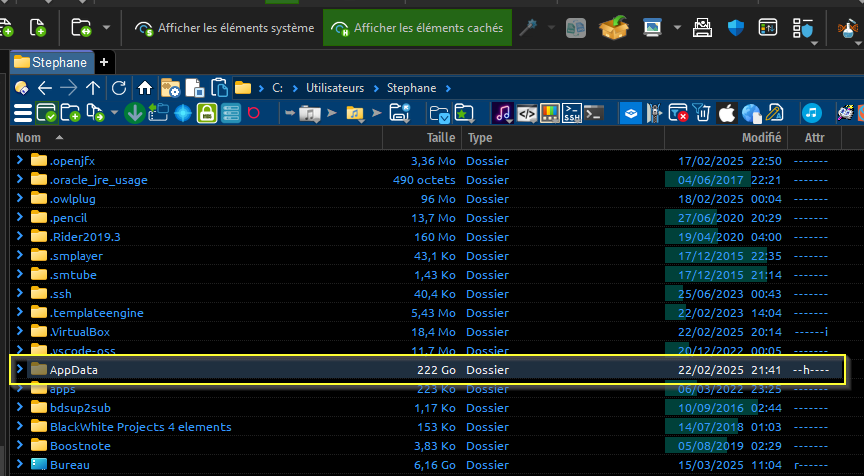
Both Show hidden a Show System enabled:
AppData is still here
Application Data wich is junction to AppData, and is a system file (or folder) appears
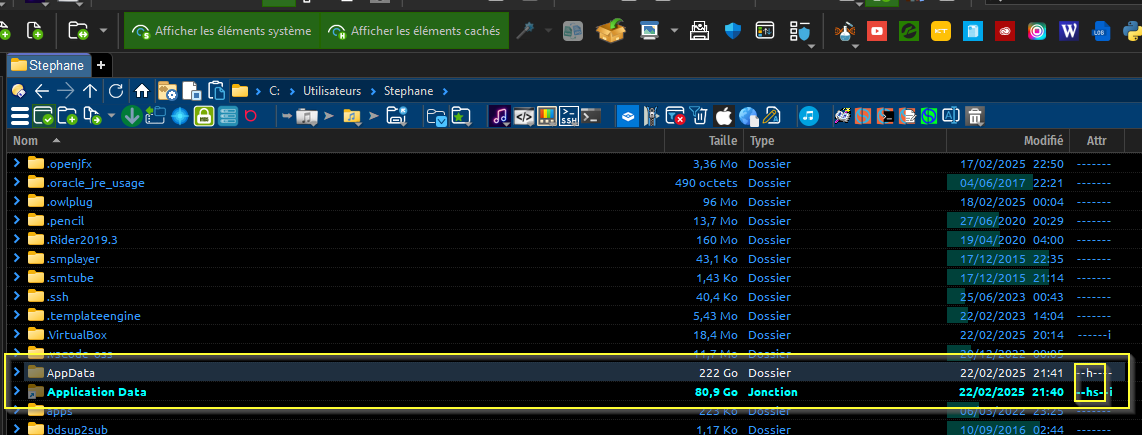
EDIT2: To cover fully
Only Show System files enabled:
AppData disappears (as its attributes say it's only hidden, not system) but "Application Data" (which is both hidden and system) remains.
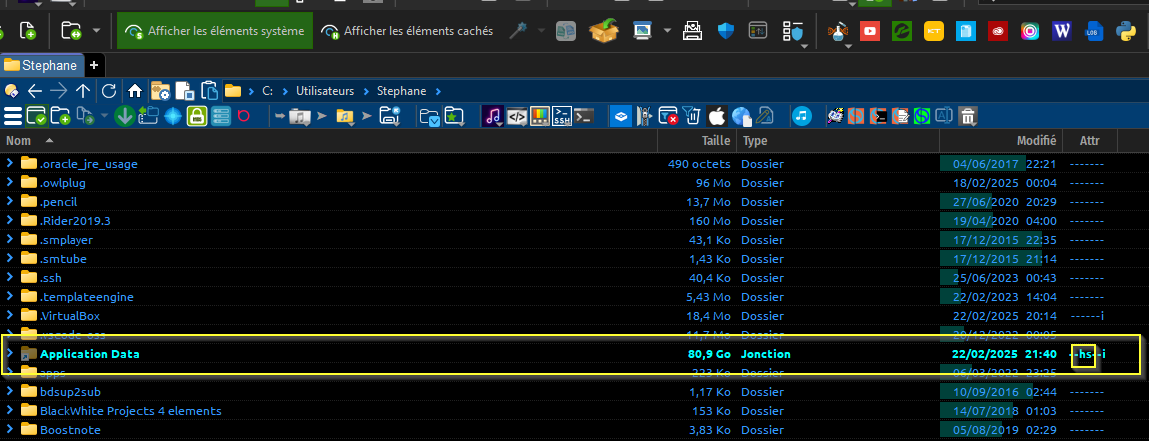
EDIT3:
And for the alias: With both Show Hidden & Show System disabled, if I type /appdata, it does get me to the appdata roaming folder.
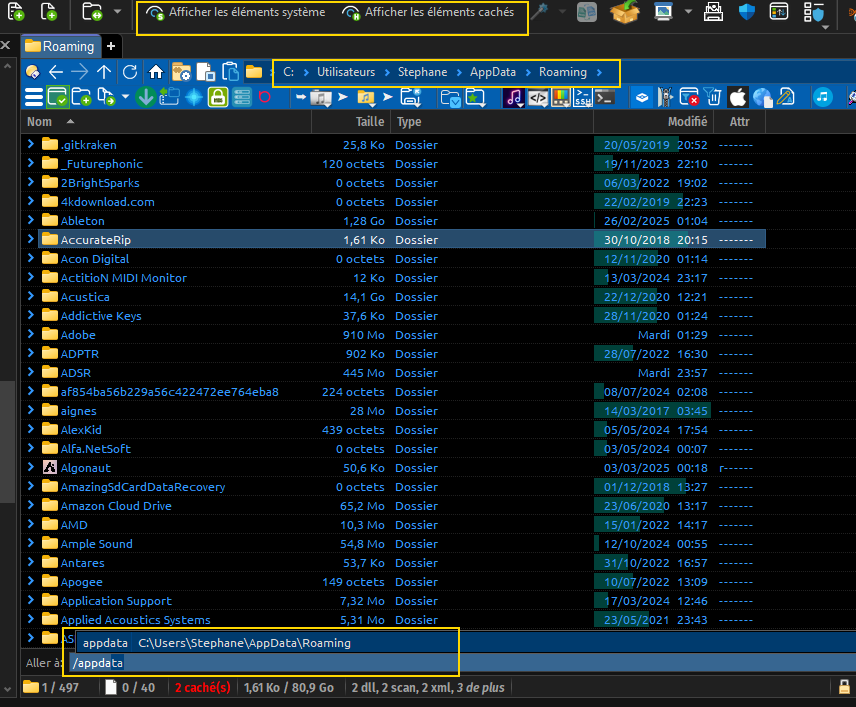
Thank you. You are correct. I misunderstood because of the use of the word "alias." What is called an "alias" in DOpus does not fit the traditional definition. What DOpus calls alias is a path shortcut. Thank you for your persistence.
Aliases aren’t important here. (The term also dates back several decades, even if you haven’t heard of it before. Lots of things have multiple names in computing.)
All you need are the Preferences options (or menu items that toggle the same options) mentioned near the start of the thread.