I have read the two existing forum entries on multiple Favorites Bars. Documentation is listed as To Be Done.
I have not gotten it to work.
Does anyone have a a step-by-step guide on offer?
Thanks.
I have read the two existing forum entries on multiple Favorites Bars. Documentation is listed as To Be Done.
I have not gotten it to work.
Does anyone have a a step-by-step guide on offer?
Thanks.
I don't have a guide but I just branch my favourite bar and then in my button code make it only display a given branch. So each branch represents it's own button/bar.
This works for me across PC's.
Example button code:
Favorites NOLABELS SHOWICONS USEQUALKEYS NOOPENINTABS AUTOCREATE BRANCH="Favorites Bar\Home_Desktop\Float_Home_Desktop"
@jfour18 Thanks for your answer. I understand how you segregate favorites by only calling branches. This is the single Favorites Bar with multiple branches called with a toolbar for each branch to be independently displayed. Thanks again.
I'm still searching for how to get the multiple Favorite Bars structure.
I will try to give you my example!!!
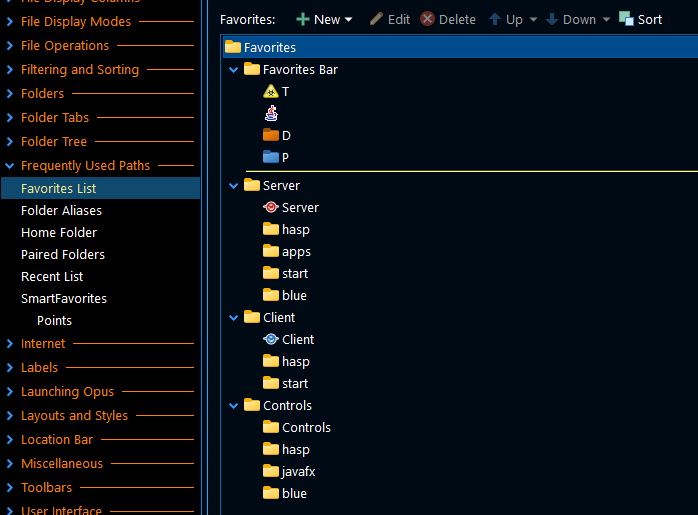
Start defining the groups you need inside the Favorites List
I have one common "Favorites Bar", Then I have 3 Projects: Server, Client, Controls. Create at least one item in each category so you understand what you are seeing...
Now we go to the toolbar
@ctx:="Favorites SHOWICONS USEQUALKEYS NOOPENINTABS AUTOCREATE BRANCH=""" + LanguageStr("FavoritesBar") + """ Server button (shown when Favs=="Server")
@showif:=$glob:Favs=="Server"
@ctx:="Favorites SHOWICONS USEQUALKEYS NOOPENINTABS AUTOCREATE BRANCH=""Server"""
Client button (shown when Favs=="Client")
@showif:=$glob:Favs=="Client"
@ctx:="Favorites SHOWICONS USEQUALKEYS NOOPENINTABS AUTOCREATE BRANCH=""Client"""
Controls button (shown when Favs=="Controls")
@showif:=$glob:Favs=="Controls"
@ctx:="Favorites SHOWICONS USEQUALKEYS NOOPENINTABS AUTOCREATE BRANCH=""Controls"""
I have different color (this helps too)
Then we create the menu:
We create the "Favorites" main menu button.
this resets everything and all Favs are hidden
@set glob:Favs=
@toggle:update All
Then we create the 3 enable buttons:
Server (sets Favs=="Server")
=$glob:Favs="Server";
@toggle:update all
Client (sets Favs=="Client")
=$glob:Favs="Client";
@toggle:update all
Controls (sets Favs=="Controls")
=$glob:Favs="Client";
@toggle:update all
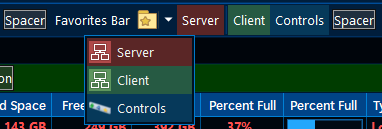
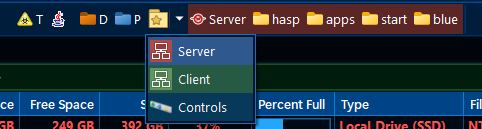
This is the final result
I hope this help!
J!
@jfour18 Thanks for explaining this so clearly. I had read it before but didn't really get it then!
Step-by-Step Guide to Multiple Favorites Bars or Branches
By default, Favorites under Preferences / Frequently Used Paths / Favorites List has a single entry, labeled "Favorites Bar." Any number of items can be created at this top level, labeled anything at all.
Any number of branch items can be nested under any top level item. The contents of a top level displays horizontally while a branch's contents displays vertically.
Lastly, any number of Favorites that point to an actual folder or file in the file system can be under either a top level item or a branch item. If you have a lot of Favorites put them in a branch.
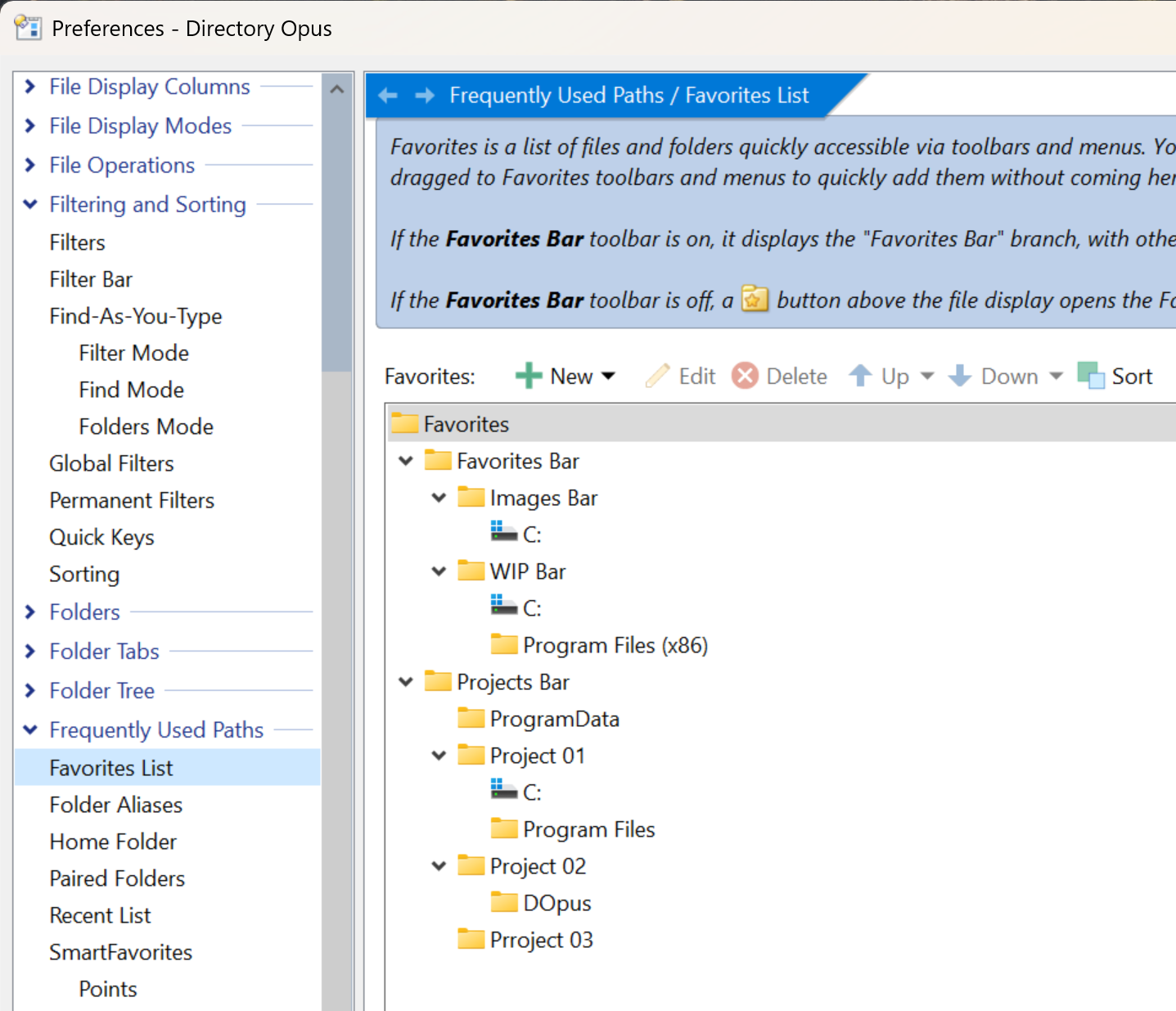
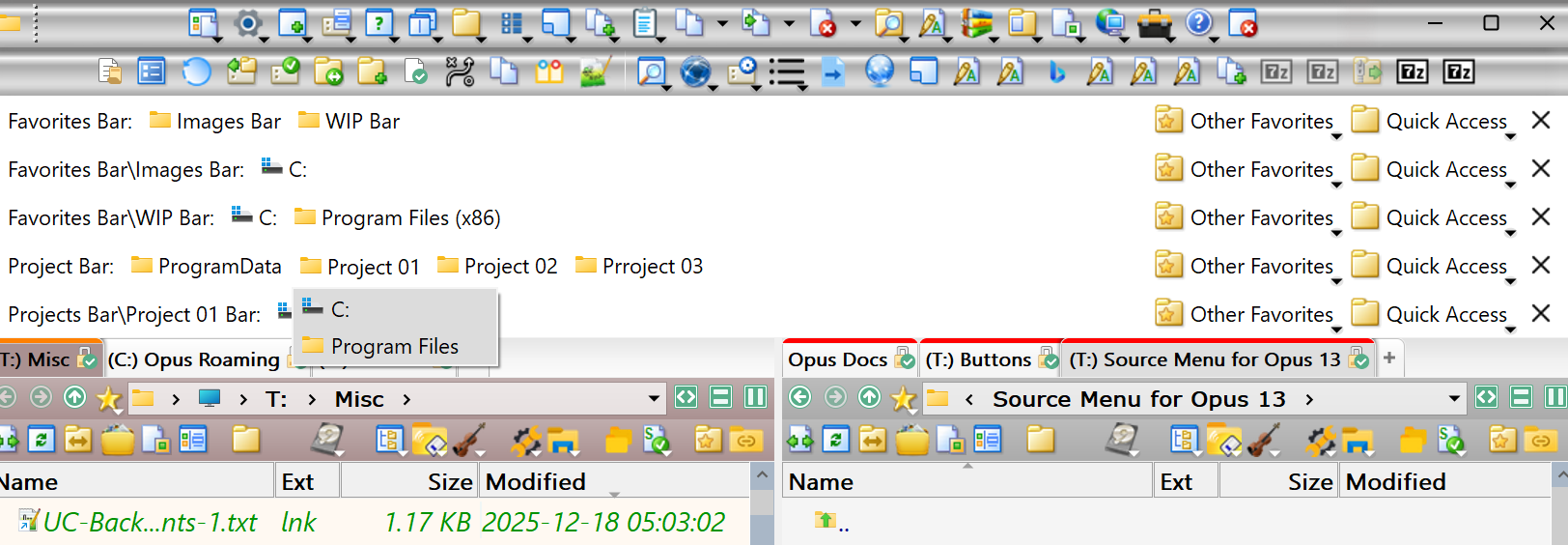
Visually, it can sometime be difficult to see the difference between a branch and a favorite when they are at the same level. In the screenshot below, under the Projects Bar, ProgramData is a favorite while Project 03 is a branch.
In the screenshot below, the Favorites Bar and Projects Bar are at the same level, the top level. The Favorites Bar has two branches under it, the Images Bar with one favorite under it and the Work in Progress Bar with two favorites under it. The Project Bar has one favorite and three branches under it.
Any top level or branch can be accessed from a toolbar with a special button on it. Most often, either all top level items would be accessible each from its own toolbar and button, or all branches would be accessible each from its own toolbar and button. Workflow determines how you want to divide up Favorites. The least complicated structure is a single top level with only favorites under it. The next complicated would be a single top level with multiple branches with multiple favorites. The most complicated would be multiple top levels each with multiple branches with multiple favorites as shown in the screenshot.
The general process is fourfold:
In detail, a multi-step process creates a structure:
Toolbar for a top level
-FB Projects Bar JEG.dop (7.1 KB)
<?xml version="1.0" encoding="UTF-8"?>
<toolbar textcol="#000000">
<image_settings fill="none" fit="1" image="/dopusdata/Images/Toolbar Images/SubBASS_Toolbars/imac-grey_button.png" inheritable="no" opacity="100" use_custom="no" />
<font dpi="150" face="Segoe UI" points="11" size="-22" />
<buttons backcol="none" child_icons="on" child_labels="on" display="label" textcol="none" type="menu">
<button backcol="none" display="label" field_type="label" size="full" textcol="none">
<label>Project Bar:</label>
<icon1>#label</icon1>
<function type="normal">
<instruction>Set LABEL</instruction>
</function>
</button>
<button backcol="none" display="label" field_type="spacer" label_pos="right" size="full" textcol="none">
<label>Spacer</label>
<function type="normal">
<instruction>Set SPACER</instruction>
</function>
</button>
<button 3dborders="no" backcol="none" display="both" dropdown_glyph_slim="yes" label_pos="right" popout="right" textcol="none" type="menu">
<label>Other Favor&ites</label>
<icon1>#favorites</icon1>
<button backcol="none" display="both" hotkey_label="yes" label_pos="right" textcol="none">
<label>&Add To Favorites</label>
<tip>Adds the current folder to your list of favorite folders</tip>
<icon1>#favoritesadd</icon1>
<function type="normal">
<instruction>Favorites ADDDIALOG</instruction>
</function>
</button>
<button backcol="none" display="both" label_pos="right" separate="yes" textcol="none">
<label>&Edit Favorites</label>
<tip>Edit your list of favorite folders</tip>
<icon1>#favoritesedit</icon1>
<function type="normal">
<instruction>Favorites EDIT</instruction>
</function>
</button>
<button backcol="none" display="both" hotkey_label="yes" label_pos="right" textcol="none">
<label>Favorite Locations</label>
<tip>Lists your favorite folders, excluding the Favorites Bar branch</tip>
<icon1>#favoriteslist</icon1>
<function type="normal">
<instruction>@ctx:="Favorites SHOWICONS USEQUALKEYS NOOPENINTABS HEADING EXCLUDEBRANCH=""" + LanguageStr("FavoritesBar") + """"</instruction>
</function>
</button>
<button backcol="none" display="both" label_pos="right" textcol="none">
<label>SmartFavorites</label>
<tip>Shows any SmartFavorites™ that have been added</tip>
<icon1>#smartfavorites</icon1>
<function type="normal">
<instruction>Favorites SMART SHOWICONS USEQUALKEYS NOOPENINTABS HEADING</instruction>
</function>
</button>
</button>
<button backcol="none" display="both" dropdown_glyph_slim="yes" label_pos="right" popout="right" textcol="none" type="menu">
<label>&Quick Access</label>
<icon1>#folder</icon1>
<button backcol="none" display="both" label_pos="right" textcol="none">
<label>Quick Access</label>
<tip>Adds the Quick Access folder to a toolbar or menu</tip>
<icon1>#favoriteslist</icon1>
<function type="normal">
<instruction>Go /quickaccess FOLDERCONTENT=norecurse,nofiles,sortnone HEADING</instruction>
</function>
</button>
<button backcol="none" display="both" label_pos="right" textcol="none">
<label>&Drives</label>
<tip>Automatically adds a button for each of the drives in your system to the toolbar/menu</tip>
<icon1>#drivebuttons</icon1>
<function type="normal">
<instruction>Go DRIVEBUTTONS=lettersbeforelabels HEADING</instruction>
</function>
</button>
<button backcol="none" display="label" field_type="label" label_pos="right" size="full" textcol="none">
<label>Special Folders</label>
<function type="normal">
<instruction>Set LABEL</instruction>
</function>
</button>
<button backcol="none" display="both" label_pos="right" textcol="none">
<label>D&esktop</label>
<tip>Go to Desktop folder</tip>
<icon1>#godesktop</icon1>
<function type="normal">
<instruction>Go /desktop USEQUALKEYS</instruction>
</function>
</button>
<button backcol="none" display="both" label_pos="right" textcol="none">
<label>D&ownloads</label>
<tip>Go to Downloads folder</tip>
<icon1>#downloads</icon1>
<function type="normal">
<instruction>Go /downloads USEQUALKEYS</instruction>
</function>
</button>
<button backcol="none" display="both" label_pos="right" textcol="none">
<label>Do&cuments</label>
<icon1>#gomydocuments</icon1>
<function type="normal">
<instruction>Go /mydocuments USEQUALKEYS</instruction>
</function>
</button>
<button backcol="none" display="both" label_pos="right" textcol="none">
<label>&Libraries</label>
<icon1>#golibraries</icon1>
<function type="normal">
<instruction>Go lib:// USEQUALKEYS</instruction>
</function>
</button>
<button backcol="none" display="both" label_pos="right" textcol="none">
<label>&This PC</label>
<tip>Go to This PC folder</tip>
<icon1>#gomycomputer</icon1>
<function type="normal">
<instruction>Go /mycomputer USEQUALKEYS</instruction>
</function>
</button>
<button backcol="none" display="both" label_pos="right" textcol="none">
<label>&Network</label>
<icon1>#gonetwork</icon1>
<function type="normal">
<instruction>Go /network USEQUALKEYS</instruction>
</function>
</button>
<button backcol="none" display="both" label_pos="right" textcol="none">
<label>&FTP</label>
<tip>Lists your FTP Address Book entries in the file display</tip>
<icon1>#ftpconnect</icon1>
<function type="normal">
<instruction>Go ftp:// USEQUALKEYS</instruction>
</function>
</button>
<button backcol="none" display="both" label_pos="right" textcol="none">
<label>F&ile Collections</label>
<icon1>#gocollection</icon1>
<function type="normal">
<instruction>Go coll:// USEQUALKEYS</instruction>
</function>
</button>
<button backcol="none" display="both" label_pos="right" textcol="none">
<label>&Recycle Bin</label>
<icon1>#gotrash</icon1>
<function type="normal">
<instruction>Go /trash USEQUALKEYS</instruction>
</function>
</button>
</button>
<button 3dborders="no" backcol="none" display="both" label_pos="right" textcol="none">
<tip>Close Toolbar</tip>
<icon1>#Cross</icon1>
<function type="normal">
<instruction>Toolbar NAME=*this CLOSE</instruction>
<instruction />
<instruction>// Use "NAME=*this" to work on any tool bar independently floating or docked</instruction>
<instruction>// https://docs.dopus.com/doku.php?id=reference:command_reference:internal_commands:toolbar</instruction>
</function>
</button>
</buttons>
</toolbar>
Toolbar for a branch
-FB Projects Bar Project 01 JEG.dop (6.8 KB)
<?xml version="1.0" encoding="UTF-8"?>
<toolbar textcol="#000000">
<image_settings fill="none" fit="1" image="/dopusdata/Images/Toolbar Images/SubBASS_Toolbars/imac-grey_button.png" inheritable="no" opacity="100" use_custom="no" />
<font dpi="150" face="Segoe UI" points="11" size="-22" />
<buttons backcol="none" child_icons="on" child_labels="on" display="label" textcol="none" type="menu">
<button backcol="none" display="label" field_type="label" size="full" textcol="none">
<label>Projects Bar\Project 01 Bar:</label>
<icon1>#label</icon1>
<function type="normal">
<instruction>Set LABEL</instruction>
</function>
</button>
<button backcol="none" display="label" field_type="spacer" label_pos="right" size="full" textcol="none">
<label>Spacer</label>
<function type="normal">
<instruction>Set SPACER</instruction>
</function>
</button>
<button 3dborders="no" backcol="none" display="both" dropdown_glyph_slim="yes" label_pos="right" popout="right" textcol="none" type="menu">
<label>Other Favor&ites</label>
<icon1>#favorites</icon1>
<button backcol="none" display="both" hotkey_label="yes" label_pos="right" textcol="none">
<label>&Add To Favorites</label>
<tip>Adds the current folder to your list of favorite folders</tip>
<icon1>#favoritesadd</icon1>
<function type="normal">
<instruction>Favorites ADDDIALOG</instruction>
</function>
</button>
<button backcol="none" display="both" label_pos="right" separate="yes" textcol="none">
<label>&Edit Favorites</label>
<tip>Edit your list of favorite folders</tip>
<icon1>#favoritesedit</icon1>
<function type="normal">
<instruction>Favorites EDIT</instruction>
</function>
</button>
<button backcol="none" display="both" hotkey_label="yes" label_pos="right" textcol="none">
<label>Favorite Locations</label>
<tip>Lists your favorite folders, excluding the Favorites Bar branch</tip>
<icon1>#favoriteslist</icon1>
<function type="normal">
<instruction>@ctx:="Favorites SHOWICONS USEQUALKEYS NOOPENINTABS HEADING EXCLUDEBRANCH=""" + LanguageStr("FavoritesBar") + """"</instruction>
</function>
</button>
<button backcol="none" display="both" label_pos="right" textcol="none">
<label>SmartFavorites</label>
<tip>Shows any SmartFavorites™ that have been added</tip>
<icon1>#smartfavorites</icon1>
<function type="normal">
<instruction>Favorites SMART SHOWICONS USEQUALKEYS NOOPENINTABS HEADING</instruction>
</function>
</button>
</button>
<button backcol="none" display="both" dropdown_glyph_slim="yes" label_pos="right" popout="right" textcol="none" type="menu">
<label>&Quick Access</label>
<icon1>#folder</icon1>
<button backcol="none" display="both" label_pos="right" textcol="none">
<label>Quick Access</label>
<tip>Adds the Quick Access folder to a toolbar or menu</tip>
<icon1>#favoriteslist</icon1>
<function type="normal">
<instruction>Go /quickaccess FOLDERCONTENT=norecurse,nofiles,sortnone HEADING</instruction>
</function>
</button>
<button backcol="none" display="both" label_pos="right" textcol="none">
<label>&Drives</label>
<tip>Automatically adds a button for each of the drives in your system to the toolbar/menu</tip>
<icon1>#drivebuttons</icon1>
<function type="normal">
<instruction>Go DRIVEBUTTONS=lettersbeforelabels HEADING</instruction>
</function>
</button>
<button backcol="none" display="label" field_type="label" label_pos="right" size="full" textcol="none">
<label>Special Folders</label>
<function type="normal">
<instruction>Set LABEL</instruction>
</function>
</button>
<button backcol="none" display="both" label_pos="right" textcol="none">
<label>D&esktop</label>
<tip>Go to Desktop folder</tip>
<icon1>#godesktop</icon1>
<function type="normal">
<instruction>Go /desktop USEQUALKEYS</instruction>
</function>
</button>
<button backcol="none" display="both" label_pos="right" textcol="none">
<label>D&ownloads</label>
<tip>Go to Downloads folder</tip>
<icon1>#downloads</icon1>
<function type="normal">
<instruction>Go /downloads USEQUALKEYS</instruction>
</function>
</button>
<button backcol="none" display="both" label_pos="right" textcol="none">
<label>Do&cuments</label>
<icon1>#gomydocuments</icon1>
<function type="normal">
<instruction>Go /mydocuments USEQUALKEYS</instruction>
</function>
</button>
<button backcol="none" display="both" label_pos="right" textcol="none">
<label>&Libraries</label>
<icon1>#golibraries</icon1>
<function type="normal">
<instruction>Go lib:// USEQUALKEYS</instruction>
</function>
</button>
<button backcol="none" display="both" label_pos="right" textcol="none">
<label>&This PC</label>
<tip>Go to This PC folder</tip>
<icon1>#gomycomputer</icon1>
<function type="normal">
<instruction>Go /mycomputer USEQUALKEYS</instruction>
</function>
</button>
<button backcol="none" display="both" label_pos="right" textcol="none">
<label>&Network</label>
<icon1>#gonetwork</icon1>
<function type="normal">
<instruction>Go /network USEQUALKEYS</instruction>
</function>
</button>
<button backcol="none" display="both" label_pos="right" textcol="none">
<label>&FTP</label>
<tip>Lists your FTP Address Book entries in the file display</tip>
<icon1>#ftpconnect</icon1>
<function type="normal">
<instruction>Go ftp:// USEQUALKEYS</instruction>
</function>
</button>
<button backcol="none" display="both" label_pos="right" textcol="none">
<label>F&ile Collections</label>
<icon1>#gocollection</icon1>
<function type="normal">
<instruction>Go coll:// USEQUALKEYS</instruction>
</function>
</button>
<button backcol="none" display="both" label_pos="right" textcol="none">
<label>&Recycle Bin</label>
<icon1>#gotrash</icon1>
<function type="normal">
<instruction>Go /trash USEQUALKEYS</instruction>
</function>
</button>
</button>
<button 3dborders="no" backcol="none" display="both" label_pos="right" textcol="none">
<tip>Close Toolbar</tip>
<icon1>#Cross</icon1>
<function type="normal">
<instruction>Toolbar NAME=*this CLOSE</instruction>
<instruction />
<instruction>// Use "NAME=*this" to work on any tool bar independently floating or docked</instruction>
<instruction>// https://docs.dopus.com/doku.php?id=reference:command_reference:internal_commands:toolbar</instruction>
</function>
</button>
</buttons>
</toolbar>
Button calling a top level toolbar
Projects Bar Toggle.dcf (1.1 KB)
@toggle:disable

Toolbar NAME="-FB Projects Bar JEG" STATE=top LINE 15 TOGGLE
Button calling a branch toolbar
Projects Bar_Project 01 Toggle.dcf (1.1 KB)
@toggle:disable

Toolbar NAME="-FB Projects Bar Project 01 JEG" STATE=top LINE 15 TOGGLE
Hope this is instructive.
Thank you @johntor! I’ve been banging my head against this for quite some time and would never have figured it out without your walkthrough.
This is a great feature multiplying toolbar space. Now you may show the group of buttons depending on your current workflow, which is great.
Many thanks to the Opus Team that provide us with great tools...
J!