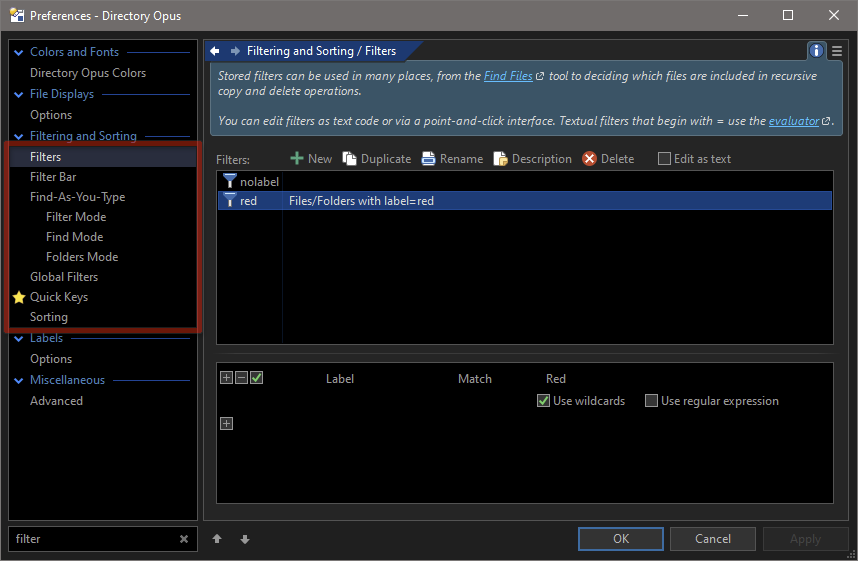
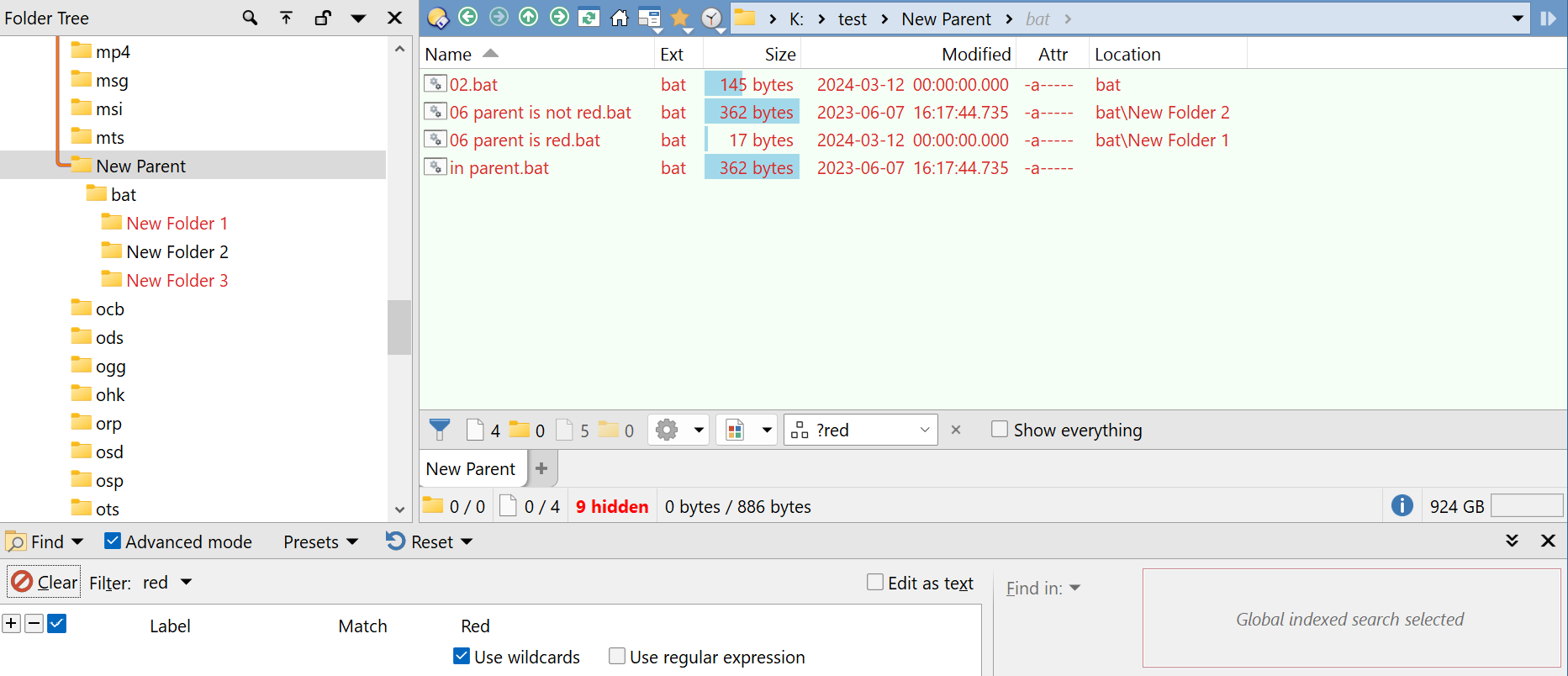
I use labels to "tag" files (e.g. "red"). Then I enable flat view (no folders) for a multi-level hierarchy. Then I want to use the filter bar to only display "tagged" (=red) files over the entire flat view. I switch on (Evaluator=true) in the filter bar, as described in the docs. I then use "?mycustomfilter" to only show tagged files, also described in the docs. [1]
It works as expected in normal view, but not in flat view - it filters/hides ALL files, even the tagges files. Is this a bug?
I see, thank you Leo. This does make sense, however, it's not the behavior I expected. I guess there is currently no option to change that?
To me, the behavior described in the docs should evaluate the pre-defined filter it for every item, without considering whether the parent folder was a match (=shown) or not (= hidden).
In evaluator mode, the quick filter expression is passed to the Evaluator for each item in the list. The expression should return true if the item should be shown, or false if it should be hidden.
Using Tools > Find Files is the best approach, unless you really need the view to update when new files are added (which is unusual with complex filtering, and probably not needed when searching for labels).
Based on @lxp's response that what I'm trying to do should work, I did some more testing. Here's what I found.
I open a fresh lister, navigate to the directory, enable Flat View (No Folders).
Then, both of those further paths work:
Enable "Evaluator" in filter bar, then enter "?red", press enter. → Filters correctly.
First enter "?red", then enable "Evaluator". → Filters correctly.
However, when (after completing the above), I navigate to another folder, go back, do the same again (except enabling Evaluator, as it's still enabled), then the filelist remains empty, i.e., the filter does not work. This is fixed by once again disabling and enabling "Evaluator".
So, my use case seems to work, but the behavior I just described seems to be a bug?
(I assumed it doesn't work at all, probably because I somehow ran into this bug repeatedly.)
Another thing I noticed: overall, when "Evaluator" is on, the filter bar behaves weirdly. Given the situation I have done all of above and only red-labeled files are shown in the lister. If I then enter "label=="whatever"" into the filter bar and hit enter, the file lister doesn't change - it still shows all red-labeled files. Should the "label=="xx"" syntax work? It's not listed in the docs, I think. That's why I created a pre-defined filter.
@lxp, you said "Maybe the file display just needs a refresh?". When I hit my custom refresh button (GO refresh), then the filter bar is cleared. Do you suggest to use another method of "refreshing"?
Have you turned on filtering of folders in flat view? If so, the filter will hide anything that has any ancestor folder that doesn’t match the filter. (This is why it’s off by default.)
If it’s not that, I would start with a more simple case to see if that works, e.g. just match *.jpg and not involve evaluatior code
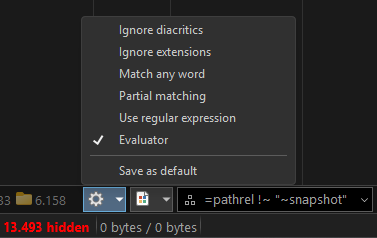
Try path instead of pathrel as well, since pathrel raises the question of what the filter is relative to.
The “Filter folders in flat view” option is off in all my examples.
I just experience a very weird an inconsistent behavior of the filter bar when in flat mode and evaluator enabled. Often it filters (hides) all files, which is incorrect. Often I need to switch evaluator off and on again to make it work.
I can try to prepare a folder/file structure that I upload in a ZIP file for testing. But it seems to show that behavior regardless of a particular structure, so you should be able to reproduce it.
Somehow related / suggestions for the filter bar:
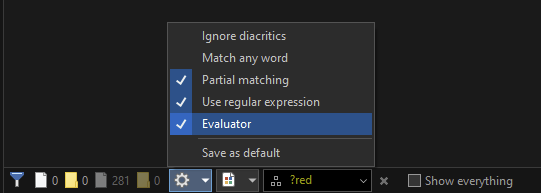
I’d be nice to have separate buttons for all/some filter bar options in the filter bar itself, to clearly see which options are on and off.
Activating Evaluator mode should probably disable all other options.
A Reset to default button in the Gear-icon dropbown would be nice, setting the options as configured in the Preferences.
An indication whether real-time filter is on/off would be nice as well. It seems to be disabled when Evaluator=On, which makes sense, but it can be confusing not knowing which options are actually on/off at the moment.
The options are still available because their state is passed through to an evaluation filter as flags (e.g. opt_partial gives you the state of the partial match option). This gives evaluation filters the chance to modify their behavior depending on the state of the other flags.
That makes sense. What I meant was more that maybe DOpus should set regex=off, partial=off etc. the moment the evaluator is enabled. At least I don’t know what regex=on would do when evaluator=on.
Please also have a look at the weird behavior of the filter bar when using the evaluator, as I described in my previous posts.