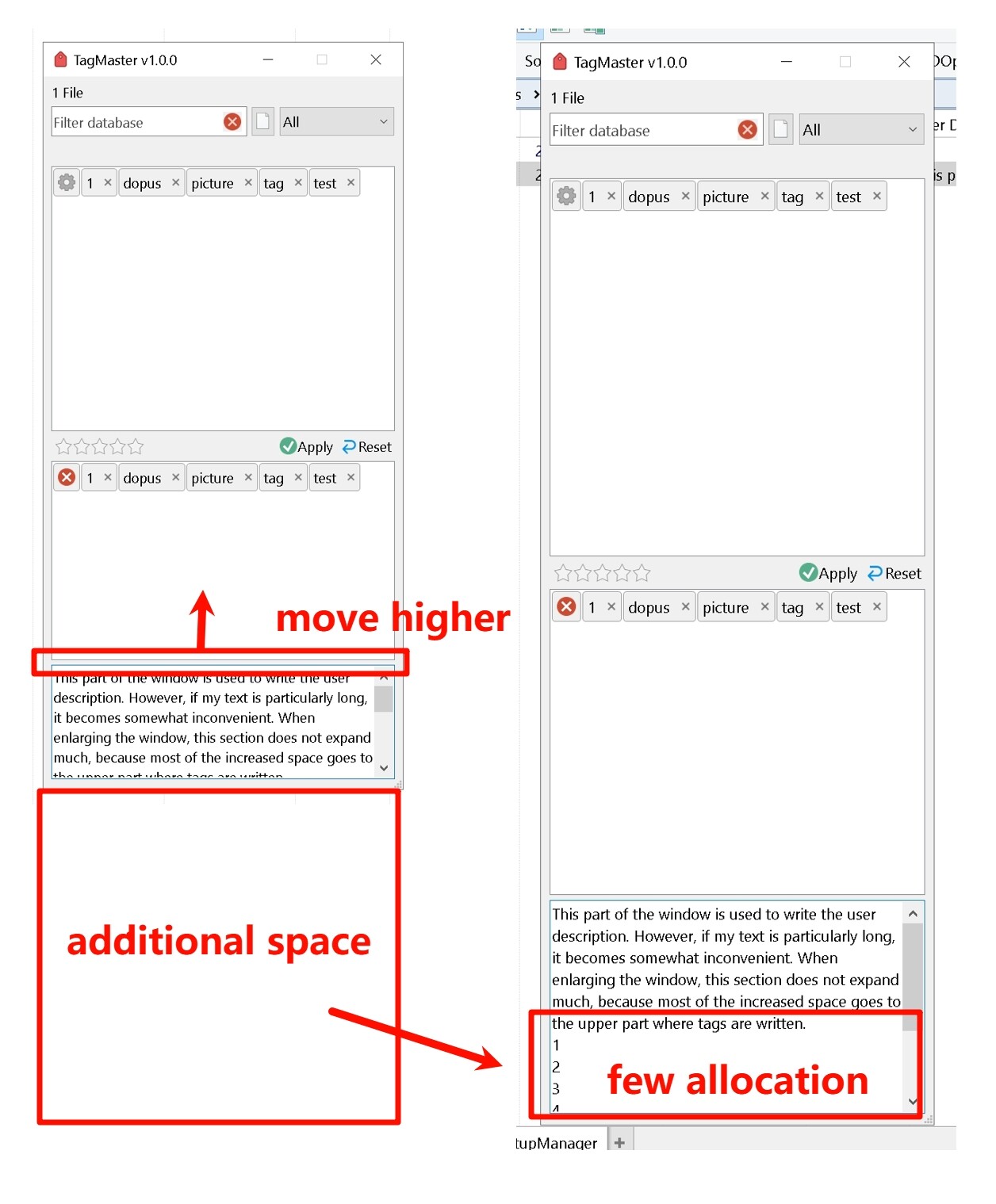
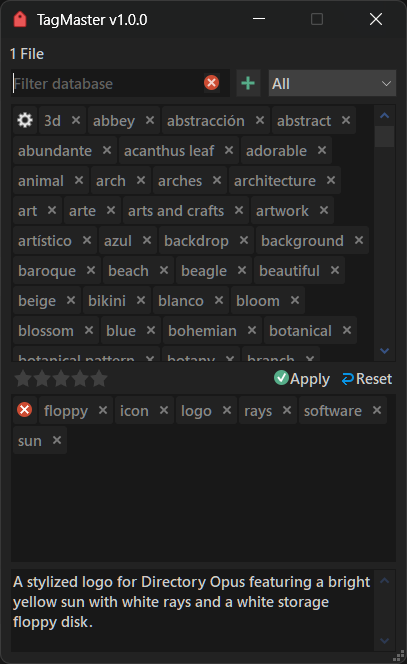
TagMaster is a visual, click-based interface for managing metadata in Directory Opus.
It complements Opus' powerful metadata system by making keywords (tags), ratings, and descriptions easier and faster to use, without replacing or altering how Opus works internally.
Instead of typing keywords manually and worrying about separators, TagMaster lets you apply and remove tags with clicks, backed by a global, reusable tag database that grows as you work.
AI features are entirely optional and only used when explicitly requested by the user.
TagMaster addresses this by providing:
- A click-driven tagging UI
- A persistent, reusable tag database
- Bulk and batch-friendly workflows
- Optional AI assistance for users who want automation
Core features
- Global tag database for searching and reusing keywords across files
- Click-to-add / click-to-remove tag interface
- Optional manual typing of tags (new tags are detected automatically)
- Categories and subcategories for keywords
- Fast search field to locate tags instantly
- Bulk apply and Add All actions
- Per-file description editor
- Image Description for supported formats
- User Description for other file types
- Integrated star rating editor
- Two operation modes:
- LINKED — follows the current Directory Opus selection
- FULL — standalone batch mode with a managed file queue
- Preview and file properties (toggle with
F7) - Apply / Reset workflow to stage changes before committing
- Optional wildcard-based file filtering
- Non-blocking metadata reads (UI no freeze when reading files)
- Optional AI-assisted:
- Automatic keyword and description generation (AutoTag)
- Automatic categorization of uncategorized keywords
- Import keywords from Directory Opus' internal tag database
- Database management UI
What TagMaster modifies
TagMaster only modifies standard metadata fields already supported by Directory Opus:
- Keywords (all supported file types)
- Rating (all supported file types)
- Description
- Image Description where supported
- User Description for other file types
It does not replace or interfere with Opus' metadata system.
It can process any file, not only images and PDF's.
Requirements
- Directory Opus 13.20.3 or newer
Installation
Download the file from releases and double click it. Or follow the instructions from here
Latest version : v1.1.0 : Download from here
Usage
Run the command by using TagMaster.
By default the dialog links to the current selection: pick files in Opus and the panel shows their keywords, description input, and rating values. There's also the FULL mode dialog, who has more additions and where you can work with any passed file and drop files in to add them to the batch. (More details in the Main window section)
If you want the AI-assisted mode, use FULL=ai instead. (More details in the AI assistance section)
In AUTOTAG mode, you can set the files you want to handle automatically using AI models. (More details in the AUTOTAG section)
You can also MANAGE your keywords database through an easy-to-use interface (Keywords Management window). Here you can add, edit or delete categories, sub-categories and keywords (More details in the Manage your Database section)
Command arguments
Available arguments are:
| Argument | Type | Value | Description |
|---|---|---|---|
| FILES | /M | Sets the files to act on in FULL and AUTOTAG mode. If no files are specified, the ones selected in the active tab will be used. | |
| AUTOTAG | /O | Open the command in AUTOTAG mode. | |
| [model] | Specify any model to start AUTOTAG. Can be a built-in model or a custom one | ||
| unattended | Run AUTOTAG in unattended mode. This means there's no user intervention required. | ||
| nodesc | When using AUTOTAG, the generated description will not be used. | ||
| nokeywords | When using AUTOTAG, the generated keywords will not be used. | ||
| nocats | When using AUTOTAG, the generated categories will not be used. | ||
| nosendtocoll | When this parameter is included, files that were not processed will not be sent to a coll:/TagMaster collection. |
||
| FULL | /O | Open the command in FULL mode. | |
| ai | Open the command in FULL mode with AI capabilities. | ||
| FILTER | /R | Pass a pattern using Opus wildcard syntax. | |
| NOADDTODB | /S | Makes the command's keyword database read-only. | |
| RECURSIVE | /S | When reading folders, lets you choose whether to do it recursively or not. | |
| MANAGE | /S | Manage your keywords database in a easy to use UI |
Main window
Here you can manage keywords, descriptions and ratings from selected files, among other things. This windows will vary depending if you're in FULL mode or LINKED mode.
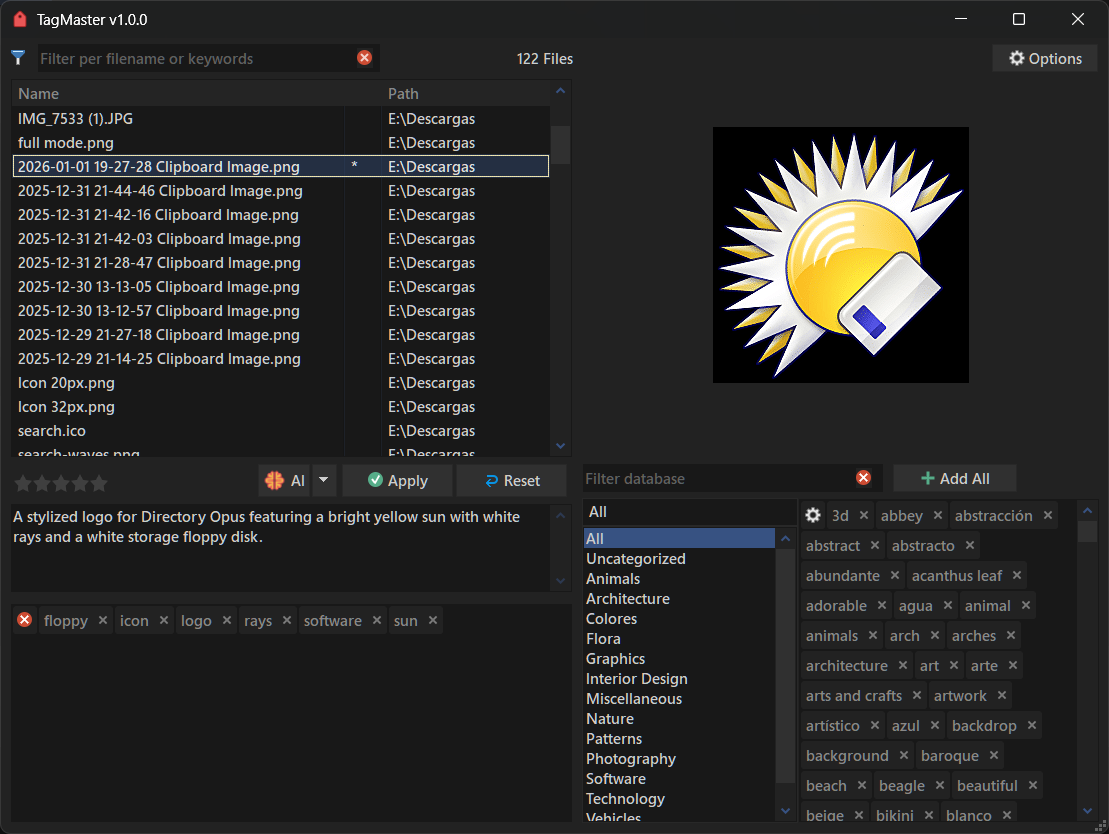
The interface is split into two main panels:
- Tag database panel
- Displays all available tags, divided into categories
- Includes a search/filter field
- Selection panel
- Shows common tags for the selected files
Actions:
- Click a tag to add it
- Click ⓧ on a tag to remove it
- Click ⓧ (top) to remove all listed tags from the selection
- Click ⓧ in the database to delete a tag from the database
- Use Add All to apply all listed tags (use carefully)
Adding new tags
- Type tags into the search field
- New tags are detected automatically
- You can add multiple tags separated by
; - New tags can be added to the database and applied immediately
Rating editor
- Click a star rating to set it
- Click ⓧ to clear the rating
- If multiple files have different ratings, "multiple values" is shown
Description editor
- Available when a single file is selected
- Writes to:
- Image Description (supported formats)
- User Description (other formats)
Apply and Reset
- Reset restores metadata to the original state
- Apply commits all staged changes
In FULL mode, unsaved changes trigger a confirmation dialog on exit.
In linked moded, the applying is automatic whenever the selection change.
AI capabilities
In FULL mode, the AI button lets you invoke the AutoTag feature for a single file. You can also choose the model to use. When pressing the button, the following modifiers are allowed (combinable):
- Alt: Skip description
- Ctrl: Skip keywords
- Shift: Add extra context
AutoTag
AutoTag uses AI models to analyze images and PDFs and suggest keywords (and categorize them) and short descriptions.
Features:
- Fully opt-in
- Never runs automatically
- Requires API keys set via environment variables
- Results are reviewable before applying (except when
unattendedis used) - Files are never uploaded without explicit user action
- You can choose whether to apply keywords, description, or categorization.
It can be accessed via FULL=ai when selecting a single compatible file. Then press the "AI" button (you can also choose which model to use).
It can also be used in a standalone window via TagMaster AUTOTAG, in addition to the various supported parameters listed here. In this mode, multiple files can be processed at once.
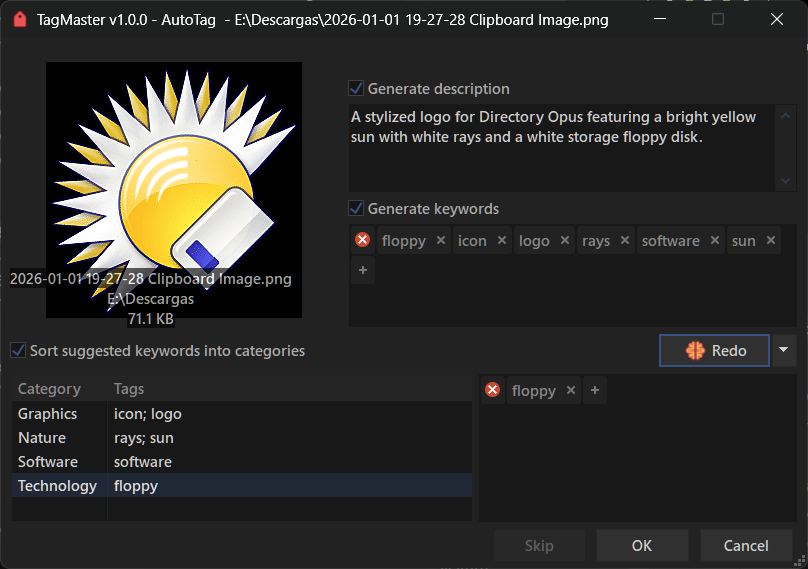
Note: These features are only available on demand and may not even be shown or may be disabled in the interface if not previously configured. More details are in the AI assistance section.
AI assistance
TagMaster is the first script add-in for Opus that brings built-in AI support applied to files. It can be used to analyze images and documents to automatically categorize and describe them. It is also available to categorize keywords that do not have one.
To enable these features, you must have at least one compatible API key set in your environment variables for the command. Gemini, Mistral, and OpenAI models can be used built-in if you have the respective keys.
Built-in providers and required environment variables:
| Provider | Environment Variable |
|---|---|
| OpenAI | OPENAI_API_KEY |
| Google Gemini | GOOGLE_API_KEY |
| Mistral | MISTRAL_API_KEY |
Options
Accessible from FULL mode, there are some options applicable to AI.
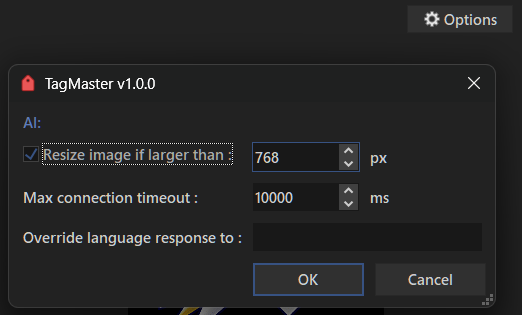
- By default, the language for the response is the same as the one currently used in Opus. You can override this by changing "Override language response" to the language name in English (e.g., Spanish).
- You can choose to reconvert images to smaller sizes to reduce token usage.
Note: Images means those file types that Opus can recognize as images. When processing them, TagMaster will internally convert file types that:
- Are not .jpg or .png.
- Have the "Resize image if larger than" option enabled and the image is indeed wider or taller than the configured value.
Custom models
Additionally, custom AI models can be added without modifying the script.
- Model definitions are JSON files placed in
/dopusdata/User Data/custom models - Supports local and cloud-based models (e.g. Ollama)
Note: The models to be used must support:
- Structured outputs.
- If you want to analyze files, they must support file input.
- If you want to use them for auto-categorization, they must support text input.
The JSON file must follow this format for TagMaster to recognize and use the model:
Custom model format:
To add a new model, create a JSON file in /dopusdata\User Data\custom models.
Each model file must be a valid JSON containing at least the following data (example for using gemma3 via Ollama is shown below).
Note that placeholders are used to inject data into the JSON. Placeholders are: prompt (required), base64_file (required), schema, text_schema, and mime_type.
The data value must be the same valid JSON structure the model expects for sending files encoded in base64. Consult the specific model's documentation to know this format. text_data contains information for sending/receiving text. Both are optional if the model doesn't support that input type—but at least one must exist.
response holds an array that "leads" to the response in the JSON object the model returns. Consult the model's documentation for this.
The model must also support structured outputs, which this command uses to obtain the response. The schemas for both cases are provided by the command and should not be part of the JSON; use the schema and text_schema placeholders instead.
modal_vision, modal_text, modal_audio, modal_video, modal_docs indicate the input modalities the model accepts. For example, a model that supports image recognition should have modal_vision (required for this command).
api_name should contain the name of the environment variable (DO NOT PLACE YOUR API KEY here). If the model does not require a key, use no_api_needed.
If the model uses a key, auth must exist and must be an array of 2 values that will be sent as a header with the API key value. Most will use something like:
['Authorization', 'Bearer ']; but other variations exist such as
['x-goog-api-key', ''] ; in that case leave the second value empty.
DO NOT USE the built-in model names, as they will be overridden.
For Ollama, the command assumes Ollama is running at request time (it will not try to verify or launch the program).
{
  "name": "gemma3:27b-cloud",
  "display_name": "Ollama Gemma3 27B cloud",
  "api_name": "OLLAMA_API_KEY",
  "endpoint": "https://ollama.com/v1/chat/completions",
  "auth": ["Authorization", "Bearer "],
  "model": "gemma3:27b-cloud",
  "data": {
    "model": "gemma3:27b-cloud",
    "messages": [{
      "role": "user",
      "content": [{
        "type": "text",
        "text": "__prompt__"
            }, {
        "type": "image_url",
        "image_url": "data:__mime_type__;base64,__base64_file__"
            }]
          }],
    "response_format": {
      "type": "json_schema",
      "json_schema": {
        "name": "keywords_and_desc",
        "schema": "__schema__",
        "strict": true
      }
    }
  },
  "response": ["choices", "0", "message", "content"],
  "modal_vision": true,
  "modal_text": false,
  "modal_docs": false,
  "modal_audio": false,
  "modal_video": false,
  "max_size": 10485760
}
Manage your Database
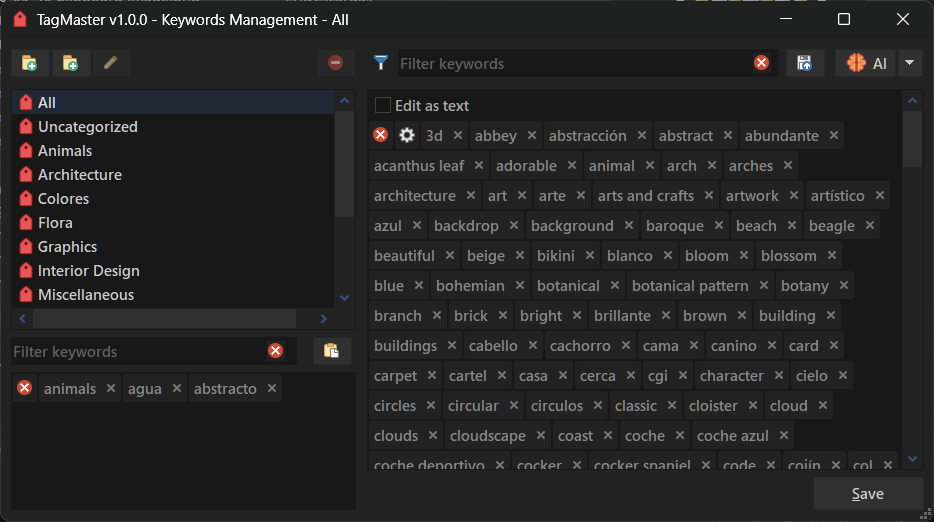
The MANAGE argument opens a dedicated UI to manage the tag database:
- Create, rename, and delete categories and subcategories
- Add, remove, and reorganize keywords
- Optional AI-based categorization (only when triggered manually)
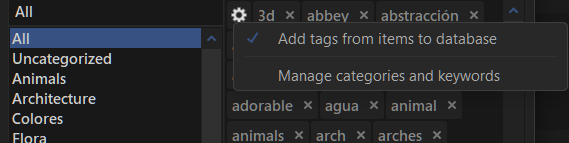
This dialog can also be accesed from the main window, by pressing the cog icon and select "Manage keywords and categories".
The Keywords Management window has a small stack-like panel where you can pile up keywords you delete, and then place them in other categories. To do this, simply press the "Toggle Keywords Stack" button at the bottom or press F4.
Hotkeys:
- F2: Rename selected category.
- F3: Focus filter.
- F4: Toggle stack panel.
- Escape: One time to clear the filter, another to close the dialog.
- Ctrl + N: Add new category.
- Ctrl + Shift + N: Add new folder.
Importing Directory Opus tags
TagMaster can import the internal Directory Opus keyword database to reuse existing tags. To do this, press the "Import from Opus keywords database" button.
Auto sorting uncategorized keywords
If you want, from this dialog, by pressing the AI button, you can auto-categorize keywords that are not in any group. You can also choose the model to use for the task.
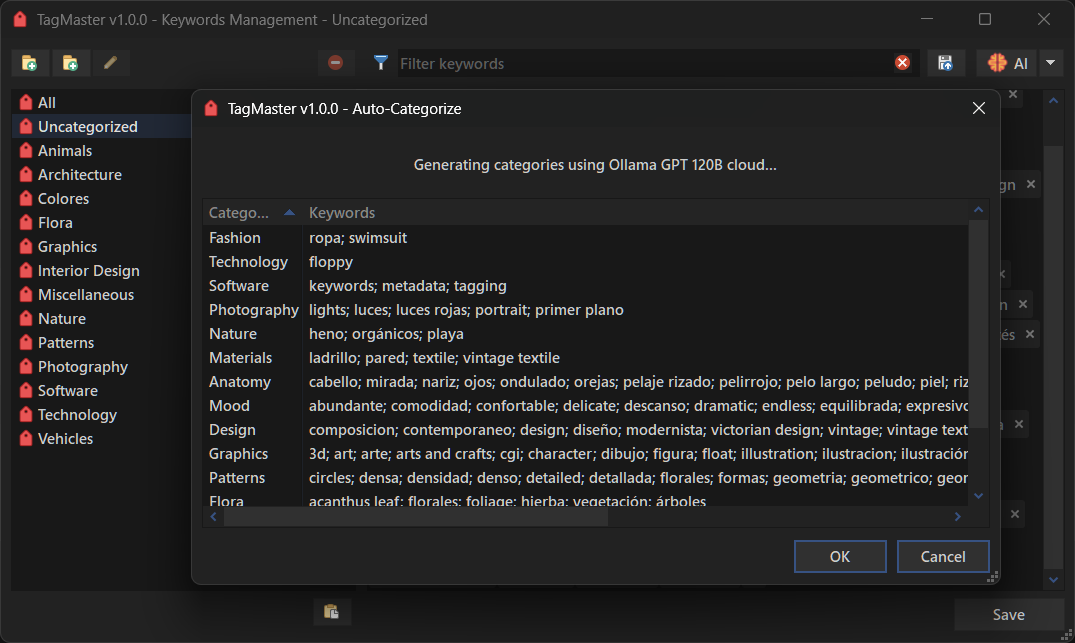
Once a response has been obtained, you can accept or discard it using the corresponding buttons.
Database format
TagMaster stores its database and automatic backups in /dopusdata/User Data/TagMaster. The database is a readable and editable JSON file.
Rules:
- Root object must contain
categories - Categories may contain arrays (keywords) or nested objects (subcategories)
uncategorizedis optional- Category names must not contain:
$ ; \ / : _
Example:
{
  "categories": {
    "Animals": ["dog", "cat"],
    "Places": {
      "Europe": ["france", "germany"]
    }
  },
  "uncategorized": ["misc"]
}
Privacy and control (NOADDTODB)
By default, TagMaster reads existing keywords from files and adds them to its database.
If you prefer not to store keywords permanently (for privacy or temporary work) use the NOADDTODB argument:
- The database becomes read-only for that session
- No keywords will be added automatically
Note: Performing certain chains of actions can effectively override this option (e.g. opening the Keywords Management window from another window may cause the database to be saved automatically).
FILTER argument
Using the FILTER argument allows wildcard-based file selection using Opus syntax, which is very useful when passing folders but only wanting to process certain files inside them. It can be used in all modes that work with files.
Notes
- Not intended for shell, MTP, FTP, plugin, or ZIP paths
- Online-only files are ignored
- Tertiary processing: All metadata reading is done separately from the main process (like in another command), with both processes communicating transparently to the user. This prevents the UI from freezing during heavy loads and allows stopping the command at any time (except while saving files). It also lets the UI show information as it becomes available, without having to finish processing the entire file stack, giving a smoother feel compared to other add-ins. Very useful when reading folders.
- Link to multi listers: The command can link to the current selection across multiple listers and respond smoothly for a JScript command, thanks to the use of timers and other implementations that showcase the scripting API's power.
- The command uses an in-memory cache to speed things up and optimize resources. Once a file is read, it stays cached while the command runs. It can also detect file changes and will automatically update its data.
- Fully localized (English and Spanish — Mexico)
If you want to help
If you're interested, try the script and report edge cases or any suggestion you might have. Feedback will guide the next improvements.
Any suggestions or test results are appreciated. 
Currently the dialog are full translated to English and Spanish (Mexico). If you want to help to translate the dialog into your current language, feel free to send me a message.
Credits / Acknowledgments
- GPSoftware team for Directory Opus.
Disclaimer
This script is intended for personal use.
This is an independent project.
It is not affiliated with, endorsed by, or sponsored by any AI service provider.
All product names are trademarks of their respective owners.