Hey gents is there a way that one could toggle label colors by some way? During normal use I don't like to see different colors, fonts etc, I prefer one uniform look, but there are times when I might like to temporarily use a label color for instance when the label is joined to a filter - for example if I have 80 files that need sorting but for some reason need to give priority to files that were created within the last 3 days, a way to toggle a label color (label filter) would be useful to me. Anyway to achieve this (without going into settings and enabling/disabling the filter)?
Thank You
I figured out how to do this, if anyone's interested to know, I can tell
Please share, someone who is searching might find your post.
Create a filter (or use one you already have), for this example i'll use date-match-created-within-2-days (files created within 2 days) named: createdwithinlast2days
Create a label (or use one you already have) for this example i'll use yellow (unselected text=yellow, all else transparent) (no assignments at bottom pane)
Create a button:
Select FILTER createdwithinlast2days
Properties SetLabel=yellow
Select DESELECT FILTER createdwithinlast2days
This will turn all files/folders created within the last 2 days yellow.
To deactivate the filter/label and return it to your default color, make this button (again using my examples):
Select FILTER createdwithinlast2days
Properties SetLabel=!reset
Select DESELECT FILTER createdwithinlast2days
I made a 3-way button that left-clicks to apply the filter and right-clicks to deactivate it
This seems useful to me if you normally view your files/folders as one uniform color/font but occasionally want to set color filters to view things based on certain criteria
Also for example one could hide all files/folders that didn't meet the filter criteria (leaving only the yellow colored files/folders in my example) by adding this in: Select Filter createdwithinlast2days FILTERFLAGS=hidenomatch
So for example with my example, say you had 500 files in a folder and you quickly needed to get everything that was created in the last 2 days into a folder of it's own, I think this would make it quick. Seems to work fine with flat-view also.
Once I got the knack it didn't take long to realize that there are endless variations on this..
The scripting gurus may find holes in this so suggestions are readily welcomed, meantime maybe it'll prove useful to someone 
Very nice der_affe
Here is a slight modification to allow the user to choose a filter and a highlight.
@Set f={dlgstringS|Enter a filter name...|createdwithinlast2days}
Select FILTER {$f}
@Set h={dlgstringS|Enter a highlight name...|yellow}
Properties SetLabel={$h}
Select DESELECT FILTER {$f}
The matching "off" code is...
@Set f={dlgstringS|Enter a filter name...|createdwithinlast2days}
Select FILTER {$f}
Properties SetLabel=!reset
Select DESELECT FILTER {$f}
Regards, AB
ah, a scripting guru.. you lords don't manifest very often, but when you do, it's appreciated- thank you 
@aussieboykie. You should script a dialog with a dropdown showing all saved filters. Typing the filter names can be awkward when you misstype or if the filter name is too long or maybe one forgets the filter name.
@OpelOpus, which is why I tend to shy away from changing my configuration - I begin thinking just to add a button, and then emerge in a haze 3 days later, not knowing my own name for awhile and with a heavily-altered config 
It did cross my mind but if I am anywhere close to being a "typical" Opus user then it would be overkill because....
- I only regularly use a small subset of all my filters.
- They all have logical, easy to remember names - e.g. Last24, Last48, Last5Days.
- Same for my highlights - Hi, HiRed, HiBlue, HiGreen.
- My full list of filters would result in a very long dropdown.
I'm not sure that there is a way of enumerating filter names using the current scripting interface and I am waaaay too idle to check! 
Regards, AB
@aussieboykie - ahoy! ,oh sorry thats england..g'day then.. could you be goodly enough to post me a screenshot of your opus window?
I use Opus on several real and virtual machines, sometimes with stock/vanilla configs and sometimes with a variety of config changes and added bits and pieces - custom buttons, toolbars, user commands and scripts. My most common Opus "window" is generally a single lister with no tree and various folders mapped to multiple tabs, but depending on what I am doing I may switch to DUAL mode and/or have several listers open across two displays. What is it that you want to see from a screenshot?
Regards, AB
@aussieboykie - i became dizzy even from reading that, much less to see one of your configs 
one of those guys who keeps 20 os's, both linux and windows in virtual machines? it has it's merits..
let me see simply your general everyday use config
First, here's a safer version of the button code that will handle multi-word filter names..
@nofilenamequoting
@Set f={dlgstringS|Enter a filter name...|Today}
Select "{$f}" FILTER
@Set h={dlgstringS|Enter a highlight name...|HiRed}
Properties SetLabel="{$h}"
Select DESELECT "{$f}" FILTER
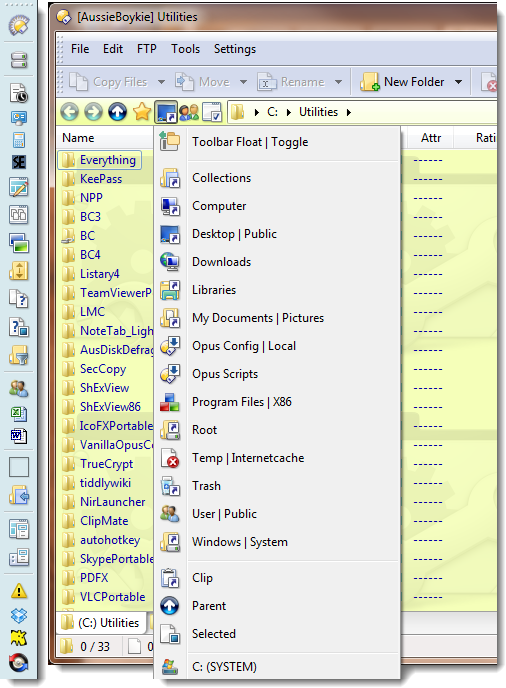
Re my config, there is not much to see. I use the stock standard Menu and Operations toolbars and I add 3 extra user menu buttons to the File Display toolbar. I also keep a floating toolbar with a whole slew of buttons and menus docked to the left of my primary display. Two of the extra File Display menus are for quick links to folders. In the screenshot, one of these menus is expanded and you can also see the docked floating bar which has buttons that are used for many things - e.g. triggering applications, displaying a variety of drop down menus to do "stuff", backing up my Opus config, restarting Opus, etc..
In my experience, you build up a configuration over time that suits the way you work, and since everyone works differently it is important to have the flexibility that Opus affords its end users. People are continually contributing interesting ideas and sharing code samples on these forums, and as long as you are prepared to have a go it's generally possible to adapt examples to do what you want. It is easy to back up and restore configs so you can safely experiment (even when you are not 100% sure what you are doing!), and help is always readily available via the manual and assistance from the developers and other forum users.
Regards, AB