Hi
Can a folder be pinned at the top in "Dual" view ?
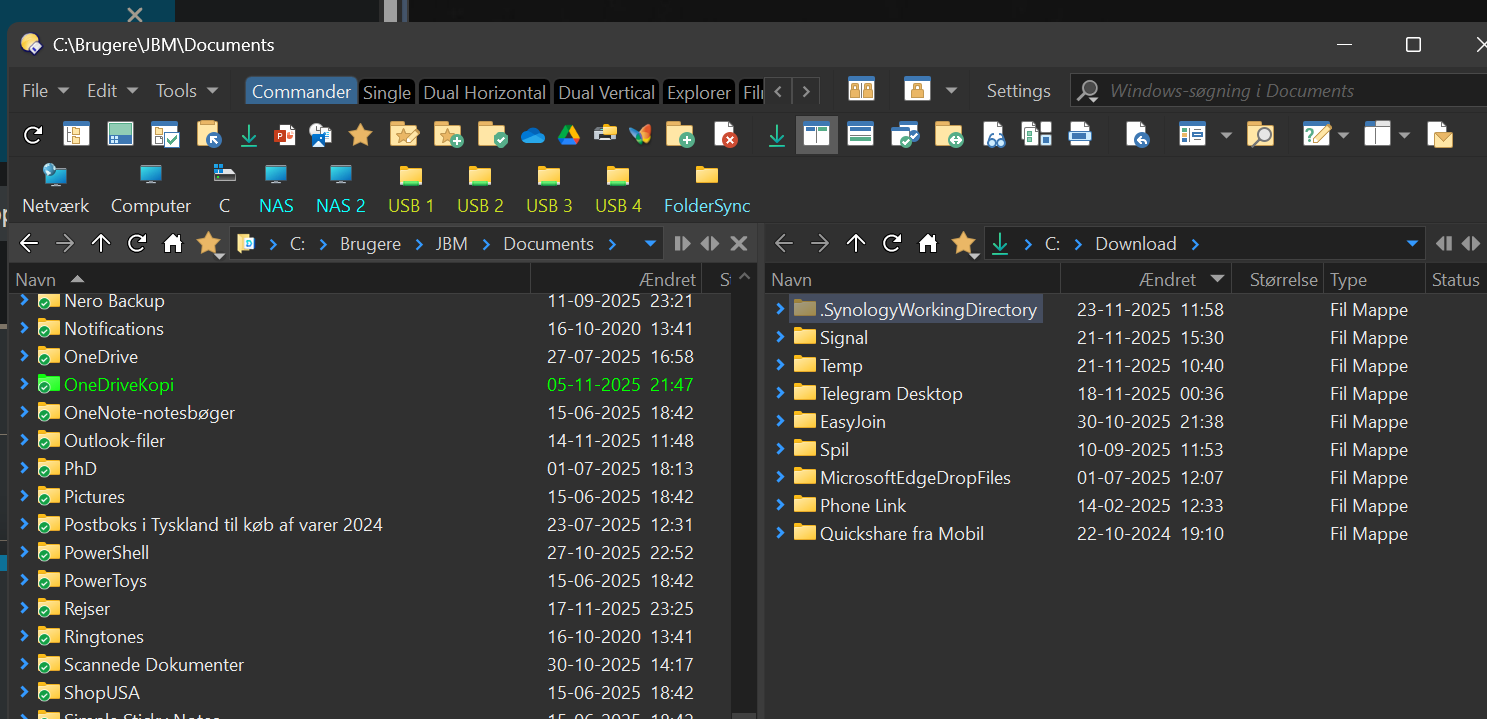
Ie i would like to pin often used folders at the top, and be able to scroll through the folders in the view, eg pin the green folder, scroll through the rest as normal:
Best Nolan
Eh, your question isn’t very clear. Pinned folders sure works just as well in dual as in single folder view. I don’t understand why you talk specifically about Dual view, because obviously you can pin folders in any lister view where you see folders.
But if your purpose is to keep pinned folders in view even when you scroll down, this can be done by dynamic buttons in a toolbar - see Script to show "pinned folders" permanently (while scrolling down)
hi
it is the latter i mean, I assume the solution you point at is the same for single and dual view
ill check
ok read the link text, a few questions:
"Make sure the toolbar has some space to show at least a few folder names of pinned
Why is that i understand the pinned folders are where the rest are, namely not on a toolbar but in the view pane ?
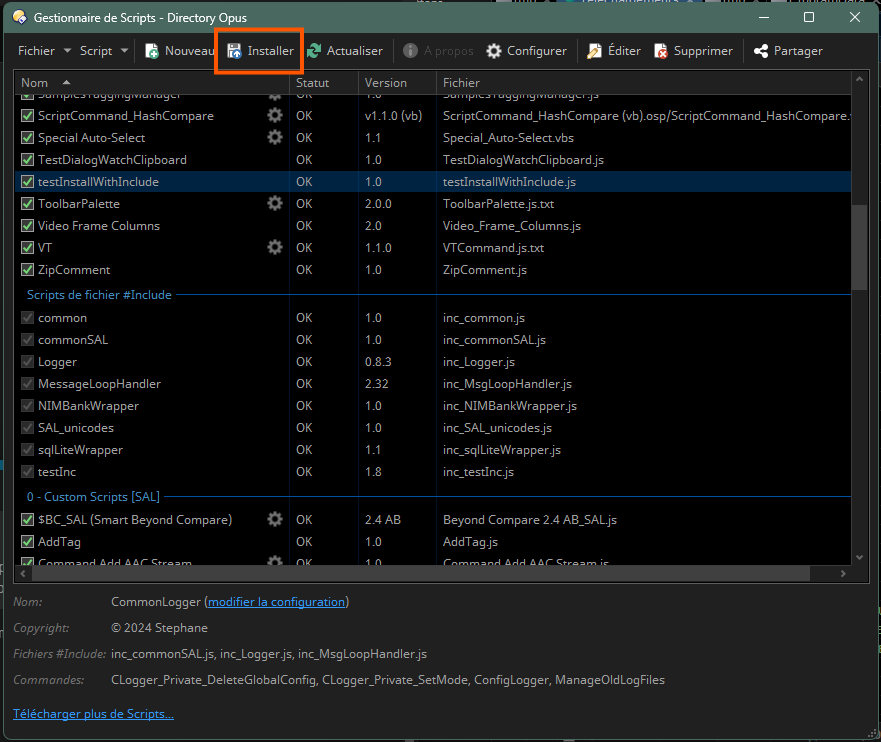
"Install script via Settings > Install Script.
Drag & drop the button (.dcf file) to a toolbar when you’re in “Customize” mode."
there is a link to 2 downloads, so how to do that in the right way, should i install both as described above and the order is not important ?
Please specify detailed step by step to do this correct
thanks
Nolan
On 1: the toolbar should reflect the status of the selected file list (file pane - either ‘source’ or ‘target’) - but I have noticed it only switches when you click on another tab in the other pane, so I have to look at this small issue.
On 2: Order is not important. The button can be dropped on your toolbar, but you need to be in customize mode (Settings > Customize…) to do that.
UPDATE: I made an adaptation to make it work correctly in dual lister view. You need to download version 1.4 here Script to show "pinned folders" permanently (while scrolling down)
ok thanks, ill test 
But how do i import each of the downloaded files ?
The .opusscripinstall file is to be imported via the Scripts dialog that, by default, is under the Settings menu:
.opusscripinstall file.
For the .dcf file: enter the customize mode (Settings/Customize) and then drag an drop the file from the lister to your toolbar. Exit customize mode before trying to use the button (it will not be active in customize mode).
All this is explained in this post: How to use buttons and scripts from this forum - #3
Thanks that helped, ill try that tomorrow
Great work, this feature would be very helpfull in daily work
best Nolan
PS how to undo both installations and roll everything back to before this, just in case ?
For the script, there is a delete button in the manager, and for the button, in customize mode, right-click the button and choose delete or remove.
thanks
best Nolan
ok i installed the script although the place to do so was in a different location not preferences => install (i searched for it no problem)
I dragges the button to a toolbar and can see its visible as long as i am in customize mode but when i close customize mode the button is no longer visible.
What have i missed ?
thanks
The button remains invisible if there is nothing to show. It should show the names of one or more pinned folders when you open a folder which has pinned subfolders in it.
ok but how do i pin folders in the first place ?
Right click a folder - Set Status - Pinned
ok now the scripts and buttons works thanks again
However i cant make th epinned folder "stick" at the top while scrolling down. Do i misunderstand the purpose of the script and button ?
Standard Opus behaviour with pinned folders: they remain at the top of the folders and files, but if you scroll down, they disappear just like any other file/folder that gets scrolled out of the view.
Since this does not fit your expectation which is to be able to see the pinned folders EVEN if they're getting out of view, this script and dynamic button come to offer some workaround: the pinned folders are now displayed in a toolbar, which is not impacted by any scrolling. The toolbar remains in its own place whenever. So you get to see the pinned folders in the toolbar instead of the display.
Ok i understand thanks