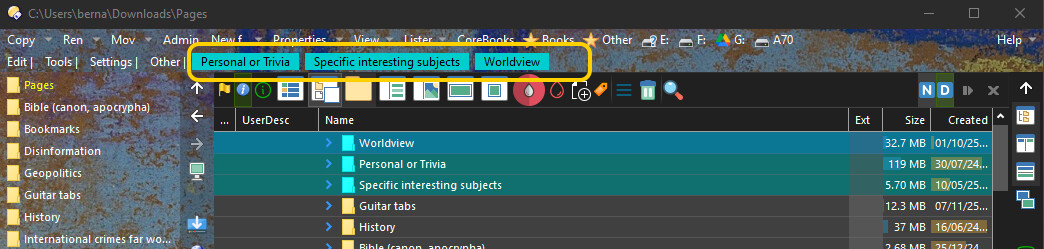
This script “pins” pinned folders permanently in sight even if you scroll down.
The script is based on suggestions offered by some people here:
The script implements a relatively new feature of Directory Opus, which I would call "script-generated buttons", introduced in Opus v.13.15.2:
PS. (TLDR) To be honest, I found the explanation pretty cryptic. My intuitive expectation was that the new feature would let a script loop through all toolbars (this was already possible) and then find a particular "placeholder" button (or - why not - something else, a label for instance) by its name, and then replace the placeholder with one or more buttons or a menu. The current implementation is more abstract, and in a way more powerful: no need to search for the button: the button must implement a command, and this command must also be declared in the scripts OnAddCommands section. Apparently, under the hood, Opus finds the button on the basis of this abstract connection. This is obviously carefully analyzed, but there’s an odd “round-tripping” too: the button exposes a command, which enables the script to make the button call the script without anyone clicking the button (in contradiction to the very purpose of a button), then the script replaces the button with new buttons, in which the script can add commands which are then executed... Quite a feat. Moreover, "between these actions" the programmer must put any data needed for the buttons in a Lister or DOpus variable, otherwise the data get lost in space.
In this script I attempted to make it feel more straightforward, keeping 'OnAddButtons' out of sight and also making the caching of data in-between kind of a background thing. I am a fan of making processes as straightforward as possible, rather than “nerdy”. Yet, all in all, I’m very much appreciating what the Opus guys have done. it is a very powerful, very useful addition.
The actions in the script are as follows:
- The core routine does two things: (a) Automatically widening the “Status” column (it is supposed that you have it enabled), so that if more than one status icon (label) is available, it expands so all label icons should always be visible when you enter the folder. (b) the button implementation, used to show pinned folders on a toolbar (if you enter a folder that has them). For this feature to work you need to put a specific button on a toolbar (see download at the end).
- The button generator section makes the buttons appear when needed.
- Finally, the routine to run the button commands (IF you use the feedback loop back to your script). In the standard implementation the buttons just receive a simple Go command with the folder path in the buttons, so clicking on the pinned folder button will open this folder in Opus, and dropping a file on the button will move that file to that folder - this is standard behavior of the Go command. But I also added the possibility for a command that calls back the script. Both can be used.
For me, this simple script does exactly the few simple things I needed (the part indicated in yellow is the button part - and you can see the pinned folders in the lister too).
For others, this may perhaps be the so far simplest implementation of the new "script-generated buttons" feature.
The prize for the most complex example however must go to @PassThePeas - for his FAYT script:
UPDATE HISTORY:
v1.1: Added OnActivateTab because OnAfterFolderChange is not triggered when changing tabs.
v1.3 Made the button handling "more directly" handled, and data caching a no-brainer.
v.1.4 Added OnSourceDestChange() event handler to make it work correctly in dual lister view (when you switch from source to dest. either by clicking on the already active tab belonging to the other window, or by clicking anywhere within the lister window itself).
DOWLOADS:
AltFolderPrepare.opusscriptinstall (4.4 KB) - v.1.4.
Display pinned folders.dcf (260 Bytes)
Install script via Settings > Install Script.
Drag & drop the button (.dcf file) to a toolbar when you’re in “Customize” mode.
Ps. Make sure the toolbar has some space to show at least a few folder names of pinned folders, because that’s the whole purpose: keeping the names of pinned folders in view when you scroll down.