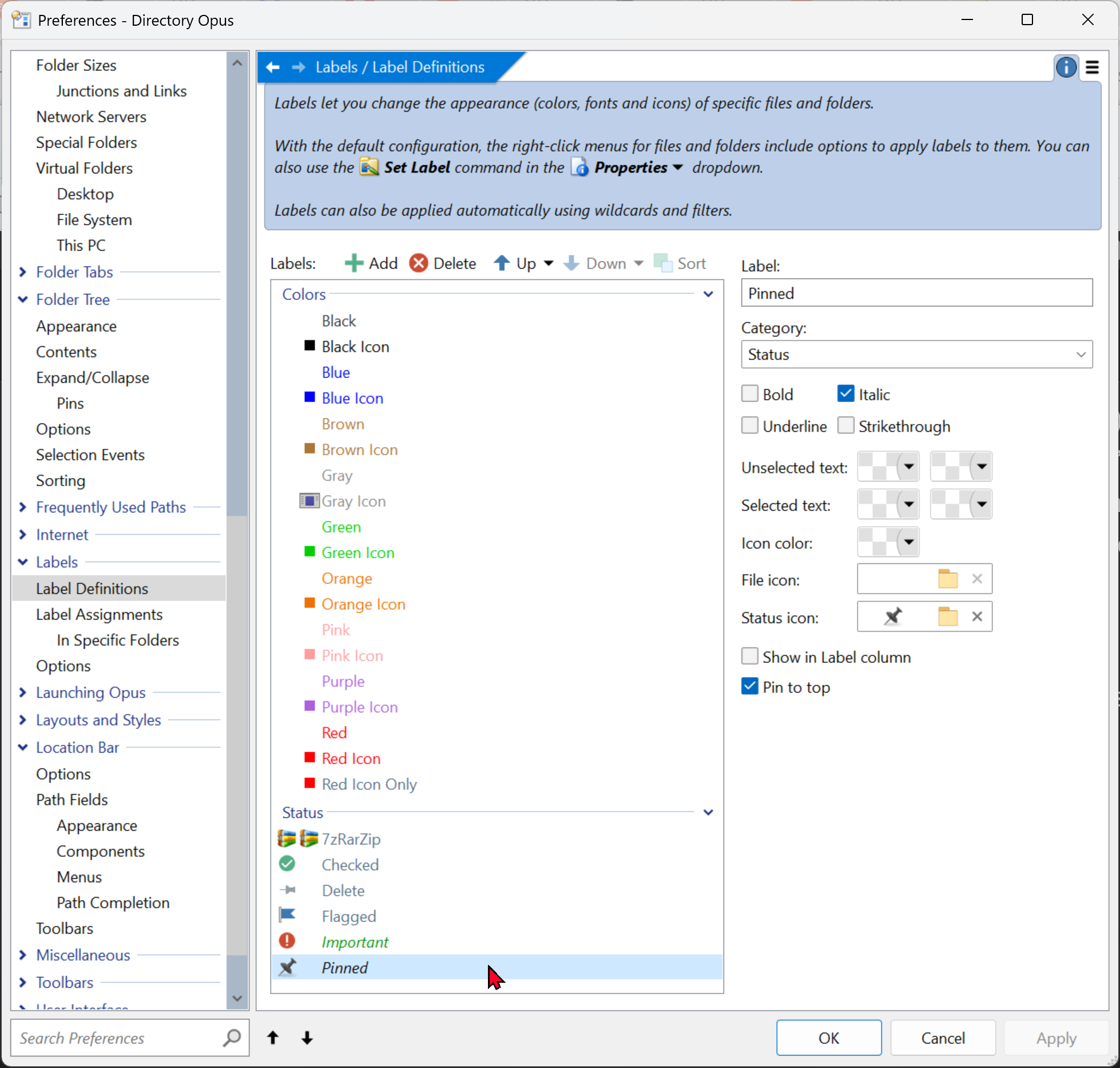
When it comes to pinned folders (not in the treeview but in the folder panel) Opus offers the possibility to give a folder a label that has the attribute “Pin to top” set. I’m using this possibility ever since it was introduced. But this option really means “Pin to top of list”, because a pinned folder still disappears from sight once you scroll down.
Could there be another option “Pin to view”, which would keep the folder in sight even whien scrolling down? Or is there already a way to achieve this in one way or another? (And I mean other than using a split view where I can keep the folder(s) in sight in the top window - I’ve tried this workaround but it is not very satisfying).
PS. This would also be useful in the case of files - especially in tiles view… but this is something related to a whole different kind of “Opus trickery” that I’m using - and harder to explain.
There's no way to prevent a file/folder being scrolled out of view; it can only be pinned to the top of the list.
However, if you have files/folders that you need to access a lot, you can create toolbar buttons for them (or hotkeys, favorites, aliases or other things, too). Those could optionally be set to only show on the toolbar when you're in particular folders, if you don't want them all the time.
Yes. But Go CURRENT FOLDERCONTENT dirfilter=… does not support filtering on labels afaics.
Fiddling a bit with adding the embeddedcmddirs argument to FOLDERCONTENT to filter pinned folders via an [embedded command] did not seem to work - but I’m not sure, maybe I’m missing experience with such embedded commands.
Yet another possibility I’m now looking at is adding sub-buttons programmatically. I know this can be done (there’s an addButtonsData.buttons.AddMenuButton() example in your FAYTSearchExample script for instance, which does exactly that) - but I don’t know yet if this can be used without clicking a button.
So I first need to look at auto-triggering a script on entering a folder, and then I may probably make those pinned folders appear on a toolbar by adding the buttons there.
Any hint as to whether my last suggestion is indeed the best way to go, @Leo?
As many buttons as there are pinned folders in the current folder I’m visiting (usually no more than 2 or 3, occasionally 4). It’s that simple - just an alternative solution for having the pinned folders remain in plain sight when I scroll down (your earlier suggestion seemed to me like the right solution). And of course, as these folders are always different depending on what folder I’m in, they must appear when I’m entering that folder.
Hence my conclusion that I must trigger a script on entering a folder - any folder. The script then does a quick check for pinned folders, adding them as it discovers them.
Don’t pay too much attention to my request. This is by no means a high priority - there are other solutions for this. It just seemed to me that pinning folders would be more meaningful if they remained in sight all the time. If Opus didn’t have that much magic, I probably wouldn’t even have given it a second thought. Magic is sometimes a slave master.
But… triggering a script on entering a folder (OnAfterFolderChange) is probably where should start.
One would be to have vertical frozen 'heading', just like it exists now for frozen columns.
Another would be to be able to add 'files' to the lister, where the 'files' are basically buttons that start underlying scripts when files are dropped etc. Could be used as some sort of Unix /dev/...
The comparison with Excel freeze is indeed a good way of illustrating the idea.
But it’s not comparable technically. In Excel, columns and rows exist as 2 dimensions of one raster. In a file manager, columns show attributes of files, while every row points to a different file object. It’s easy to understand why freezing objects in a file manager is a whole different matter than freezing one or more columns.
I conclude (for now) that it cannot work via OnAfterFolderChange because the only thing I can do from there is looping over the toolbars, getting the desired toolbar, but there it ends:
var mytoolbars = DOpus.Listers.lastactive().toolbars;
var toolbars = new Enumerator(mytoolbars);
while (!toolbars.atEnd()) {
	if (toolbars.item() == "File Display") { //or any other toolbar
		toolbar = toolbars.item();
		break;
	}
	toolbars.moveNext();
}
But there’s no way to loop over the buttons, let alone adding dynamic buttons for every pinned folder to the right button.
And the OnAddButtons event requires clicking on a button (which is obviously not what I want to do whenever I enter another folder).
Maybe there are possibilities to create a plugin for this - but I’m not a C or C# programmer.
So I’ll leave this otherwise interesting experiment behind now. It was fun exploring it.
You need the dynamic buttons that have been recently introduced.
When entering a folder, you'll rebuild the list of available buttons in the dynamic one.
I don’t think so (I started with that script to begin with). One still needs to click the button, its dynamic content is generated at that very moment. I couldn’t get it to display folder names spontaneously upon entering a folder. For that, the script needs access to a ButtonData object I assume, and the ability to apply it to a particular button and change it, without any OnClick event triggering it.
In fact, it would be abusing the very concept of what it means to be a “buttons”. (Spoiler: it’s meant to click on it ). I don’t want to abuse stuff. It’s not meant to be used that way I think.
That's not how it works. The menu of choices is updated whenever the script wants. In that script's case, it's updated when a search is done via the FAYT side of the script. In your script's case, you'd update it on folder change and when the active tab changes.
What we're talking about wasn't possible until a few months ago. The 2014 post is about code that edits xml toolbar files directly, which is a lot more complicated and difficult to make work well.
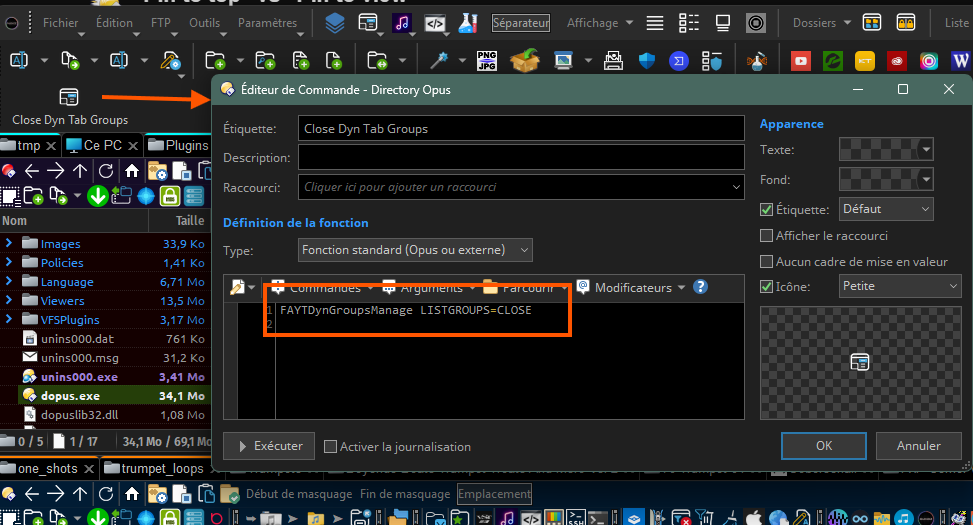
It has only one button and it's using a custom command from the script linked above.
That script is made to open tab groups (from the ones you can define in the Preferences) and add/remove them from your current lister.
The lister I used it here has a few of those groups opened, so the LISTGROUP=CLOSE option from my command will generate one button for each group that has been previously opened with the appropriate command.
This is how it looks when quitting customize mode:
The different buttons are generated by the script depending on what groups have been previously added.
The logic would be the same for you except you'll need to refresh the list of buttons upon entering a new folder (and associate the action/command triggered by the button accordingly).
 ). I don’t want to abuse stuff. It’s not meant to be used that way I think.