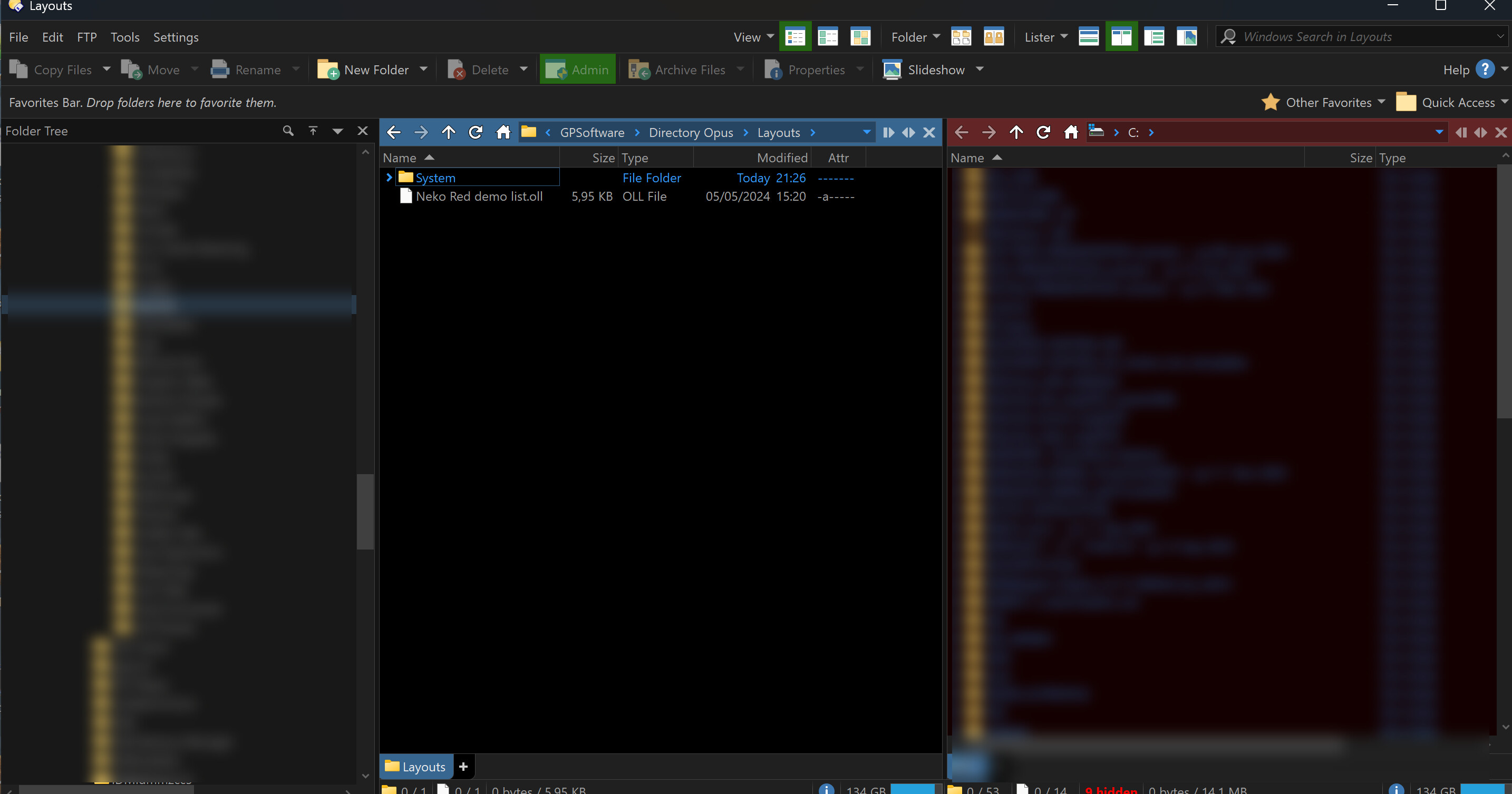
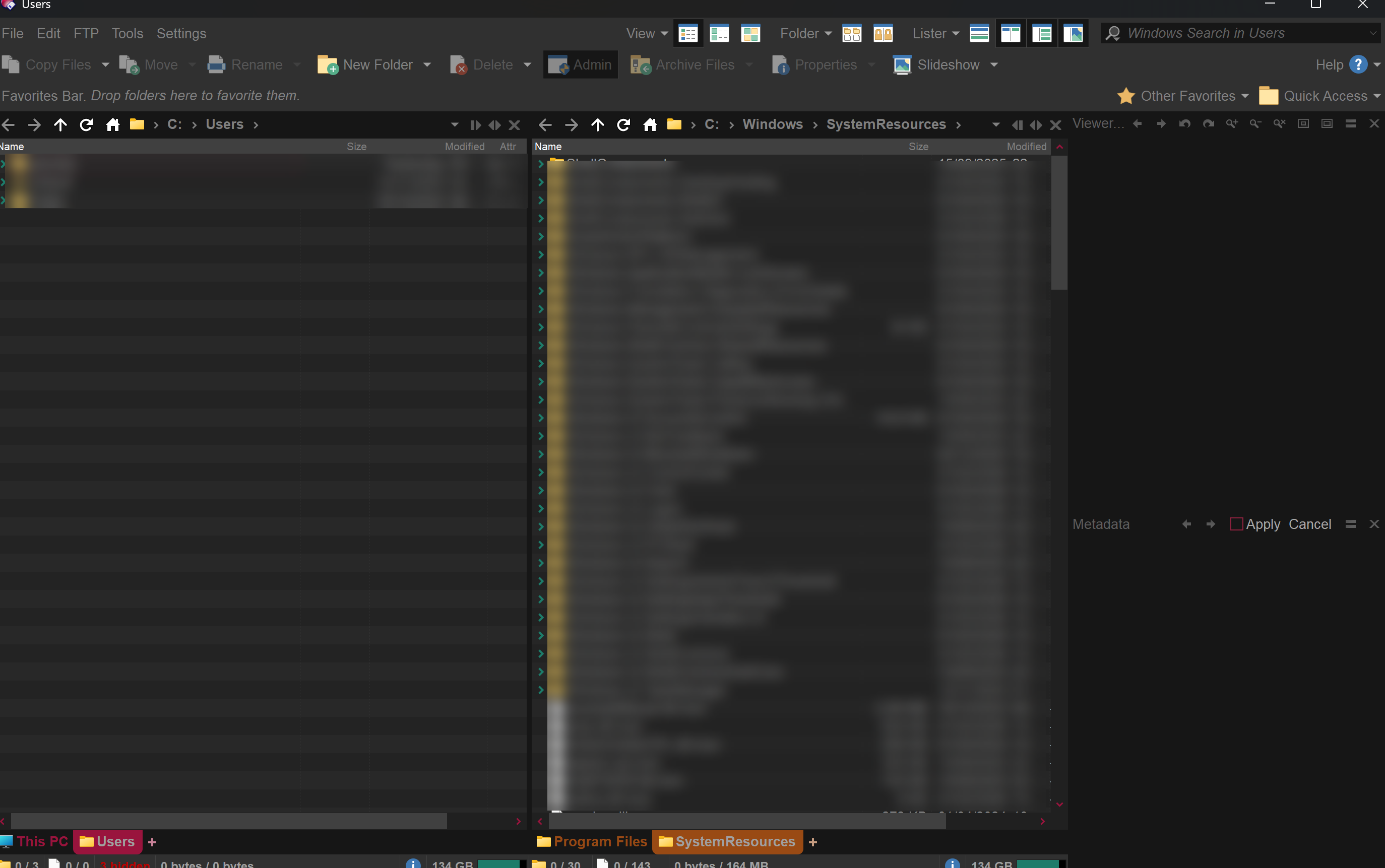
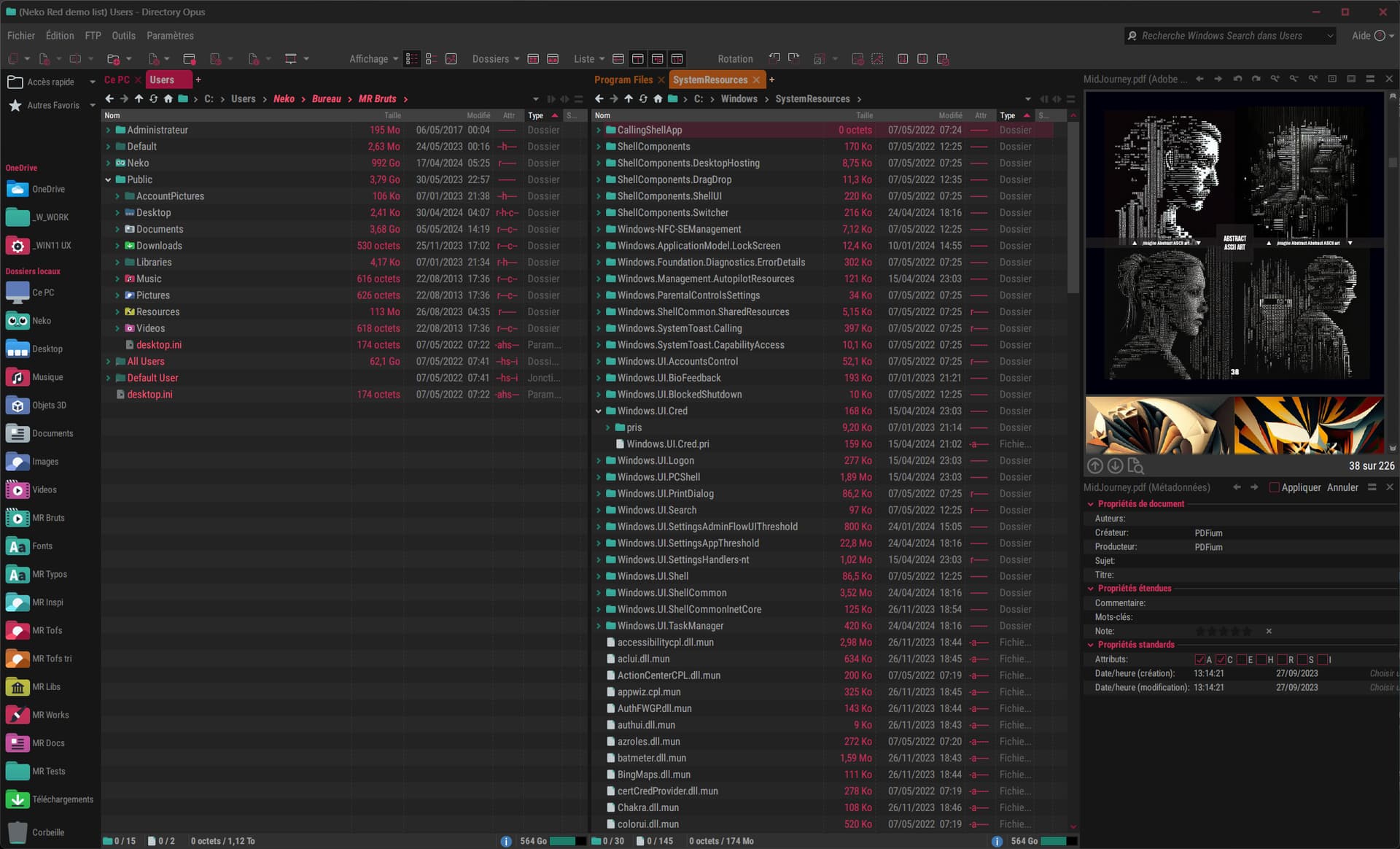
Dark theme with raspberry touch

In my first post in the screenshot section, I mentionned it with a "strawberry" touch, but "raspberry" may be more accurate :slight_smile:
Here is the Theme file:
Neko DarkRaspberry.dlt (210.6 KB)
Nota: my theme uses a font called RobotoUI (It's a modded Roboto Condensed to use it with more ease system wide). You can just replace with Roboto Condensed in the font section in Opus (or whaterever font you like !).
The Roboto Condensed is freely available here : Roboto Condensed - Google Fonts

Here is also a demo lister layout designed for this theme:
Neko Red demo list.zip (1.3 KB)

EDIT : Modded from the skinz icons originaly posted here Fluent Style Icon Set
and with his kind permission, Raspberry dual tone icons are here :
FLUENT_UI_RASPTONE.zip (1.6 MB)

And finally an other screenshot with the theme:
13 Likes

This one is amazing, thank you for share!

1 Like

Hi NekoSan (and everyone),

first of all, thank you for sharing this theme — it looks absolutely fantastic :ok_hand:
I’m trying to replicate your setup as closely as possible to your screenshots, but I’m clearly missing a few things and could really use some guidance.

What I’ve done so far:

Imported Neko DarkRaspberry.dlt (colors/fonts applied correctly)

Installed Roboto Condensed (as suggested)

Installed the FLUENT_UI_RASPTONE icons

Where I’m stuck:

I don’t know how to load/apply the “Neko Red demo lister layout” (the Neko Red demo list.zip). Is there a specific import option in Opus for lister layouts, or does the zip contain files that need to be placed somewhere manually?

Also, even after importing the theme, my interface still doesn’t match your screenshots, mainly:

the left vertical tabs / favorites area

the overall pane arrangement

the right-side preview panel

spacing/proportions (overall “polish”)

So I’m wondering if this setup requires additional steps beyond the .dlt theme (specific panes, lister layout settings, toolbars, etc.).

Sorry if this is a basic question — I’m very new to Directory Opus, but I’d love to learn and reproduce your setup properly.
Any step-by-step hints would be hugely appreciated :folded_hands:
Thanks again!

1 Like

Extract Neko Red demo list.zip and move the Neko Red demo list.oll to /dopusdata/Layouts/ or C:\Users\Username\AppData\Roaming\GPSoftware\Directory Opus\Layouts and open a new lister from Settings - Lister Layouts.

Settings - Set Lister Defaults for making it the "The Default Lister" if needed.

1 Like

Hi Hardkorn, thank you for the clear instructions — I followed them exactly :+1:
I was able to load the Neko Red demo list lister layout successfully.

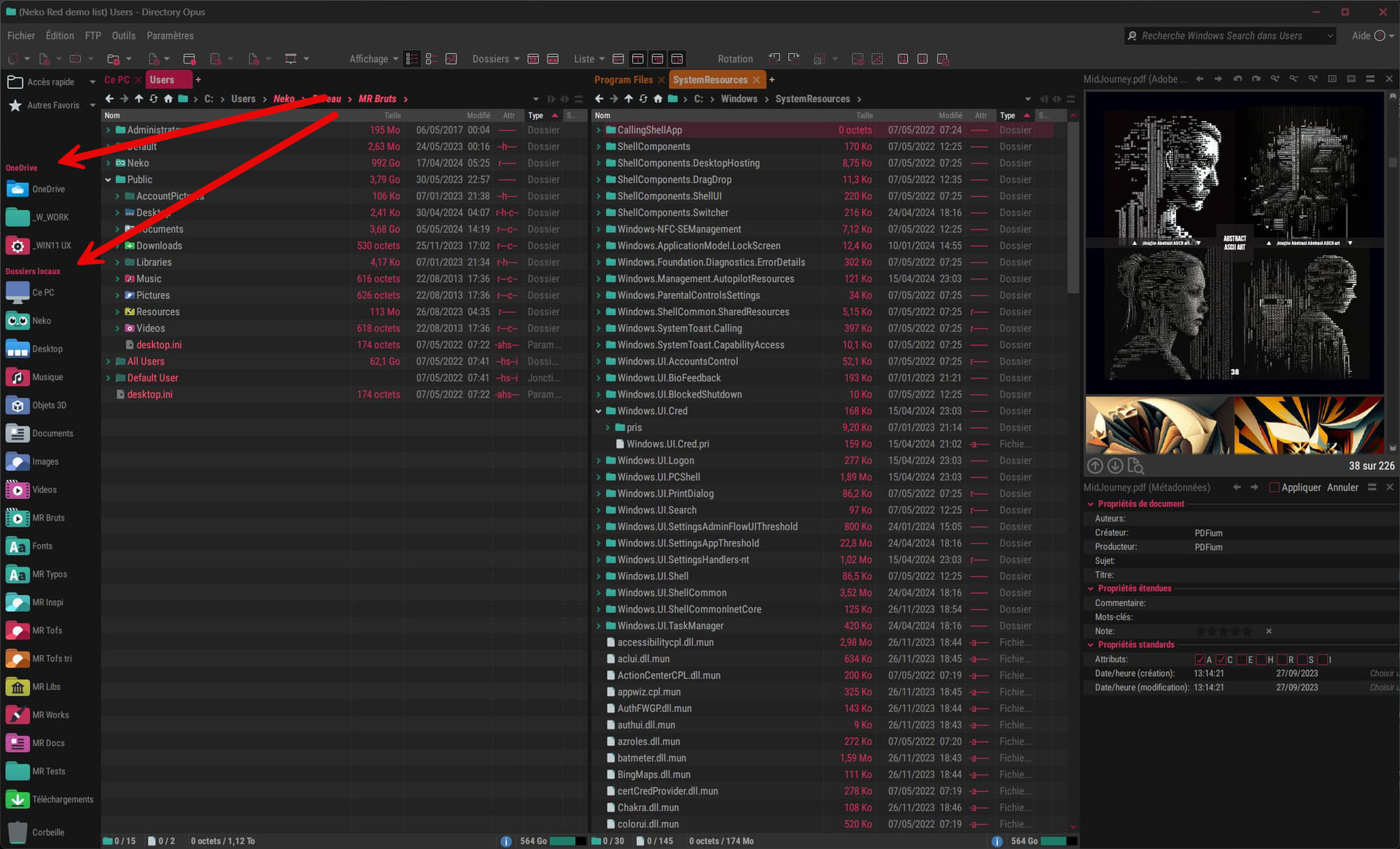
However, I’m still missing one key part of the interface shown in NekoSan’s screenshot (see my attached image 3.png, arrows on the left).

What I’m trying to reproduce specifically is the left-side vertical folders section, where folders like Desktop, Documents, Downloads, Music, etc. appear with small arrow expanders, visually integrated into the dark theme.

From what I understand so far, this is not part of the lister layout, and I suspect it may be one of the following:

the Folder Tree pane, styled and positioned on the left

a Favorites Bar / custom toolbar docked vertically

or a combination of both

Could someone please clarify:

Which exact Opus element this is (Folder Tree vs Favorites vs Toolbar)?

How to enable it (menu path)?

How to dock it vertically on the far left like in the screenshot?

Whether additional styling (fonts / colors / padding) is needed to match the theme look

Sorry if this is obvious — I’m still very new to Directory Opus, but I’m getting closer step by step :slightly_smiling_face:

Thanks again for your help!


1 Like

Right-click on an empty area on a toolbar and choose Customize from the context menu, drag and drop "FavoritesBar "-toolbar (left dotted vertical line) to the left.

There are two discussions about replacing the folder tree.

2 Likes

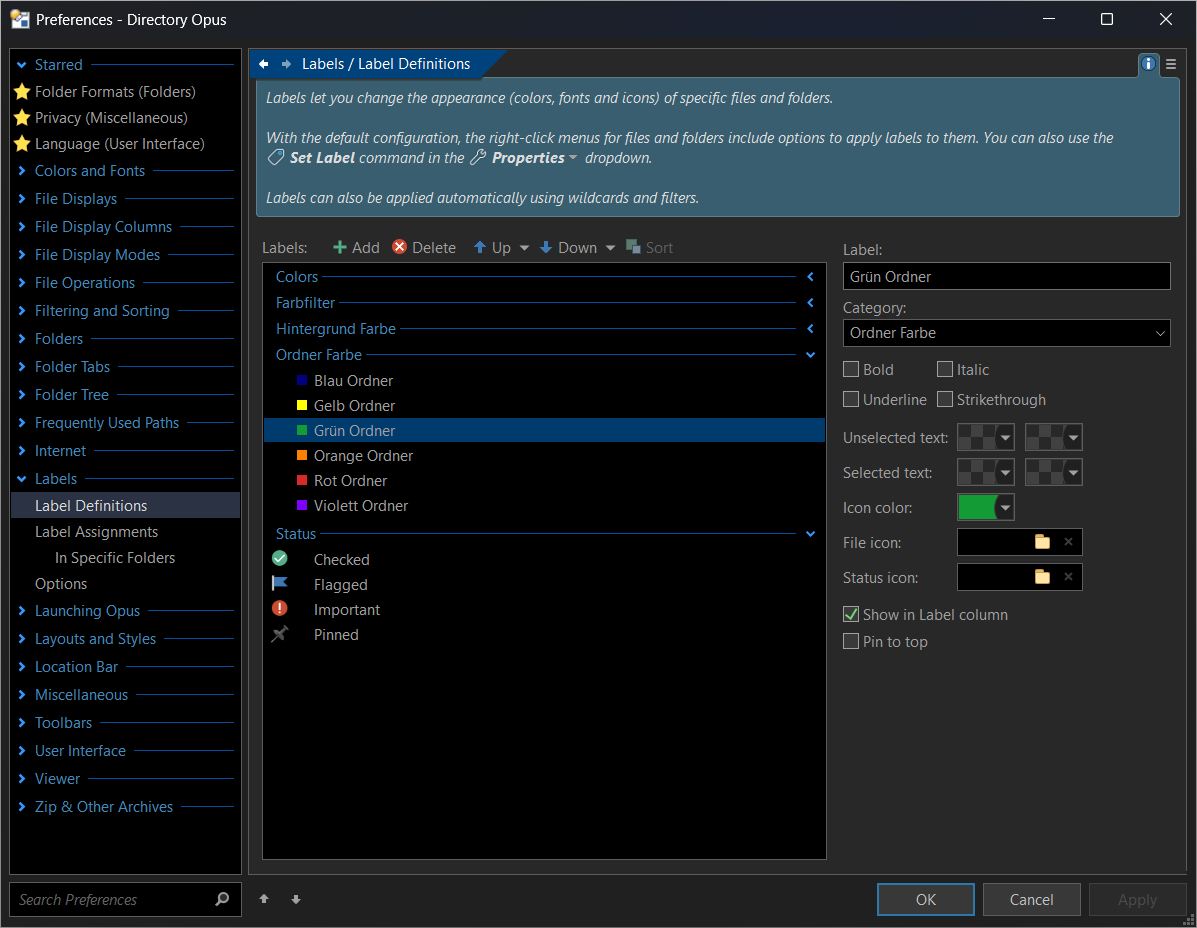
Thank you for this theme. I like it and successfully installed it, well most of it. One thing I seem can't to find the setting for is the green folders. My folders are still yellow. Where can I change the folders to green? Thank you.

1 Like
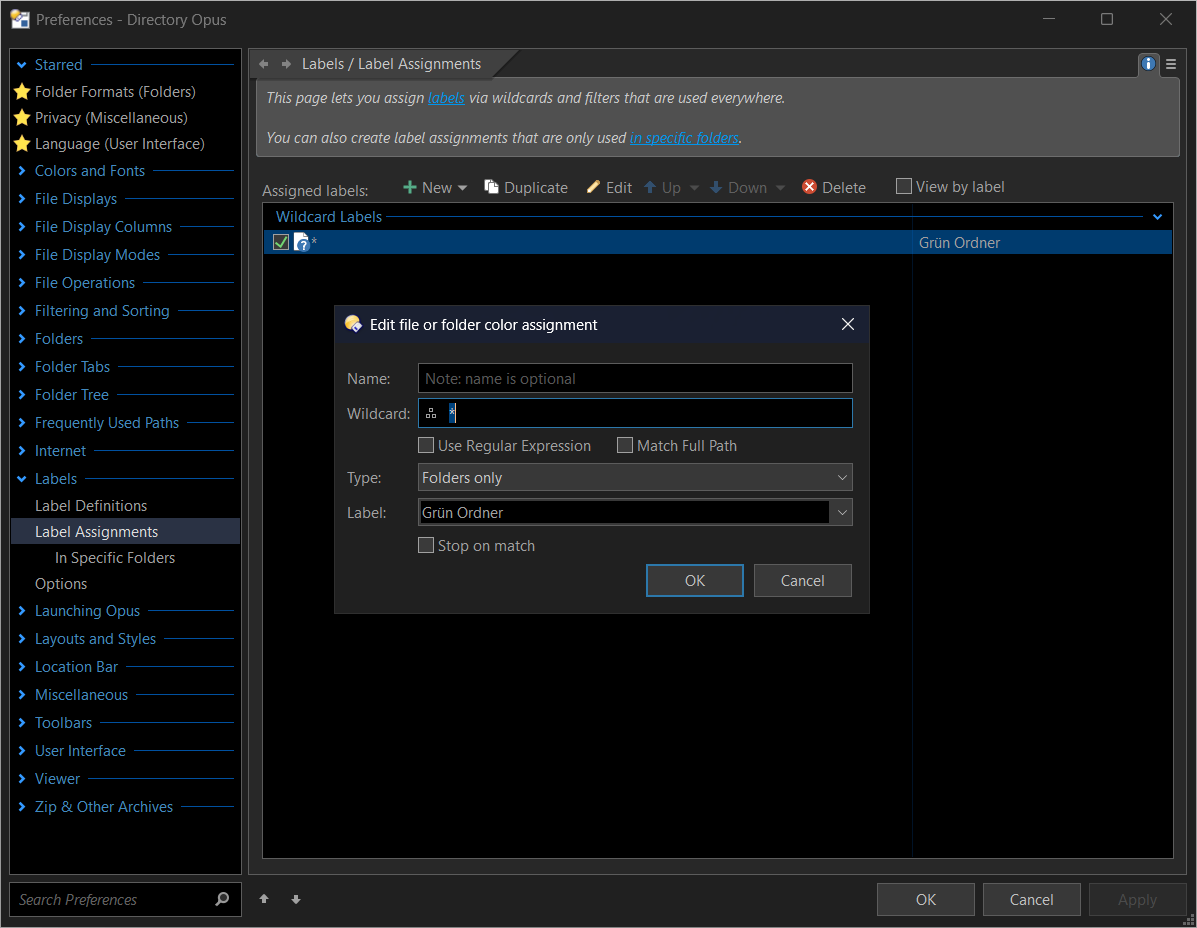
  1. Add a new label that changes the icon color.

  1. Add this label to all folders (Type: Folders Only) with a wildcard label.

2 Likes

Thank you very much!

2 Likes

Whoa ! It's been a while since I've been on the forums; I'm just discovering this discussion. A big thank you to Hardkorn for his incredibly detailed answers.

1 Like

One question though: how are the icons added in the favorite bar? the bar itself does not have an option to chose an icon. Are these done manually for each folder by choosing properties and settings icon for each entry?

I'm actually using a Windhawk theme that I designed myself (hard work, still in progress that that I could make available for download when it's finished). What appear to be custom icons are the standard icons for that theme (that is applied system-wide).
But if you customize an icon in Windows (right-click + Properties/Personalize/Change Icon), and you can do it from Dopus also, that icon should also appear in the Dopus taskbar. Or have I misunderstood your question?

Nah, I hoped you would have found another way. Changes in Windows Properties also are for Windows. Just hoped you have a solution where these icons are only shown in DOpus. Maybe DOpus will add that icon feature anytime in the future :slight_smile: