Good morning, I’d like to know if it’s possible to establish links between files in Directory Opus. For example, I have a customer’s ‘order’ file and I’d like to link it to the ‘invoice’ file. Thank you
If I were to do something like this, I would use a command that would create a side file to the order that would be a shortcut to the invoice.
For instance you have "Order 12345.pdf' and the command could create a "Order 12345 - invoice shortcut.lnk" that would point to the invoice.
To make it easy, you would have to be in dual pane, select order in source pane and invoice in destination pane and activate the command/button.
Other solutions would require reverting to metadata, with the risk that the metadata is lost if you copy/move the files to another file system which does not support these metadata (e.g. network drive for instance).
IMHO, the best solution for this is to use a dedicated piece of software, relying on a database underneath. But solution mentioned in the first place can be a workaround if you need to jump to the invoice quickly (and taking the hypothesis that 1 order has only 1 invoice ... otherwise this would make it a bit more complicated).
What would it imply for files to be linked?
For example, would you expect that if I move a file, its linked files also move automatically?
There would be several rules to define.
But for now, unfortunately, it's not possible AFAIK.
@PassThePeas @errante Your two replies suggest that I had underestimated the complexity of the idea: I liked the idea that, after selecting the file ‘Order 12345’, I could see a list of the other related files, such as ‘Invoice 12345’, but I hadn’t considered the possibility that there might be more than one related file, or the consequences of moving one of these files relative to the others. I probably really should look for specific software that supports relationships between files or a robust tagging structure. I’ll have a look. For now, thank you for your replies.
A Stored Query would almost do this, but specificity to the file selection is the problem with this idea. I'll think on it some.
I'm wondering if an Evaluator intervention within a Saved Query could solve this.
But I'm probably wrong at this point.
Edit: Perhaps using Everything as the Search Engine ?
The easiest way to handle that relationship would be using Collections.
You can create a collection named "12345" and then put any related files in there.
If you plan to move those related files later, then I'd suggest using either Opus tags or Opus labels. You can use a specially configured Everything v1.5 along with Opus to later instantly find items with a specific label.
Here's a script that lets you find Opus labels with Everything. It also explains how you can configure Everything for instant results.
Let us know if you're interested in making it work with Opus tags, so I or someone else can give a more detailed explanation.
@Sabre18 I use a menubutton which I think does pretty much what you’re asking for. I use it to tag files that I want to keep together, or at least get them easily together in an overview with one click. However, it has one particular restriction which may make it unuseful for your case:
- Update: version 2 also works with fixed folder paths that can easily be set up at the beginning of the script (there are a few example paths). You can also limit the subfolder-depth to search for files, as well as the file type groups (e.g. you could exclude Archives, Music and other types). This decreases the time needed for the search to complete, as the script no longer needs to load metadata for every found file.
- Update: version 3 also works with tags directly in the filename (much faster, but changing filenames is not always desirable of course)
Adapted script and menubutton are included further on.
The menu has the following functions:
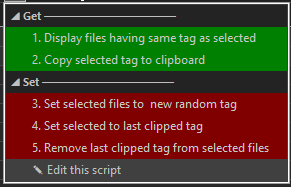
- “Display files having same tag as selected” is meant to be executed after selecting one particular tagged file selected. It will show this file together with all its related siblings in a collection. (But, as I said: in the current setup, only if they are located in the same folder).
- “Copy selected tag to clipboard“ can be used to extend an existing set with a new member. Select 1 file from the older set, and use this option to copy the file’s uniqe tag to the cllipboard. Then look up other files and use option 4 to tag them with the same tag.
- “Set selected files to new random tag” (after selecting all relatable files) will give all selected files a unique random tag. (Alternative is doing this only on 1 file, and then apply it to others one by one via option 4).
- “Set selected to last clipped tag“ is the action you do after action 2 or 3, so the tag set in the clipboard can now be applied to other files, adding them to the same file set.
- Finally, “Remove last clipped tag from selected files” is something you can do after option 2, in order to remove that particular tag from other files that you then select.
To see the tags, you must of course activate the “Tags” column in Opus, or open the metadata panel.
The script, to install via Opus Settings > Install Script:
AltSiblingTagger.opusscriptinstall (5.0 KB)
The menubutton - which you can drag & drop on a toolbar when you are in customize mode:
AltSiblingTagger_menu.dcf (3.4 KB)
@errante, @Bennjamin: Thanks to both of you; it’s a shame that Benjamin’s solution only works for files in the same folder. So I tried the solution suggested by Errante. I wasn’t familiar with Collections. If I’ve understood correctly, I can create a new one for each project—for example, with a client—put all the files relating to that project into it, and work on those files without needing to leave the Collection folder, right? So the advantage is not having to open another 3 or 4 folders every time. However, I’m already doubting that, in the end, creating a collection for each project every time, tagging the files and placing them in the Collection, will actually offer a significant advantage in terms of time-saving compared to leaving the files in their respective source folders. In my initial experiments, I think I’ve already made a mess of things: as I couldn’t see the ‘File Collections’ option (I can see it now), I created a new collection in the left-hand tree under the ‘Collections’ heading (which contains Documents, Pictures, Music, etc.) and added some sample files, but now I can’t remove them; in other words, if I delete them, they also disappear from their original location. How can I delete only the files from the new Collection and keep the files in their original folders? Following the instructions in the guide, I saw that to delete the file only from the Collection (and not from its original location), I need to right-click the file and select ‘Remove from Collection’. However, this option isn’t available in the Collections, so at the moment I can’t delete the files from the Collection.
I am attaching this screenshot to explain that, in the Italian version, ‘Raccolte’ and ‘Collezioni’ are two different things https://imgur.com/a/e9huVNS
Collections (or Collezioni) are virtual folders, so when you copy something into them, you're not actually moving the files; they remain in their original location. Libraries (or Raccolte) are a different thing.
However, when you delete an item from a collection, make sure you're using the "Remove from Collection" option and that you haven't changed the default command for that entry. It should be Delete removecollection (You can check this in Settings/FileTypes../Collection Item). You can also use Delete removecollection=auto from a separate button to be safe.
Tagging the files wouldn't be necessary, unless you tend to move/rename those files from their original location.
Since this is Opus, you can automate most (or all!) of the tasks. For example, you can use these instructions in a button to add the selected items to the desired collection (it will prompt for a name), then open the collection (and create it if it doesn't exist).
@set coll_name = {dlgstring|Collection name:|}
CreateFolder NAME="coll://{$coll_name}" READAUTO=dual,tab NOUPDATESETTINGS
Copy COPYTOCOLL=member TO "coll://{$coll_name}" WHENEXISTS=skip
What version of Opus are you using? v13.22?
If errante’s solution works for you, all the better. (My only suggestion would be: if you need to create hundreds of different relations, having hundreds of collections sounds like serious overhead to me - althought it may just work fine, I’m a layman when it comes to collections).
TWO UPDATES: (1) I added the use of fixed path and also subfolders, and (2) I added the possibility to manage tags in the filenames directly (much faster for a lookup). Both of these were useful for me (and somewhat planned a while ago), and my post above now has the updated files for download.
To set up one or more paths is easy, there’s a few example paths added on top of the script. Subfolder-depth to search for files can be tuned, and certain file type groups can be excluded or included (e.g. exclude Archives, Music, etc. files). This does decrease the time needed for the search to complete especially for tags in metadata, as the script does not have to load metadata for every file in the designated folders.
For full speed the best option remains tags in the filename, but the metadata option works fine too, just slower. With filename tags, a file like, say,
This is invoice number 12345.pdf
would then become something like:
This is invoice number 12345 [$C1133A562].pdf
The tag could be made shorter, but not too short, for reasons of unicity.
If files already have something like an invoice number in the name then tagging does not even seem necessary. It would be easier (and fast) to find related files by just searching (with RegEx) for a particuar number.