I made a video to show what I meant by that.
It happens here when the Apply button is pressed after either a description or tag edit.
Or is it not a bug ?
1 Like
Thanks. I see where is the problem now. Fixed in 0.9.5
slight glitch - using this command
BackgroundChanger CLIP=fullpath
TagMaster FULL FILES "{clip}"
it is successful but usually requires 2 attempts.
Sometimes the first attempt is blank and sometimes it is the previous one used
I have logged the file being sent from the command using @output:"{clip}" and there is no problem with the path being sent to TagMaster. Both attempts show the same file.
Try setting log level to debug and following the logs from there.
This script uses a helper to read the files. If there are no valid files, the window will be displayed in that state (disabled but operational).
Sometimes {clip} might not point to a valid file or the file might not be readable at that moment. A very rare case would be if the script terminates abruptly and the helper cannot finish. Then the next time the script starts and sends the file to the helper, it will tell it that the file has already been processed, which means it doesn't need to be loaded again.
The log should show you which case it is.
hmmm - TagMaster not showing anything now, no matter how many presses.
The first time it was sent something called ConfigFiles instead of the pathname from clip
and subsequent times I get this
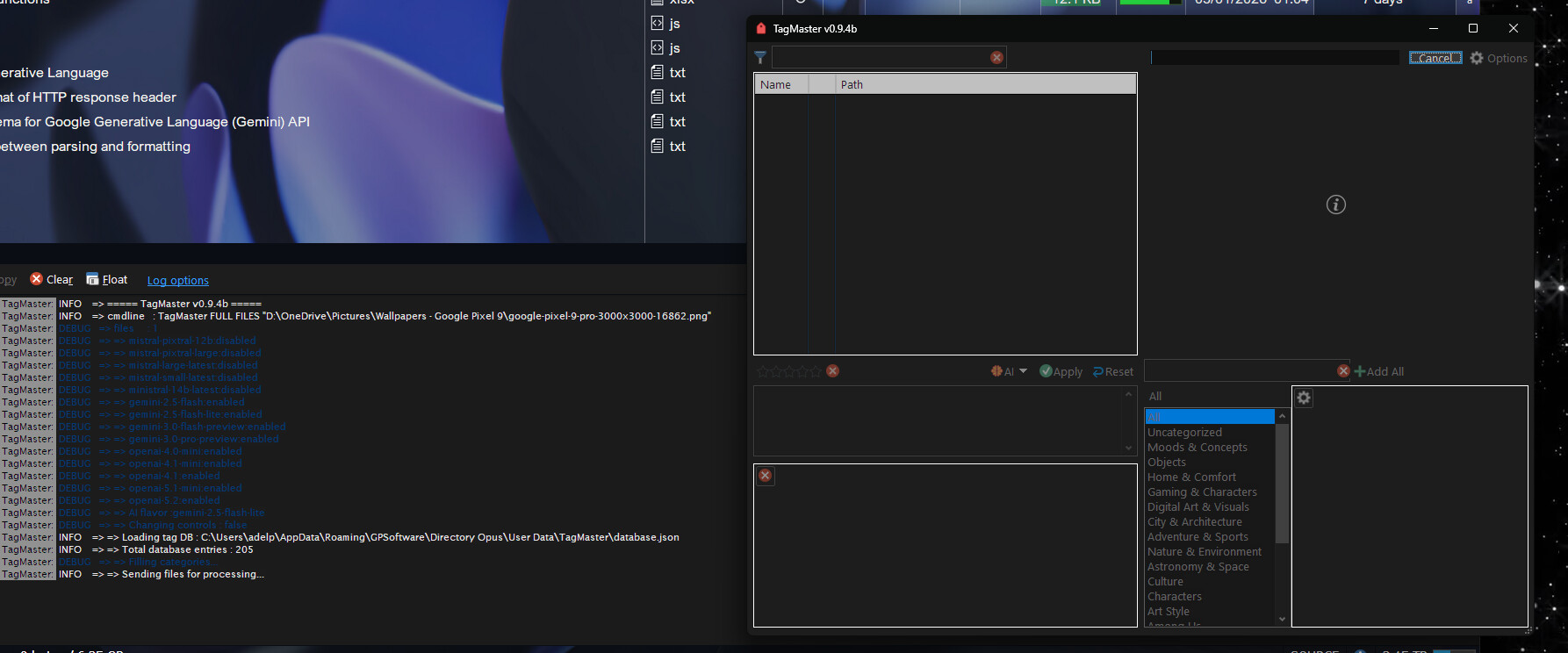
correct pathname but no image
That should be up to whatever {clip} is.
It looks like for some reason the helper goes wrong (very rare) and crash, so the dialog thinks the helper is still running when it's not. Try restarting Opus, that should clear all variables.
Also keep an eye on what you're doing when the helper crash. It should show an error icon in the status bar, since it would be an uncaught error.
deleted and reinstalled and it is showing images and tags now 
Not the correct image though 
here is ss of debug command

here is ss of @output clip

the 2 files are not the same, the clip is accurate.
EDIT. this is error using TagMaster after changing logging back to warning

This is what happened before, now TagMaster is showing no images, even if used normally.
Restarting Opus does fix issue.
an image of my toolbar, 2 tagmaster icons, one for selected file(s) and one for background changer.
Thanks. Fixed in 0.9.5.
As for the other issue, really is not something the script is doing or has anything to do. Is literally the file you're passing in the command line so might be worth checking your other command.
I'll upload the next version hopefully between tomorrow or next week, as it has many changes and new things to test first (autotag as a separate mode, support for addons, etc.)
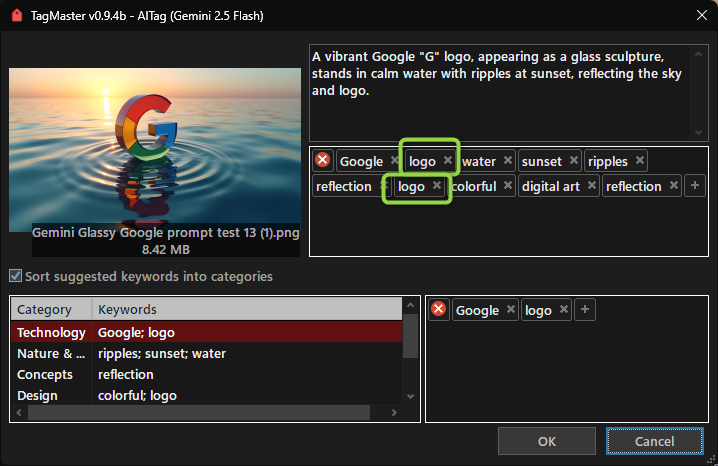
duplicate tags.
Also, some of my images already have descriptions (prompts and settings) that I don't want overwritten. The current solution - copy the original description, scrape tags & new description, paste old description back - is cumbersome. Can you put an option (checkbox or setting) to not scrape description ?
Did you add the duplicate manually? To be honest, I don't think I ever tried that. Those controls have a property called "avoid duplicates". I always figured it was used to prevent these kinds of cases. Manual cleaning will then be necessary. Thank you for noticing. But fwiw, the dupe won't be added, due to the type of object being used. So the problem would only be visual.
I don't think so, since the purpose of using autotag is to set (which means replace the current values) tags and descriptions. The same applies to tags.
Perhaps an option to do only one of the two, although we'll have to think about where to put that option, since version 0.9.5 changes that dialog a lot.
I'd like to hear about other use cases.
I think that if you erase the auto-description value, then the current one is not replaced.
That works, thanks.
v0.9.5b:
GENERAL:
- Requires DOpus v13.20.3 or later.
- Argument
NOAIremoved. It is now part ofFULL. To enable AI options, useFULL=ai. - New argument
AUTOTAG. Allows using AI models to automate tagging and description tasks for images and PDFs. Optionally supports unattended mode. FILTERnow applies to the item's full path, not just the name.
FULL:
- Fixed a bug that could add keywords to the database even when they already existed.
- Fixed a helper failure when obtaining items if empty values or non-convertible values were passed.
- Fixed selection jumping to the first item when applying changes in FULL mode.
- Fixed the possibility of inserting duplicate keywords when using AutoTag.
- Fixed a possible case where conversion failed and an unsupported original file was sent.
- UI changes. File properties can now be shown alongside the preview by pressing F7 (acts as a toggle).
- If
FILESis used, the selected items in the active tab are no longer used as a fallback (to avoid confusion). If invalid values are passed toFILES, the command will indicate at least one file is required (it will no longer attempt to continue with the fallback). - Changes to AutoTag. When pressing the AI button, the following modifiers are now allowed (combinable):
- Alt: Skip description
- Ctrl: Skip keywords
- Shift: Add extra context
- Added support for custom models. You can now add your own compatible models as add-ons (more details in the Custom Models section).
- Support for changing the AutoTag model from the same dialog, plus the ability to "Redo" a request.
- Auto description, keywords, and categories can be omitted at runtime.
- When converting an image to another format, if the resulting file is larger than the original, the original will be used when possible (now a pre-check is made instead of assuming the result is always smaller).
- All temporary images created are now deleted immediately.
AUTOTAG:
-
All other arguments are compatible (except
FULL, obviously). You can pass more than one file and even folders to be read. -
Only image files and PDFs are supported (depending on the model).
-
Allowed values:
[model name]model name: Default values are:
mistral-pixtral-12b
mistral-pixtral-large
mistral-large-latest
mistral-small-latest
ministral-14b-latest
gemini-2.5-flash
gemini-2.5-flash-lite
gemini-3.0-flash-preview
gemini-3.0-pro-preview
openai-4.0-mini
openai-4.1-mini
openai-4.1
openai-5.1-mini
openai-5.2
any internal name of a valid custom model
If not used, you can choose one from the list (except in unattended mode).unattended: Use unattended mode. A valid model must be specified for this case.nodesc: Omit description.notags: Omit keywords. Impliesnocats.nocats: Omit categories in keywords.
Autotag Notes:
- Works identically to AutoTag in
FULLmode, but separately and with multiple files. - Optimizes processing time by pre-anticipating conversions and requests (requests are made ahead of time and not only for the file currently visible in the dialog). This maximizes throughput.
- In regular mode, it allows editing the obtained data as usual, as well as changing the model at runtime and redoing a request.
- Unattended mode automates processing with the chosen parameters and requires sufficient credits for the selected model (use common sense regarding the number of files to process).
- Some options accessible from the
FULLmode Options dialog apply here, such as image conversion and the language to use. - Files that encounter errors during processing are sent to a collection for identification. Useful especially in unattended mode.
- Consider this mode alpha: it may have bugs, report them with reproducible steps.
Custom Models:
Originally, this script allowed loading models through a UI. As of v0.9.5 this feature is partially restored.
To add a new model, create a JSON file in /dopusdata\User Data\custom models.
Each model file must be a valid JSON containing at least the following data (example for using gemma3 via Ollama is shown below).
Note that placeholders are used to inject data into the JSON. Placeholders are: __prompt__ (required), __base64_file__ (required), __schema__, __text_schema__, and __mime_type__.
The data value must be the same valid JSON structure the model expects for sending files encoded in base64. Consult the specific model's documentation to know this format. text_data contains information for sending/receiving text. Both are optional if the model doesn't support that input type—but at least one must exist.
response holds an array that "leads" to the response in the JSON object the model returns. Consult the model's documentation for this.
The model must also support structured outputs, which this command uses to obtain the response. The schemas for both cases are provided by the command and should not be part of the JSON; use the __schema__ and __text_schema__ placeholders instead.
modal_vision, modal_text, modal_audio, modal_video, modal_docs indicate the input modalities the model accepts. For example, a model that supports image recognition should have modal_vision (required for this command).
api_name should contain the name of the environment variable (DO NOT PLACE YOUR API KEY here). If the model does not require a key, use no_api_needed.
If the model uses a key, auth must exist and must be an array of 2 values that will be sent as a header with the API key value. Most will use something like:
['Authorization', 'Bearer ']; but other variations exist such as
['x-goog-api-key', ''] ; in that case leave the second value empty.
DO NOT USE the built-in model names, as they will be overridden.
For Ollama, the command assumes Ollama is running at request time (it will not try to verify or launch the program).
{
	"name": "gemma3:27b-cloud",
	"display_name": "Ollama Gemma3 27B cloud",
	"api_name": "OLLAMA_API_KEY",
	"endpoint": "https://ollama.com/v1/chat/completions",
	"auth": ["Authorization", "Bearer "],
	"model": "gemma3:27b-cloud",
	"data": {
		"model": "gemma3:27b-cloud",
		"messages": [{
			"role": "user",
			"content": [{
				"type": "text",
				"text": "__prompt__"
						}, {
				"type": "image_url",
				"image_url": "data:__mime_type__;base64,__base64_file__"
						}]
					}],
		"response_format": {
			"type": "json_schema",
			"json_schema": {
				"name": "keywords_and_desc",
				"schema": "__schema__",
				"strict": true
			}
		}
	},
	"response": ["choices", "0", "message", "content"],
	"modal_vision": true,
	"modal_text": false,
	"modal_docs": false,
	"modal_audio": false,
	"modal_video": false,
	"max_size": 10485760
}
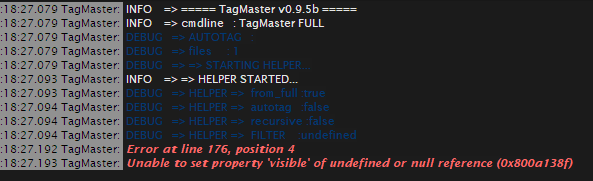
Thanks. Try the latest version. (0.9.6b)
It was an issue when starting the non-ai version 
Note that some arguments have changed since 0.9.5, I'll update the README.
Many thanks, working now
v0.9.7b:
MANAGEargument: Lets you manage your keyword database.- This new dialog can also be opened from the other interfaces, using the Options button in the database panel.
- Importing tags from Opus and auto-organizing keywords have been moved to this new dialog.
- The auto-organize keywords interface has been improved, it now lets you preview the data before accepting or discarding it.
- When new keywords are added from the main interface to a specific category, those keywords will now be removed from Uncategorized if they already exist there.
- You can access AI models that only allow text input to auto-organize your database. (these should be custom models with
modal_text=true). - Categories are now sorted in alphabetical order.
- Fixed a bug that caused the last selected model not to be selected when running the command again.
About the Manage DB window
Lets you manage your database through an easy-to-use interface. Can be invoked as a standalone dialog via TagMaster MANAGE or from existing dialogs, by pressing the Option button in the database pane, and selecting Manage categories and keywords.
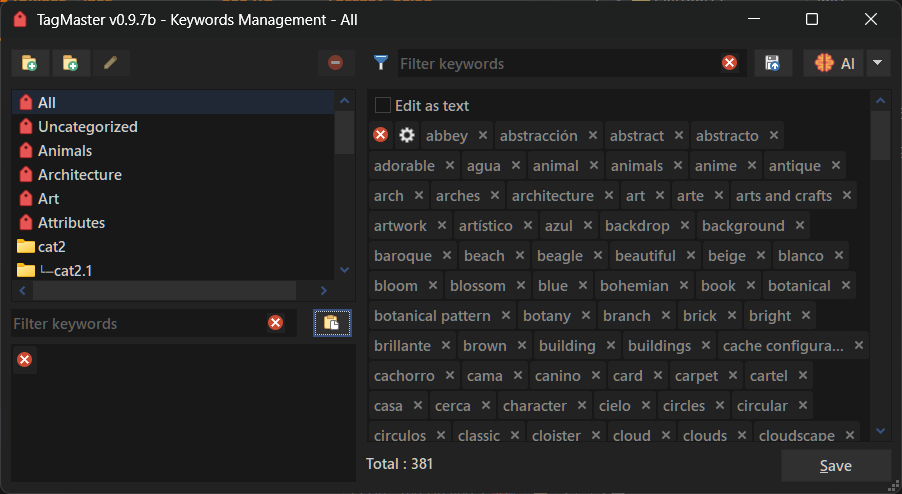
-
You can create new categories, folders, and nested categories.
-
You can delete entire categories.
-
You can rename categories.
-
You can add, edit, or delete keywords in any category.
-
You can import keywords from the Opus database.
-
You can auto-organize uncategorized keywords using the AI models you have available.
-
Create subfolders and subcategories inside folders (by right-clicking a folder).
-
It has a small stack that lets you copy keywords between categories when deleting them while holding Ctrl.
-
It includes an option so that when deleting keywords from a category, they are moved to the Uncategorized section instead of being deleted.
-
Hotkeys:
- F3: Focus filter.
- Escape: One time to clear the filter, another to close the dialog.
- F2: Rename selected category.
- Ctrl + N: Add new category.
- Ctrl + Shift + N: Add new folder.
Whenever you try to save your database from this window, a backup copy of your database will be saved, which you can find in /dopusdata\User Data\TagMaster.
With this, I think this script can be considered finished! 
If you use it and find any issues, let me know so they can be fixed.
Getting ready to release v1.0 
4 Likes
Wow, major update, thank you!Already worthy of a 1.0 title IMHO 
Using 0.9.7b
TagMaster Full
When I click Options then Manage catagories and keywords
Program closes
Script Log
20/01/2026 12:52 TagMaster: Error in categories.js at line 65, position 2
20/01/2026 12:52 TagMaster: 'models' is null or not an object (0x800a138f)
Ah yes. Thanks. That's because you're asking for a non AI version but the keywords management dialog always expect for one. Fixed in next update.
In the meantime you can avoid that by using FULL=ai
v.0.9.8b:
- Fixed an error when starting the command without AI capabilities and trying to open the keyword manager. (This decision is now handled across commands.)
- Fixed the possibility of starting one mode at the same time as another. (due to possible database corruption)
- Fixed some possible race issues when trying to read and process files/folders in AutoTag mode.
- The command will now show a message when no valid files are passed to AutoTag, instead of just waiting for them.
- In AutoTag, the Skip button is now enabled most of the time (let me know if this causes any issues).
- Fixed several possible issues when using AutoTag, where it was possible to interact with controls when it should not be allowed.
- Fixed an error when trying to save new categories through AutoTag.
- Fixed an issue where, when using
AutoTag=unattended, descriptions were not being saved. - Skip and Cancel button no longer cancel the current ongoing request, but only if that request is from the current file. (in AutoTag).
- Many other minor issues fixed, mostly in AutoTag mode.
3 Likes