OpusMediaInfo
All the MediaInfo data you can ask for Opus!
OpusMediaInfo is a script add‑in for Directory Opus that extends the default multimedia columns, letting you pull in any MediaInfo value right into Opus. What really sets it apart is its intuitive UI. No more manual edits just to add some columns. Just preview and pick exactly the data you need, then choose how it'll appear in Opus.
Key Features:
- Full support for virtually every property exposed by MediaInfo, including unofficial ones.
- Easy to use. Just open the config dialog with a file, or drop a file in, pick the properties you want to add by their preview value, and you're good to go.
- A built-in UI to manage which columns you want to add : customize the name, header, type, category, applicable extensions, and more.
- Designed for both casual and advanced users: the interface is simple but powerful enough to define custom rules and formatting.
- Supports both single-value and multi-stream outputs at runtime, no need to tweak the script manually.
- Real-time preview of values in each property, as they'd appear in the file display.
- Fully customizable infotips with special entries that show results live.
- Support for custom columns that can take their value from multiple MediaInfo fields in a single column.
- Easily switch data types on the fly.
- Import/export your configuration easily.
- Data can be retrieved very fast.
- Support for regular Mediainfo CLI.
- Support localization for values.
- Built-in support for caching values based on a configurable file size, with automatic file change detection.
- Dump Mediainfo data for desired files through different formats.
- Much more...
Do you want something like this, but using ExifTool instead? Check out my other project!
Installation:
This script fully support DOpus-Scripting-Extensions by @PolarGoose. First, you'll need to install the latest version from here.
Additionally, you can also use the regular Mediainfo.exe CLI (including localization files), and put it in /dopusdata\User Data\OpusMediaInfo.
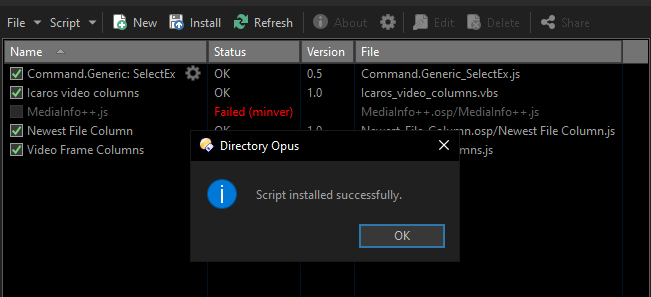
Then install the script as usual. (Required at least DOpus v13.24.3).
Latest version : Download from here
You can always find the latest version published here.
Columns Editor
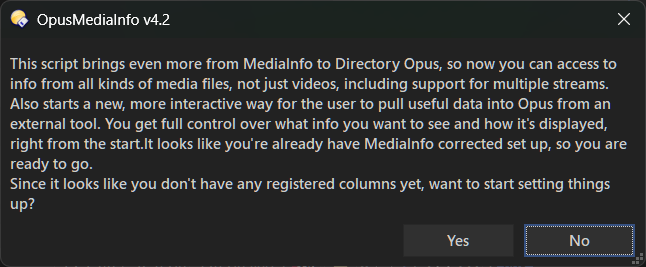
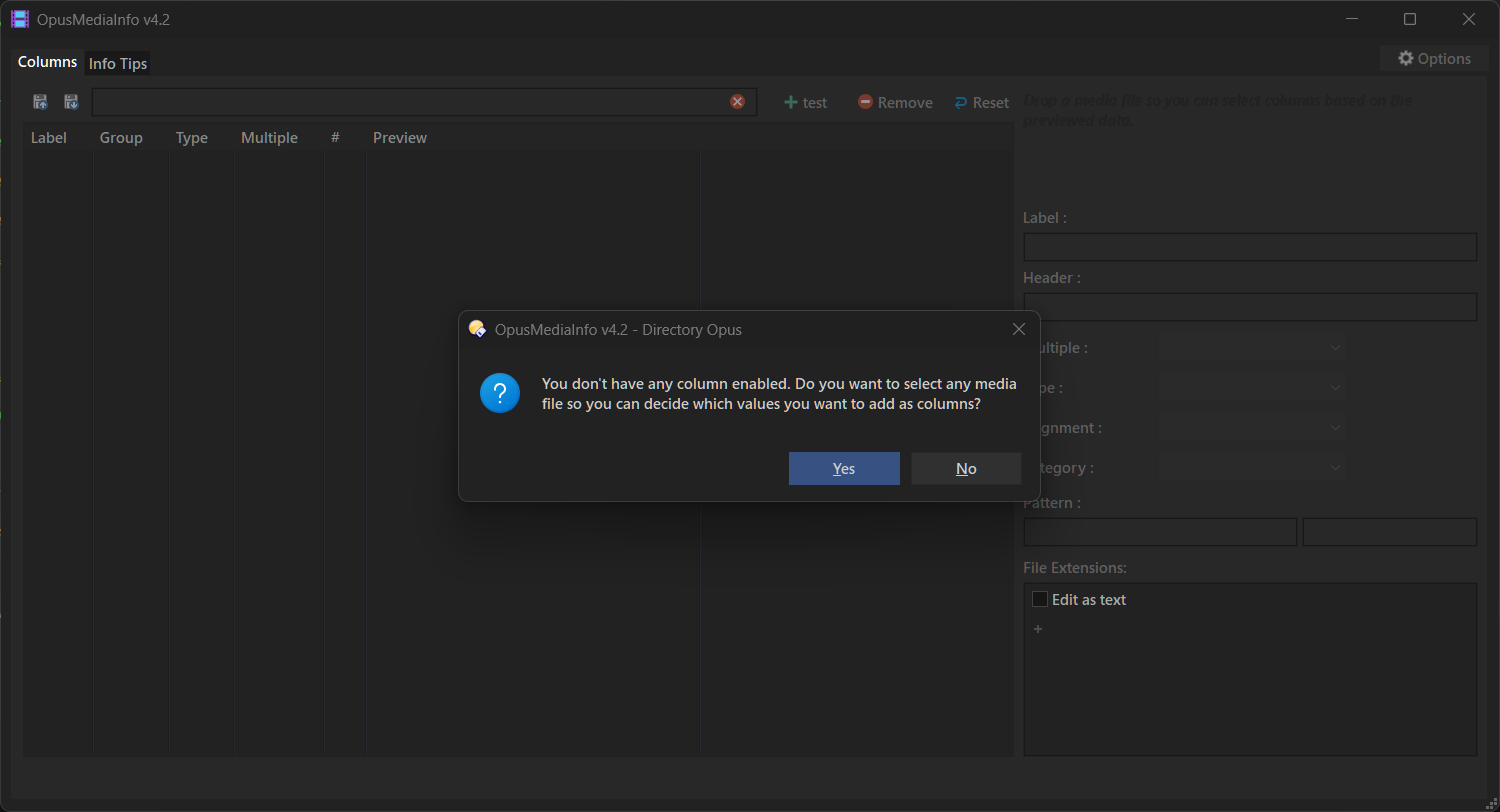
The first time you install the script, it'll ask if you want to start configuring columns, assuming you already have MediaInfo set up correctly. If not, it'll give you some options to continue.
To configure which columns are enabled, you need to open the configuration dialog, which you can do in a few different ways:
- From the Script Management window, click the Configure button.
- Using the
OpusMediaInfo CONFIGcommand. You can also include the fullpath to a file you'd like to preview.
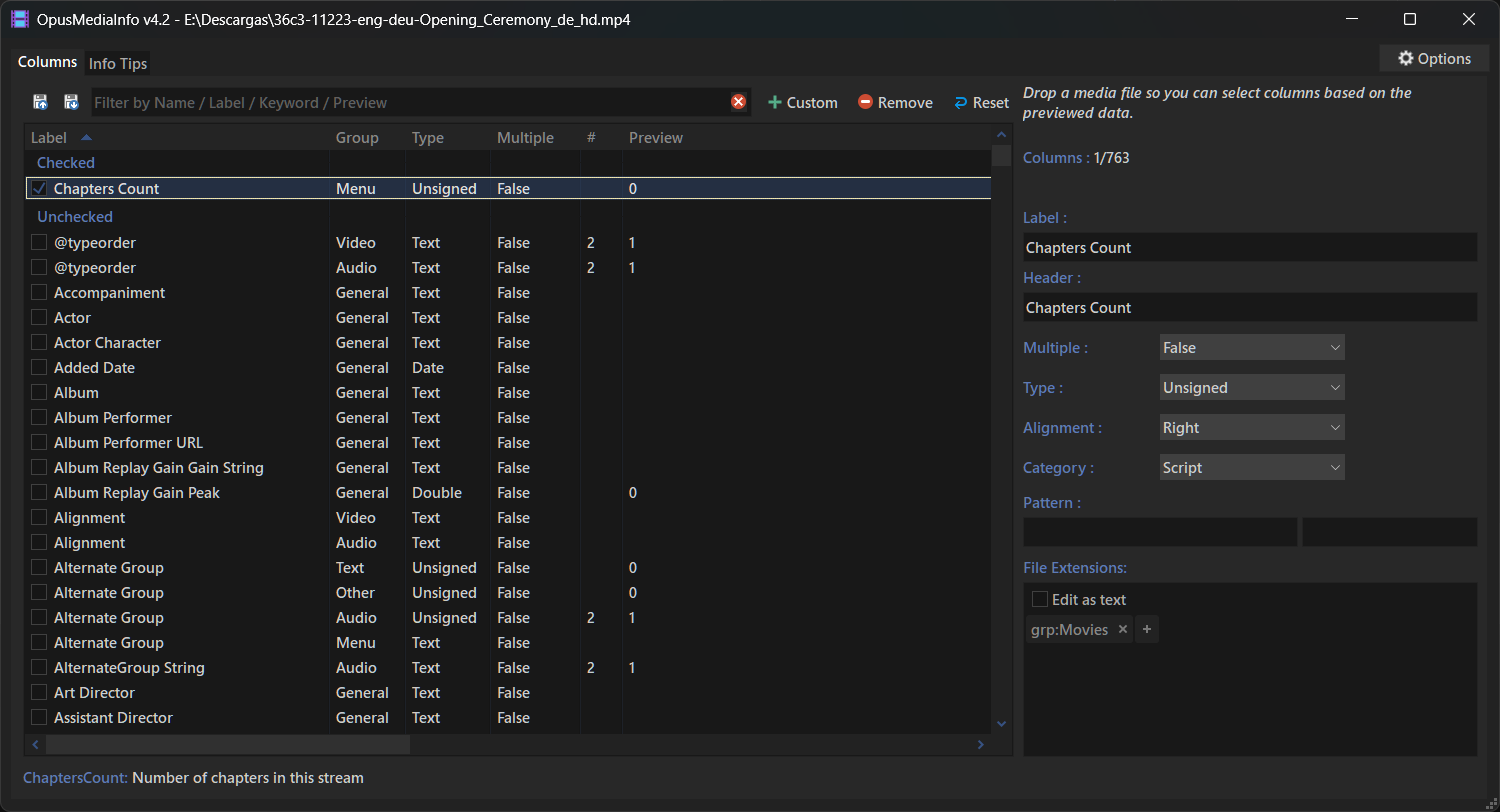
The configuration dialog has two tabs : one for column settings and another for infotips.
When this dialog opens, if there's no columns enabled, you'll be asked to select a file so MediaInfo can fill in the list with values from its inform.
Checked properties are the ones that will be enabled as columns in Opus once you close the dialog.
MediaInfo groups each field into one of the following: General, Video, Audio, Text, Menu, Image, and Other. Each property belongs to only one group, and there can be properties with the same name across different groups. Only properties in the "General" group have a single value; others can have multiple values, one for each stream in the file.
Using the controls on the right, you can edit each column's label, header, type and so on.
The "Multiple" control lets you choose whether the column will show the property for each stream in the group, or just the first one. If "Multiple" is set to "True", the chosen separator will be used to split the values. The list has the "#" column, which shows how many values a given keyword has, useful for deciding its value.
The "Type" control sets the data type of the column's content. Allowed types are: String (text), number (int), double, star (rating), datetime, date, time, duration, and size.
You can change this value and immediately see how it affects the preview below.
Note: When "Multiple" is True, the type is always treated as String, since it's best practice not to mix value types in a single column.
The "Category" control lets you change where the column appears. By default, columns are added under Script > OpusMediaInfo. You can switch this to any other category you prefer. This doesn't affect the behavior or output of the column.
The "Pattern" controls let you apply advanced formatting using regular expressions.
By default, the script uses predefined formats to adjust the type of each value. You can override those with your own.
The first field is where you define the actual pattern to match. Use the same format as ECMAScript literal regex: /pattern/flags.
The second field defines the replacement string. Both follow the same format used in JScript's String.replace(pattern, replace), so compatibility depends on that context.
The listed extensions below are used to determine which files the column applies to.
You can add file type groups using grp: followed by the internal or display name of the group.
You can also list specific extensions (include the dot). Wildcards are not supported.
Every time you open a file for preview, the script saves the listed properties for later use, so you don't have to remember which file had which properties when adding a new column.
You can Export or Import columns from this same window, using the provided buttons.
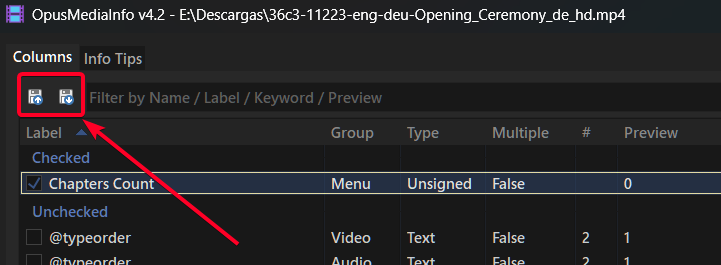
For keyboard navigation, the following hotkeys are active when the list is focused:
Ctrl+L: Focuses the Label field
Ctrl+H: Focuses the Header field
Ctrl+T: Focuses the Type field
Ctrl+M: Focuses the Multiple field
Ctrl+G: Focuses the Category field
Ctrl+R: Focuses the Pattern field
Ctrl+A: Focuses the Alignment field
You can also press F3 to move focus to the Filter field.
After closing the dialog, the columns will be added automatically and will be ready to use in Opus, in any field where they apply.
Note: If the columns are already visible, you may need to refresh the lister to see the changes.
You can also access the Options dialog from here, which lets you configure things like the script log level, the separator used for multiple values, and settings related to cache usage.
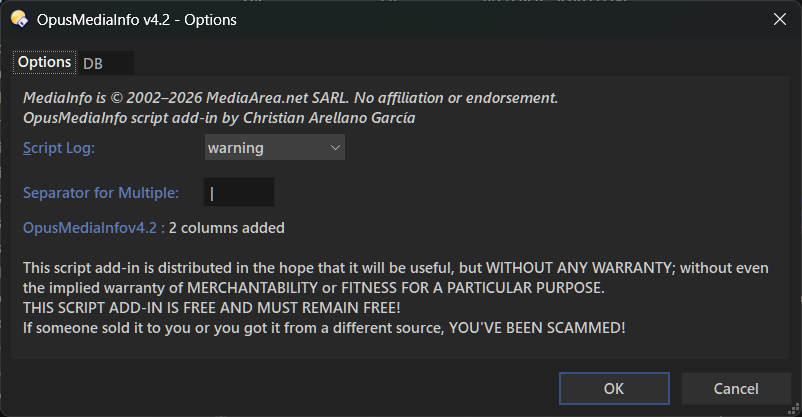
(This dialog is also accesible from the Script Management window, by clicking the About button).
Infotips
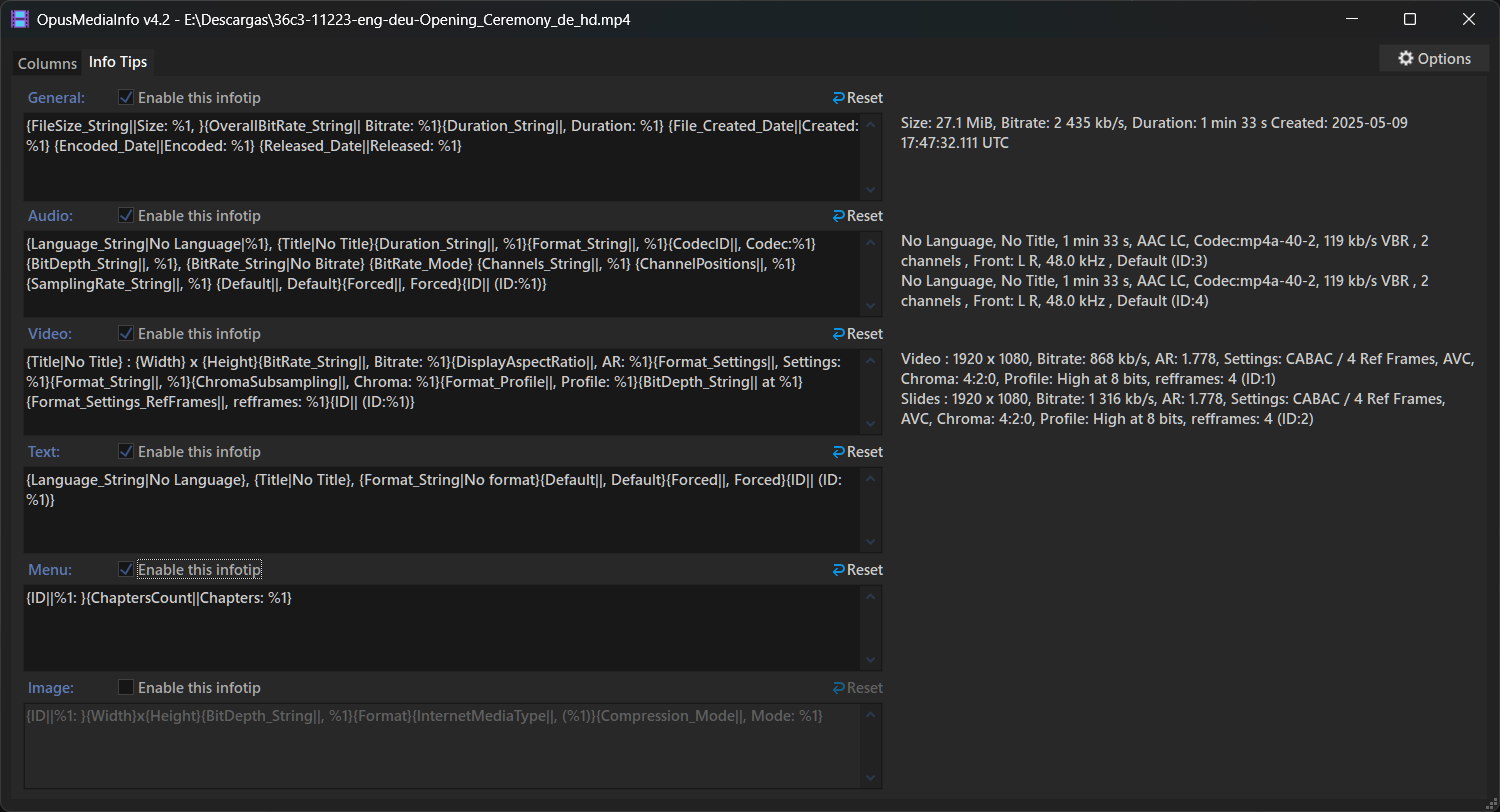
You can create custom infotips for each group and then simply reference them in Opus using their specific keyword.
Available infotips are for: General, Audio, Video, Text, Menu, and Image.
When building infotips, to get the keyword you want, select it from the list and press Ctrl+C to copy it to the clipboard.
Infotips use a special syntax, which basically works like this:
{keyword|value if not available|specific format}
Where parts 2 and 3 are optional.
The specific format expects "%1" to insert the keyword's value in the desired position.
If the keyword doesn't exist, or the text isn't inside {}, the text is passed as is.
These values support all the markup code that Opus allows.
Custom Columns
Since v2.0.0, you can create custom columns that pull values from multiple MediaInfo fields. You can pick multiple MediaInfo fields and order them so the script takes the first value found and shows it as the column value. That way you can have a single column that groups several sources and adapts depending on the file. For example, you can create a column that shows the width of the first video stream for video files, and the image width for image files. There are lots of possibilities.
These columns have the same customization options as the others (type, multiple or not, etc.). The only difference is that their value can depend on multiple fields instead of just one.
To create them, press the "Custom" button in the main UI. That opens a dialog that asks for the name (keyword) of the new column and lets you pick the fields to pull data from and define the processing order.
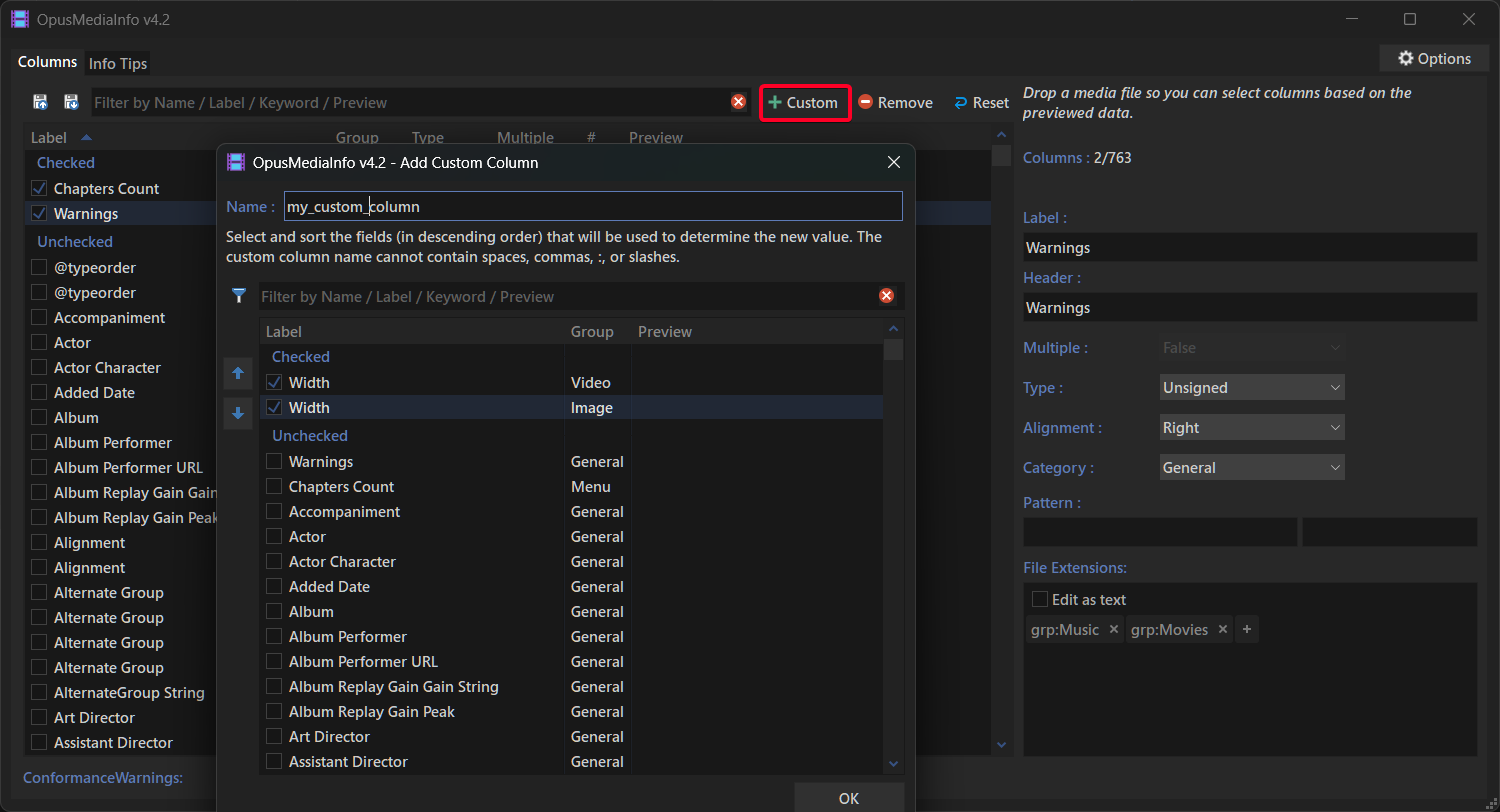
You can also edit existing custom columns using the "Edit..." button. (Only appears when a Custom column is selected).
Command's Arguments
The command support the following arguments:
| Argument | Type | Value | Desc |
|---|---|---|---|
| CONFIG | /O | Shows the dialog windows for configuring columns/infotips. | |
| filepath | Accepts a filepath to populate the preview column right after start. | ||
| EXPORT | /S | Exports columns/infotips to a file. | |
| IMPORT | /O | Imports columns/infotips from a file without deleting existing ones. If no file is specified, you'll be prompted to choose one. | |
| !IMPORT | /O | Imports columns/infotips from a file, deleting existing ones. If no file is specified, you'll be prompted to choose one. | |
| DUMP | /M/O | Save the MediaInfo report for the chosen items to a file. You can pass multiple filenames separated by spaces (use commas if a filename contains a space). If no files are passed, the command will use the selected items in the source folder. | |
| AS | /K | Used together with DUMP, this lets you specify the output format. Valid values are: json,xml,txt,csv,html. |
|
| TO | /K | Used together with DUMP, this lets you specify the outpath path. |
|
| PURGEDB | /O | Performs a database cleanup, if applicable. | |
| path/wildcard | If a text value is specified, it can be the full name of a specific file or a path with * and ? wildcard support. If no value is specified, it removes all values for non-existing items (KEEPMISSINGDRIVES can change this behavior). |
||
| KEEPMISSINGDRIVES | /S | Used together with PURGEDB (without a specified value), it allows you to keep missing entries that are located on unavailable drives (e.g. on an external disk). |
|
| VACUUM | /S | Compacts the database. Use together with PURGEDB. |
Importing from a file
The command supports importing columns directly from a valid JSON file encoded with UTF-8 NOBOM, with the following format:
Details
There are two sections: "columns" and "infotips".
Each entry (KEY) in both groups must have the following properties:
- "label": Cannot be empty.
- "header":
- "align": Must be
left,center, orright. - "type": Must be
string,number,number,signed,size,double,duration,durationh,graph,igraph,percent,datetime,date, ortime. - "category": Must be
music,movie,image,script,size,std,date, orsums. - "enabled": Must be
1or0. - "exts": Cannot be empty; must include at least one
.orgrp:. Multiple values are separated by;. - "group": Must be
General,Audio,Video,Image,Text,Menu,OtherorCustom. - "keyword": Cannot be empty (except for infotips).
- "multi": Must be
trueorfalse. - "regex": The regex used for custom formatting.
- "regex1": The regex flags.
- "regex2": The replacement value for the regex.
- "value": Only for infotips and custom columns. Cannot be empty.
Additionally:
- KEY must follow the internal format for columns (
group_keyword) or infotips (group_infotip).
E.g.
{
	"columns": {
		"Audio_Default": {
			"label": "Audio Default",
			"header": "Default",
			"align": "left",
			"type": "string",
			"category": "script",
			"enabled": 1,
			"exts": "grp:Video",
			"group": "Audio",
			"keyword": "Default",
			"multi": true,
			"regex": "",
			"regex1": "",
			"regex2": ""
		}
	},
	"infotips": {
		"General_infotip": {
			"label": "General_infotip",
			"header": "General_infotip",
			"align": "left",
			"type": "string",
			"category": "script",
			"enabled": 1,
			"exts": "grp:Music; grp:Movies; grp:Images",
			"group": "General",
			"keyword": "",
			"multi": true,
			"regex": "",
			"regex1": "",
			"regex2": "",
			"value": "{FileSize_String||Size: %1},{OverallBitRate_String|| Bitrate: %1}{Duration_String||, Duration: %1} {File_Created_Date||Created: %1} {Encoded_Date||Encoded: %1} {Released_Date||Released: %1}"
		}
	}
}
About cache
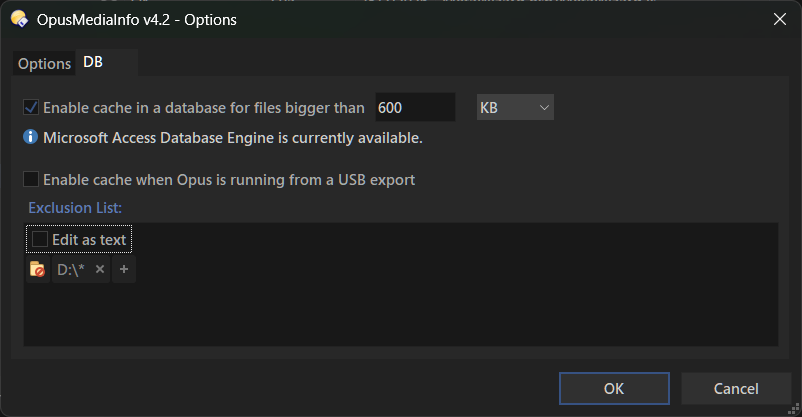
Since v4.0, the script includes optional built-in support that allows you to store data extracted with MediaInfo in a database, so when you need it again, it can be retrieved easily and much faster.
This option is enabled by default and can be changed from the Options window, accessible from the Column Editor or by pressing the About button in the Opus Script Management.
To use this feature, you need to have the Microsoft Access Database Engine installed, which usually comes with Microsoft Office.
If the script detects that the engine is not installed, you will not be able to enable or use this optional feature.
Additionally, you can decide the minimum file size for files whose data will be read and stored in the database.
You can also decide whether this option should be available when Opus is running from a USB export.
There is also be a way to define exclusions with wildcard support, so you can ignore certain files and prevent them from being added to the database.
Notes:
- Starting with version 16.0 of
DOpus-Scripting-Extensions, unit values and certain words will be displayed in the same language Opus is running in. - The script adds certain values to the "Menu" group for convenience:
ChaptersCountandChaptersList. - The script adds the field
Dimensionsfor every stream in the "Video" and "Image" groups. (Its value isHeightxWidthxBitdepth) - Starting with v4.2, the script adds some common predefined columns with suggested file types. Feel free to edit them, and you can still add more entries to the list whenever you drop a file into it.
- Since v3.0.0, conformance tags are supported. You can find the total count for all conformance issues in
General_ConformanceErrorsandGeneral_ConformanceWarnings. This data can be very useful for finding damaged multimedia files or files that have some kind of issue. - You can access to the Options dialog by clicking the About button from the Script Management window.
- For the database cache feature, the script can automatically detect most file changes and update their values in the database by using a file sampling technique that performs micro MD5 checksums. Note that for some plain text files, this technique may fail to detect changes.
- Columns with the same label will be modified internally to avoid duplicates.
- Custom columns can't be used for other custom columns or infotips.
- When using
OpusMediaInfo PURGEDB, note that some paths (e.g., slow remote ones) may take longer to be checked for existence. During this time, the database will not be available.
Acknowledgments/Credits:
- MediaInfo.
- @PolarGoose, for the awesome plugin that makes this project possible.
- Main icon adapted from The Mightiest Icons on the Web
- Opus devs, for an amazing program that goes beyond a file manager.
Changelog
v4.4 (02 - Jul - 2026) :
- Added options to automatically create a backup when opening the configuration window or after importing from a file. These are available in the Options dialog and they are on by default.
- Fixed some crashes when reading edited fields.
- Fixed the label not updating when resetting fields.
- Fixed some issues with the label edit field when editing it.
- Made some corrections to the database implementation.
- Other minor fixes.
v4.3 (19 - Apr - 2026) :
- Fixed incompatibilities introduced in Opus v13.22.4-5.
Full changelog
v4.2 (24 - Feb - 2026) :
- Added the
TOargument to specify the output path when used together withDUMP. - Added the
PURGEDB,KEEPMISSINGDRIVES, andVACUUMarguments to let you clean up your database. - Some common predefined values are now added when opening the Column Editor dialog. You can still add more entries to the list whenever you drop a file into it.
- Minor UI changes.
- Other minor fixes.
v4.1 (14 - Feb - 2026) :
- Improved Options dialog. Database options are now separated and it also includes:
- Ability to disable the DB if Opus is running from a USB export.
- Added an exclusions list. Supports paths and wildcards (no partial matches), to exclude files from the DB based on their path.
- Added some safeguards that could prevent the DB from getting locked in certain situations.
- Other minor changes.
v4.0 (11 - Feb - 2026) :
- Name changed to
OpusMediaInfo. - Several improvements for Columns Editor UI.
- Added support for disabling built-in infotips.
- Added support for database usage.
- Several bug fixes and corrections.
- Other changes.
- Improved support for Conformance Tags (it now recognizes additional, more deeply nested structures in the report).
v3.0 (14 - Nov - 2025) :
- Support for Conformance Tags (Errors and Warnings) from any section. There are now two new entries in the General section:
General_ConformanceErrorsandGeneral_ConformanceWarnings. Both show the total number of conformance-related entries across all sections. - New arguments:
DUMP, which lets you save the MediaInfo report to a file for the requested files, andAS, to choose the format (json, txt, csv, html, and xml). - Fixed an issue that caused tags inside "extra" to not show for sections like Video or Audio.
- Other minor fixes.
- Implemented a fallback for MediaInfo if DOpus-Scripting-Extensions isn't installed:
- Recommended for portable Opus use, since it's slightly slower and shows data a bit differently (e.g., values encoded in base64).
- If the script doesn't detect MediaInfoRetriever, it will look for the CLI version of MediaInfo, which must be placed in
/dopusdata\User Data\OpusMediaInfo\mediainfo.exe - For localization support, place the corresponding .csv files in the same folder. These files can be obtained from the MediaInfo GUI version, from here, or copied from the folder where DOpus-Scripting-Extensions was installed.
- Improved the script uninstall process. It now asks whether you want to delete the config folder (
/dopusdata\User Data\OpusMediaInfo) - The saved-fields file is now moved to the script's config folder. Migration is automatic.
- Now, for date/datetime columns, you can pass a partial date (year or year/month) only. This is useful for fields like ReleaseDate or TaggedDate, where sometimes only the year is available. In those cases, the date is set to 01/01/year.
- Improved preview for date/datetime type fields.
- Fixed an error for multi-value columns and empty values.
- Added support for base64-encoded values (very rare, but possible)
- Minor UI fixes.
- Fixed an issue where custom columns didn't get values from the General group in some cases.
- Fixed the default value for datetime-type columns, which showed 0 instead of "".
v2.2.0 (06/09/2025) :
- Fixed a bug getting values from certain columns of type "String".
- Fixed a bug that could potentially pull values from other columns in some cases.
- Fixed Ctrl + C hotkey not deactivating when the list no longer has focus.
v2.1.0 (06/09/2025) :
- Import routine for columns has been improved.
- When exporting columns, only enabled ones will now be taken into account.
- Added some protection to prevent invalid characters in keywords.
- Fixed the possibility of having 2 or more custom columns with similar names (different match case), since they could cause confusion or problems when using those columns elsewhere in Opus.
v2.0.0 (05/09/2025) :
- New: Custom Columns
- Now you can create custom columns that access multiple MediaInfo fields to get their value. This way you can have, e.g., a single column that shows the width of the first Video stream if the item is a video, or the width of an image if the item is detected as an image.
- These columns have the same customization options as the others (type, multiple or not, etc). The only difference is that their value can depend on multiple fields instead of just one.
- To create them, from the main UI press the "Custom" button, which opens a dialog that asks for the name (keyword) of the new column and lets you pick the columns to pull data from (and define the processing order).
- Added new column types: signed integer, unsigned integer, percentage, graph, inverse graph and duration with hours.
- Added
Dimensionsfields for all streams in the "Video" and "Image" groups. (Its value isHeightxWidthxBitdepth) - General improvements to item processing to obtain values, which speeds up the overall process.
- Using the same label for columns in the same category is allowed. (they don't get hidden in the columns selection menu)
- Added support for custom columns when exporting/importing columns.
- Minor UI improvements (like tooltips, new icons, etc).
- Other general fixes.
v1.6.1 (14/08/2025) :
- Improved handling of certain cases (not currently reachable but possible in the future) where checking for updates might encounter an invalid pattern. Additionally, logs have been added for situations when the connection cannot be completed.
v1.6.0 (13/08/2025) :
- When filtering the list, diacritics are now ignored.
- The script can now detect new releases and notify you (both in the "About" dialog and the Configuration dialog).
- Updated the "About" dialog.
- Added support for English(UK) language. (If you'd like to help add support for your language, DM me.)
v1.5.1 (13/07/2025) :
- New column in the config window that shows how many values a given keyword has—helpful to decide whether it's worth enabling "Multiple".
- New "About" dialog. It includes useful info, like the number of columns added, and the script log settings have been moved there for easier access.
- Added the ability to import/export columns from the configuration window.
- Better handling when trying to import/export columns via command arguments while the config window is open. This should no longer be allowed.
- Fixed some quirks when previewing values in the config dialog. Now, all values are reset every time a new file is used, to avoid confusion with metadata from a previous file.
- Fixed an issue where some values weren't being reset properly.
- Other minor fixes and improvements.
v1.0.1 (03/07/2025) :
- If a column value isn't found, it still respects the data type the column returns (so for a column of type number, it shows 0 instead of leaving it empty).
- Fixed the text in the welcome dialog. (It shouldn't say preview anymore)
v1.0.0 (02/07/2025) :
- Initial release.

 )
)