See Also: Folder Formats FAQ
To make Directory Opus always start in a specific folder:
Directory Opus 13:
-
Set up a lister window how you want it, including any folders/tabs you want.
-
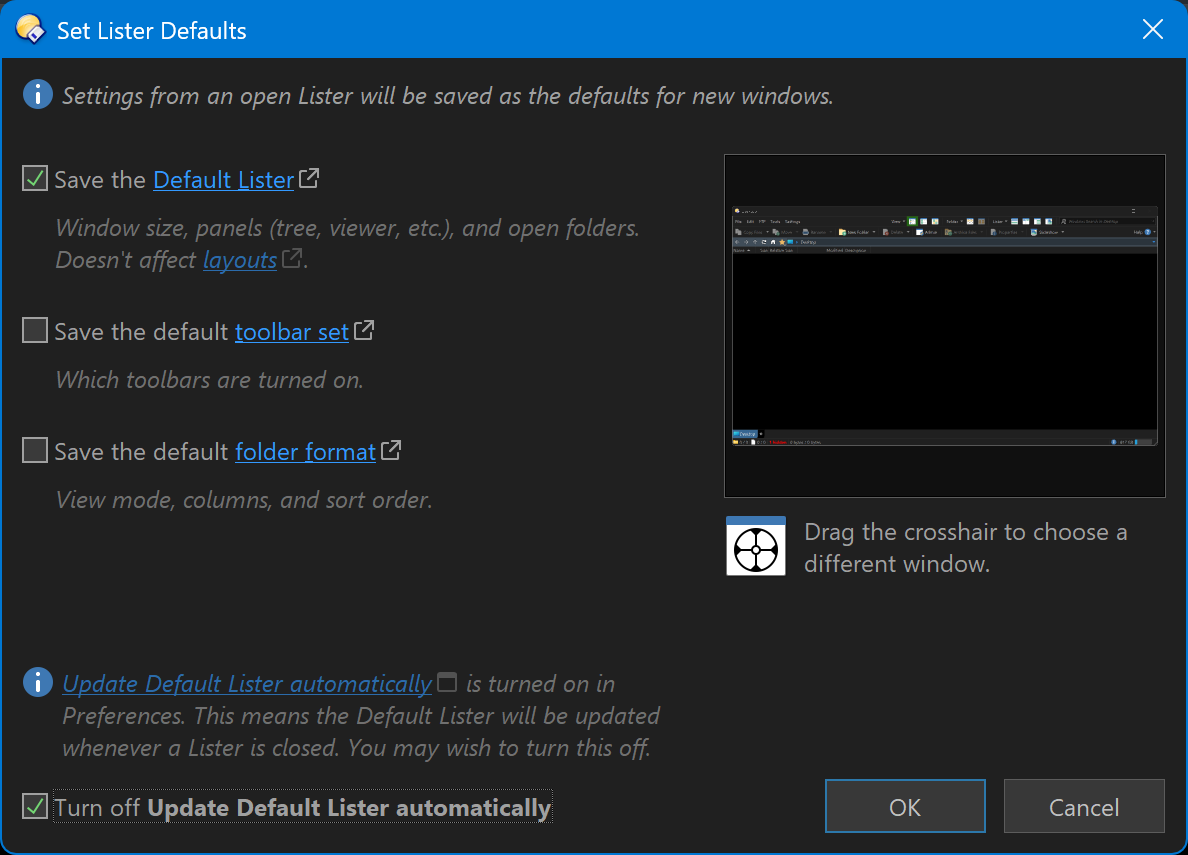
Use Settings > Set Lister Defaults
-
Make sure Save the Default Lister is selected, near the top
-
Near the bottom, if the option to Turn off Update Default Lister automatically is there, select it as well, otherwise your initial folder will change each time you close a window.
Older versions:
Older versions didn't have the same Set Lister Defaults dialog, but the same settings can be configured in a very similar way:
-
Turn off Settings > Preferences / Launching Opus / Default Lister / Update Default Lister automatically when closing a Lister.
-
Set up a lister window how you want it, including any folders/tabs you want.
-
Use Settings > Set as Default Lister to save that as the default.
Layouts:
If you have modified your configuration to open a Layout (or something else) instead of the Default Lister, you may want to change it back under Preferences / Launching Opus. Alternatively, update your Layout to open the folder(s) you want.