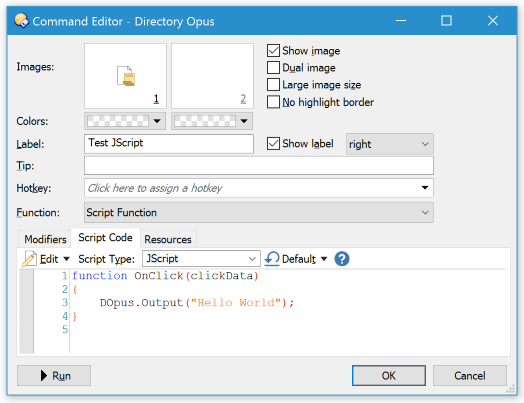
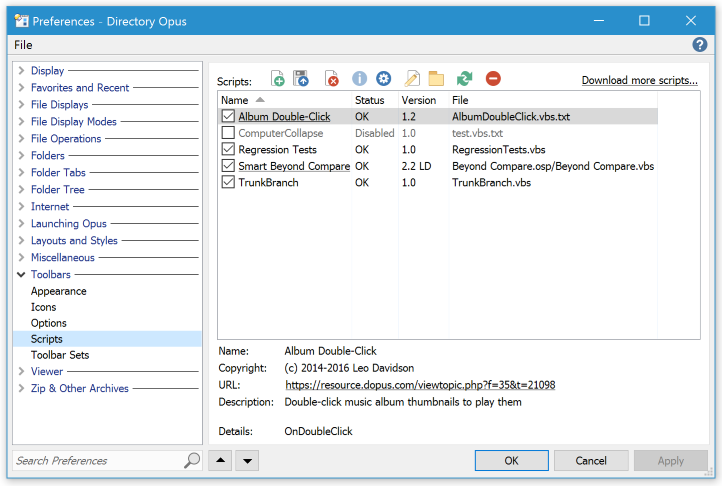
This post explains how to add buttons to toolbars and menus, and also applies to raw commands for things like standalone hotkeys.
For how to use Script Add-Ins, please scroll down to see the post below this one.
Much of this assumes Directory Opus Pro. While Opus Light does have the ability to edit some toolbars, it is not a focus of the Light version and much less extensive.
See Also: The manual has more detail in Editing The Toolbar and the Customize section in general.
Buttons and toolbars can be shared in several different ways.
Raw Commands
Posts often contain commands which you can put in a button, hotkey or menu. For example:
Copy INSTALLFONT
To create a toolbar button which runs that command:
- Select Settings -> Customize Toolbars (the Customize window will open; keep it open but move it out of the way)
- Back in the main window, right-click your toolbar somewhere and (depending on where you clicked) there will be a New or Insert New sub-menu. Click that sub-menu, and then New Button.
- Right-click the button that was just added and choose Edit. (Or double-click the button.)
- Prior to Opus 13:
For single-line commands: Paste the command into the Function field.
For multi-line commands: Click the Advanced button, then paste the command into the big area at the bottom. - Click OK in the button editor, then OK in the Customize window.
For more details, see Editing the Toolbar in the Opus manual.
XML Button Definitions
Some posts contain blocks of XML which define all aspects of a button (or even a menu containing several buttons).
These blocks of XML define not just the command (like in the Raw Commands example above), but also the button's icon, label and other attributes.
Don't worry, you don't need to know anything about XML. You just need to copy the text and paste it to your toolbar to create the button.
Here is an example:
<?xml version="1.0"?>
<button display="both" separate="yes">
	<label>Install Font</label>
	<icon1>#otherplugins</icon1>
	<function type="normal">
		<instruction>Copy INSTALLFONT</instruction>
	</function>
</button>
(What the button does isn't important for this explanation but, if you are wondering, it installs any selected font files into your system.)
Here's how to take the code box above and turn it into a button in a toolbar or menu:
-
In your web browser, copy the contents of the code box to your clipboard.
The easiest way is to use the button in the top-right corner of the code box:

Alternatively, select everything in the code box and right-click to copy it to your clipboard.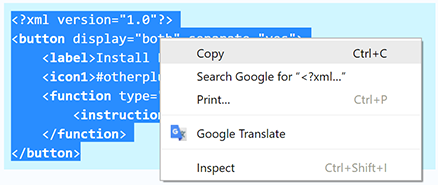
-
Switch to Opus and enter Customize mode via the menu: Settings -> Customize Toolbars
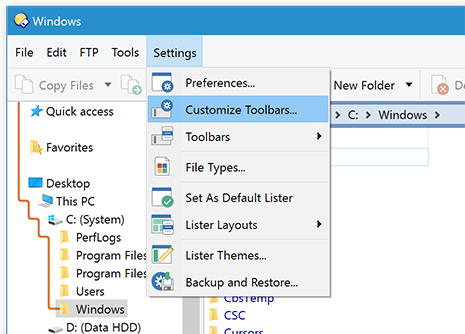
The Customize dialog will open and your toolbars and menus may change appearance slightly.
-
Find where you want to put the new button in your toolbars or menus, then right-click that place and select Paste.
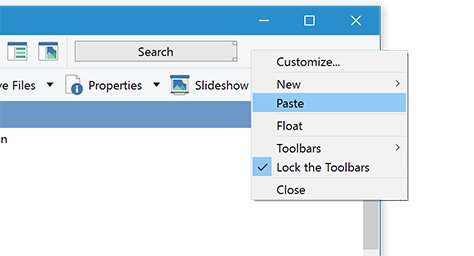
(The screenshot shows the menu you get if you right-click an empty part of the toolbar. You'll get a slightly different menu if you right-click one of the buttons on the toolbar. In either case, you still want the same Paste item.)
The button will have been added to your toolbar or menu.
-
(Optional)
While in Customize mode you can move and edit your buttons and menus:
- To move buttons simply drag them around.
- To create a separator bar between two buttons, drag one slightly away from the other until a marker appears.
- To change the appearance of a button, for example to remove the label or put the label in a different place, right-click the button and select Edit (or double-click it).
-
Click OK in the Customize dialog to exit Customize mode and save your changes.
The new button is now ready to use.
(See also: Sharing functions with others, in the Opus manual.)
Toolbar .dop Files
A few posts contain entire toolbars, in .dop files. To load one, simply double-click it and Opus will import it.
Button .dcf Files
Individual buttons can be stored as .dcf files by dragging them to your desktop while in Customize mode.
 If you double-click a .dcf file it will run the commands inside it.
(If you open a .dcf file in a text editor, you'll see it is similar to the XML codes shared on the forum. It's really just another way of storing the same data.)
To add a button from a .dcf file to your toolbar:
- Download the .dcf file and navigate to where it is. (If it is inside a zip, extract it first.)
- Select Settings -> Customize Toolbars.
- Drag the .dcf file to your toolbar.
- Click OK in the Customize window.